 Arq. Gustavo Garcia ARCHS


Detailed Usage Guide
📖 Quick Views Parametric - Complete User Guide
🚀 Getting Started
1. Installation:
- Download the add-on package
- In Blender, go to `Edit > Preferences > Add-ons`
- Click "Install" and select the ZIP file
- Enable the add-on in the list
2. First Setup:
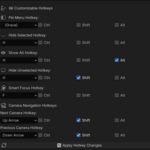
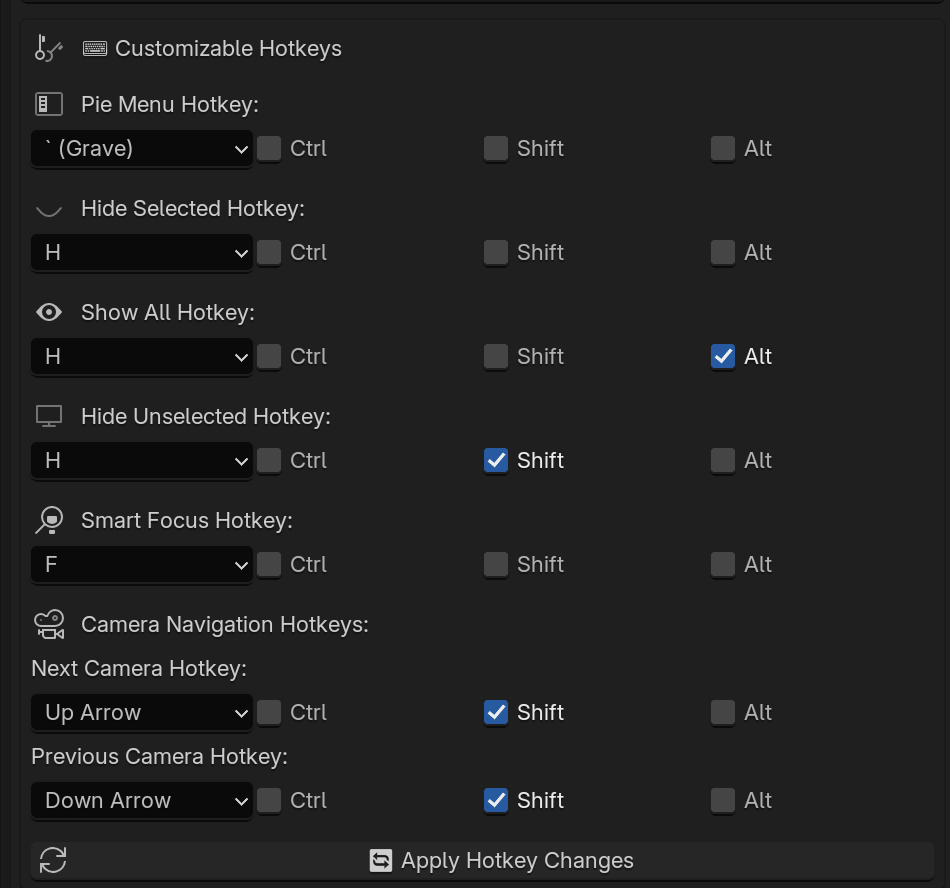
- Configure your preferred hotkeys in the add-on preferences
- Click "Apply Hotkey Changes" to activate them
- Explore the sidebar panel in the 3D View (View tab)
⌨️ Hotkey Functions
| Function | Default Hotkey | Description |
|----------|----------------|-------------|----------|----------------|-------------|----------|----------------|
| Pie Menu | ` (Grave) | Opens the radial menu with all view options |
| Hide Selected | H | Hides currently selected objects |
| Show All | Alt+H | Shows all hidden objects |
| Hide Unselected | Shift+H | Hides all objects except the selected ones |
| Smart Focus | F | Focuses on selected objects with padding |
| Next Camera | Shift+Up Arrow | Cycles to next camera in scene "It doesn't matter if it's in camera view, it works just the same." |
| Previous Camera | Shift+Down Arrow | Cycles to previous camera in scene "It doesn't matter if it's in camera view, it works just the same." |
🥧 Pie Menu Navigation
1. Press your configured pie menu hotkey (default: `)
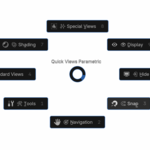
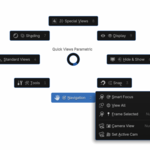
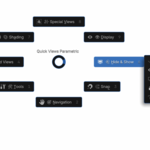
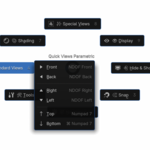
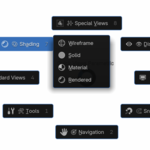
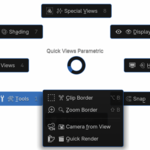
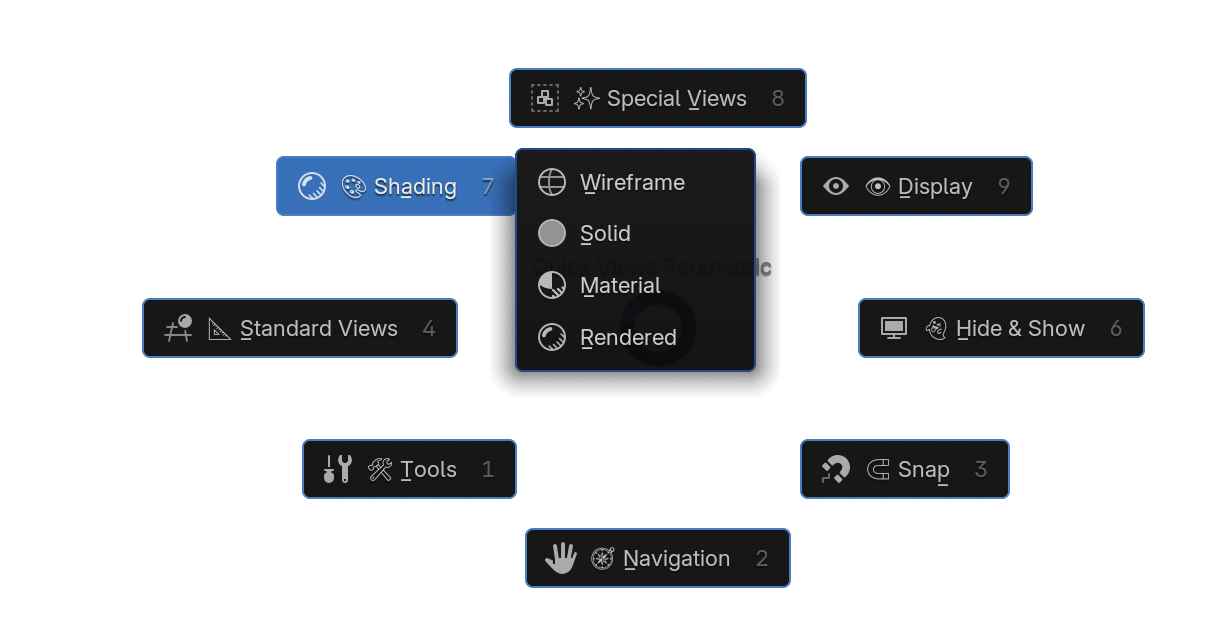
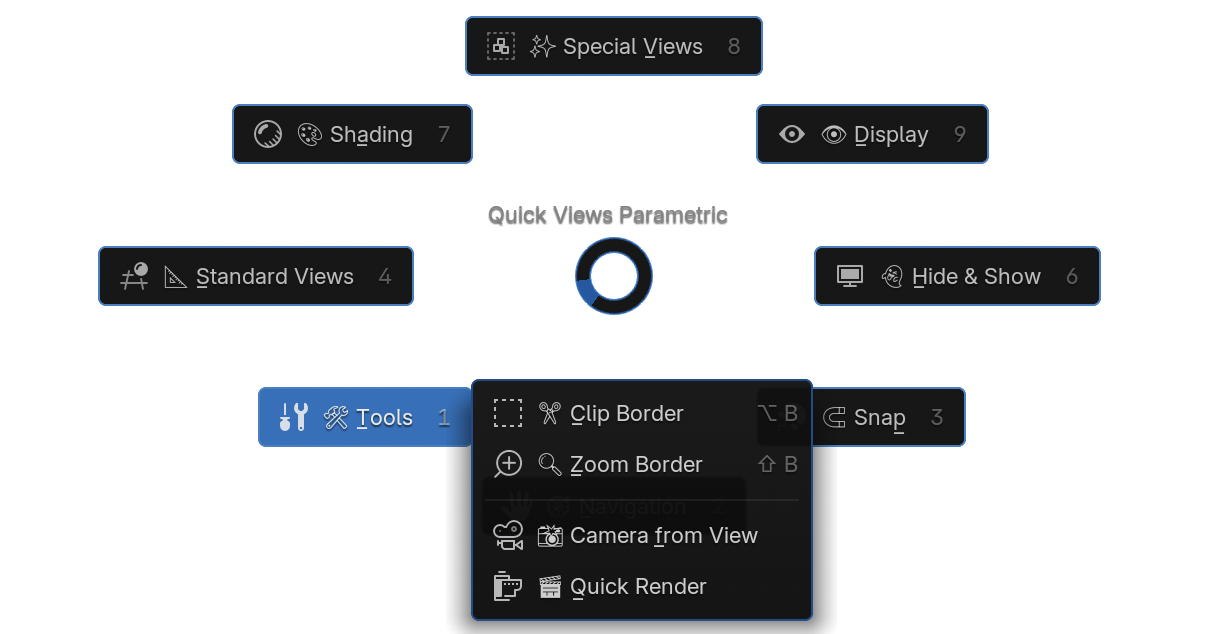
2. The radial menu will appear with 8 sections:
- 📐 Standard Views
- 👻 Hide & Show
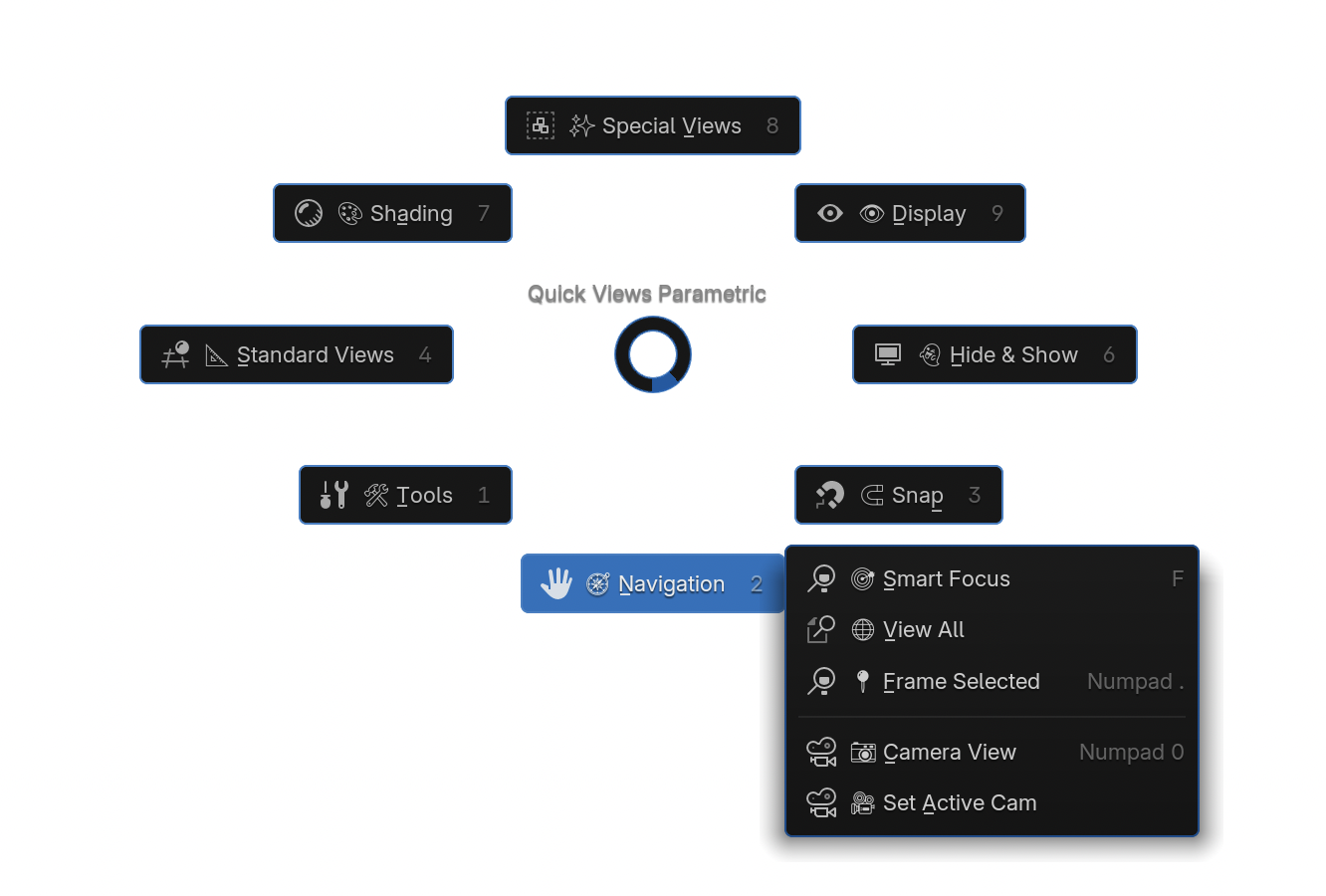
- 🧭 Navigation
- ✨ Special Views
- 🎨 Shading
- 👁️ Display
- 🛠️ Tools
- 🧲 Snap
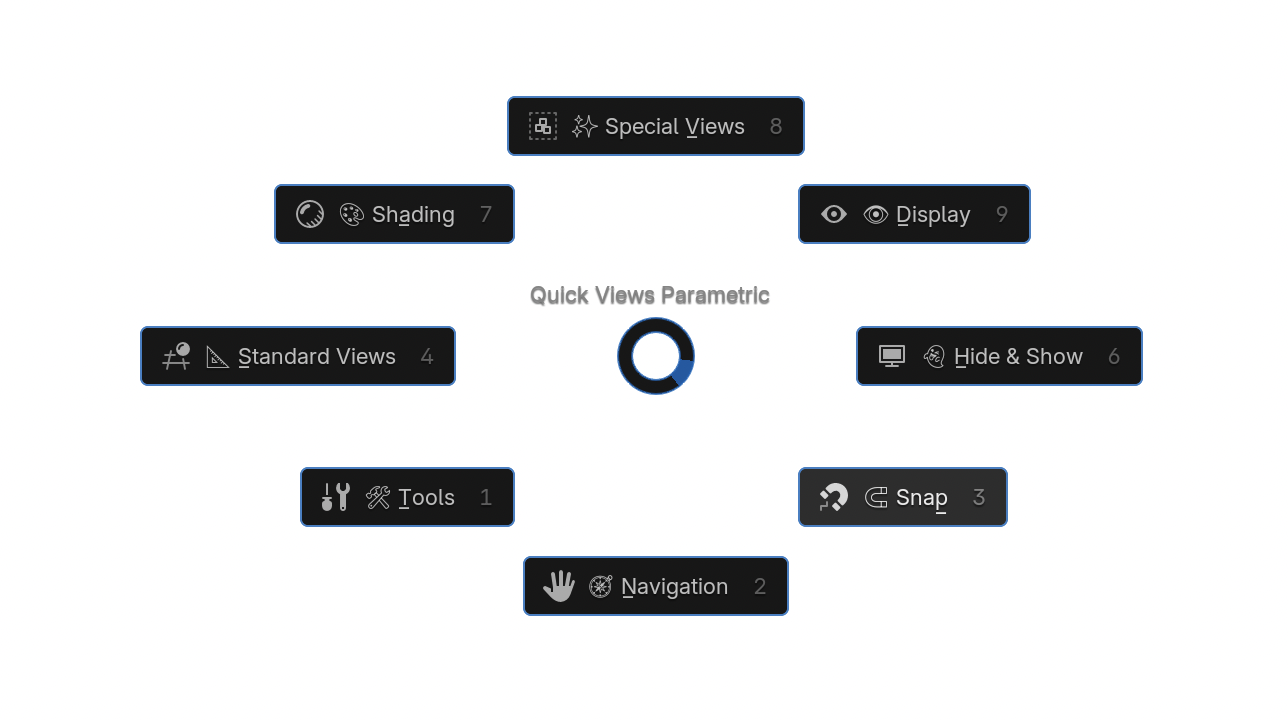
3. Move your mouse toward any section to select it
4. Release the key to confirm your selection
🖱️ Sidebar Panel Features
Located in the 3D View sidebar (View tab):
Quick Access Buttons
- 🎯 Smart Focus
- 🌐 View All
- 📷 Camera View
- 📸 Quick Render
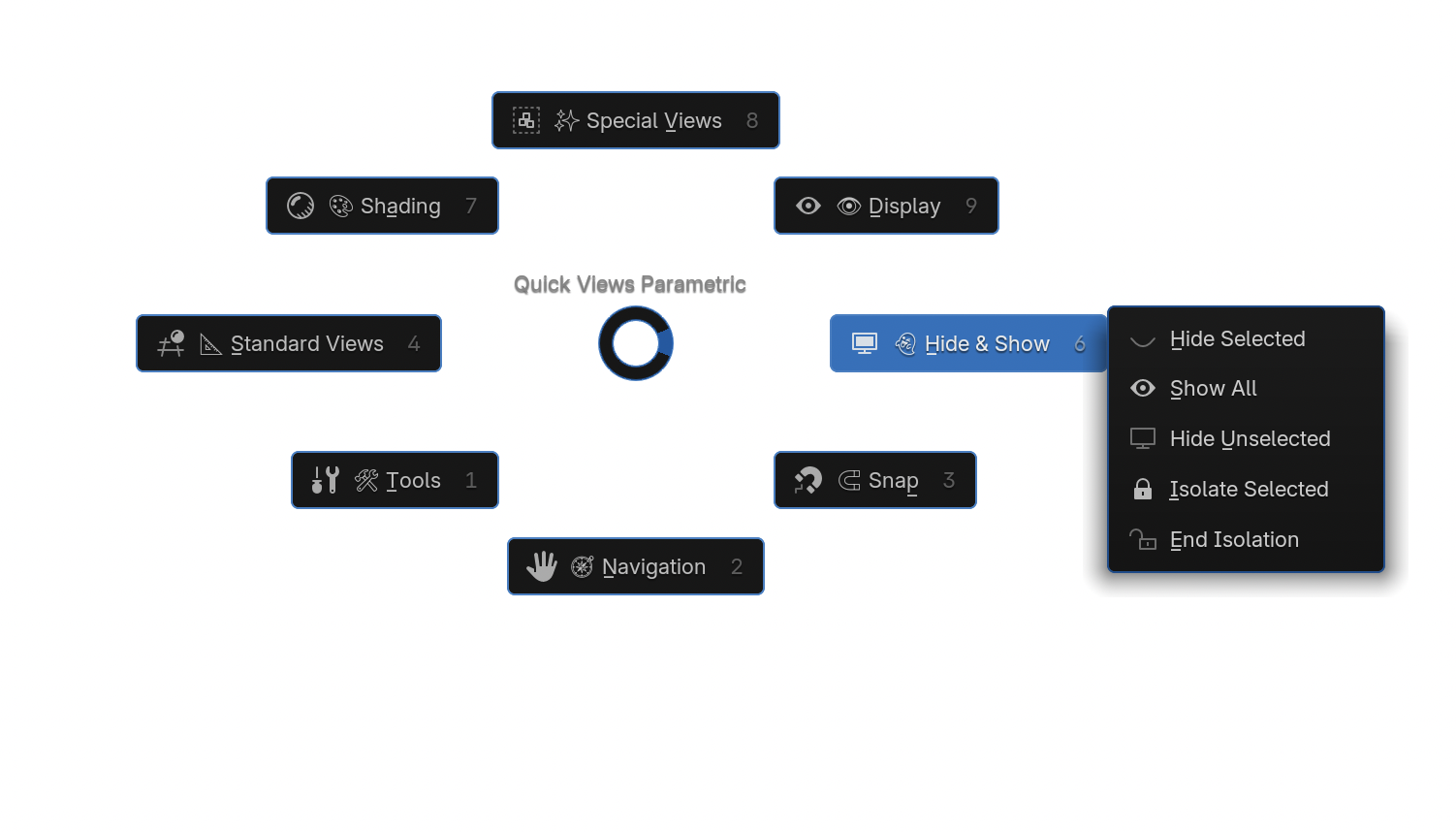
Hide & Show Controls
- Hide Selected/Show All buttons
- Isolate/End Isolation functions
- Hide from Render toggle
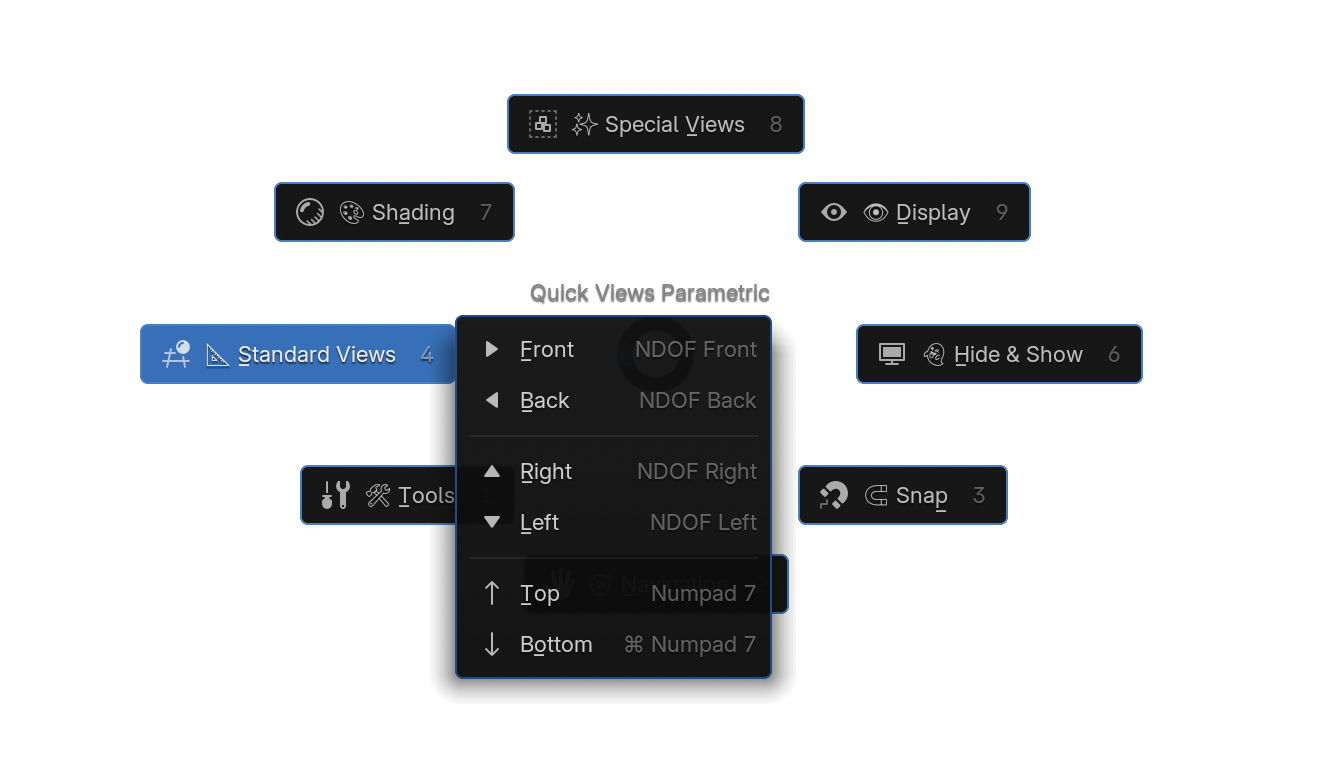
Standard Views
- Front / Back / Left / Right / Top / Bottom view buttons
Shading Modes
- Quick switches between Wireframe, Solid, Material, Rendered
🔧 Advanced Features
Camera Tools
1. Create Camera from View:
- Position your view as desired
- Use the operator from Tools menu or pie menu
- Automatically sets as active camera
2. Camera Cycling:
- Use Next/Previous Camera hotkeys
- Automatically switches to camera view
3. Set Active Camera:
- Select a camera object
- Use the operator to make it active
Smart Hide System
- Works in both object and edit modes
- In edit mode: hides selected faces/verts/edges
- Configurable to also hide from render
Isolation Mode
- Hide everything except selected objects
- Stores original visibility state
- Restore with End Isolation
Smart Focus
- Enhanced view framing with padding
- Configurable in preferences
- Auto mode available (no dialog)
⚙️ Preferences Configuration
Access via `Edit > Preferences > Add-ons > Quick Views Parametric`:
1. Main Settings:
- Toggle advanced features
- Enable/disable smart focus
- Show current hotkeys in panel
2. Hotkey Customization:
- Change any hotkey combination
- Modify modifier keys (Ctrl/Shift/Alt)
- Apply changes with the Apply button
3. **Display Options**:
- Configure what appears in menus
- Toggle tooltips and descriptions
💡 Pro Tip
ENJOI
