 Mamba CG


Overview
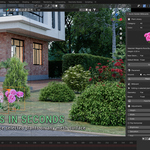
Quick Garden Billboards is a lightweight Blender add-on for quickly populating gardens, landscapes, and architectural visualizations with realistic vegetation.
Every included asset is created from my own unique photographs, personally captured in my private garden. This is an exclusive original collection—you will not find these exact photographs or prepared plant assets anywhere else.
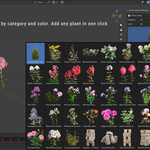
The add-on includes 44 ready-to-use assets with transparent 2048 × 2048 PNG textures. Instead of importing and configuring images manually, you can browse the library, select an asset, and add it directly to your Blender scene.
Quick Garden Billboards is designed for:
- Architectural visualization
- Garden and landscape design
- Exterior renders
- Background and midground vegetation
- Fast scene dressing
- Lightweight large-scale environments
- Eevee and Cycles workflows
Requirements
- Blender 4.2 or newer
- Eevee or Cycles
- An active camera is required only when using Face Camera mode
Installation
- Download the Quick Garden Billboards ZIP file.
- Do not extract the ZIP archive.
- Open Blender.
- Go to Edit → Preferences.
- Open Get Extensions or Add-ons, depending on your Blender version.
- Open the menu in the upper-right corner and select Install from Disk.
- Select the downloaded ZIP archive.
- Enable Quick Garden Billboards if it is not enabled automatically.
- Close the Preferences window.
Opening the Add-on
- Open the Blender 3D Viewport.
- Press N to open the sidebar.
- Select the Quick Garden Billboards tab.
The panel contains the asset library, placement tools, billboard settings, adjustments, and variation controls.
Adding an Asset
- Place the 3D Cursor where you want the asset to appear.
- Open the Quick Garden Billboards panel.
- Use the Category and Color filters to browse the library.
- Select an asset from the thumbnail browser.
- Choose the desired New Geometry mode.
- Select the default billboard mode.
- Click Add Plant.
The selected asset will be added at the 3D Cursor using its predefined real-world dimensions. Most included assets are approximately 0.5 m wide and 0.5 m high and can be resized afterward.
Geometry Modes
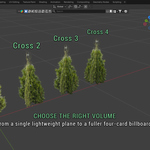
The geometry mode determines how many intersecting image planes are used to display an asset.
Flat
Uses one image plane and provides the lowest geometry cost. Flat is the default mode for newly added assets.
Recommended for:
- Distant vegetation
- Assets facing a known direction
- Stone and timber assets
- Large scenes where performance is important
Cross 2
Uses two image planes crossing at 90 degrees.
Recommended for:
- Simple plants viewed from multiple directions
- A balance between volume and performance
Cross 3
Uses three image planes placed at 60-degree intervals.
Recommended for:
- Bushes and flowering plants
- Midground vegetation
- A fuller appearance from several viewing angles
Cross 4
Uses four intersecting image planes for the fullest billboard appearance.
Recommended for:
- Dense bushes
- Important foreground vegetation
- Scenes where maximum billboard volume is preferred
Geometry can also be changed after an asset has been added. Select a Quick Garden Billboards object and use the Geometry setting in the Billboard section.
Billboard Modes
Fixed
The asset keeps its current rotation. Use this mode when you want full manual control over its orientation.
Face Camera
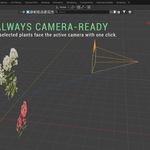
The asset automatically rotates around the global Z axis to face the active scene camera.
To use Face Camera mode:
- Assign an active camera to the Blender scene.
- Select one or more Quick Garden Billboards assets.
- Choose Face Camera or click Face Active Camera.
The vertical orientation remains locked, so the asset stays upright.
Placement on a Surface
The Place on Surface tool vertically places selected assets on a ground mesh.
- Select one or more Quick Garden Billboards assets.
- Choose a mesh in the Ground field.
- Click Place on Surface.
The tool casts downward from each selected asset and moves its bottom origin to the detected ground surface.
If no ground is assigned in the Ground field, the tool can use a selected non-QGB mesh as the placement surface.
Adjusting Assets
Select a Quick Garden Billboards asset to access the following controls:
- Height: changes the asset height.
- Width: changes the asset width.
- Scale: changes the overall size.
- Flip Horizontal: mirrors the original photograph.
- Brightness: adjusts image brightness.
- Saturation: adjusts color intensity.
- Hue: applies a controlled color shift.
Use Reset Color to restore the original photographic colors and Reset Scale to restore the original asset dimensions.
You can select multiple Quick Garden Billboards assets and change their settings together.
Creating Variations
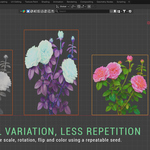
Quick Garden Billboards can create natural visual variation without requiring additional source textures.
Available variation options include:
- Random scale
- Random Z rotation
- Horizontal flipping
- Subtle hue variation
- Reproducible random seed
Randomize Selected
Applies the enabled variation settings to all selected Quick Garden Billboards assets.
Create Variation
Creates linked duplicates and applies the selected variation settings. Linked duplicates share their underlying mesh data, helping keep the Blender scene lightweight.
Change the Seed value to generate a different but repeatable result.
Recommended Workflow
- Add the required assets using Flat geometry.
- Arrange the assets throughout your scene.
- Use Randomize Selected to reduce visible repetition.
- Enable Face Camera for distant or camera-dependent assets.
- Use Cross 2 or Cross 3 for plants viewed from several angles.
- Reserve Cross 4 for dense or visually important vegetation.
- Use Place on Surface after positioning assets in the X and Y directions.
Rendering Tips
- Use Flat geometry for distant vegetation and large scenes.
- Use Cross 3 for fuller bushes in the midground.
- Avoid extreme close-ups because these are photographic billboard assets, not fully modeled plants.
- Use soft natural lighting to integrate the photographs into the environment.
- Match the scene exposure and color management to the photographed vegetation.
- Use subtle scale, rotation, flip, and hue variations when repeating the same asset.
- Check transparent edges against the final background before rendering.
Frequently Asked Questions
1. Are the plant photographs original?
Yes. Every included plant asset is made from my own unique photographs, personally captured in my private garden. This is an exclusive original collection, and these exact photographs and prepared assets are not available anywhere else.
2. What is the difference between Flat, Cross 2, Cross 3, and Cross 4?
Flat uses one image plane and provides the best performance. Cross 2, Cross 3, and Cross 4 use two, three, or four intersecting image planes to give assets a fuller appearance from multiple viewing angles. Flat is ideal for distant assets, while Cross 3 usually provides the best balance for bushes and flowering plants.
3. Can the assets automatically face the camera?
Yes. Select one or more Quick Garden Billboards assets and enable Face Camera, or click Face Active Camera. The assets will rotate around the global Z axis toward the active scene camera while remaining upright. Make sure an active camera is assigned to the scene.
4. Can I change the size and color of the assets?
Yes. Every asset includes controls for height, width, overall scale, horizontal flipping, brightness, saturation, and hue. Multiple selected assets can be adjusted together. Reset buttons restore the original dimensions and photographic colors.
5. Does the add-on work with Eevee and Cycles?
Yes. Quick Garden Billboards uses standard Blender image textures, transparent materials, and shader nodes compatible with Eevee and Cycles. Because the assets use lightweight image planes instead of complex plant geometry, they are suitable for scenes containing large amounts of vegetation.
Quick Garden Billboards combines a fast Blender workflow with an exclusive collection of original garden photography, captured personally in my own garden and unavailable anywhere else.
-
$5.60 $7
Core collection of garden billboard assets. All assets personally photographed and created from real plants in my own garden.
-
$11.20 $14
Includes everything from the standard version, plus an expanded collection of billboard assets with more plants and variations for creating richer and more diverse environments.
Have questions about this product?
Login to message
Discover more products like this
vegetation billboards architecture #nature foliage flowers plants garden landscaping Trees ArchViz low poly