 Lumitools



Install QuikSeal 1.1.0
In Blender, open Edit > Preferences > Get Extensions. From the top-right menu choose Install from Disk, select QuikSeal_1.1.0.zip, and enable the extension. In the 3D Viewport press N and open the LumiTools tab.
Create a seal
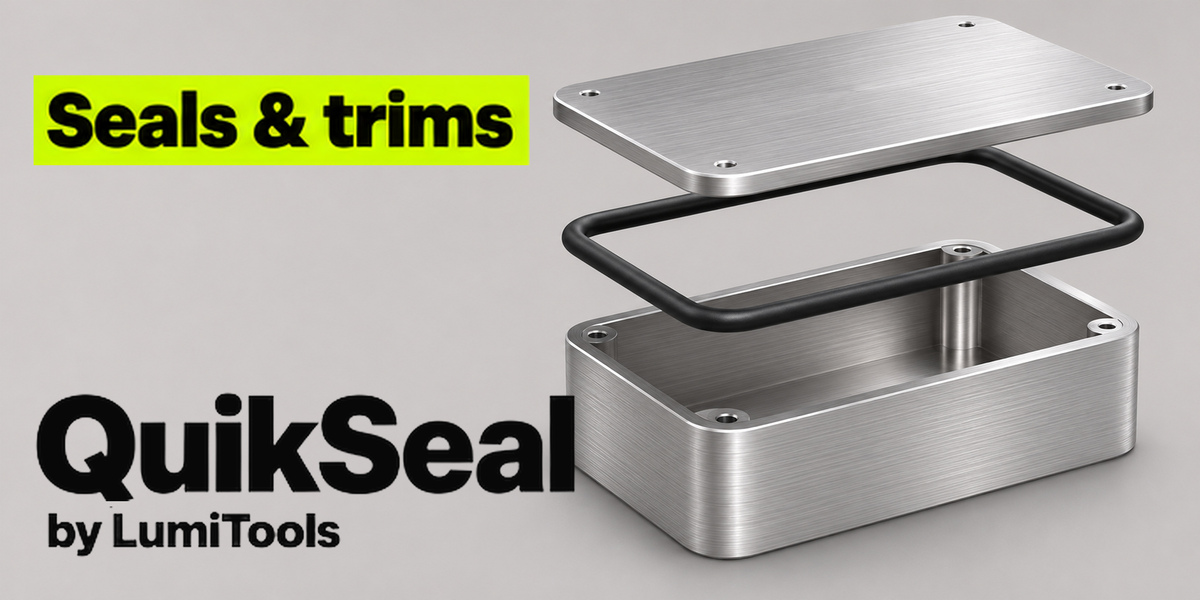
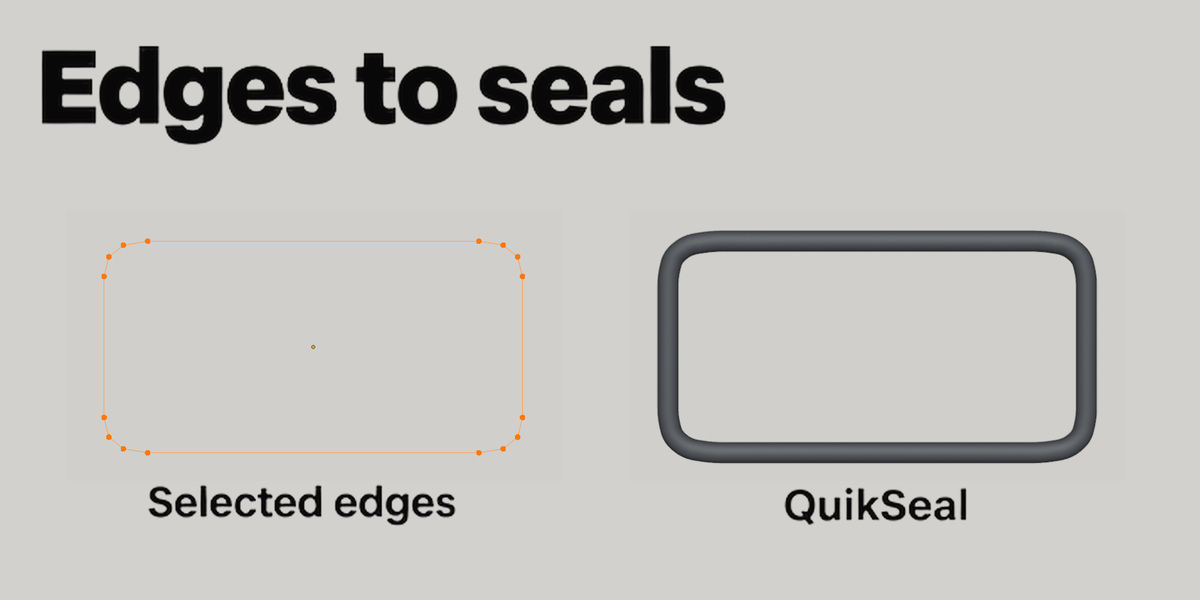
Select a Poly or Bézier curve in Object Mode, or select a chain or loop of mesh edges in Edit Mode. Click Create Seal. Edge selections are copied to a separate path. You can select several separate loops, provided the edges do not branch.
Fit the cross-section
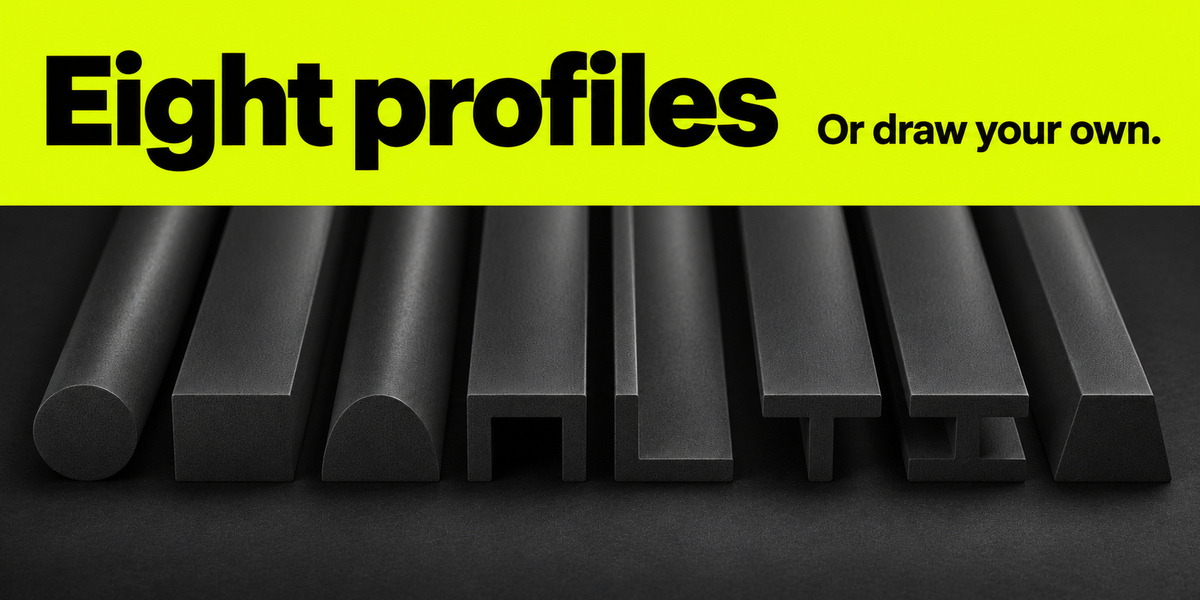
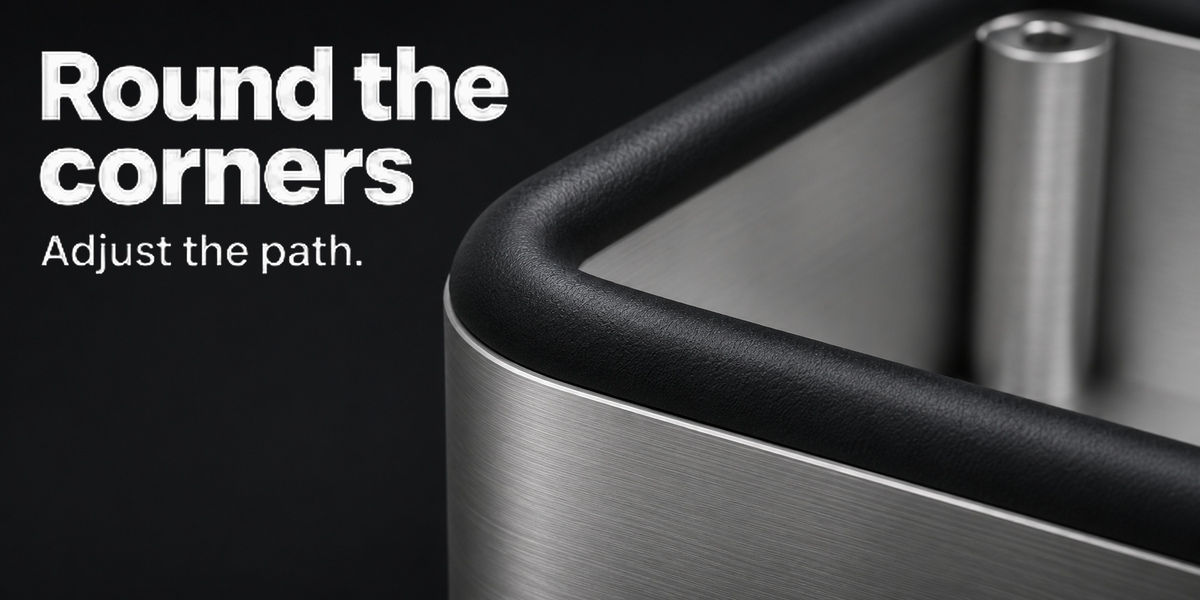
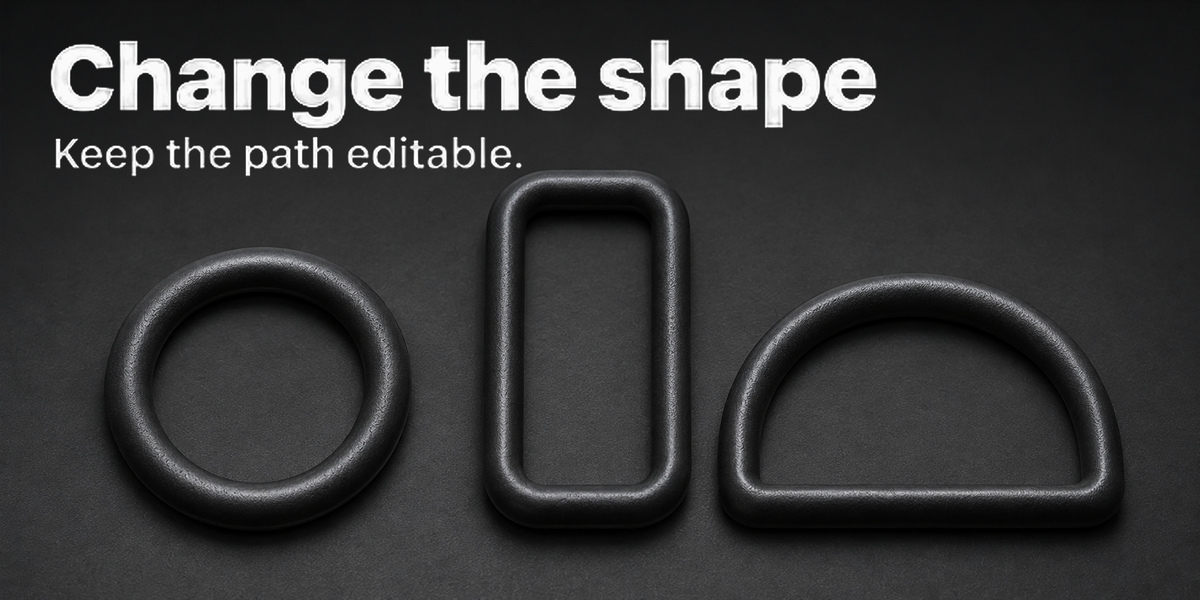
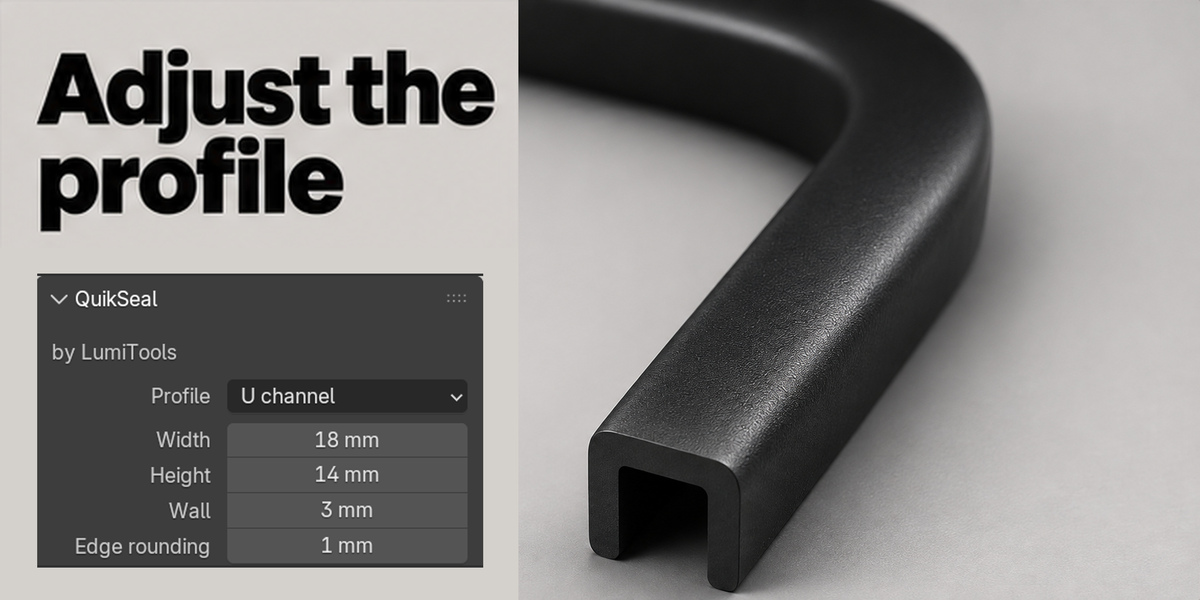
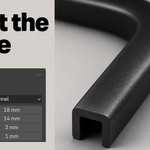
Choose Round, Rectangle, D, U, L, T, I or Trapezoid. Set Width and Height. Wall adjusts the legs or flanges on U, L, T and I sections. Top width sets the taper of a trapezoid. Edge rounding softens the section itself. Corner rounding smooths bends along the path. Use Rotation to turn the section or More settings to mirror it, change its alignment, move it sideways or change the sampling resolution.
Use a custom profile
Draw one closed Poly or Bézier outline in a separate curve object’s local XY plane. Choose Custom curve and pick the object under Outline. Width and Height set its final dimensions. Use a single outline without holes or crossings.
Edit or export
Click Edit Path, adjust the control points, then Update Seal. Update after changing a custom outline as well. Add materials to the seal and use Make Mesh Copy before editing its mesh directly or exporting. If a bend overlaps itself, reduce the section size or widen the bend. Tested in Blender 4.5.2 LTS and 5.0.0.
Have questions about this product?
Login to message
| Blender Extension Compatible | Yes |
| Published | 2 days ago |
| Blender Version | 4.5 - 5.0 |
| Extension Type | Add-on |
| Render Engine Used | Cycles |
| License | GPL |