Radial Material Picker
 rfarencibia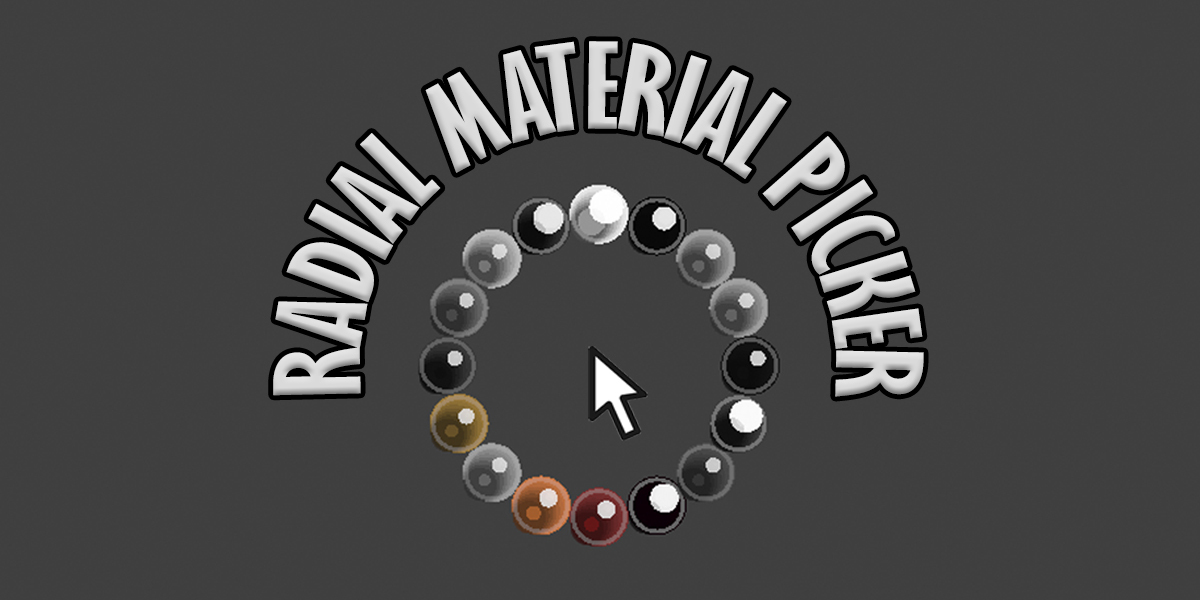
Radial Material Picker: Documentation
Overview
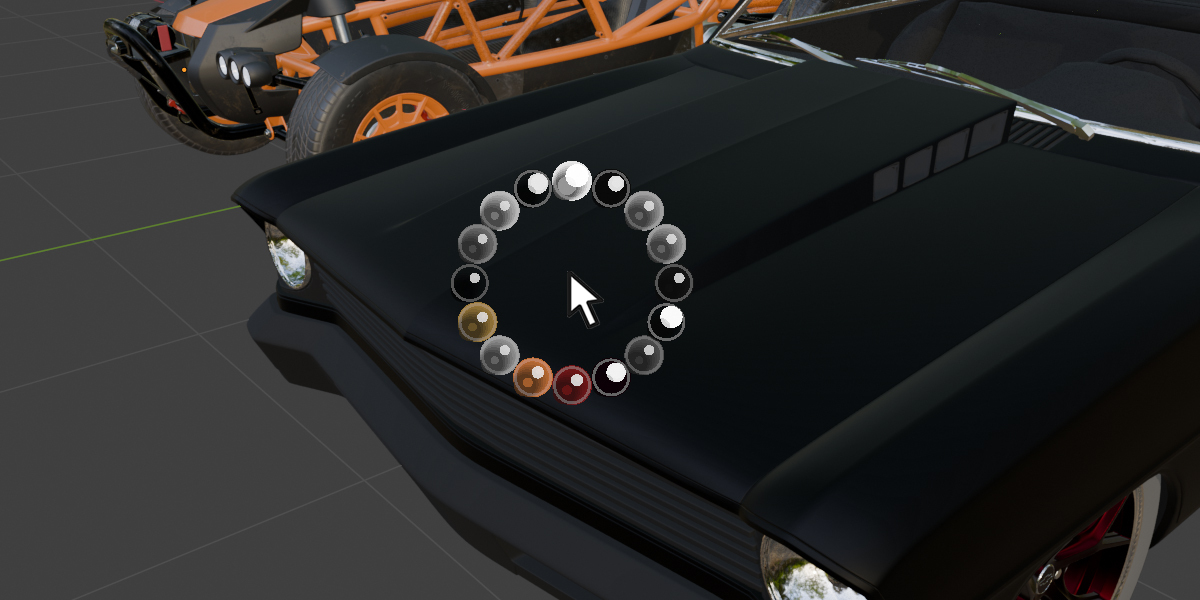
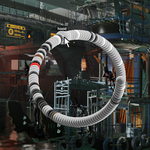
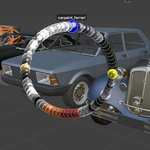
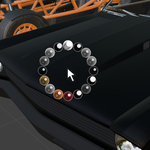
Radial Material Picker is an addon designed to accelerate and simplify material assignment in Blender. By presenting your materials in a handy radial menu, it reduces the time spent scrolling through long lists and streamlines everyday tasks.
Features
- Radial Menu for quick, visually guided material selection
- Customizable Hotkeys to integrate smoothly with your current workflow
- Works in Multiple Modes (Object, Edit, and Sculpt)
- Automatic Slot Management to keep your scene organized
Installation
-
Download the Addon
Save theradial_material_picker.zipfile to a known location on your computer. -
Install via Blender Preferences
- Open Blender and go to Edit > Preferences.
- Select Add-ons from the sidebar.
- Click Install... and navigate to radial_material_picker.zip
- Select it and click Install Add-on.
- Enable the addon by ticking the checkbox next to “Radial Material Picker”.
-
Verification
Once enabled, you should see “Radial Material Picker” listed in your Add-ons with a description and preferences you can adjust.
Usage
Basic Material Selection
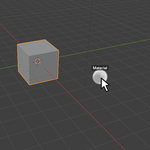
- Press and Hold Your Assigned Hotkey (default: M) to open the radial material menu in the 3D View.
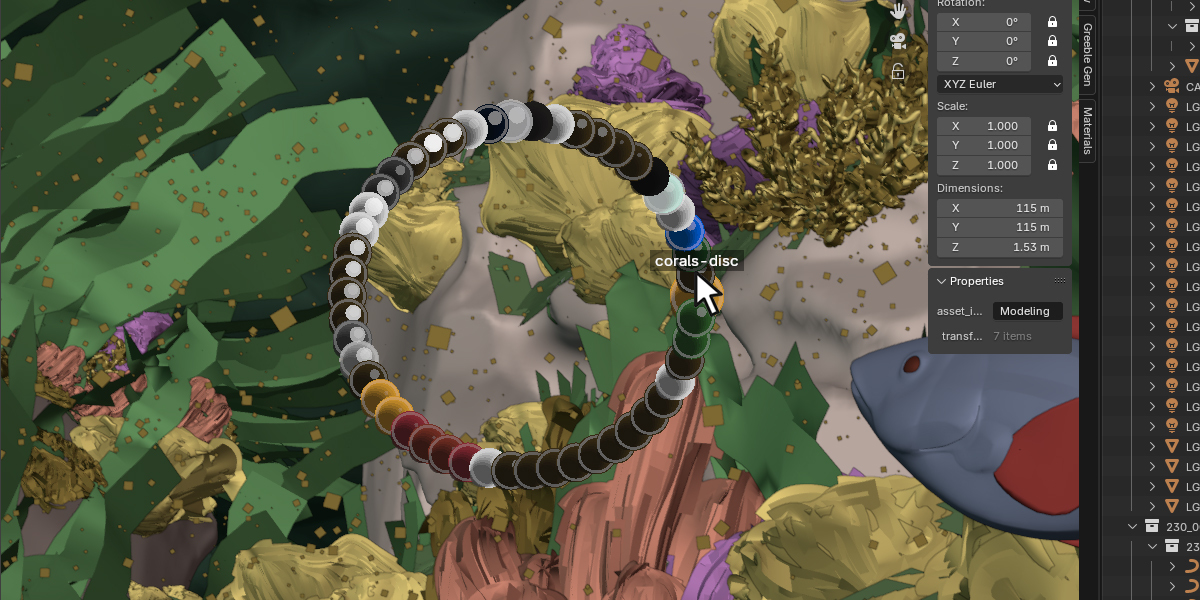
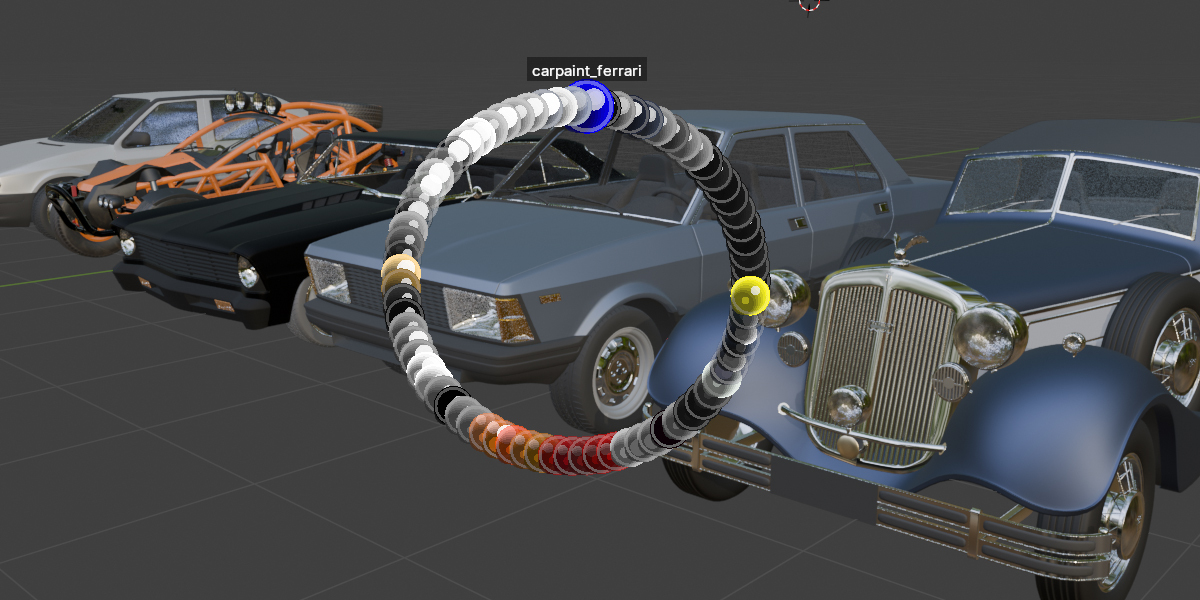
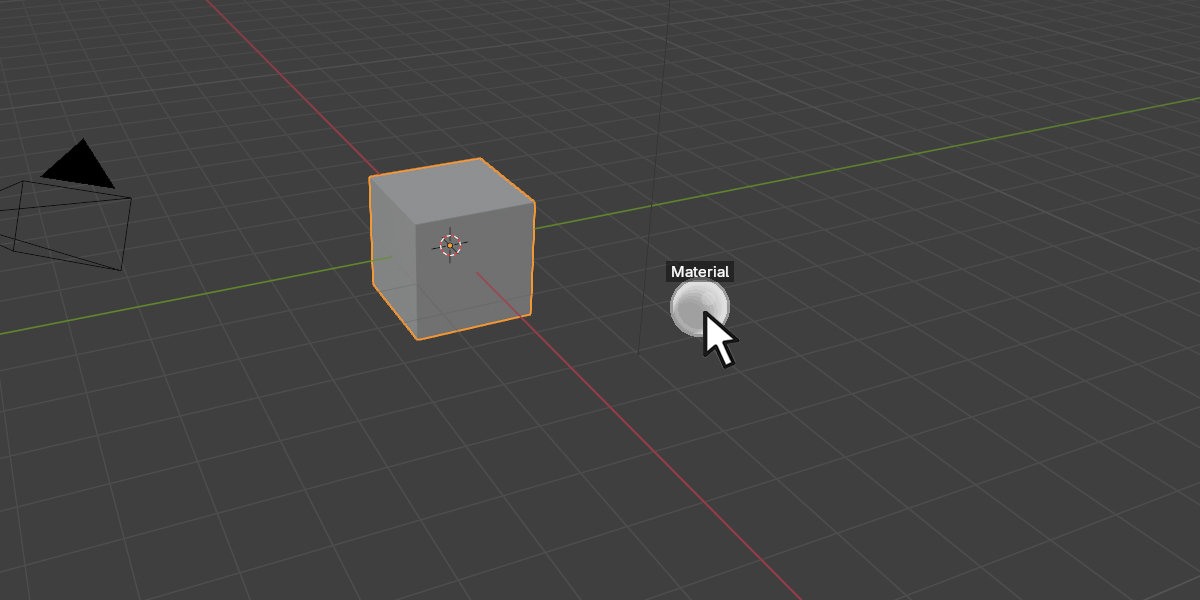
- Hover Over a Material icon to preview its name.
- Left-Click on the icon to assign that material to your selected object or faces (depending on your current mode).
Note: By default, the addon polls your entire scene’s material list. Materials hidden or not assigned in your object’s material slots can still be assigned through the radial menu.
Mode Compatibility
- Object Mode: Instantly assign the chosen material to all selected objects.
- Edit Mode: If specific faces are selected, only those faces will receive the chosen material. If no faces are selected, the material is assigned to the entire object.
- Sculpt Mode: Similar to Object Mode, materials are applied to the active object.
Customizing the Hotkey
- Go to Edit > Preferences and find Radial Material Picker in the Add-ons panel.
- Expand the add-on's preferences to see the Hotkey Settings.
- Click the Press a key... button to start listening for input.
- Press your preferred key
- Select any combination of modifier keys (Ctrl, Shift, Alt) if desired.
- Click Apply to confirm the new hotkey mapping.
Tip: If you accidentally pick the wrong key, press the X icon next to “Press a key...” to cancel and try again.
Material Slot Management
When you assign a material in Edit Mode:
- The addon searches for that material in the object’s material slots.
- If it’s not found, the addon adds a new material slot automatically.
- After assignment, any unused material slots can be cleaned up automatically, keeping your scene tidy.
Troubleshooting
-
No Materials Detected
Make sure you have at least one material in your Blender file. The radial menu will skip system materials like “Dots Stroke.” -
Radial Menu Not Appearing
Ensure the addon is enabled, and check the hotkey settings. Also confirm you’re in the 3D View and in Object, Edit, or Sculpt mode. -
Material Assignment Fails
If you see an error, switch to Object Mode, re-select your object, and try again. You can also verify that the material is valid (not broken or missing nodes).
Tips & Best Practices
- Use a consistent naming convention for your materials to quickly find what you need in the radial menu.
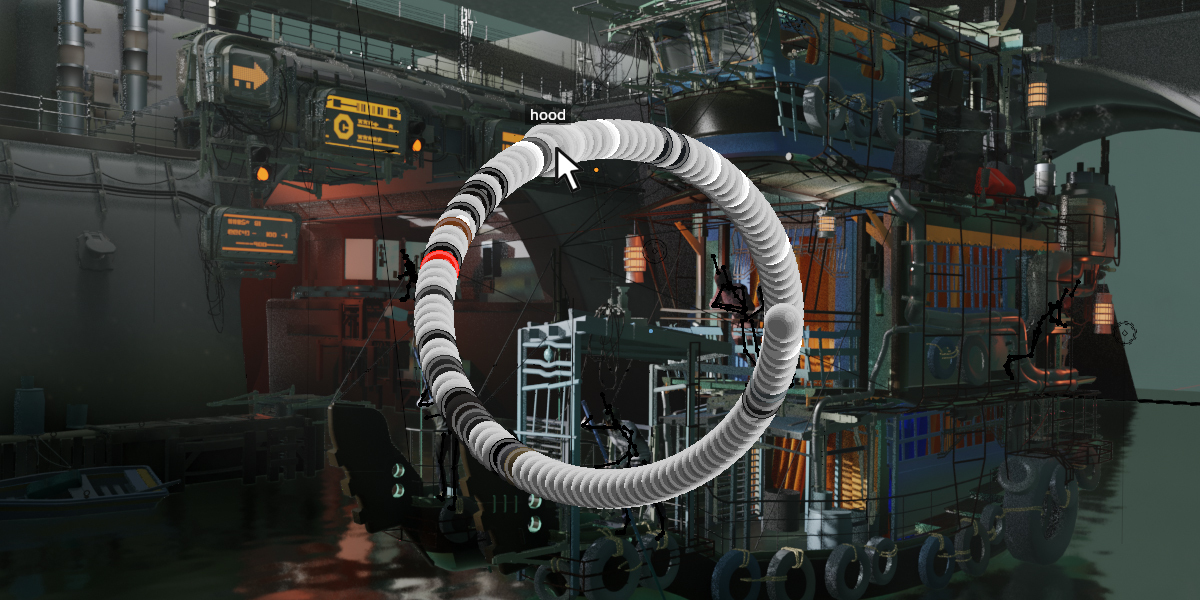
- If you have a large number of materials (25 or more), the picker automatically scales to ensure all items remain visible.
Version Information
- Addon Version: 1.0
- Blender Compatibility: 3.0+ (optimized for 3.6 and above)
Changelog (1.0)
- Initial release of Radial Material Picker
- Introduction of advanced drawing methods for newer Blender versions
- Support for quick assignment in Object, Edit, and Sculpt modes
- Enhanced material preview and auto-management of material slots
