 eFcoelum

RATOM Pro: Random & Animated Transforms
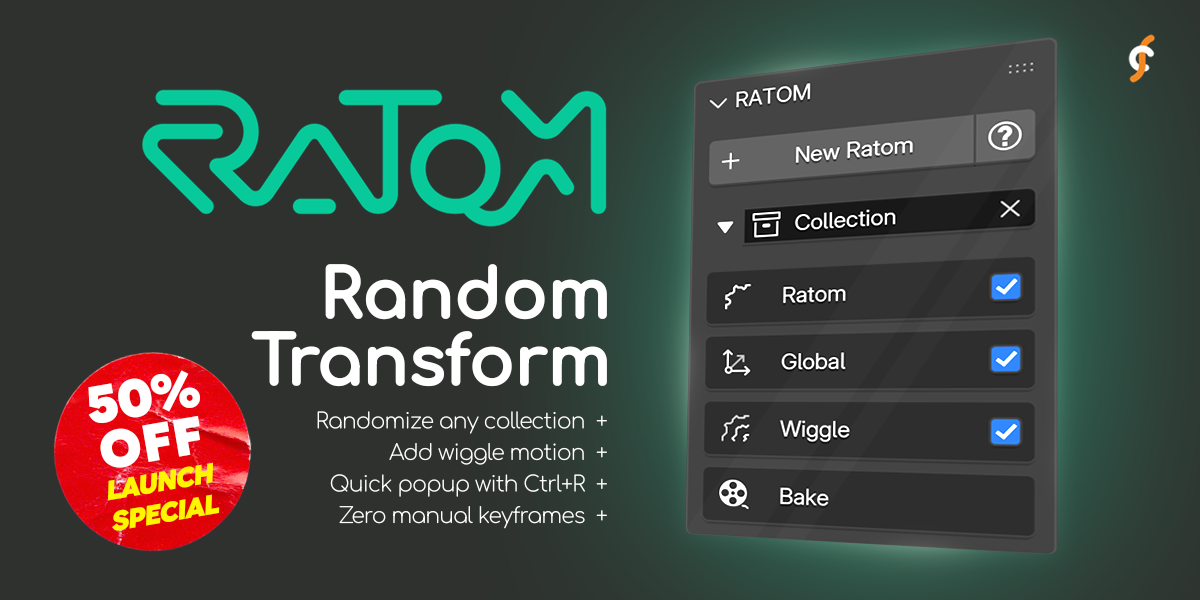
Randomize location, rotation, and scale across object collections. Add procedural wiggle, stagger the timing across objects, and bake the result to native keyframes, without setting up Geometry Nodes.
Installation
- Download the
.zipfile from your Superhive library and keep it intact (do not extract). - Open Blender → Edit → Preferences → Add-ons.
- In Blender 3.0 to 4.1, click Install…. In Blender 4.2 and later, open the top-right menu → Install from Disk… and select the
.zipfile. - Enable the RATOM Pro checkbox. Install only one copy, and do not enable RATOM Quick at the same time.
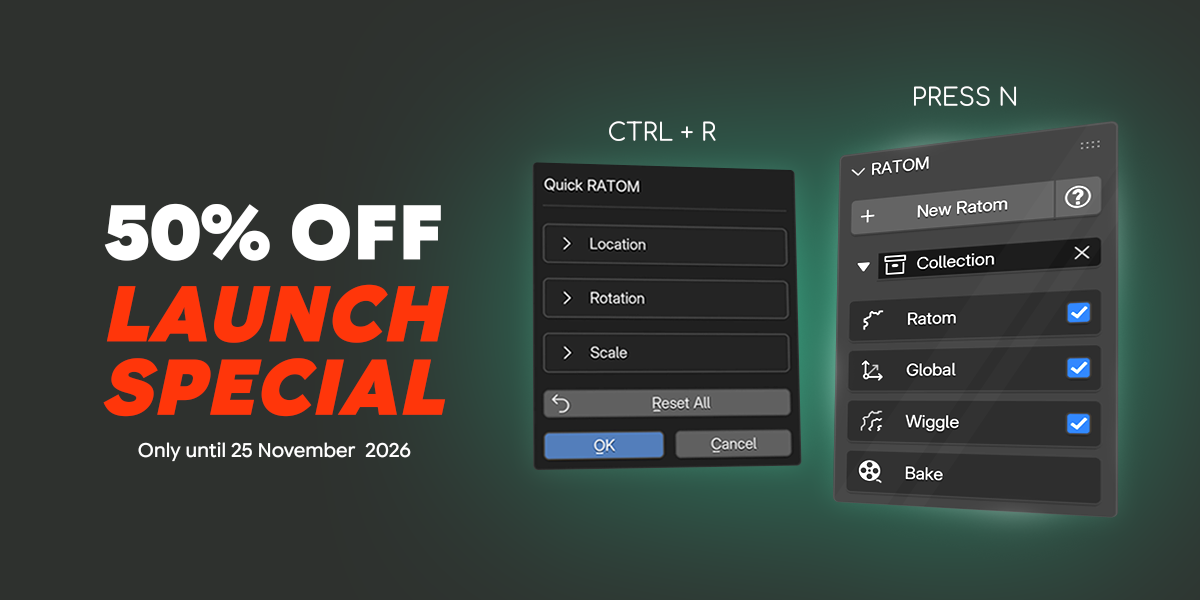
- In the 3D Viewport, press N to open the Sidebar and select the RATOM Pro tab, or press Ctrl + R in Object Mode to open the Quick RATOM popup.
manual.pdf in your PDF viewer (or opens the developer's website if no PDF viewer is available).Basic Usage
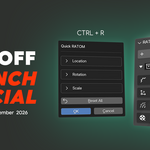
- Quick Workflow: In Object Mode, select one or more unparented objects and press Ctrl + R (or Right-Click → Quick RATOM). Expand Location, Rotation, or Scale, adjust the values, and click OK (or press Enter) to confirm.
- Collection Workflow (Pro): Move your objects into a collection, open the 3D Viewport Sidebar (N → RATOM Pro), click New Ratom, and select your collection.
- Expand Ratom, enable both the section checkbox and the desired channel checkbox (Location, Rotation, or Scale), then adjust the values, Str, and Seed. Use the Mode Order dropdown at the top of Ratom to choose Random, Directional, or Name.
- Enable Wiggle and choose a motion pattern (Default, Insect, Float, Pulse, Drift, Turbulence), then press Play on the timeline for live procedural animation.
- Expand Bake and click Bake to convert live procedural motion into standard Blender keyframes.
Quick vs Pro: Feature Comparison
| Feature | Quick | Pro |
|---|---|---|
| Random Transform (Location, Rotation, Scale) | ✓ | ✓ |
| Mode Order: Random, Directional, Name | ✓ | ✓ |
| Bi-Directional Scatter XYZ (Loc, Rot, Scale) | ✓ | ✓ |
| Size-Aware Offsets (Follow Each Object's Size) | ✓ | ✓ |
| Independent Strength & Seed per Category | ✓ | ✓ |
| Stable Per-Object Random Values (Name + Seed) | ✓ | ✓ |
| Mirror & Reset Controls per Category | ✓ | ✓ |
| Live 3D Viewport Preview | ✓ | ✓ |
| Smart Floating Popup (Ctrl + R & Right-Click) | ✓ | ✓ |
| Direct Keyframe Insertion & Esc Rollback | ✓ | ✓ |
| All Transformable Object Types (Mesh, Curve, Text, Light, Camera, Empty & More) | ✓ | ✓ |
| Persistent Collection Workflow (Sidebar N-Panel) | – | ✓ |
| Up to 32 Multi-Collection Slots per Scene | – | ✓ |
| Non-Destructive Helper & Constraint System | – | ✓ |
| Global Transform Offsets (Shared Loc, Rot, Scale) | – | ✓ |
| Procedural Wiggle Animation (Loc, Rot, Scale) | – | ✓ |
| 6 Built-In Wiggle Presets (Insect, Float, Pulse, etc.) | – | ✓ |
| Per-Channel Axis Filtering (XYZ, X, Y, Z) | – | ✓ |
| Stagger Timing per Channel (Domino Motion, Order Follows Mode) | – | ✓ |
| Animatable RATOM Sliders, Seeds & NLA Support | – | ✓ |
| Animation Baker (Start, End, Step) | – | ✓ |
| Flatten Bake (World-Space Keys) | – | ✓ |
| Keep Original Option (Safe Duplicate Collection Bake) | – | ✓ |
| Auto Sub-Collection & Object Membership Sync | – | ✓ |
Pro: Feature Details
Collection-Based Non-Destructive Workflow Pro
Assign up to 32 collection slots per scene from the 3D Viewport Sidebar. RATOM Pro drives objects through hidden helper empties and additive constraints, so your original object transforms, origin points, and parent hierarchies stay unchanged until you bake.
Mode Order Quick & Pro
Choose how Random Location is shared across objects. Random gives each object its own amount from the Seed. Directional grows the offset toward the side the slider points to, so objects move apart without passing through each other; small parts inside a bigger part move with it. Name follows alphabetical order, the first name moving the most. In Pro, the Mode also sets the Stagger order.
Random & Bi-Directional Scatter XYZ Quick & Pro
Each transform category (Location, Rotation, Scale) includes a directional Random block and a two-way Scatter XYZ block, each with its own Strength slider and independent Seed. Offsets follow each object's own size, so small and large objects change by the same proportion. Use Mirror to invert directions or Reset to return to neutral defaults.
Procedural Wiggle Animation (6 Presets) Pro
Generate continuous, keyframe-free motion directly in the viewport. Choose from 6 built-in noise patterns: Default, Insect, Float, Pulse, Drift, and Turbulence. Fine-tune Speed, Strength, Seed, and active Axis (XYZ, X, Y, or Z) independently for Location, Rotation, and Scale.
Global Transforms Pro
Move, rotate, or scale all objects in a collection together using shared offsets and multipliers while preserving each object's individual random variation and local pivot.
Stagger Timing Pro
Offset the start time of any keyframed RATOM or Global channel across objects in the collection. Each channel has its own Stagger amount, each axis follows its own keyframes, and every object still reaches each keyframe value on time. The order follows Mode Order and reverses when the motion returns, for domino cascades, rising sequences, and wave animations without shifting keyframes in the Dope Sheet.
Quick RATOM Floating Popup Quick & Pro
Select unparented objects in Object Mode and press Ctrl + R (or right-click → Quick RATOM) to open a compact floating popup at your mouse cursor. Includes smart quadrant positioning, live preview, Mode Order for Location, per-category Mirror/Reset, Reset All, and direct Add keyframe buttons.
Production Animation Baker Pro
Convert live procedural wiggle, staggered timing, and random offsets into standard Blender keyframes over any frame range and step interval. Enable Keep Original to bake onto a separate _RATOM_baked collection copy, and enable Flatten Bake to write the final world-space animation directly onto each object and remove its helper empty.
Keyboard Shortcuts
N (3D Viewport)Ctrl + R (Object Mode)Right-Click ObjectEnter / OKEsc[?] ButtonCompatibility
- OS: Windows (automated checks on 17 Blender builds from 3.0.1 to 5.3.0). macOS and Linux are not yet verified.
- Supported Objects: Meshes, Curves, Surfaces, Text, Metaballs, Hair Curves, Armatures, Lattices, Empties, Lights, Cameras, Volumes, Point Clouds, Speakers, Light Probes, and Grease Pencil, where your Blender version has them.
- License: GNU General Public License v3.0 or later
Troubleshooting
Controls are greyed out or have no effect
- Make sure a collection containing unparented root objects is assigned to the slot.
- Enable both the section checkbox (e.g., Ratom, Global, Wiggle) and the sub-channel checkbox (Location, Rotation, or Scale). Expanding a section arrow alone does not enable its effect.
- Ensure values are non-zero for Location/Rotation (or different from
1.0for Scale) andStris above0.
Ctrl + R does not open Quick RATOM
Ensure you are in Object Mode with at least one visible, unparented object selected and your cursor inside the 3D Viewport. In Edit Mode, Ctrl + R remains Blender's native Loop Cut tool. You can also right-click the selected object and choose Quick RATOM.
Objects move together instead of independently
RATOM Pro directly controls unparented root objects so existing parent-child hierarchies and character rigs stay intact. Unparent independent props into separate root objects inside the collection.
Wiggle animation is not moving
Enable both the main Wiggle checkbox and the desired channel checkbox (Location, Rotation, or Scale), verify Speed and Strength are above zero, and press Play or scrub the timeline.
Stagger has no visible effect
Stagger offsets keyframed RATOM or Global controls. Insert at least two differing keyframes on the target RATOM channel, enable that channel's Stagger checkbox, set Stagger above 0, and scrub the timeline. While you edit a value, the result shows without Stagger until the frame changes.
Objects start the Stagger together
In Directional mode, and for Global outside Name mode, objects at the same position along the slider direction start together unless all of them are level. Choose Name for a one-by-one sequence.
Another RATOM installation is active
Only one of RATOM Pro or RATOM Quick can be enabled. Disable the other one, then enable this one.
Support
Found a bug or have a feature request? Contact us. Every report is read and helps shape the next update.
Have questions about this product?
Login to message
| Blender Extension Compatible | Yes |
| Dev Fund Contributor | |
| Published | 1 day ago |
| Blender Version | 3.0 - 5.3 |
| Extension Type | Add-on |
| License | GPL |
Discover more products like this
randomize random transform random transform animation tools animation