 IKA
IKA



Ray Link - Documentation
1. Core Concept
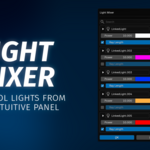
Ray LINK is a professional lighting suite for Blender designed by IKA. It provides a centralized workflow for Light and Shadow linking, advanced light property management via a specialized Light Mixer, and a powerful HDRI "Studio Mode" setup.
2. User Interface Access
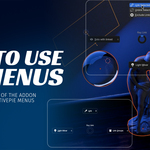
Pie Menu: Press L in the 3D Viewport.
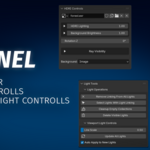
Sidebar (N-Panel): Under the "Ray Link" tab.
Properties Panel: Under the Data tab when a Light object is active.
3. Light & Shadow Linking Operators
Linking controls how lights interact with specific objects or collections in the scene.
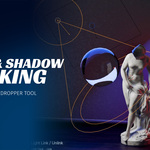
Eyedropper Link (light.eyedropper_link):
An interactive tool for the 3D Viewport.
LMB Click: Add object to the link group.
Ctrl + LMB Click: Remove object from the group.
L Key: Toggle between "Light Linking" and "Shadow Linking" modes while active.
Link Selected (light.link_selected_objects): Links all currently selected mesh objects to the active light source.
Unlink Selected (light.unlink_selected): Removes selected mesh objects from the active light's linking collection.
Exclude Linking (light.exclude_linking): A specialized mode that forces the light to affect everything in the scene except the selected objects.
Clear Link (light.clear_link): Wipes all linking data from selected lights, deletes their local linking collections, and clears any parenting.
Copy Linking (light.copy_linking_all): Takes the linking setup of the active light and applies it to all other selected lights.
Remove Linking (light.remove_linking): A global cleanup tool that removes selected mesh objects from every light linking group in the entire scene.
4. The Light Mixer
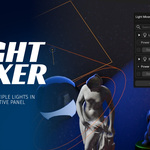
A centralized dashboard to manage lights without diving into the Outliner or individual object properties.
Power & Color: Quickly adjust light intensity (renamed to "Power") and color.
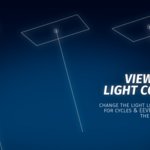
Ray Length: * A custom shader-based falloff control.
Features a Checkmark to enable/disable the effect safely.
Uses a Factor Slider (0.0 to 1.0): 1.0 represents standard light behavior; 0.0 effectively shrinks the light ray to zero.
Solo Mode: * Click: Isolate selected light in Local View.
Ctrl + Click: Solo light and its linked collection.
Alt + Click: Solo light while keeping other scene lights visible.
Visibility Toggles: Independent icons for viewport visibility (Eye) and render visibility (Camera).
Filters: Search bar and toggle buttons to show/hide lights by type (Point, Sun, Spot, Area).
5. HDRI & Environment Operators
Manages the World Shader nodes to allow for separate background and lighting controls.
New HDRI Setup (raylink.setup_hdri): Automatically generates a full node tree including Texture Coordinates, Mapping, and Environment Texture nodes.
Remove HDRI (raylink.remove_hdri): Deletes the RayLink world nodes and reverts the world background to standard default settings.
Studio Mode: When toggled on, it creates a split path using a Light Path node. This allows you to set high intensity for scene lighting while keeping the camera-visible background at a comfortable brightness.
Adjust HDRI Modal (raylink.adjust_hdri_modal): An interactive viewport tool. Click and drag left/right to adjust HDRI rotation or strength values.
Flip HDRI (raylink.flip_hdri): Mirrors the HDRI horizontally by setting the Mapping node Scale X to -1.
6. Shortcuts and Interactivity
L Key: Opens the main Ray LINK Pie Menu.
Ctrl + Mouse Wheel (Light selected): Cycles the active light through Point, Sun, Spot, and Area types.
Ctrl + Mouse Wheel (Mesh selected): Cycles selection through the different lights that are currently linked to that specific mesh.
Shift + A: Includes an "Add Light" operator within the standard Blender menu that automatically parents the light to your selection and sets up a link.
7. Automated Functions
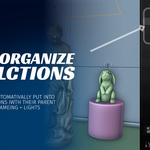
Auto-Collection Organization: Newly created lights are automatically moved into a [Collection Name] Lights sub-collection or a Global Lights collection based on preferences.
Shader Node Injection: The "Ray Length" feature automatically detects if nodes are used. If so, it appends the Transparent BSDF and Mix Shader logic to the very end of your existing node tree to ensure your custom materials are preserved.
Deferred Duplication: When lights or meshes are duplicated, a background handler ensures that all linking relationships are maintained for the new copies.
8. Maintenance & Tools
Remove All Linking: Clears linking data from every light in the file.
Cleanup Empty Collections: Deletes unused LL. (Light Link) or SL. (Shadow Link) collections that no longer contain objects.
Delete Visible Lights: Purges only the lights currently visible in the 3D viewport.
9. Support
For feedback or documentation updates, please visit the IKA creator page on SuperHive.
Have questions about this product?
Login to message
| Published | 7 months ago |
| Blender Version | 4.2 - 5.1 |
| Extension Type | N/A |
| Render Engine Used | Cycles, Eevee |
| License | GPL |
Discover more products like this
light-linking viewport easy blender utilities 1 click light setup pie menu Lighting 1 click light