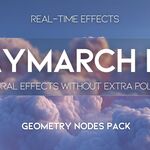
Raymarch FX Pack
 Blender Procedural


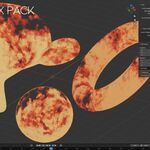
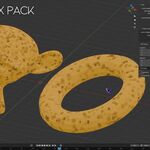
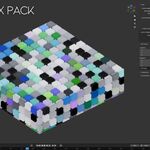
How to Use Raymarch FX Pack
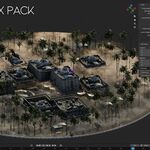
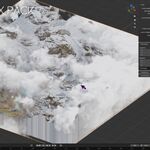
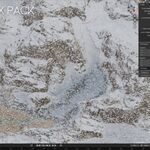
Raymarch FX Pack comes with ready-to-use Geometry Nodes assets. Each effect is already prepared as an object with its own Geometry Nodes modifier and raymarched material.
Add an Effect Asset to the Scene
Open the Asset Browser in Blender.
Find the Raymarch FX Pack assets.
Drag and drop the effect you want into your scene, such as:
BP_Raymarching_Blocks
BP_Raymarching_Cheese
BP_Raymarching_Clouds
BP_Raymarching_Dust
BP_Raymarching_Fire
BP_Raymarching_Snowfall
Each asset is already connected to its Geometry Nodes setup and material, so you can use it directly after adding it to the scene.
Add the Geometry Nodes Effect to Your Own Object
Select your object.
Go to the Modifiers tab.
Add a Geometry Nodes modifier.
From the node group list, choose one of the Raymarch FX node groups, for example BP_Raymarching_Blocks.
After applying the node group, assign the matching material in the Material parameter if it is not already assigned.
Basic Parameters
Wind
Controls the direction and movement of the procedural effect. Useful for clouds, dust, snow, and fire motion.
Size
Controls the overall size of the raymarched effect.
Scale
Changes the scale of the internal procedural detail. Higher values create smaller, denser patterns. Lower values create larger, smoother shapes.
Speed
Controls the animation speed of the effect.
Material
Choose the matching Raymarch FX material for the selected effect. This material creates the fake depth and raymarched look.
Important Note
Raymarch FX Pack creates a fake depth / volume effect using Geometry Nodes and raymarched materials. The original polygon count stays the same, but the object can look much deeper and more detailed in the render.
Have questions about this product?
Login to message
| Sales | 20+ |
| Rating | 1 ratings |
| Dev Fund Contributor | |
| Published | 5 months ago |
| Blender Version | 5.0 - 5.1 |
| Render Engine Used | Eevee |
| License | Royalty Free |
Discover more products like this
fake depth Shader cloud Material fire procedural geometry nodes raymarching volumetric dust Raymarch