 孙堪伟
孙堪伟


RayPilot Add-on Documentation
Installation
- Download: Get the .zip file from your purchase. Do not extract.
-
Install: Open Blender →
Edit > Preferences > Add-ons > Install→ Select the .zip file. - Activate: Check the box next to "RayPilot" to enable.
Floating Toolbar
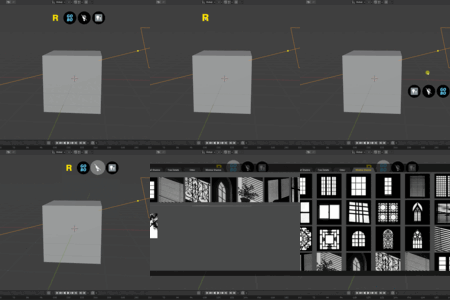
A GPU-rendered floating gizmo with smooth animations. Provides quick access to all panels.
- Drag: Move toolbar anywhere in viewport.
- Orientation: Switch between horizontal and vertical layout.
- Expand/Collapse: Click to toggle visibility.
-
Restore: If lost, go to
View > RayPilot Toolbar.
Interactive Lighting
Entering Interactive Mode
- Add light:
Shift+A > Light > RayPilot Light - Select any light and press
Tabto enter adjustment mode. - Move mouse over surfaces to position light.
- Click to confirm,
Escto cancel.
Positioning Modes
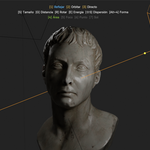
- Reflect Mode: Calculates light position for specular reflections at click point.
- Orbit Mode: Rotate light around target while maintaining distance.
- Direct Mode: Place light directly at or toward click position.
Parameter Adjustments
Hold key + move mouse while in interactive mode:
-
S— Size (area light dimensions) -
G— Distance from target -
R— Roll/Rotation -
E— Energy/Power -
B— Blend (spotlight softness)
Sensitivity automatically adapts to object scale.
Light Control Panel
Centralized management for all scene lights. Open from floating toolbar.
Light List (Left)
- Filter: Show only Point, Sun, Spot, or Area lights.
- Solo: Click S icon to isolate single light.
- Visibility: Click eye icon; drag across multiple for batch toggle.
- Multi-select: Select multiple lights for batch editing.
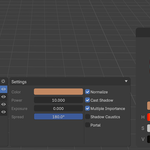
Settings Panel (Right)
- Color Wheel: Triangle picker with HSV sliders and HEX input.
- Energy: Light intensity control.
- Size: Light size/radius.
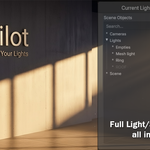
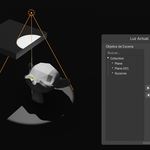
Light Exclude Panel
Visual interface for light linking. Control which objects each light affects.
- Left panel: Scene objects. Right panel: Excluded objects.
- Click
→to exclude,←to include. - Tree View: Hierarchical scene display with search filter.
- Advanced Mode: Separate control for lighting and shadow linking.
Gobo Browser
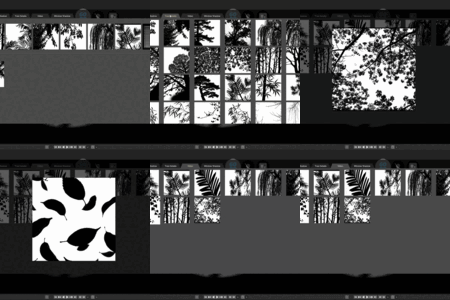
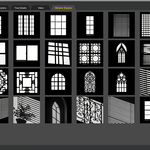
Visual browser for 140+ projection textures. Open from floating toolbar.
- Select a light, browse thumbnails by category.
- Click to apply texture to selected light.
- Hold
Altto preview full-size image. - Animated Gobos play directly in preview.
Custom Gobos
Add your own images to the Gobo folder. Thumbnails generate automatically on first browser open.
Keyboard Shortcuts
-
Tab— Enter/Exit interactive mode -
S + Move— Adjust size -
G + Move— Adjust distance -
R + Move— Adjust rotation -
E + Move— Adjust energy -
B + Move— Adjust blend -
Alt + Hover— Preview full Gobo image -
Click— Confirm placement -
Esc— Cancel
FAQ
-
Toolbar disappeared? —
View > RayPilot Toolbar - Add custom Gobos? — Drop images in Gobo folder, thumbnails auto-generate.
- Multiple languages? — Switch in addon preferences.
- Blender versions? — Supports Blender 3.x and 4.x, Cycles and EEVEE.
-
$16
Single-user license. Full features for personal and commercial projects.
-
$22
Single-user license. Full features, plus a 30% discount on all my other products for future purchases.
Have questions about this product?
Login to message
Discover more products like this
Lighting shadow textures gobo Light Management Cycles product lighting eevee light-linking light-control light exclude light panel Studio Lighting