Rbf Nodes – Node-Based Rbf Solver For Blender
 brave rabbit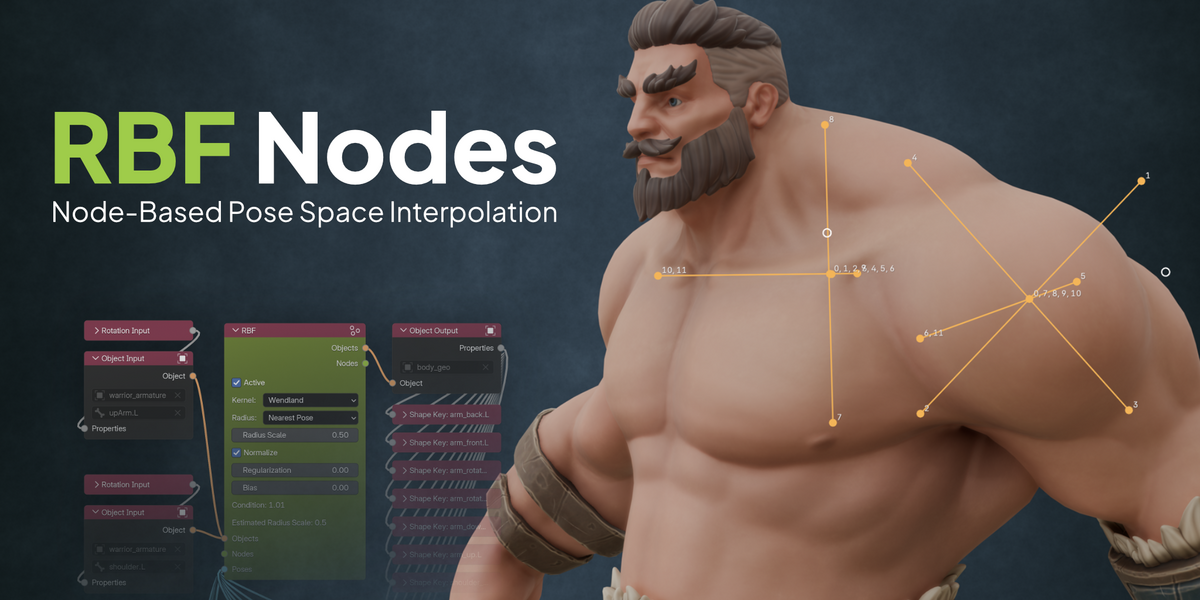
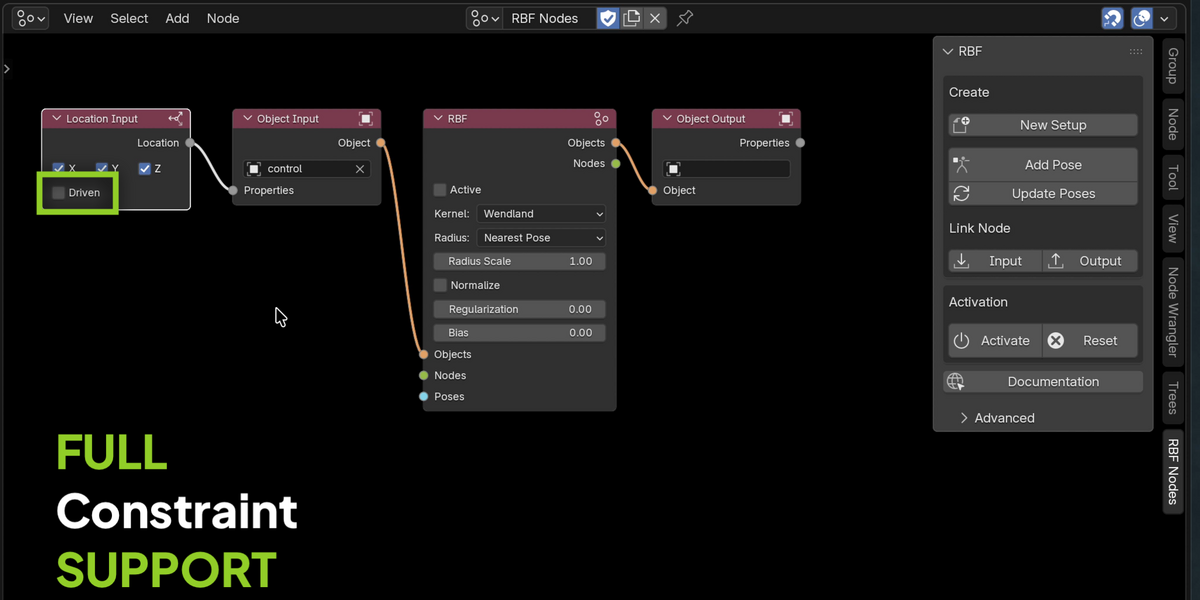
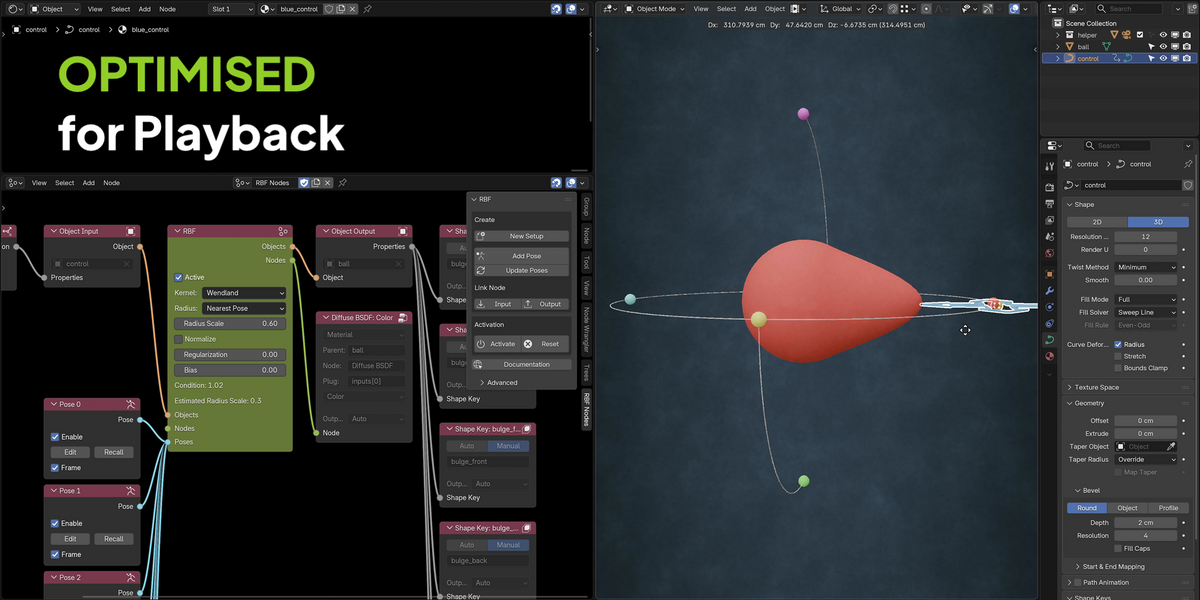
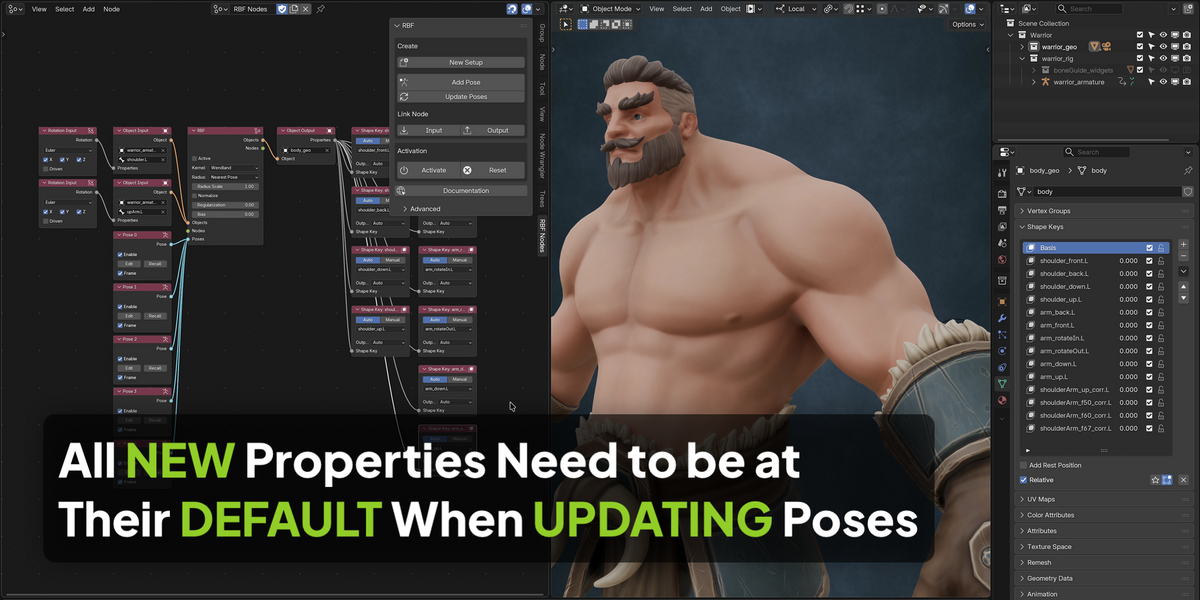
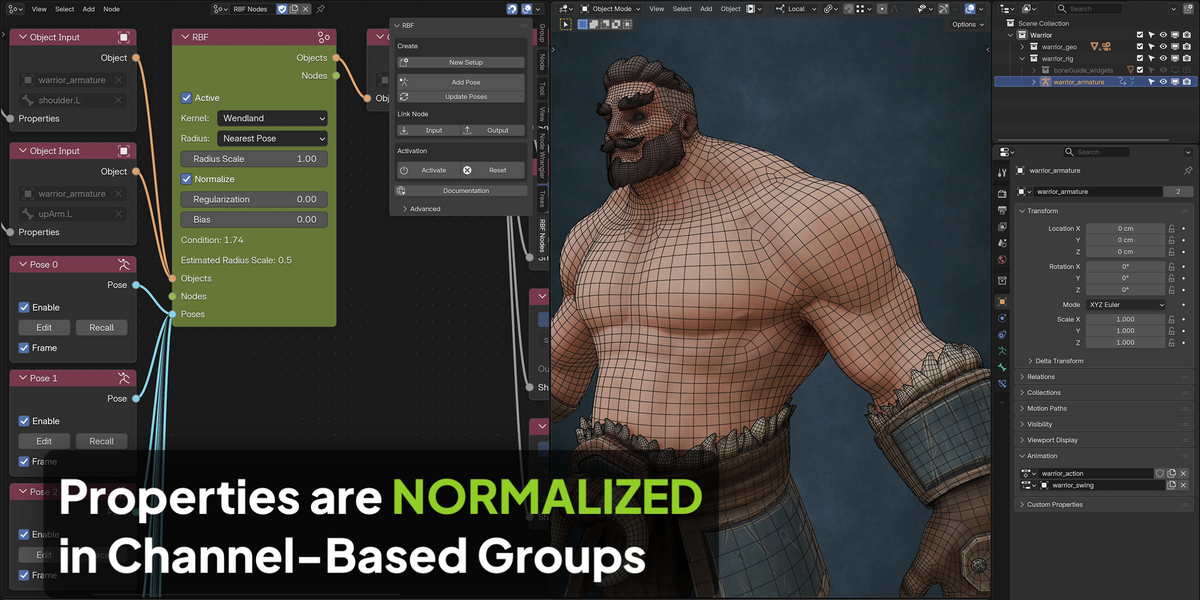
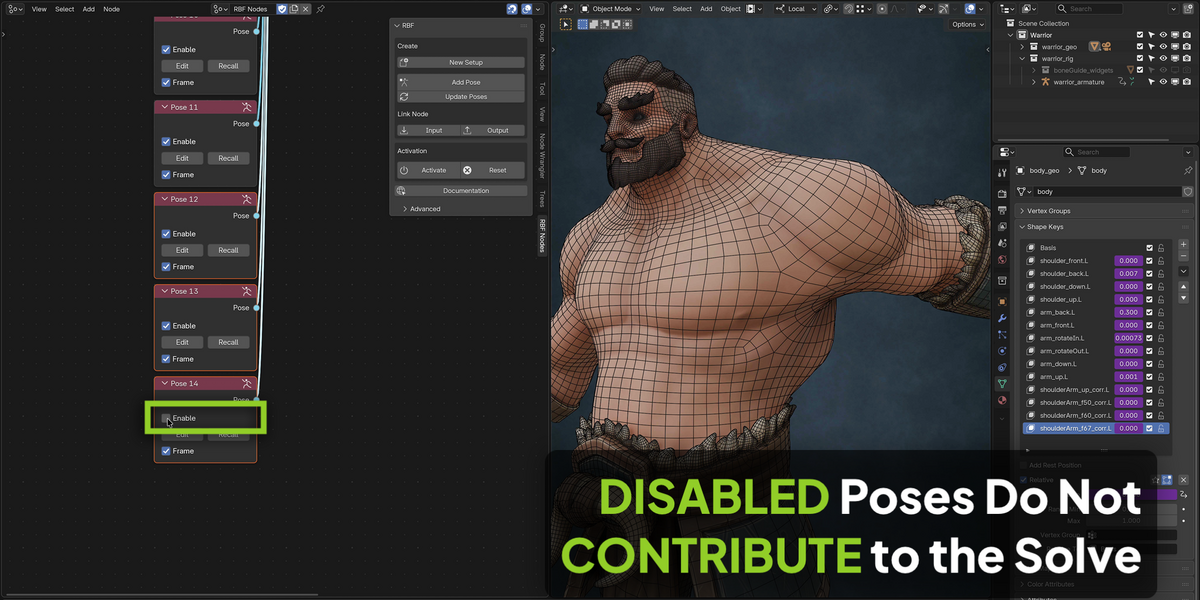
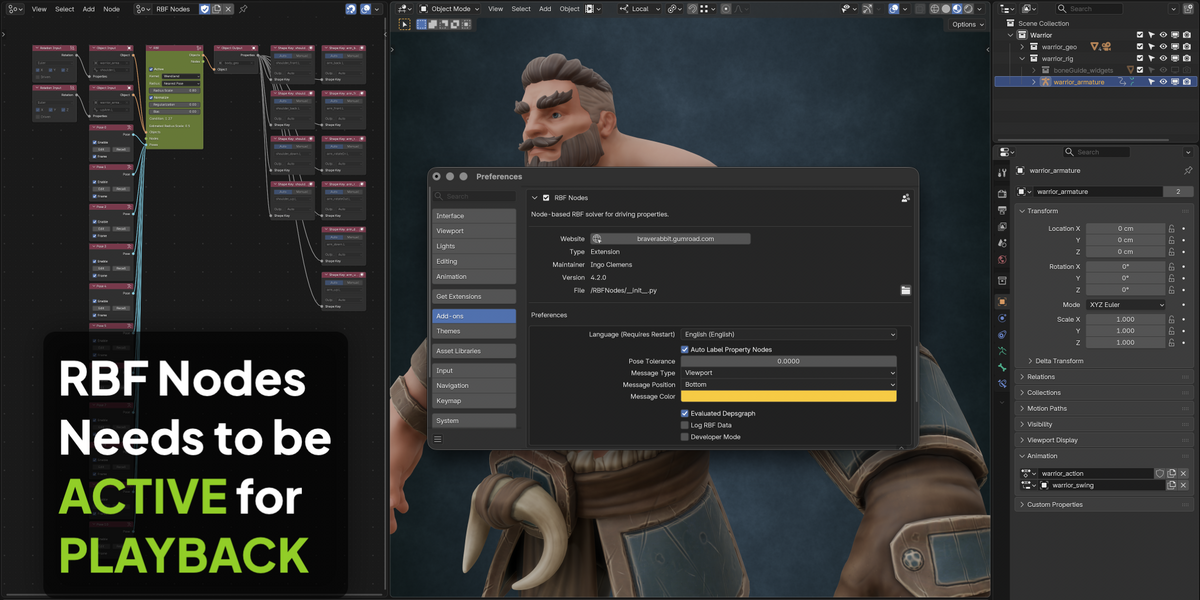
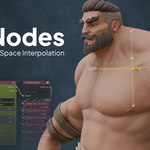
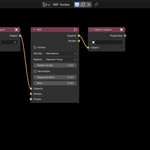
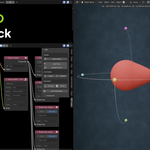
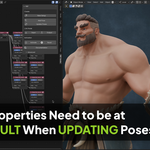
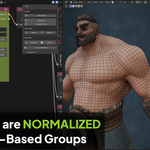
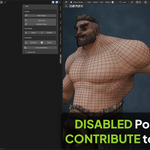
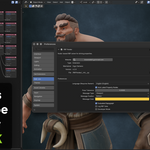
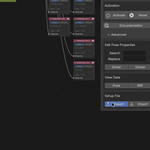
RBF Nodes is built on nodes by design. A regular panel could never be as flexible. A setup can combine any number of inputs and outputs from objects, bones, shape keys, modifiers, shaders and Geometry Nodes, and a panel would need a huge number of controls to cover that. It would end up less clear than the node tree. A reduced interface would leave out exactly the cases where an RBF is worth using.
In practice the node tree stays small, and it is mostly needed once. New Setup creates the base nodes, you add a few property nodes, and the rest (Add Pose, Update Poses, Activate) is done with buttons in the sidebar. The tutorial video builds a setup from start to finish.
At least three: the rest pose and two more. Three to five well-spread poses are a good start for a simple setup, and more complex ones need more. Always create poses for the extremes, because the interpolation only works well inside the set of poses.
A Range-of-Motion (ROM) animation helps a lot. Step through it and add a pose at each extreme.
The Runtime version is RBF Nodes without any authoring features. It can't create or edit RBF setups. It only evaluates existing ones, for playback and rendering.
It's free, so it can be distributed along with a rig, handed to a client or installed on a render farm. It is also available as a separate free download.
Use the full version to build and edit setups, and the Runtime version when a rig only has to be animated or rendered. Only one of the two can be installed at a time.
Yes. RBF Nodes is not a built-in part of Blender. The add-on does the calculation while the scene plays. The rig itself only holds the setup (nodes and poses) and standard Blender drivers which use the results. Without the add-on being installed and enabled, nothing is evaluated and the driven properties don't respond.
The free Runtime version is enough for this. The full version is not needed to use a rig.
Include the free Runtime version, or point your customers to its download. Don't include the full version, because the licence is yours alone.
The Runtime version is made for this. It may be distributed along with any rig which has been built with RBF Nodes. Your customers can animate and render the rig, but not edit the setup. A customer who wants to change it needs the full version.
Tip: mention in the description of your rig that RBF Nodes Runtime is required, so customers know before they download it.
No. Version 4 has a rebuilt solver and stores its data differently, so setups from version 1.x can't be converted. When you open an old scene, a message tells you that the setup is incompatible and the solver is switched off. The setup has to be rebuilt. Work on a copy of the scene, to keep the original untouched.
Rebuilding is less work than it sounds, especially if the poses were created from a ROM animation. In that case every pose is one step of the animation, so you create the nodes, step through the animation and add a pose at each extreme. If you don't have a ROM animation yet, it's worth creating one. It makes rebuilding and adjusting much easier.
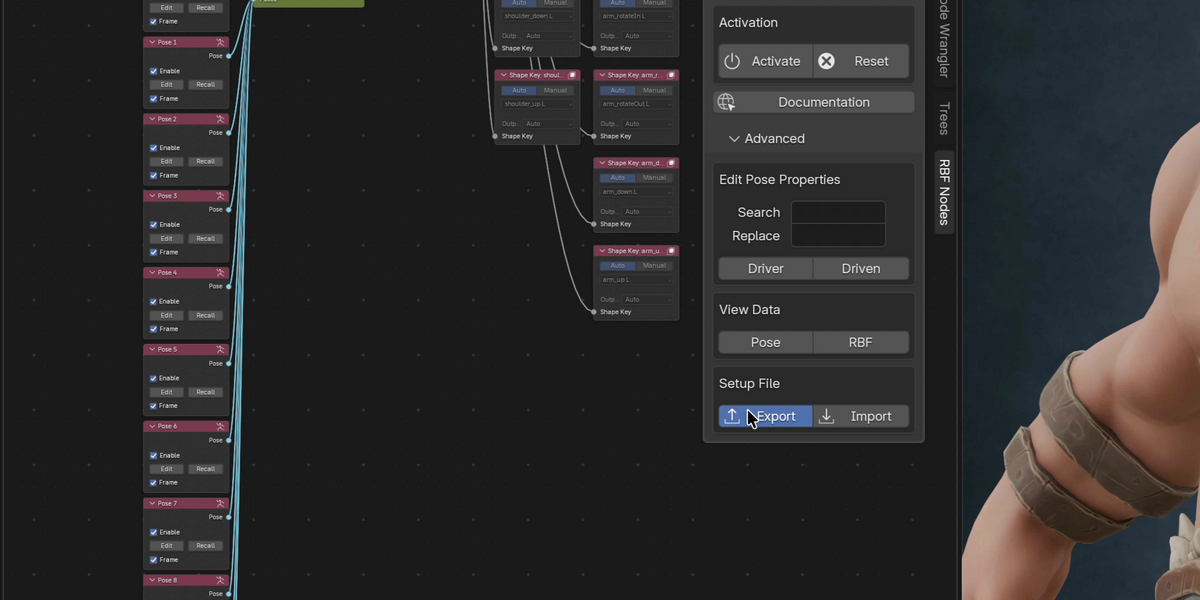
From version 4 on, a setup can be exported and imported, which makes any later rebuilding or editing much simpler.
Yes. Add the new input or output node and click Update Poses before you change any of the new properties. Then continue with Add Pose and activate the solver again. Shape key outputs are the exception: they can be added at any time.
Removing an input or output is not possible once poses exist. In that case the poses have to be created again. It's worth planning the inputs and outputs before starting with the poses.
Yes. Turn on Driven on the transform node. The node then uses the evaluated result including all constraints and drivers, instead of the raw channel values.
Leave it off when the transform can be read directly. It adds additional matrix calculations, which can reduce the precision of rotations. If the result is jittery, Smooth on the rotation node helps.
Both work. Every solver has its own poses and settings and is evaluated on its own. The recommended way is one node tree per setup, for example one for the shoulder, because it keeps the tree readable. If you put several solvers in one tree, select a node of the solver you want to work on. The sidebar buttons always act on the solver of the selected node.
More important than the tree is the size of a solver. Use separate solvers for parts of a rig which don't influence each other, like the left and right arm or different face regions. Fewer inputs per solver are easier to balance and cheaper to evaluate. Combine inputs in one solver only when the outputs really depend on them together.
The expensive part, solving the weights, happens once when you click Activate. During playback only a light interpolation is calculated, so RBF Nodes is fast for animation.
The cost still grows with the number of inputs, outputs and poses, so keep a setup lean: only the values which are needed, and no redundant poses. If a simple relationship is enough, like an elbow corrective, use a regular driver instead. It is faster and easier to control. RBF Nodes is for the cases where regular drivers fail.
A setup stores the names of its objects, bones and properties, like Blender's own drivers do, so it doesn't follow a rename. Fix it with an export and import:
- In the sidebar, open Advanced and click Export in the Setup File section. The setup is written as a text file (json) into an RBFNodes folder next to your scene.
- Open the file in any text editor and replace the old property name with the new one. It appears in the property node and in every pose.
- Click Import and select the file. The node tree is rebuilt from it.
- Click Activate.
This also works for renamed shape keys. For a renamed object or bone, enter the new name in the Object node, and then use Search and Replace in the Edit Pose Properties section (Driver and Driven) to update the stored poses. Enter the complete old name. Tip: export a setup when it's finished. The file is also a backup.
- Red node: the message on the node tells you what went wrong. The usual causes are too few poses (at least three), poses which are identical or almost identical, or poses which hold a different number of values because a property was added without Update Poses.
- Condition value is red: two or more poses are too close together. Move them further apart or remove one.
- Shapes wash out or blend too much: lower the Radius Scale. The Estimated Radius Scale on the node is a good starting point.
- Jitter with constrained or driven rotations: try a wider radius, or enable Smooth on the rotation node.
- No error, but the deformation isn't what you expect: check the quality of the shape keys, use fewer inputs and use Normalize if the inputs have different ranges. Regularization flattens smaller bumps.
The Pose and RBF buttons in the View Data section of the Advanced panel print the stored values to the system console, which helps to find wrong values.
Yes. The interface and messages are available in English, German, French, Spanish, Portuguese, Japanese, Korean and Simplified Chinese. Choose the language in the add-on preferences. A restart of Blender is required. The documentation is in English.
 Included
Includes 12 months of
- Support from brave rabbit
- Product updates
Extend this product’s Support Period +12 months: 50% of product price
Have questions before purchasing?
Login to message
| Blender Extension Compatible | Yes |
| Published | about 9 hours ago |
| Blender Version | 4.2 - 5.2 |
| Extension Type | Add-on |
| Render Engine Used | Cycles, Eevee |
| License | GPL |
Discover more products like this
animation drivers Character rigging rigging Animation Driver setup