Realscatter
 topchannel1on1


RealScatter: Quick Start Tutorial
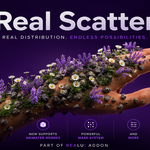
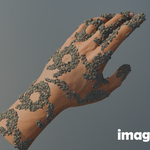
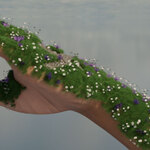
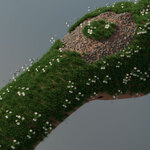
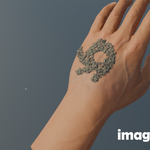
RealScatter distributes objects across one or more mesh surfaces. You can generate a full surface scatter, control it with masks, or paint points manually.
## 1. Create a scatter system
1. Select the mesh that will receive the scatter.
2. Open **RealUI > Scatter**.
3. Click **+** beside **Scatter Systems**.
4. Choose **Distribute on Faces**.
5. Set **Particle Count**, **Seed**, **Minimum Spacing**, and **Jitter**.
Turn on **Live** while adjusting settings to update the scatter automatically.
## 2. Add objects to scatter
1. Select one or more mesh objects that you want to use as instances.
2. Return to the scatter system and open **Instances**.
3. Enable instances and click **+** beside the instance list.
4. Click an instance name to display its settings.
Each source has:
- **Percentage:** How often that object appears. Source percentages always total 100%.
- **Scale:** An additional scale multiplier for that source only.
- **Select icon:** Selects the source object in the Blender scene.
Use the system Scale Min and Scale Max values for random scale variation across every source.
## 3. Control placement with masks
Open **Masks**, click **+**, and choose a mask type:
- **Vertex Group:** Uses weights painted on the target mesh.
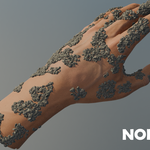
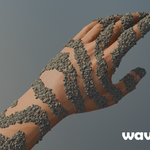
- **Texture:** Uses Noise, Waves, Voronoi, or an image.
- **Geometry:** Uses normals, height, edge angle, or cavity information.
- **Brush:** Lets you add and erase scatter points manually.
For each mask:
- Enable **Distribution** to control where points may appear.
- Enable **Scale** to use the mask to control instance size.
- Use **Threshold** to set the placement cutoff.
- Use **Invert** to reverse the mask.
Use **Toggle Mask** to preview supported masks directly on the target mesh.
## 4. Use an image mask
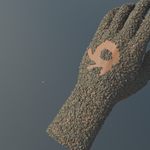
1. Add a **Texture** mask and change its type to **Image**.
2. Choose an existing Blender image or click the folder icon to browse for one.
3. Select the target mesh **UV Map** used for the image coordinates.
4. Choose an extension mode:
- **Repeat** tiles the image outside the UV area.
- **Extend** continues the edge pixels.
- **Clip** makes areas outside the image black.
- **Mirror** mirrors each repeated tile.
5. Adjust **Threshold** or enable **Invert** as needed.
The target mesh must have a UV map. Image, UV-map, extension, threshold, and invert changes update live when **Live** is enabled.
## 5. Paint scatter points manually
Create a new system and choose **Draw**, or add a **Brush** mask to an existing system.
- **Add Points:** Paint new scatter points.
- **Erase Points:** Remove points under the brush, including floating points.
- **Self Collision:** Prevent newly painted instances from overlapping during the stroke.
- **Edit Points:** Enter edit mode for direct point adjustment.
Draw can work across multiple selected mesh targets. Point Radius and Radius Random affect newly painted points without resizing older points.
## 6. Manage systems
The buttons beside **Scatter Systems** let you:
- Add a system.
- Duplicate the active system, including masks, sources, percentages, instance settings, and painted points.
- Select the generated scatter output.
- Delete the active system.
Use the eye and render icons on each row to control viewport and render visibility.
## Common issues
**No instances appear**
- Confirm instances are enabled and at least one valid mesh source is in the list.
- Check that source percentages are not all zero.
- Lower the mask threshold or disable the mask temporarily.
**Image mask appears in the wrong place**
- Confirm the correct UV map is selected.
- Check the target mesh UV layout in the UV Editor.
- Try Repeat, Extend, or Clip depending on the UV range.
**Changes do not update**
- Enable **Live**.
- Confirm the correct scatter system and instance source are active.
- Increase Particle Count if the result is too sparse to judge.
**Instances overlap**
- Increase Minimum Spacing for face distribution.
- Use Self Collision when painting points.
- Reduce the source scale or the system scale range.
Have questions about this product?
Login to message
| Sales | 20+ |
| Published | 3 months ago |
| Blender Version | 5.1 - 5.2 |
| Extension Type | N/A |
| Render Engine Used | Cycles, Eevee |
| License | GPL |
