Rebar Generator ST
 Shapko Tools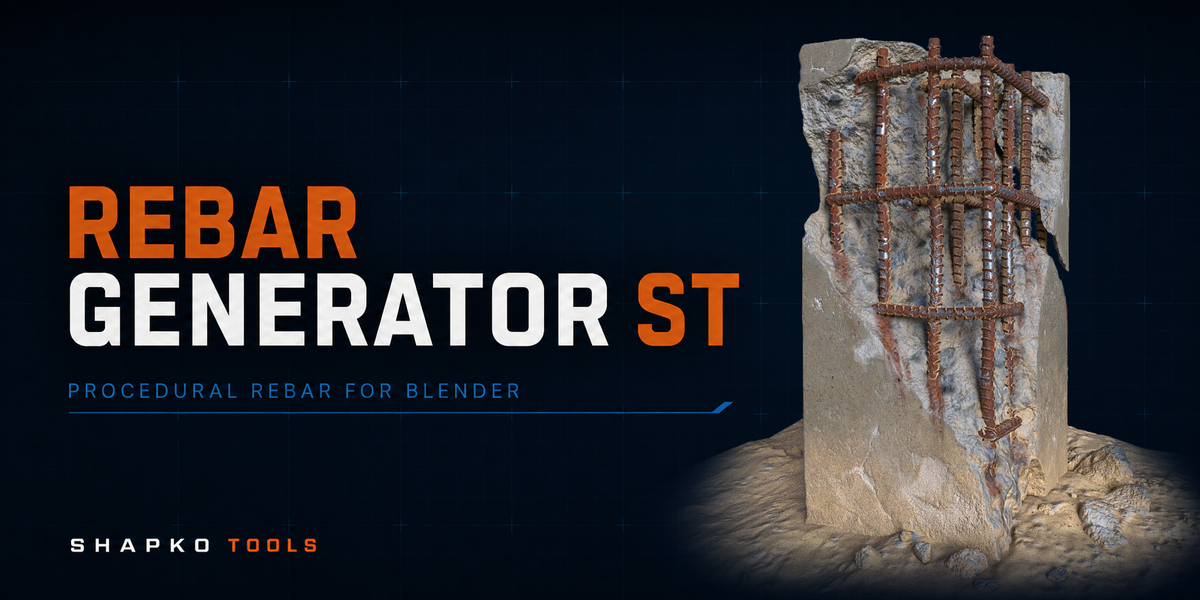
Rebar Generator ST — Documentation
Video Guide
Rebar Generator ST for Blender - Complete Feature Guide | Lite, Grid & PRO - YouTube
Rebar Generator ST for Blender - Complete Feature Guide | Lite, Grid & PRO - YouTube
Overview
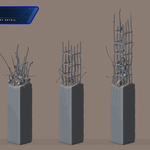
Rebar Generator ST is a procedural Blender add-on for creating reinforcement bars on mesh surfaces and in organized construction-grid layouts.
The add-on is designed for environment art, architectural visualization, damaged concrete assets, construction scenes, and other workflows where controllable procedural rebar is required.
Rebar Generator ST provides three generator modes:
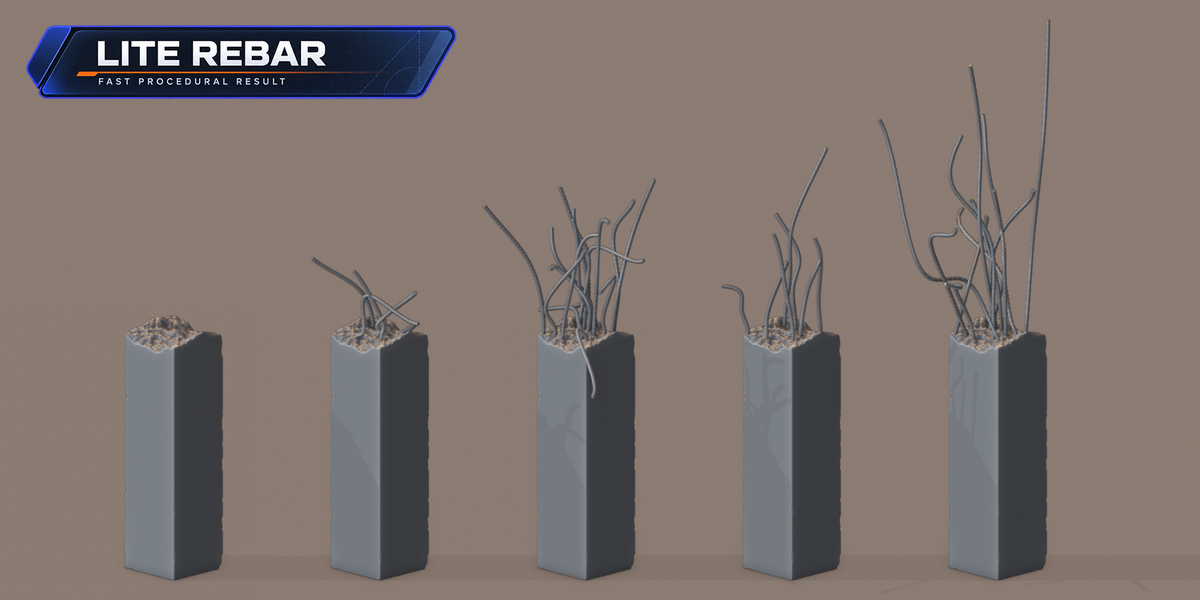
Lite Rebar — quick surface-based rebar generation with controlled randomness.
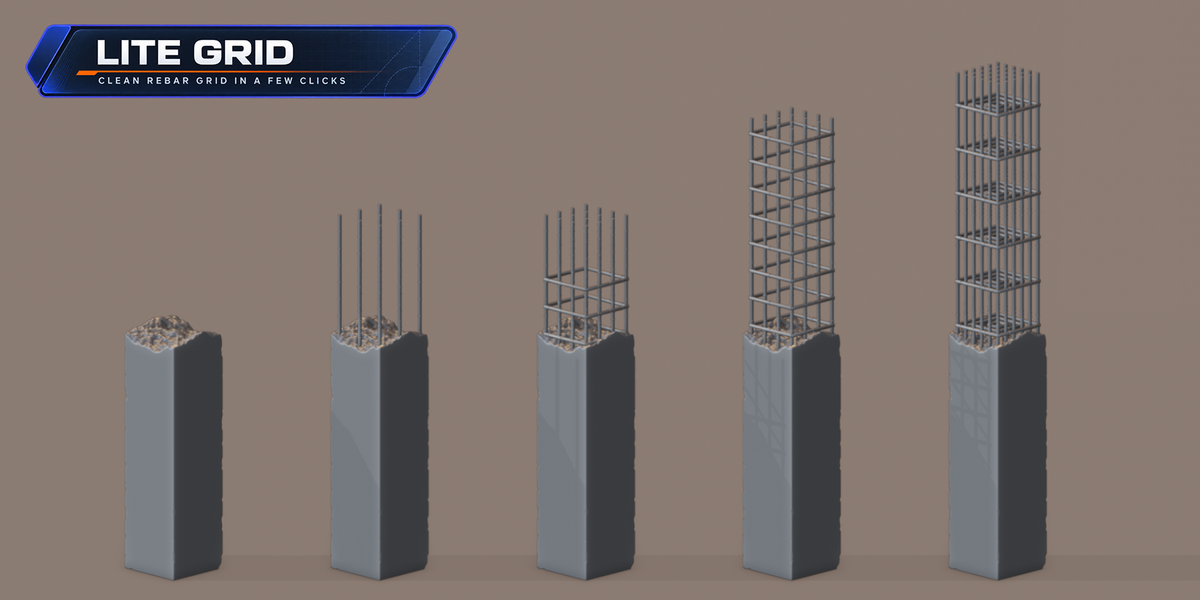
Lite Grid — quick construction-grid generation.
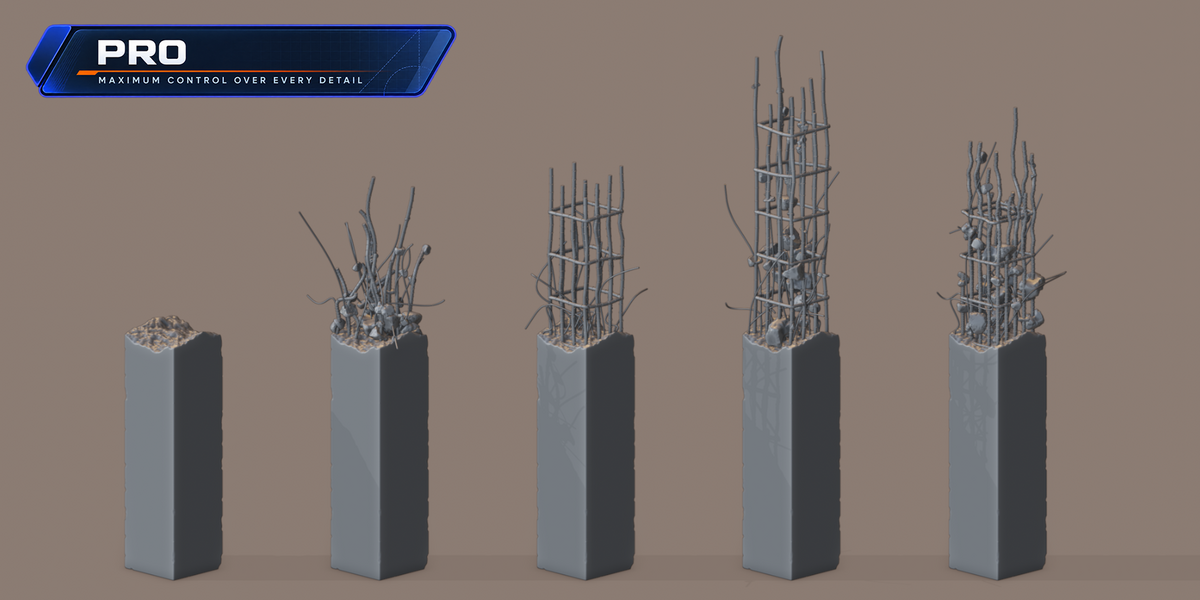
PRO — full access to Main Rebar, Construction Grid, Cross Rebar, Grid Bend, Ribs, Debris, UV, and advanced quality controls.
All modes use the same Geometry Nodes–based generation system.
Rebar Generator ST is an artistic modeling and visualization tool. It is not a structural engineering, BIM calculation, or building-code validation system.
Requirements
Rebar Generator ST version: 1.0.0
Supported Blender versions: Blender 4.2 LTS through Blender 5.2 LTS
-
Tested builds:
Blender 4.2.23 LTS
Blender 4.4.3
Blender 5.0.1
Blender 5.2.0 LTS
Author and maintainer: ShapkoTools
A single universal ZIP package is used for Blender 4.x and Blender 5.x. The add-on detects the active Blender version and automatically uses the appropriate compatibility path.
Installation
Download
Rebar_Generator_ST_1.0.0.zip.Do not extract the ZIP archive.
Open Blender.
Go to Edit > Preferences > Add-ons.
Open the Add-ons menu and select Install from Disk.
Select
Rebar_Generator_ST_1.0.0.zip.Enable Object: Rebar Generator ST if it is not enabled automatically.
Close Blender Preferences.
After installation, the generator is available in the 3D Viewport sidebar.
Quick Start
Select a mesh object.
Make sure Blender is in Object Mode.
Open the 3D Viewport sidebar by pressing N.
Open the Rebar tab.
-
Choose one of the generator modes:
Lite Rebar
Lite Grid
PRO
Open the Geometry Nodes modifier to adjust the generated result.
Use Extract Generated Rebar if a separate applied mesh is required.
For predictable physical dimensions, applying the source object scale before generation is recommended:
Object > Apply > Scale
All generated settings provide English tooltips. Hover over a control to see a short explanation.
Generator Modes
Lite Rebar
Lite Rebar is intended for quick surface-based reinforcement generation.
It exposes a compact selection of the most useful Main Rebar controls, including:
Density
Length and Length Variation
Main Rebar Radius
Surface Offset
Direction Variation
Bend controls
Profile and curve quality
Adaptive bend detail
Ribs
Vertex Group filtering
Lite Rebar starts with prepared defaults intended to produce a useful randomized result without requiring the complete PRO interface.
Construction Grid, Cross Rebar, Grid Bend, Debris, and advanced UV controls are not exposed in this mode.
Lite Grid
Lite Grid is a simplified workflow for organized reinforcement layouts.
It includes:
Grid Spacing
Grid Inset
Grid Height Offset
Grid Perimeter Only
Main Rebar dimensions
Cross Rebar
Cross Rebar layers and spacing
Profile quality
Ribs
Lite Grid is intended for users who need a recognizable construction-grid result without the full PRO control set.
When grid distribution is enabled, Cross Rebar is included in the initial setup to provide a more complete reinforcement assembly.
PRO
PRO provides access to the complete Rebar Generator ST feature set:
Main Rebar
Surface distribution
Vertex Groups
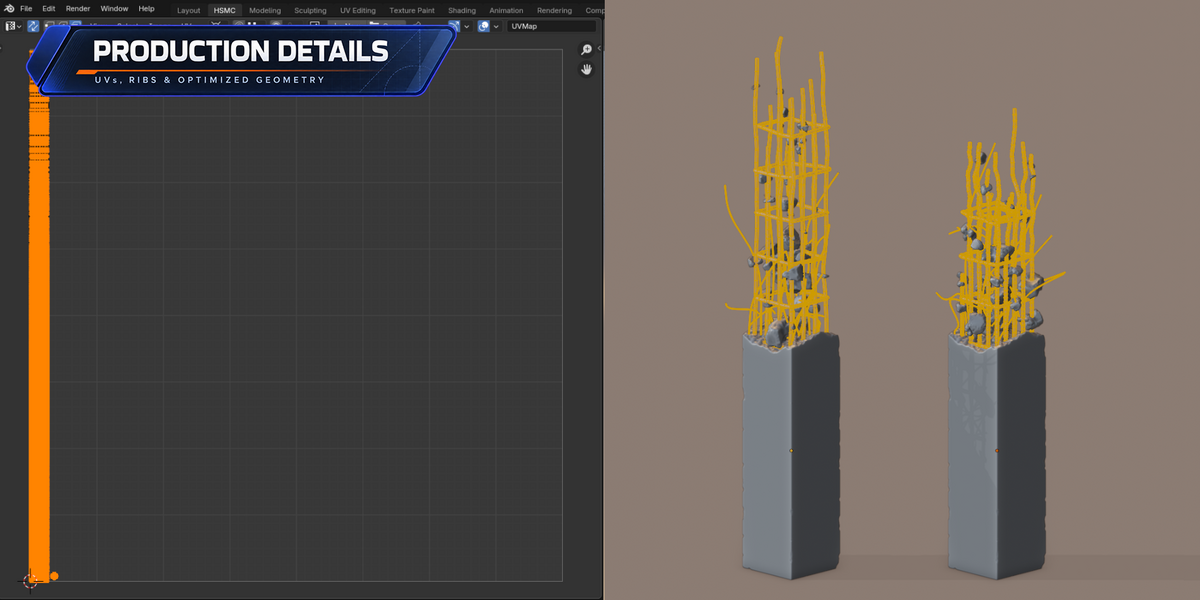
Construction Grid
Cross Rebar
Grid Bend
Multiple Bend Areas
Ribs
Hidden-rib culling
Debris objects and collections
UV controls
Advanced resolution and quality settings
Use PRO when precise artistic control or a more complex reinforcement structure is required.
Main Rebar
Density
Controls how many bars are distributed across the selected mesh surface in random distribution mode.
Higher values create more bars and require more geometry to be evaluated.
Length
Controls the base length of the generated Main Rebar.
Length Variation
Adds random variation to the length of individual bars.
A value of 0 keeps the bars at a consistent length. Higher values create a wider range of short and long bars.
Main Rebar Radius
Controls the radius of the Main Rebar profile.
This changes the actual thickness of the generated bars.
Surface Offset
Moves generated bars inward or outward relative to the source object.
This can be used to seat the bars closer to the source geometry or pull them farther away without changing their radius.
Direction Variation
Adds controlled directional variation between individual bars.
Bend Strength
Controls the amount of deformation applied to the Main Rebar.
Bend Noise Scale
Controls the scale of the procedural deformation pattern.
Lower values create broader deformation. Higher values create more frequent variation along the bars.
Bend Scale Variation
Adds variation to the bend pattern between individual bars.
Random Seed
Produces a different procedural arrangement without requiring other settings to be changed.
Orientation and Vertex Groups
Use Vertex Group
Restricts generation to a Vertex Group on the source mesh.
The group can be:
selected from the existing Vertex Groups on the active object;
entered manually by name.
Only weighted areas belonging to the selected group are used for generation.
If no valid group is selected, Vertex Group filtering is not applied.
Align to Face Normals
Aligns generated bars to the orientation of the source faces.
Direction Offset
Applies an additional rotation to the generated direction.
It can be used to rotate random Main Rebar or an entire grid onto another side of the source object.
Grid generation supports side-oriented Vertex Groups and follows the resulting local orientation.
Quality Settings
Profile Resolution
Controls the number of sides around the Main Rebar profile.
Higher values create a smoother circular profile. Lower values provide a lighter, more stylized result.
Curve Resolution
Controls the base number of samples along the length of the bars.
Increasing this value improves curved silhouettes but also adds geometry to straight areas.
Main Bend Adaptive Detail
Adds extra curve samples where Main Rebar bends strongly.
Unlike regular Curve Resolution, adaptive detail concentrates geometry around deformation instead of increasing it uniformly everywhere.
Use moderate values while editing and increase them only when additional close-up quality is required.
Construction Grid
Use Grid Distribution
Switches from random surface distribution to an organized reinforcement grid.
Grid Spacing
Controls the distance between neighboring Main Rebar bars in the grid.
Very small values can produce a large number of bars and significantly increase geometry.
Grid Inset
Moves the complete grid inward or outward in its local plane.
The operation changes the grid layout without changing individual bar thickness.
Grid Height Offset
Moves the complete grid along its local height direction.
Grid Perimeter Only
Removes the internal Main Rebar bars and keeps only the outer grid layout.
This is useful when only boundary reinforcement is required.
Cross Rebar
Cross Rebar creates transverse reinforcement around the Main Rebar grid.
It can follow Grid Bend deformation and can receive the same ribbed profile treatment.
Closed Cross Rebar
The default mode creates a continuous rounded loop around the grid.
Corner Radius controls the smoothness and size of the rounded corners.
Separate Cross Rebar Sides
Creates four separate bars instead of one closed loop:
one bar on each side of the grid;
open ends are capped;
Cross Rebar Side Length controls their length.
Cross Rebar Vertical Layers
Controls the number of Cross Rebar layers distributed along the height of the Main Rebar.
With two layers, one is placed near the beginning and one near the end. Additional layers are distributed between them.
Auto Cross Rebar Vertical Layers
Automatically calculates the number of vertical layers from the Main Rebar Length.
Cross Rebar Vertical Step
Controls the target distance between automatically generated vertical layers.
Cross Rebar Vertical Spacing
Provides manual spacing control when automatic layer distribution is disabled.
Cross Rebar Perimeter Layers
Adds additional nested perimeter loops around the grid.
Cross Rebar Clearance
Controls the distance between Cross Rebar and the Main Rebar assembly.
Cross Rebar Radius
Controls the thickness of Cross Rebar.
Cross Rebar Corner Radius
Controls the rounding of closed Cross Rebar corners.
Cross Rebar Resolution
Controls the number of sides around the Cross Rebar profile.
Grid Bend
Grid Bend deforms the complete grid assembly, including Main Rebar and Cross Rebar.
The system is designed to introduce damage, uneven construction, or controlled artistic deformation while preserving the round bar profiles.
Grid Bend Noise Strength
Controls the intensity of procedural grid deformation.
Grid Bend Noise Scale
Controls the size and frequency of the grid deformation pattern.
Grid Bend Direction
Controls the primary direction of deformation.
Grid Bend Uniform Detail
Adds evenly distributed samples to Main Rebar and Cross Rebar before deformation.
This improves the overall smoothness of the bent assembly.
Supported range: 0–15.
Grid Bend Adaptive Detail
Adds additional samples in strongly deformed regions.
Adaptive Detail works together with Uniform Detail and preserves the existing noise deformation rather than replacing it.
Supported range: 0–15.
Bend Areas
PRO mode supports up to three independent Bend Areas.
Each area includes:
individual radius;
X center position;
Y center position;
Z center position.
Multiple areas can be used to introduce damage or deformation in several separate parts of the same reinforcement grid.
Show Bend Area
Displays non-rendering viewport guides for the active Bend Areas.
The guides show where deformation influence is located. They are not included in renders or extracted geometry.
Bend Area Shape
Controls the shape of the influence volume.
Grid Bend Falloff
Controls how gradually the deformation fades toward the edge of the Bend Area.
Grid Bend Pin Border
Reduces deformation near the outer boundary of the grid.
Grid Bend Border Width
Controls the size of the protected border region.
Ribs
Enable Ribs to add a ribbed reinforcement profile to Main Rebar and Cross Rebar.
Rib Count
Controls the number of ribs distributed along each bar.
Rib Height
Controls how far ribs extend above the base bar profile.
Rib Width
Controls the width of each rib.
Rib Curvature
Controls the curvature of the split rib shape.
Auto Rib Resolution
Automatically derives rib profile resolution from the Main Rebar profile.
It is disabled by default.
Rib Profile Resolution
Controls the profile resolution of the ribs manually.
The default value is 4.
Cull Hidden Ribs
Removes ribs whose centers are located inside a closed source mesh.
This option is enabled by default.
A rib that crosses the source surface is kept as a complete rib rather than being cut into an open partial mesh. This preserves topology and UV consistency.
For reliable hidden-rib detection, the source object should be a closed mesh. Open or non-manifold geometry may not provide a clear inside/outside result.
Debris
Debris is available in PRO mode.
It can scatter external mesh objects along generated bars.
Debris Object Slots
Up to three individual debris objects can be selected directly.
When multiple objects are assigned, the add-on randomly selects between them.
Debris Collection
An optional Blender Collection can be used as an additional debris source.
Objects inside the collection are treated like the individual debris slots and are randomly selected during scattering.
Debris Variant Count
Controls how many assigned debris sources are included in random selection.
Debris can be generated starting from a single available variant.
Debris Amount
Controls the number of scattered debris instances.
Debris Size Min and Max
Control the size range of debris instances.
Debris Size Variation
Adds additional variation between scattered pieces.
Debris source objects must remain available in the Blender scene while the setup is procedural.
UV Mapping
Rebar Generator ST automatically creates UV coordinates for:
Main Rebar bodies;
Main Rebar caps;
Ribs and rib caps;
closed Cross Rebar;
separate Cross Rebar sides and their caps.
Longitudinal bar strips use consistent world-space density, allowing bars of different lengths to maintain comparable texel density.
Caps use compact separate UV islands.
UV Scale
Controls the overall UV density.
UV Seam Rotation
Moves the longitudinal UV seam around the bar profile without rotating the geometry.
This is useful for positioning a visible material seam away from the camera.
UV coordinates remain procedural until the generated geometry is extracted or the modifier is applied.
Materials
The add-on creates and assigns a material named Rebar.
The material does not impose a custom display color, allowing the user to configure the final shader.
Existing source-object and debris materials are preserved. The generator does not intentionally add an unused empty material slot to the source object.
Extract Generated Rebar
Use Extract Generated Rebar to convert the procedural result into a separate mesh object.
The operation:
duplicates the evaluated generated result;
excludes the source mesh from the extracted result;
applies the Geometry Nodes setup to the duplicate;
removes the Rebar setup from the original source object.
After extraction, the new rebar object behaves like a regular Blender mesh and no longer updates procedurally from the original generator controls.
Save the Blender file before destructive workflow changes.
Performance Recommendations
Rebar Generator ST can create dense geometry. The final complexity depends on the combined settings rather than on a single parameter.
The largest performance multipliers are:
high Density;
small Grid Spacing;
high Profile Resolution;
high Curve Resolution;
high Uniform or Adaptive Detail;
high Rib Count;
multiple Cross Rebar layers;
multiple perimeter layers;
dense debris scattering.
Recommended workflow:
Begin with moderate quality settings.
Adjust the overall layout and deformation.
Keep Bend Area guides disabled when not required.
Increase resolution only for close-up or final-quality assets.
Extract the result only after the procedural setup is approved.
Save before applying, extracting, duplicating, or deleting heavy procedural objects.
Values near the maximum detail range are intended for close-up or final geometry, not general viewport editing.
Known Limitations
The source object must be a mesh.
Generation should be started in Object Mode.
The add-on does not perform structural calculations.
The add-on does not guarantee collision-free reinforcement under extreme density, direction variation, or deformation settings.
Dense random bars may intersect. Adjust Density, Direction Variation, radius, or bend settings when necessary.
Hidden-rib detection works best with closed manifold source meshes.
Debris objects and collections must remain available while the setup is procedural.
Extracted geometry no longer retains procedural controls.
Blender versions earlier than 4.2 are not officially supported.
Troubleshooting
The generator button does nothing
Confirm that:
a mesh object is selected;
Blender is in Object Mode;
the add-on is enabled;
the selected object is editable and not library-locked.
No bars appear with Vertex Group enabled
Check that:
the correct Vertex Group is selected;
the group contains weighted vertices;
the group belongs to the active source object;
Density and Length are greater than zero.
Grid generation is too heavy
Increase Grid Spacing and reduce:
Profile Resolution;
Curve Resolution;
Grid Bend detail;
Rib Count;
Cross Rebar layers.
Bars appear too thick or spacing looks incorrect
Apply the source object scale and check Main Rebar Radius and Grid Spacing again.
Hidden ribs are not removed correctly
Confirm that the source mesh is closed and manifold. Open geometry does not always provide a reliable inside/outside volume.
The viewport is slow
Temporarily:
disable Ribs;
reduce detail and resolution;
reduce Density;
increase Grid Spacing;
disable Show Bend Area;
hide the Geometry Nodes modifier in the viewport.
Updating an existing setup
After installing an updated ZIP:
restart Blender if the previous version remains loaded;
select the object containing the existing setup;
click the currently active generator mode again;
compatible user settings will be preserved while the node group is rebuilt.
Reporting a Problem
When reporting an issue, include:
Blender version;
Rebar Generator ST version;
selected generator mode;
steps required to reproduce the problem;
relevant parameter values;
screenshot or short video;
Blender crash log if Blender closes unexpectedly.
A reproducible sequence is the most useful information for identifying and resolving an issue.
-
$19.99
For one artist. Suitable for personal, freelance and commercial production.
-
$69.99
For small teams and studios with up to 5 artists using the add-on in commercial production.
-
$129.99
For studios with up to 10 artists using the add-on in commercial production.
Have questions about this product?
Login to message
Discover more products like this
rebar generator environment art procedural rebar damaged concrete construction architecture construction grid debris rebar game assets reinforced concrete reinforcement