RecorderFlare – MIDI Recorder Visualizer for Blender
 Egon Castle


RecorderFlare Documentation
Overview
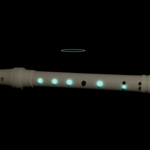
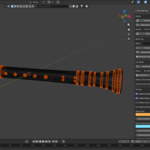
RecorderFlare is a Blender add-on for creating cinematic recorder and flute-style MIDI visualizer scenes. It generates a stylized 3D recorder model and animates the holes, glow effects, finger pads, and optional sound-wave visuals based on note data.
The add-on is designed for artists, musicians, educators, and video creators who want to create music visualizers and instrument animations without manually modeling and animating everything from scratch.
Requirements
Recommended Blender Version:
Blender 3.6 or newer
Recommended Render Engines:
Eevee / Eevee Next
Cycles
Optional MIDI Dependencies:
mido
python-rtmidi
MIDI file import may require mido to be installed into Blender’s Python environment. Live MIDI input may require python-rtmidi depending on your operating system and setup.
Installation
Download the RecorderFlare ZIP file.
Open Blender.
Go to Edit > Preferences > Add-ons.
Click Install.
Select the RecorderFlare ZIP file.
Enable the add-on.
Open the 3D Viewport.
Press N to open the sidebar.
Open the RecorderFlare tab.
Basic Workflow
Generate Recorder
Click Generate Recorder.
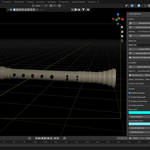
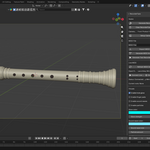
This creates the recorder model, finger holes, materials, scene collection, and basic visual setup.
Generate Test Animation
Click Generate Test Recorder Animation or Generate Test Notes.
This creates sample note animation so you can preview the visualizer without using a MIDI file.
Animate Fingering
The add-on will animate the recorder holes based on note data. Covered holes can glow, darken, or show finger pad movement depending on the available settings.
Setup Camera
Click Setup Camera.
This creates a cinematic camera view for rendering or previewing the scene.
Render Animation
Use Blender’s normal render workflow:
Render > Render Animation
MIDI File Workflow
Prepare a .mid or .midi file.
Select the MIDI file in the RecorderFlare panel.
Click Import MIDI File.
Generate MIDI Animation.
Preview the timeline.
Render normally from Blender.
For best results, use clean single-instrument MIDI files. Very dense MIDI files may create many animated objects and slow down Blender.
Live MIDI Workflow
RecorderFlare is designed for MIDI controller workflows such as Novation Launchkey, depending on your installed version and Python setup.
Connect your MIDI keyboard/controller to your computer.
Open Blender.
Open the RecorderFlare panel.
Refresh MIDI devices.
Select your MIDI input device.
Connect live MIDI.
Press keys on your MIDI controller to trigger recorder visuals.
If live MIDI does not work, make sure the required MIDI packages are installed correctly in Blender’s Python environment.
Visual Settings
RecorderFlare may include controls for:
• Instrument color
• Hole glow color
• Glow strength
• Enable/disable finger pads
• Enable/disable sound waves
• Enable/disable particles
• Animation speed
• Frame start and frame end
• Camera presets
• Render resolution
Recommended Render Settings
For glowing visuals, Eevee / Eevee Next is recommended.
Suggested settings:
Render Engine: Eevee / Eevee Next
Bloom: Enabled if available
World Background: Dark
Resolution: 1280x720 or 1920x1080
FPS: 24 or 30
Depth of Field: Optional
Motion Blur: Optional
For vertical social media videos, use:
1080x1920
Known Limitations
• RecorderFlare creates visual animation only.
• It does not generate music or audio.
• Audio must be added separately.
• MIDI import may require the mido Python package.
• Live MIDI may require python-rtmidi.
• Fingering maps are simplified and may not represent every real recorder fingering perfectly.
• Very large MIDI files may slow down Blender.
• The add-on focuses on cinematic visual effects, not professional music education accuracy.
Troubleshooting
The add-on does not appear:
Make sure you installed the correct ZIP file and enabled the add-on in Blender Preferences.
MIDI import does not work:
Make sure mido is installed into Blender Python. Restart Blender after installing dependencies.
Live MIDI does not detect my keyboard:
Refresh MIDI devices, reconnect your MIDI controller, restart Blender, and make sure python-rtmidi is installed if required.
The glow is not visible:
Use Eevee / Eevee Next and enable Bloom if available. Increase emission/glow strength.
Blender becomes slow:
Use shorter MIDI files, reduce note density, disable particles, or lower VFX settings.
The fingering does not match my exact recorder:
RecorderFlare uses a simplified fingering map for visual animation. You may edit or extend the fingering map if needed.
Support
For support, contact the creator through the Superhive product page.
When reporting an issue, please include:
• Blender version
• Operating system
• RecorderFlare version
• Screenshot of the issue
• Steps to reproduce the issue
• MIDI file details if the issue is MIDI-related
• MIDI controller model if the issue is live input related
License
Use of this product follows the license selected on Superhive. Do not redistribute, resell, or reupload the add-on files unless the license allows it.
Have questions about this product?
Login to message
| Blender Extension Compatible | Yes |
| Published | 3 months ago |
| Blender Version | 3.6 - 5.1 |
| Extension Type | Add-on |
| Render Engine Used | Blender-Internal, Cycles, Eevee |
| License | GPL |
Discover more products like this
Blender Add-on Music VFX Instrument Animation Procedural Animation visual effects MIDI Visualizer Cycles flute motion graphics music animation eevee Recorder