Remover
 Mergim Sahiti



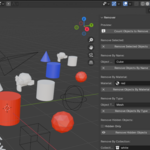
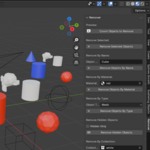
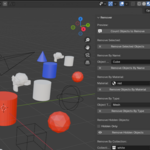
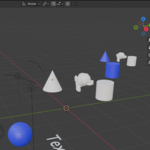
Introduction
Remover is a powerful Blender addon designed to streamline scene management by allowing you to remove objects quickly and safely. Whether you’re working on large scenes, cleaning up multiple collections, or preparing assets for export, Remover helps you save time and reduce errors.
With a simple sidebar interface, you can remove objects by selection, name, material, type, hidden status, collection, or all objects. The addon also provides a preview count of objects that will be removed before performing any deletion.
Getting Started
Installation
-
Download the
.zipfile of the addon. -
Open Blender and navigate to
Edit → Preferences → Add-ons → Install. -
Select the downloaded
.zipfile and click Install Add-on. -
Enable the addon by checking the box next to Remover.
-
Access the addon via the Sidebar (N-panel) → Remover Tab.
Using Remover
Sidebar Overview
The Remover panel contains the following sections:
-
Preview Count
-
Click Count Objects to Remove to see exactly how many objects match your filters.
-
This ensures you avoid accidental deletion.
-
-
Remove Selected
-
Deletes all currently selected objects.
-
-
Remove By Name
-
Enter a partial or full name to remove objects matching that name.
-
-
Remove By Material
-
Choose a material from your scene to remove all objects using it.
-
-
Remove By Type
-
Filter by object type: Mesh, Curve, Light, Camera, Empty, or Other.
-
-
Remove Hidden Objects
-
Deletes all objects currently hidden in the viewport.
-
-
Remove By Collection
-
Select a collection to remove all objects it contains.
-
-
Remove All Objects
-
Deletes every object in the scene.
-
Customization Options
-
Combine filters: You can use multiple filters together (e.g., remove hidden meshes with a specific material).
-
Preview before deleting: The count ensures you only remove objects you intend to.
-
Undo support: All removal actions support Blender’s undo system (
Ctrl+Z).
Tips for Best Use
-
Use collections to organize your scene before mass deletion.
-
For large scenes, use the preview count first to avoid unintended data loss.
-
Remember, removed objects cannot be recovered unless using Undo.
Have questions about this product?
Login to message
| Dev Fund Contributor | |
| Published | about 1 year ago |
| Blender Version | 4.0 - 4.5 |
| Extension Type | N/A |
| Render Engine Used | Blender-Internal, Cycles, Eevee, Octane |
| License | GPL |

Discover more products like this
collection management object type filter blender bulk delete hidden objects scene cleanup material filter object remover Workflow blender addon