 AvvyB
AvvyB


# Documentation
## Getting Started
### Installation
1. Download the `render_brick_road.zip` file from your purchase
2. Open Blender (4.2 or newer)
3. Go to **Edit > Preferences > Add-ons**
4. Click **Install from Disk** and select the downloaded `.zip`
5. Enable **Render Brick Road** in the add-on list
The timeline overlay will appear automatically at the bottom of your 3D viewport. Open the **Timeline** tab in the sidebar (press `N` to toggle) for full controls.
### Uninstalling
1. Go to **Edit > Preferences > Add-ons**
2. Search for "Render Brick Road"
3. Click the dropdown arrow and select **Remove**
---
## The Timeline Overlay
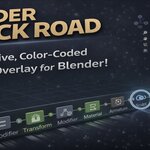
The overlay is a horizontal bar at the bottom of your 3D viewport. Each node represents a tracked editing operation.
### Reading the Timeline
- **Colored nodes** — Past operations you've performed, color-coded by category
- **Blue glowing node** — Your current position in the timeline
- **Dimmed gray nodes** — Future operations (available via redo)
- **Diamond shapes** — Mesh operations (extrude, bevel, subdivide, etc.)
- **Circles** — All other operation types
- **Progress bar** — The blue bar along the bottom shows how far through your history you are
- **Scroll arrows** — Left/right arrows appear when there's more history to scroll to
### Color Categories
| Color | Category | Examples |
|-------|----------|----------|
| Green | Mesh | Extrude, Bevel, Subdivide, Merge |
| Orange | Object | Add Cube, Delete, Duplicate, Join |
| Blue | Transform | Move, Rotate, Scale |
| Purple | Modifier | Mirror, Subdivision Surface, Array |
| Red | Material | Assign Material, New Material |
| Cyan | Curve | Curve operations |
| Yellow | Armature | Bone and skeletal operations |
| Pink | Sculpt | Sculpt, Vertex Paint, Weight Paint |
| Lavender | Animation | Keyframes, Actions |
| Gray | Other | Uncategorized operations |
### Hovering
Hover over any node to see its label — the operation name, affected object, and any relevant context (axis constraints, modifier type, mode name).
---
## Sidebar Panel
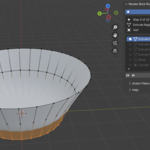
Press `N` in the 3D viewport and select the **Timeline** tab to open the sidebar panel.
### Controls
- **Tracking toggle** — Pause or resume operation tracking. When paused, the button turns red and shows "Paused"
- **Eye icon** — Show or hide the viewport overlay
- **Trash icon** — Clear all timeline entries
### Current Step Info
Shows your current position ("Step 12 of 47"), the operation name with its category icon, and the affected object name.
### Timeline List
A scrollable list of all tracked operations showing:
- Status indicator (current, past, or future)
- Category icon
- Operation name
- Affected object
- Relative timestamp (e.g., "2s", "5m", "1h" ago)
- Jump button to navigate to that step
### Navigation Buttons
- **REW** — Jump to the first step
- **Prev** — Go back one step
- **Next** — Go forward one step
- **FF** — Jump to the last step
---
## Action Filters
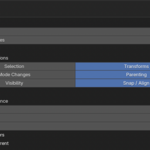
Open the **Action Filters** sub-panel to control which operation types are tracked.
| Filter | Default | What it tracks |
|--------|---------|----------------|
| Selection | Off | Select All, Box Select, loop select, etc. |
| Transforms | On | Move, Rotate, Scale, Clear transforms |
| Mode Changes | Off | Switching between Object, Edit, Sculpt mode, etc. |
| Parenting | On | Parent/Unparent operations |
| Visibility | Off | Hide/Show operations |
| Snap / Align | On | Snap to cursor, origin set, align operations |
Filters only affect future tracking — they won't remove entries already in your timeline.
---
## Preferences
Go to **Edit > Preferences > Add-ons**, find Render Brick Road, and expand it to access these settings:
### Tracking
- **Poll Interval** (0.1–2.0s, default: 0.3s) — How often the extension checks for new operations. Lower values catch operations faster but use slightly more resources
- **Max Timeline Entries** (0–5000, default: 500) — Maximum entries to keep in memory. Set to 0 for unlimited. When the limit is reached, the oldest entries are removed
### Overlay Appearance
- **Overlay Height** (30–100px, default: 52px) — Height of the timeline bar
- **Node Spacing** (30–120px, default: 60px) — Horizontal distance between nodes
- **Overlay Opacity** (0.3–1.0, default: 0.92) — Background transparency of the bar
- **Show Step Numbers** (default: On) — Display step numbers below nodes at regular intervals
- **Auto-scroll** (default: On) — Automatically pan the timeline to keep your current position visible
---
## Navigating History
### Clicking Nodes
Click any node in the overlay to jump directly to that point. The extension performs the necessary undo/redo operations automatically and your scene is fully restored.
### Keyboard Undo/Redo
Standard Blender undo (`Ctrl+Z` / `Cmd+Z`) and redo (`Ctrl+Shift+Z` / `Cmd+Shift+Z`) work as normal. The timeline updates to reflect your position after each undo or redo.
### Branching History
If you undo several steps and then perform a new operation, the future (undone) entries are removed — just like Blender's native undo behavior. The new operation becomes the latest entry.
---
## Multi-Viewport
If you have multiple 3D viewports open, each viewport displays its own overlay with independent scrolling. The timeline data is shared, but each viewport tracks its own scroll offset and hover state.
---
## Bug Reporting
Found a bug? You can report it directly from Blender:
1. Open the **Timeline** tab in the sidebar
2. Expand the **Help** sub-panel
3. Click **Report Bug**
4. Fill in the title, description, steps to reproduce, and expected behavior
5. Click **OK** to send
The report automatically includes your Blender version, OS, and extension version. Bug reporting requires network access to be enabled in **Preferences > System > Network**.
Have questions about this product?
Login to message
| Blender Extension Compatible | Yes |
| Published | 7 months ago |
| Blender Version | 4.2 - 5.1 |
| Extension Type | Add-on |
| Render Engine Used | Arnold, Blender-Internal, Blender-Game-Engine, Cycles, Eevee, Freestyle, Luxrender, Mental-Ray, Octane, Vray, Yafaray |
| License | GPL |
