Render Only Visible
 3D Hermes Studio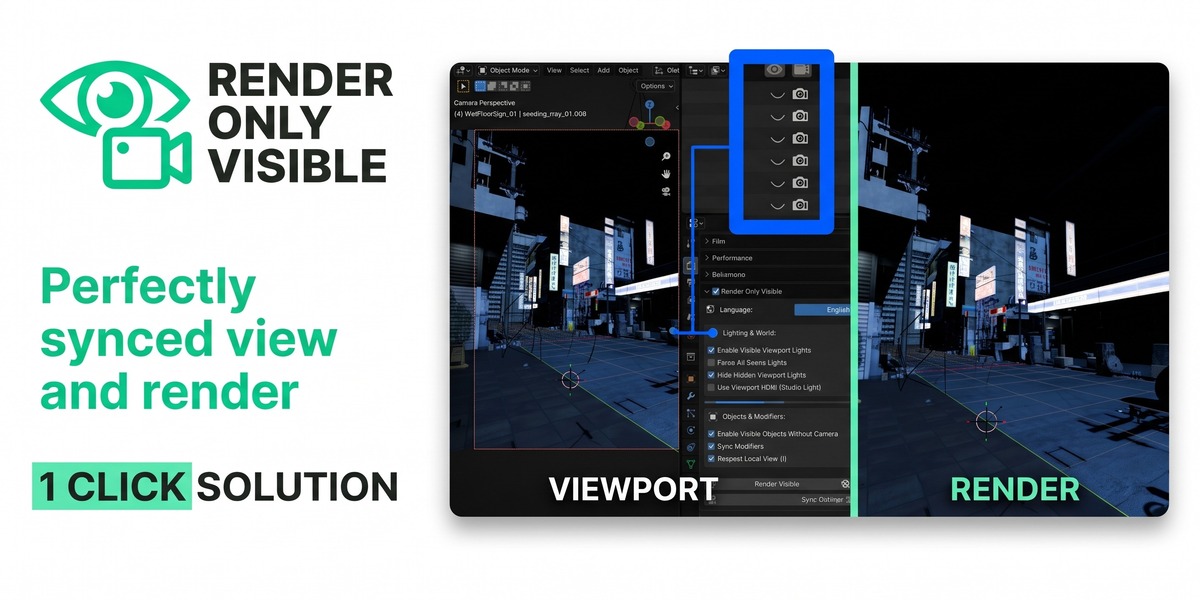
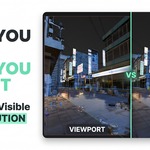
Render Only Visible
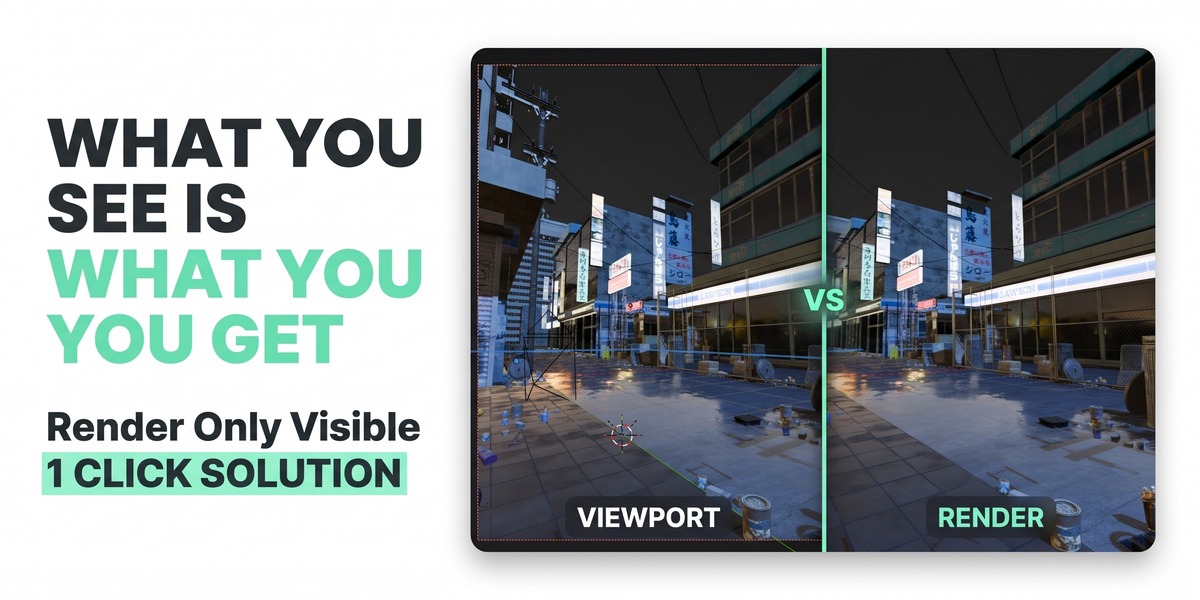
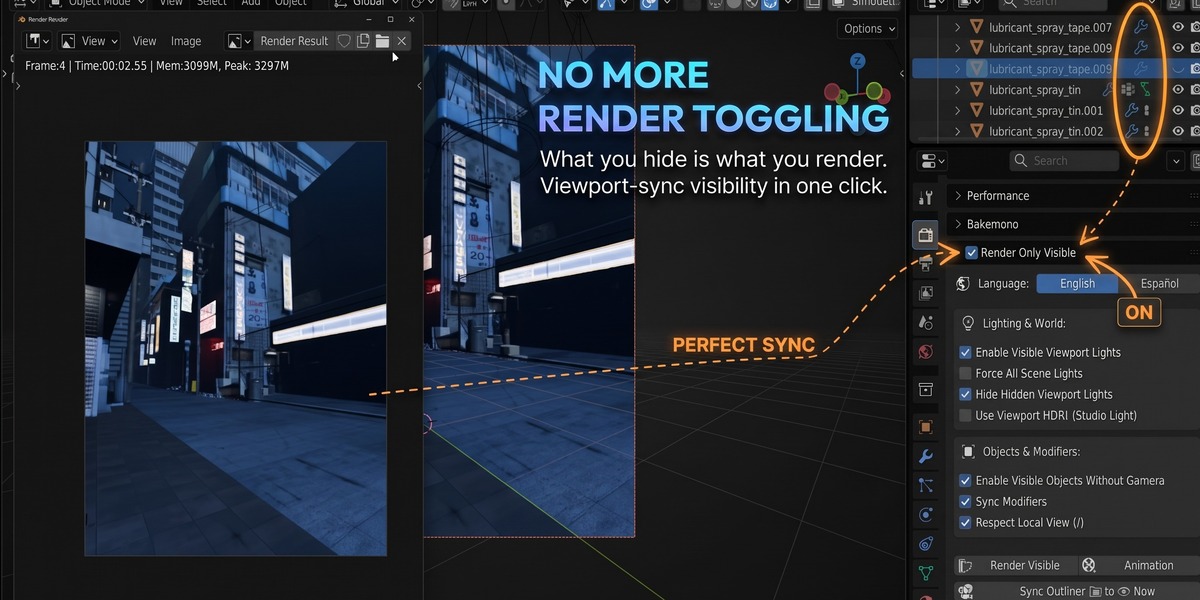
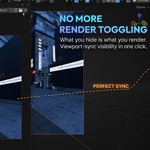
What you see in the Viewport is what you get in the final render—without touching your Outliner setup.
1. Quick Start Tutorial
Step 01
Enable the "Render Only Visible" Toggle
Turn on the toggle from any of three convenient places:
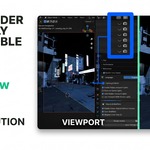
• 3D Viewport Header: Click the Eye/Camera toggle icon on the top-right header bar.
• Render Properties: Open the Render Only Visible panel and check the header box.
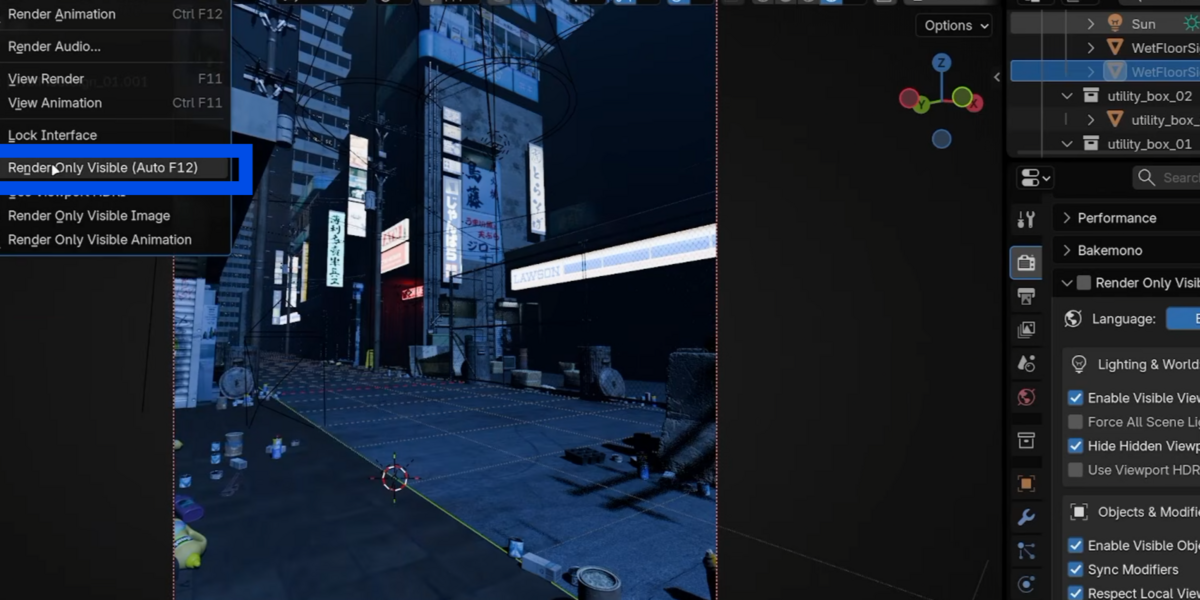
• Topbar Render Menu: Go to Render > Render Only Visible (Auto F12).
Step 02
Render as Usual (F12 or Ctrl + F12)
Press F12 for a still image, Ctrl + F12 for an animation, or click the quick Render button right next to the toggle in the Viewport header.
Step 03
Non-Destructive Automatic Restore
Every hidden backup mesh, hidden collection, and disabled modifier is automatically excluded from the render. As soon as the render finishes (or is cancelled), your original Outliner states are 100% restored.
2. Options & Features Reference
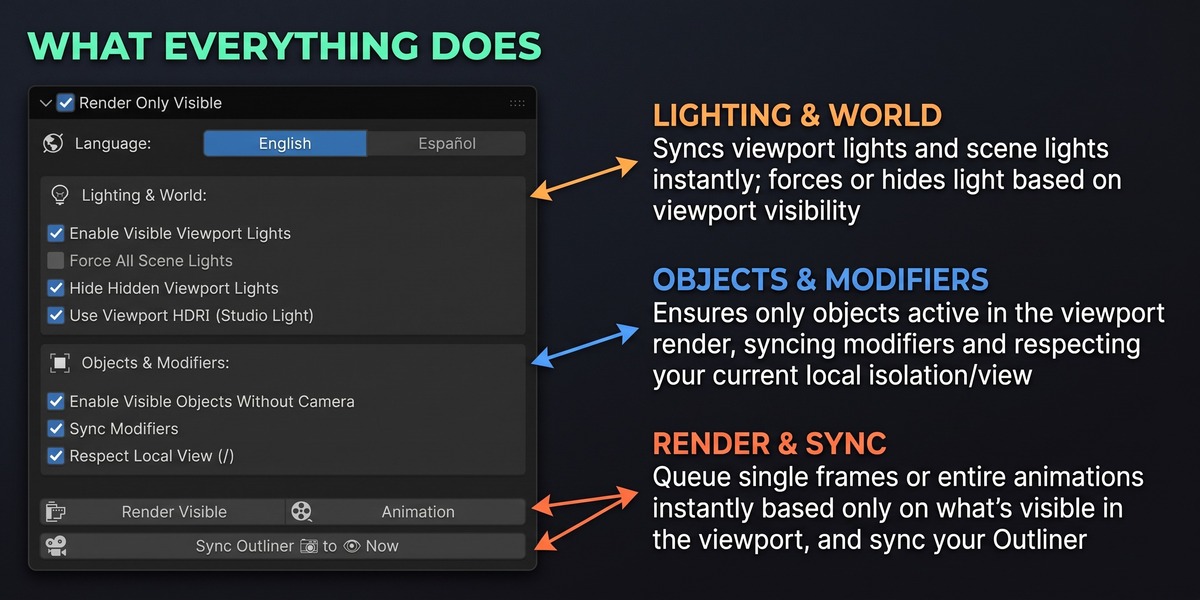
All options are located in Properties > Render > Render Only Visible:
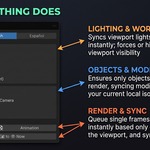
Lighting & World Options
• Use Viewport HDRI (Studio Light) ALSO IN HEADER 🌐
Ever loved how your model looks in Material Preview using Blender's built-in Studio HDRIs (like forest.exr), only to get a pitch-black render when pressing F12? Enable this option (or click the World 🌐 icon in the 3D Viewport header) to automatically render with your active Viewport Studio HDRI, matching its exact rotation and intensity while keeping your scene's camera background color.
• Enable Visible Viewport Lights (Default: ON)
If a light is visible in your Viewport (eye icon 👁️ ON) so you see its illumination while working, but its render camera icon (📷) was accidentally turned off in the Outliner, the addon enables it for the render automatically.
• Force All Scene Lights (Default: OFF)
Forces every light in your scene to illuminate the final render—even if you hid your light objects with H or hid the Lights collection in the Viewport to keep your workspace clean.
• Hide Hidden Viewport Lights (Default: ON)
Ensures that any lights you hid in the Viewport (or inside hidden collections) will not unexpectedly light up your final render.
Objects, Modifiers & Utilities
• Enable Visible Objects Without Camera (Default: ON)
If a mesh, curve, or Grease Pencil object is visible in your Viewport (👁️ ON) but had its render camera (📷) disabled in the Outliner, it will still be rendered. Non-renderable helpers like rigs and empties remain untouched.
• Sync Modifiers (Default: ON)
Prevents modifiers that you turned off in the Viewport (🖥️ OFF) from turning back on during the final render.
• Respect Local View ( / ) (Default: ON)
When you isolate selected objects in the 3D Viewport using Numpad / (Local View), pressing F12 will render only those isolated objects while automatically keeping your visible scene lights active.
• Sync Outliner 📷 to 👁️ Now (Manual Button)
Want to permanently match all Outliner camera icons (📷) to your current Viewport visibility (👁️)? Click this button at the bottom of the panel (supports Ctrl + Z undo).
• Language Selector (English / Español)
Defaults to English with an instant toggle at the top of the panel to switch the entire interface to Español.
3. How to Install
Option A — Fastest
Drag & Drop into Blender
Literally drag and drop the downloaded Render_Only_Visible_1.0.0.zip file directly into your open Blender window and click OK / Install.
(Alternatively: Go to Edit > Preferences > Get Extensions / Add-ons > Install from Disk... and select the .zip file.)
Option B — Auto-Updates
Superhive Online Extensions
If you have set up the Superhive Market Online Extensions repository in Blender (Edit > Preferences > Get Extensions > Repositories), you can install and update Render Only Visible with one click directly inside Blender.
Have questions about this product?
Login to message
| Blender Extension Compatible | Yes |
| Published | about 3 hours ago |
| Blender Version | 4.2 - 5.2 |
| Extension Type | Add-on |
| Render Engine Used | Cycles, Eevee |
| License | GPL |
Discover more products like this
visibility hdri light render-only-visible Render render-visibility-toggle Workflow utility