 Soyoyo


Installation
Steps as below:
- Edit > Preferences > Add-Ons
- Click the “Install…” button in the top right of the window
- Find the Add-On file to install
- Click “Install Add-on”
- Check the checkbox to enable the addon.
A little different from Blender 4.2: choose 'install from disk', or Drag the .zip file into Blender and confirm.
Quick Start
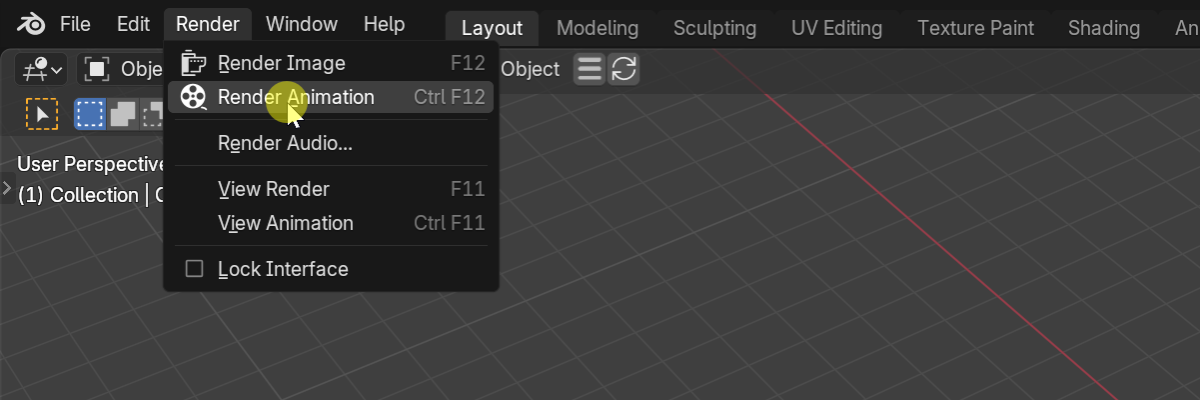
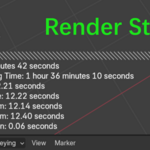
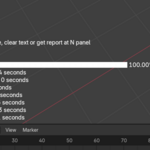
After installing and enabling, this addon is ready. When you render image or animation, this addon will show the render stats in the 3D Viewport.
Preferences
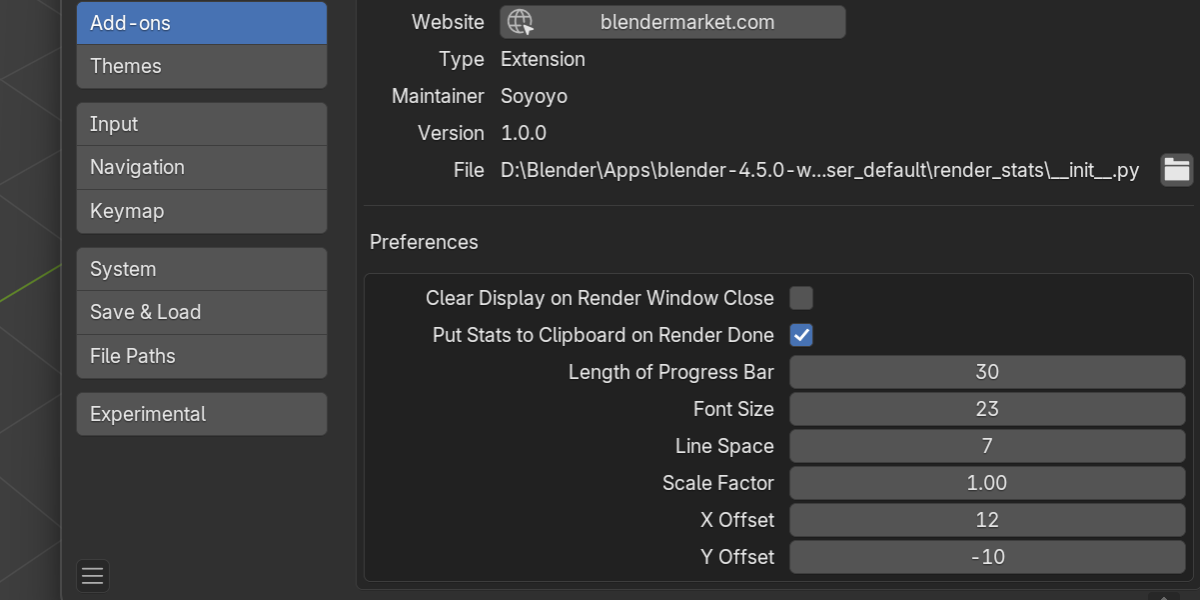
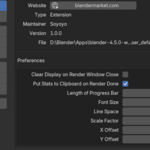
In the addon preferences, you can change some settings.
- Clear Display on Render Window Close: clear the text in the 3D Viewport when you close the render result window.
- Put Stats to Clipboard on Render Done: put the summary stats to clipboard on render done, so you can get the summary without going to the N Panel tab.
- Length of Progress Bar: change the length of the progress bar, the unit is geometric shape character.
- Font Size: change the font size of the text in the 3D Viewport.
- Line Space: change the line spacing of the text in the 3D Viewport.
- Scale Factor: the factor of the Font Size and Line Space, that means you can change both of them at the same time using this number.
- X Offset: x offset of the location of the text in the 3D Viewport.
- Y Offset: y offset of the location of the text in the 3D Viewport.
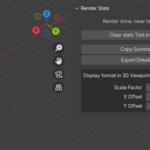
Clear stats text display
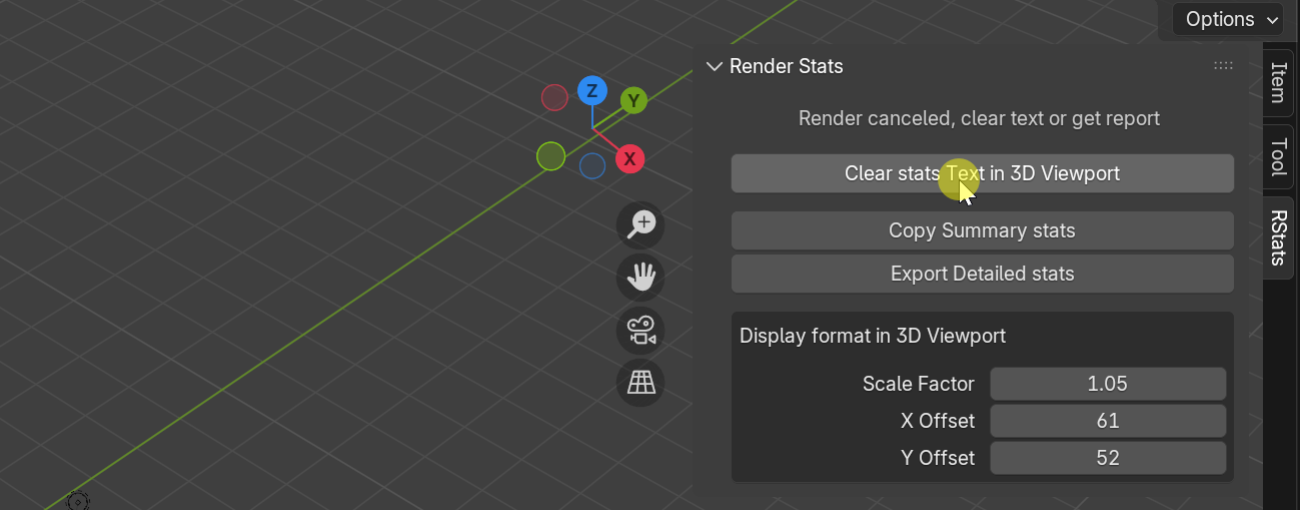
If you haven't enabled the option Clear Display on Render Window Close and want to clear the text display in 3D Viewport, you can clear the text in the N Panel tab RStats.
Get the render stats report
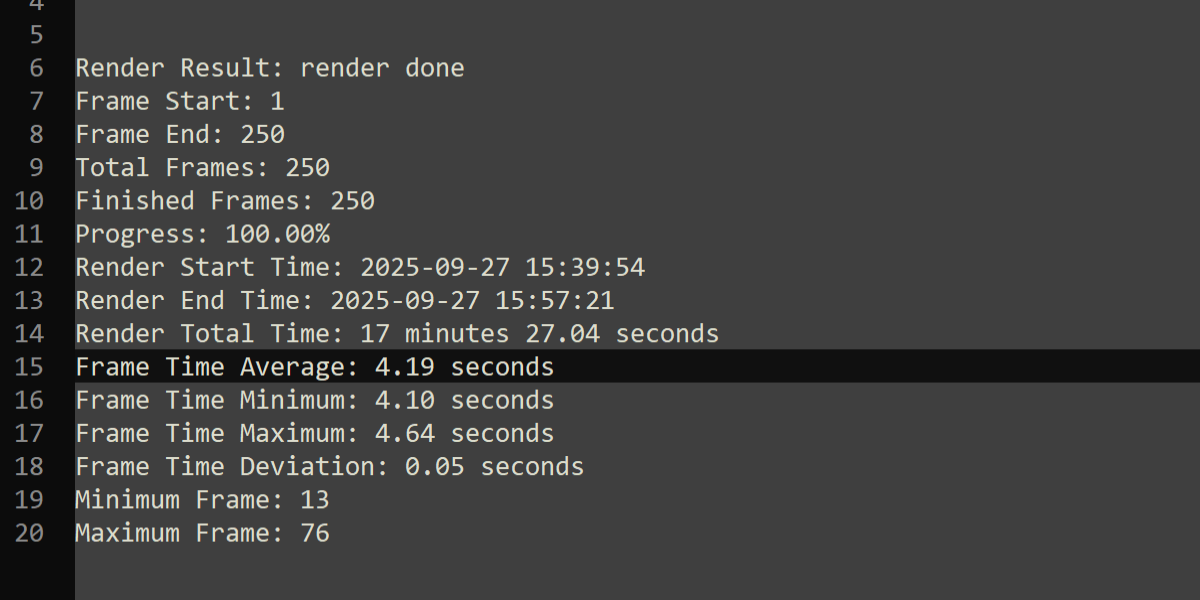
When the rendering done or canceled, this addon will put the summary stats into the clipboard (there is an option for it, you can cancel it if you don't need it). Then you can put the summary stats in any text editor.
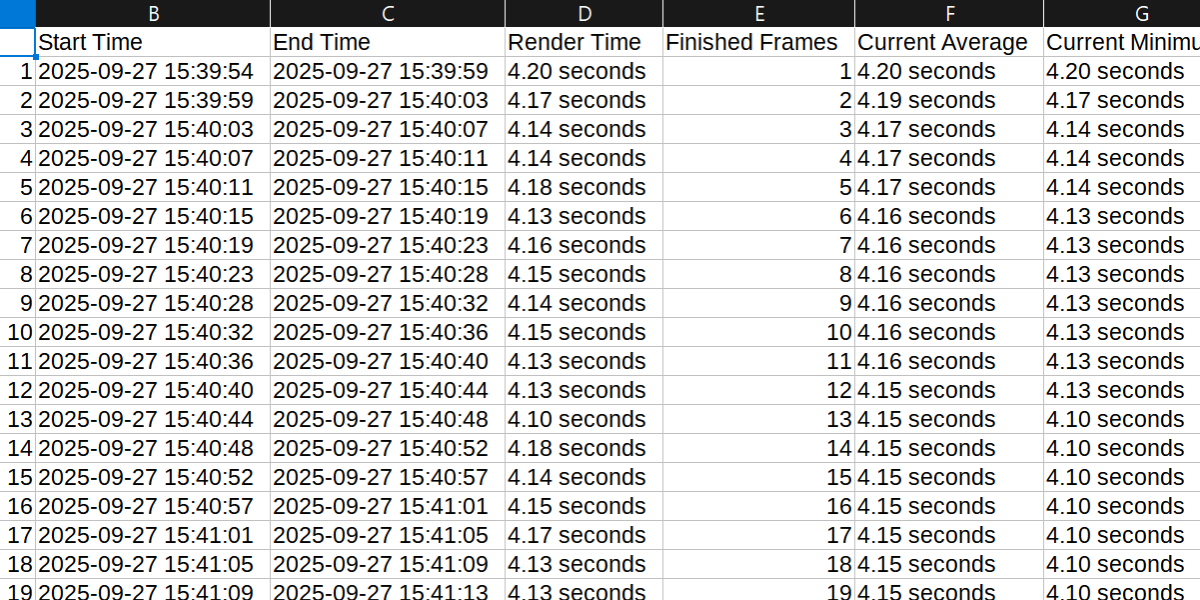
If you need the detailed stats, you can export the csv file in the N Panel. To better display CSV files, you may need to use a table display application. Using a regular text editor to display CSV files will make it difficult to read.
Notice or tips
- Rendering statistics are not truly real-time, they are calculated after completing each frame. So the rendering statistics will refresh after each frame is completed.
- The display effect of the progress bar is slightly different between Blender 3. x and 4. x.
- The accuracy of estimating remaining time mainly depends on your frame time deviation, and the smaller the frame time deviation, the more accurate the estimated remaining time is. The frame time deviation mainly depends on the frame variation and complexity of your scene, and your computer environment (for example, the computer is stable or not, is doing other job when rendering or not. doing other heavy job when rendering could affect the rendering a lot). For a stable rendering process, you may not need to change your scene, but you can keep your computer from doing other busy tasks such as playing other videos, leave it alone. In one word, the accuracy of the Estimated Remaining Time depends on your scene and computer environment.
Update
Version 1.0.1
- Fixed a typo.
Version 1.0.0
- First released.
Contact
If you have any feedback or questions, feel free to contact us via the BlenderMarket's 'Contact the creator' button. Thanks, Enjoy it!
Have questions about this product?
Login to message
| Blender Extension Compatible | Yes |
| Sales | 10+ |
| Dev Fund Contributor | |
| Published | about 1 year ago |
| Blender Version | 3.6 - 5.0 |
| Extension Type | Add-on |
| Render Engine Used | Blender-Internal, Cycles, Eevee |
| License | GPL |
Discover more products like this
Render remaining-time display-render-info time estimation animation render time