ReRain - Realistic-Looking Rain
 Shahzaib A.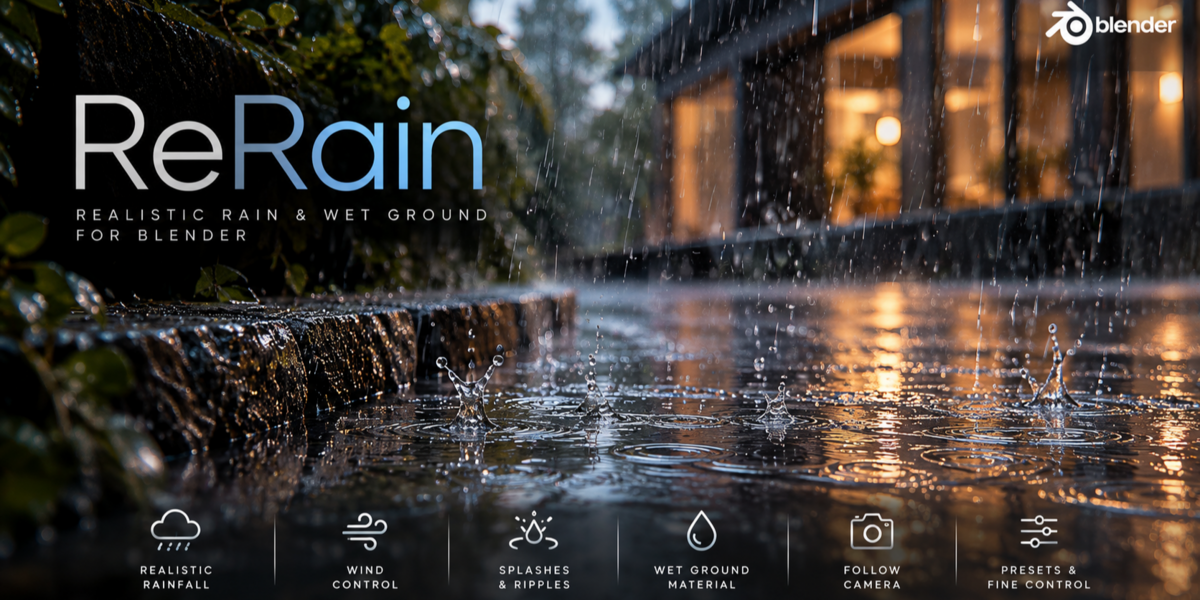

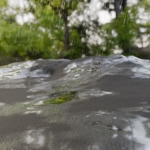
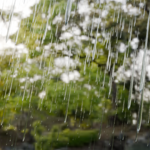
Welcome to ReRain, a customizable rain and wet-ground effects generator for Blender.
This guide covers installation, creating rainfall, adjusting weather conditions, generating wet surfaces, and troubleshooting common issues.
1. Installation
Download the ReRain add-on package.
Open Blender and go to Edit → Preferences.
Navigate to Get Extensions / Add-ons and select the option to install an add-on from disk.
Select the downloaded ReRain package.
Install and enable the add-on.
Open the 3D Viewport and press N to display the sidebar.
Select the ReRain tab.
2. Quick Start — Create Your First Rain
Position the 3D Cursor at your intended ground level.
Open the ReRain sidebar.
Click Add Rain Emitter.
Choose a rain preset.
Adjust the emitter dimensions and rain settings.
Play the timeline to view the animated rain.
Enable Ground Ripples and Splash Droplets for additional effects.
Tip: The rain emitter is created above the 3D Cursor, using the configured fall height.
3. Rain Presets
ReRain includes six built-in weather presets:
Drizzle: Very light rainfall.
Light Rain: Gentle rainfall with minimal wind.
Moderate Rain: Balanced everyday rainfall.
Heavy Rain: Dense rainfall with increased intensity.
Downpour: Strong, high-density rainfall.
Storm: Intense, fast-moving rain with powerful wind.
You can modify any preset using the available controls. Changing preset-controlled values automatically switches the selection to Custom.
4. Rain & Wind Controls
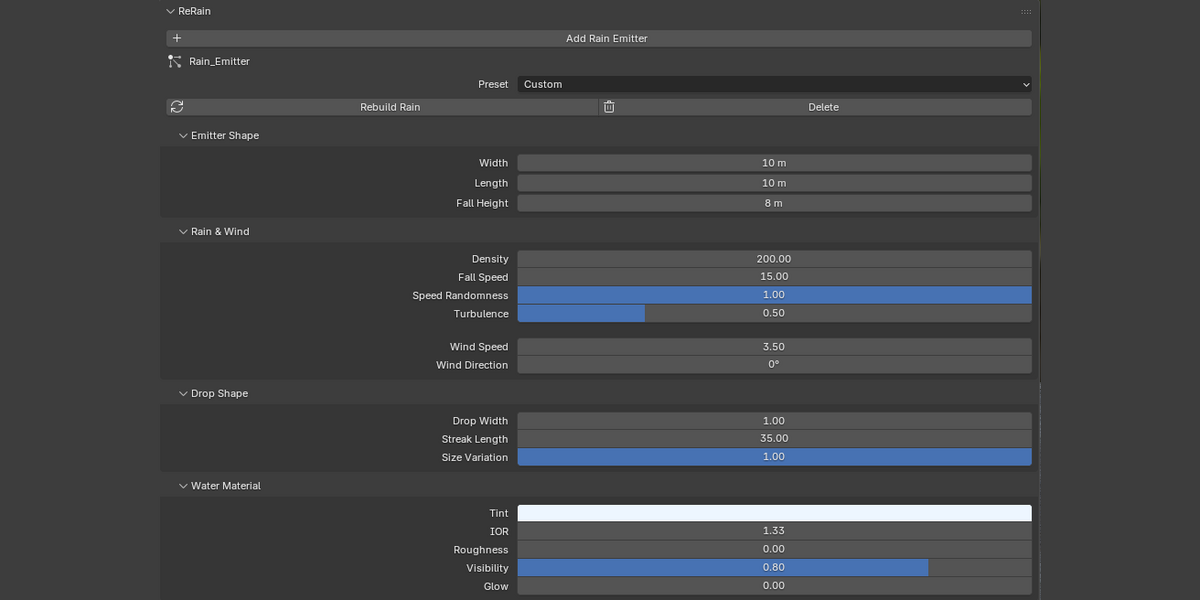
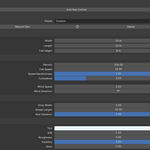
The Rain & Wind panel provides direct control over rainfall movement and intensity.
Density: Controls the number of drops in the air per square metre.
Fall Speed: Adjusts the downward speed of raindrops.
Speed Randomness: Adds variation to drop movement.
Turbulence: Introduces irregular movement.
Wind Speed: Controls horizontal wind velocity.
Wind Direction: Determines the direction rain is blown.
Use these settings to create calm rainfall, diagonal rain, or storm conditions.
5. Drop Shape & Water Material
Drop Shape
Customize the appearance of individual raindrops using Drop Width, Streak Length, and Size Variation.
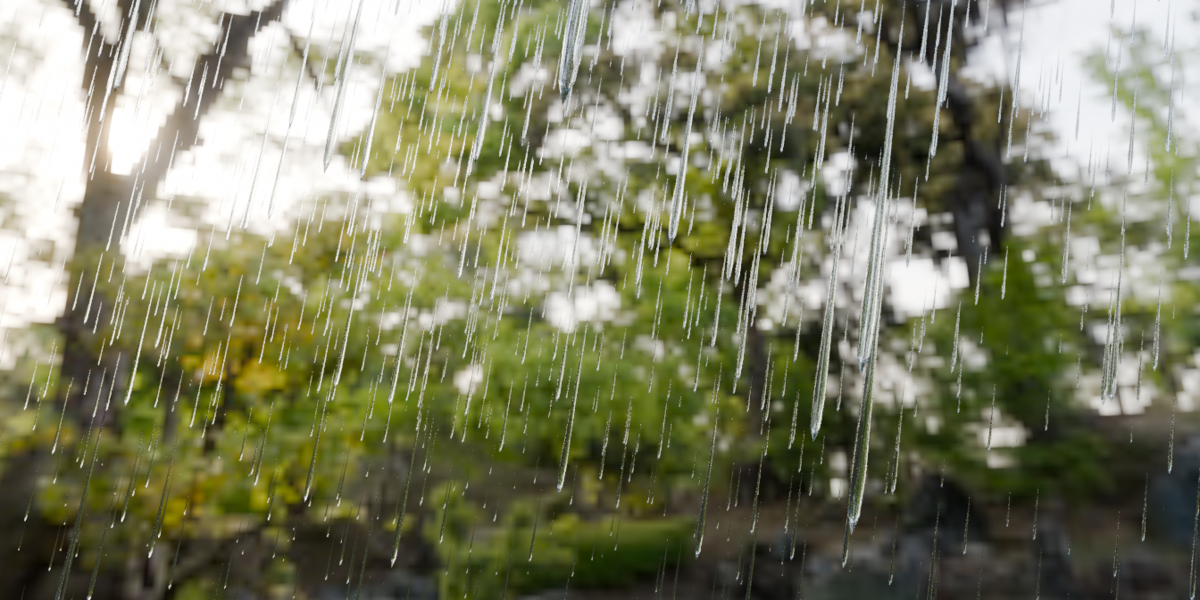
Increasing Streak Length creates more pronounced elongated rain streaks, useful for cinematic effects.
Water Material
Customize your rain appearance using:
Tint
Index of Refraction (IOR)
Roughness
Visibility
Glow
Tip: Adjust Visibility and Glow to make rain streaks easier to see against darker backgrounds.
6. Ground Ripples & Splash Droplets
ReRain provides optional ground effects that can be enabled independently.
Ground Ripples
Generates animated ripple effects on the rain system's ground plane.
Customize ripple radius, amount, duration, ring width, and strength.
Splash Droplets
Creates small droplets that bounce upward from the generated ground area.
Customize droplet amount, height, size, and sideways spread.
Important: These effects use a generated ground plane. They are not automatic collision-based effects on arbitrary objects in your scene.
7. Wet Ground Generator
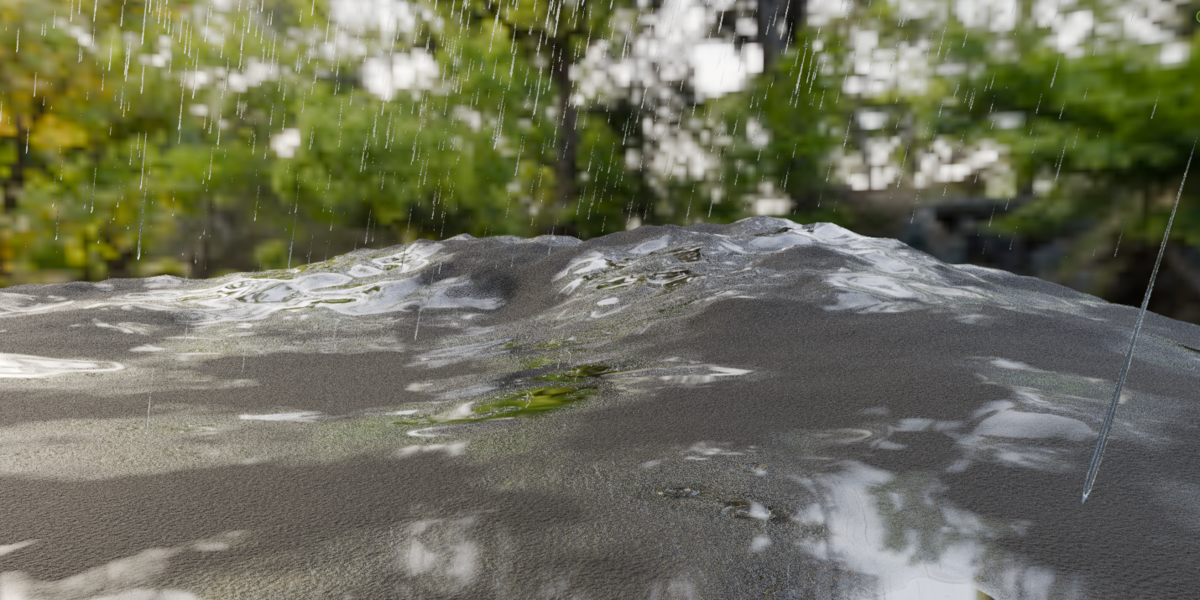
ReRain includes a procedural wet-ground material for creating puddles and wet-looking surfaces.
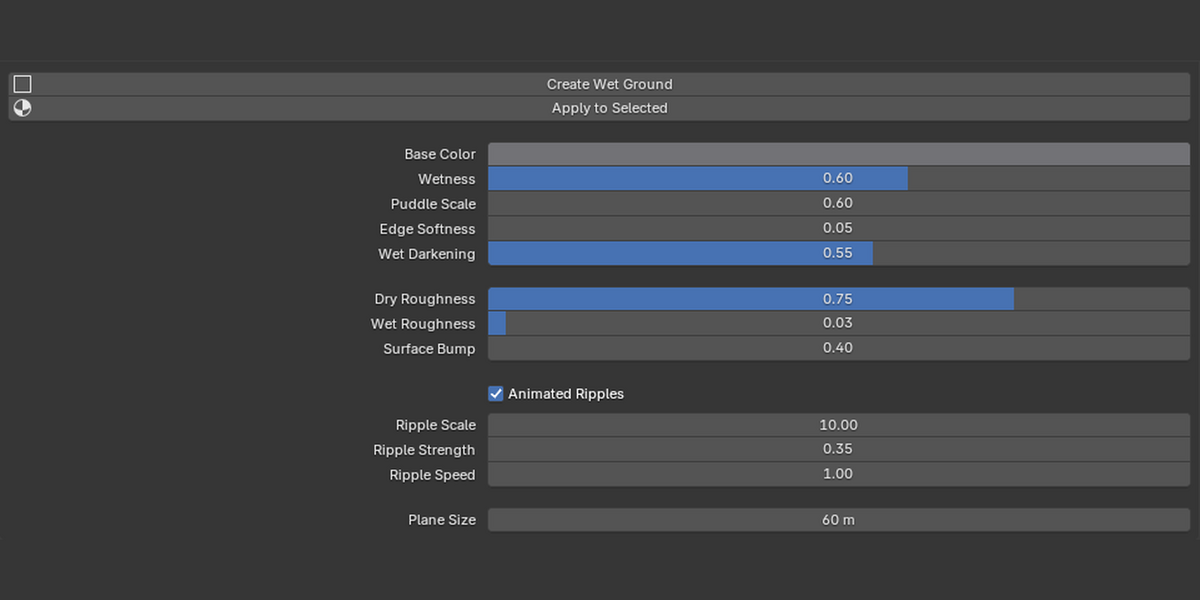
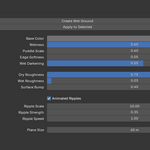
Create Wet Ground
Expand Wet Ground Generator.
Click Create Wet Ground.
Adjust Wetness, Puddle Scale, Edge Softness, and Wet Darkening.
Customize Dry Roughness, Wet Roughness, and Surface Bump.
Enable Animated Ripples for moving puddle detail.
When a rain emitter is active, the ground plane is created beneath it. Otherwise, the plane is generated at the 3D Cursor.
Apply to Existing Objects
Select the mesh objects you want to modify.
Open the Wet Ground Generator panel.
Click Apply to Selected.
Adjust the wet-ground material settings.
Note: Applying the wet material replaces the material assigned to the first material slot of each selected mesh. Save a backup if you need to preserve your original material setup.
8. Follow Camera
The Follow Camera option allows the rain emitter to track a camera or another object.
Enable Follow Camera.
Leave Target empty to use the active scene camera, or select a different object.
Enable Follow Height if the emitter should also follow the target vertically.
This feature is useful for camera animations and large scenes where a localized rain effect is preferred.
9. Animation & Performance
Timing & Seed
Adjust rain Start and End frames, use Match Scene Range to synchronize the animation with your scene, and change the random Seed for different rainfall patterns.
Enable Pre-roll to have rain already falling at the first animation frame.
Render & Viewport
Viewport Display: Switch between Streaks and faster Dots.
Viewport Amount: Reduce the percentage of visible viewport particles.
Max Particles: Set a safety limit to control particle counts.
Rebuild Rain: Recalculate the rain system when necessary.
Enable Motion Blur: Attempts to activate supported motion-blur settings.
For complex scenes, begin with a lower rain density and viewport percentage.
Troubleshooting
Rain is not visible: Check the emitter position, frame range, density, visibility, and viewport display settings.
Rain does not follow the camera: Confirm Follow Camera is enabled and that a valid target or scene camera exists.
Wet ground is not visible: Verify the generated ground plane's position, material assignment, lighting, and wetness settings.
Performance is slow: Reduce particle density, decrease Viewport Amount, or use Dots display.
Rain needs updating: Select the emitter and click Rebuild Rain.
Support
If you experience a problem with ReRain, please include your Blender version, a description of the issue, and screenshots or error messages when possible.
For product-related questions and bug reports, use the support or contact options provided on the Superhive product page.
ReRain — Bring the Rain to Your Renders.
Have questions about this product?
Login to message
| Blender Extension Compatible | Yes |
| Published | about 23 hours ago |
| Blender Version | 5.0 - 5.2 |
| Extension Type | Add-on |
| Render Engine Used | Cycles, Eevee |
| License | GPL |
Discover more products like this
rain simulation rain rain generator realistic rain Water Ripples puddles Wet Ground rain splashes Cinematic Effects Blender Rain procedural materials Weather effects