Reskinit
 Ad Astra Labs


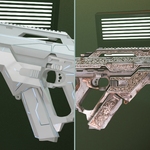
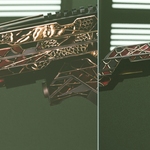
Read first: 5 minutes to your first reskin
This page covers install, quick-start, the UV requirement (most-asked support topic), every panel control, and common error fixes. Full version with all screenshots: reskinitstudio.com/docs.
Install
- Edit > Preferences > Add-ons, click Install… (or Install from Disk on Blender 4.2+).
- Select reskinit_blender_v1.0.0.zip, then tick the checkbox next to Material: ReskinIT to enable it.
- Expand the entry and paste your Gemini API key into the Gemini API Key field. The field is password-masked and stored locally — the key is sent only to Google's Gemini endpoint.
- Press N in the 3D viewport and open the ReskinIT tab.
Don't have a key? Create one at aistudio.google.com/apikey. Google bills your account directly for usage — usually a small fraction of a cent per reskin.
Requirements: Blender 3.6 or newer (tested through current 4.x), a Google AI Studio API key, and an internet connection for AI calls (geometry-baked maps work offline).
Quick-Start — three paths
Pick the one that matches the model you're starting with.
|
PATH A
Mesh already has an albedo
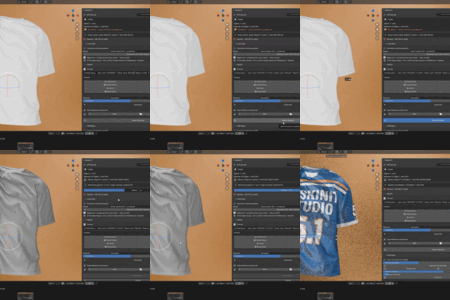
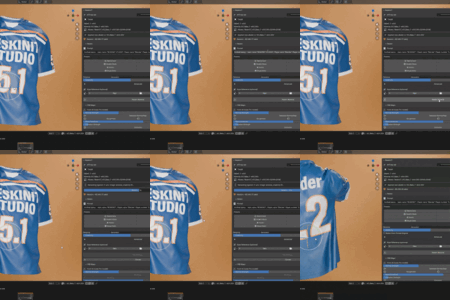
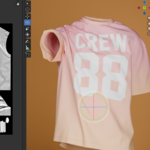
Select the mesh, type a prompt (or hit Suggest), pick a Persona, click Reskin Material. The new albedo replaces the existing one on the model.
|
PATH B
No materials yet (Cold-Start)
Open the Cold Start panel. Pick Flat (instant grey) or Smart (AO + curvature bake, ~10–30s). Then reskin as Path A. Reskin auto-runs Cold Start if you skip it.
|
PATH C
Reference image only
Load an image into Style Reference, leave the prompt empty. The button becomes Reskin from Reference. The image's colours and feel drive the result.
|
The UV requirement (read this first)
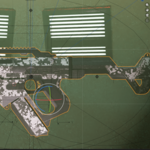
ReskinIT paints onto your model's existing UV layout. Most operations require a UV unwrap and will fail with a clear message if your mesh doesn't have one.
4-keystroke unwrap: Select mesh → Tab → A → U → click Smart UV Project → Tab. Done.
|
NEEDS UVs
Reskin Material · Smart Cold Start · Bake AO · Bake Curvature · derived Roughness · edge-wear Metallic · AI Roughness · AI Metallic
|
DOES NOT NEED UVs
Flat Cold Start (plain grey starter) · height-from-luminance Normal under "From Geometry" (operates on the albedo image, not the mesh)
|
Common confusion: "Cold Start" refers to materials, not UVs. It means "no existing materials, give me a starter." Smart Cold Start still needs a UV unwrap because it bakes geometry into UVs. Only Flat Cold Start skips UVs.
Main panel (always visible)

- API key indicator — green check when set in Preferences; first-run Welcome box prompts otherwise.
- Target block — live readout of the active Object, Material slot, and Albedo filename + resolution.
- Status line — last action's result ("Applied new albedo to …", or any error).
- Progress bar — real bar on Blender 4.0+, ticking text on 3.6, while an API call is in flight.
-
Session line — compact
Session: ~$X (N calls)estimate. - Sub-panels: Cold Start, Reskin, PBR Maps, Actions, Session Stats.
Reskin panel — every control
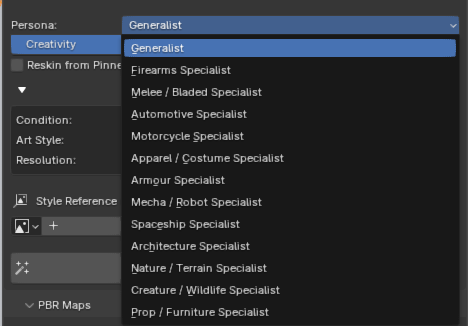
The headline control: Persona. Pick the specialist that matches your object and the whole suggestion engine reconfigures around its vocabulary.
- Prompt — free text. Keep it positive ("matte navy denim with copper rivets") — negative phrasing primes the model the wrong way.
- Suggest (lightbulb) — text-only call returning 6 short preset-style ideas tailored to your object and Persona. Click one to load it.
- Presets — one-click starter prompts (Red & Gold, Stealth Black, Cyberpunk, Galaxy…). The set adapts to the chosen Persona.
- Persona — pick the specialist that matches your object class (13 options below). Reconfigures suggestions, presets, surface graphics, and design worlds.
- Design World — persona-scoped era/genre (Firearms → 1960s Service · Architecture → Brutalist · Melee → Feudal Japan…). "Any" spans worlds.
- Creativity (1–10) — 1–3 strict recolor · 4–6 layered variation · 7–10 bold redesign.
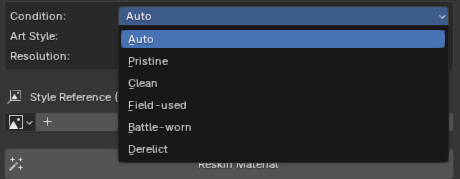
- Advanced (expand): Surface Graphics (None / Auto / specific marks), Condition (Auto / Pristine / Clean / Field-used / Battle-worn / Derelict), Art Style (Toon / Stylized / Game-Ready / Realistic / Photo), Resolution (512 / 1024 / 2048 / 4096).
- Reskin from Pinned Original (toggle) — each reskin starts fresh from the pinned image instead of compounding on the last result. Use this to kill drift.
- Style Reference (optional) — guides colours/materials/feel. With no prompt, the button becomes Reskin from Reference.
- Reskin Material — main action. Sends your prompt and the model's geometry context to Gemini, writes the result into the Image Texture on Base Color. Runs on a background thread; UI stays responsive.
Three Advanced axes you'll use most:
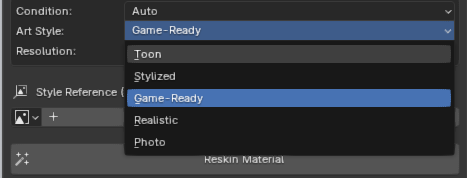
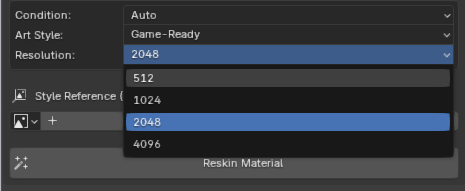
Resolution & cost: 512 and 1024 use Gemini Flash (faster, cheaper). 2048 and 4096 use Gemini Pro (higher fidelity, higher cost). Routing is automatic — you pick the resolution, the right model is chosen for you.
The 13 personas
Choosing a Persona reconfigures the whole suggestion engine — vocabulary, materials, presets, surface graphics, design worlds — for that object class.
| Generalist — flexible fallback; hides Design World and Surface Graphics | Firearms — pistols, rifles, SMGs, attachments |
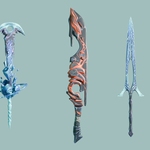
| Melee / Bladed — swords, axes, knives, polearms, chainswords | Automotive — cars, trucks, racers |
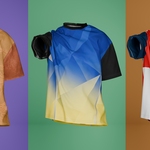
| Motorcycle — bikes | Apparel / Costume — jerseys, tees, outfits |
| Armour — plate, mail, scales, sci-fi armour | Mecha / Robot — mechs, drones, droids |
| Spaceship — ships, fighters, cruisers | Architecture — buildings, facades, environments |
| Nature / Terrain — landscapes, rocks, organics | Creature / Wildlife — animals, monsters |
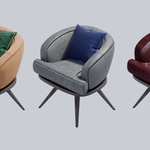
| Prop / Furniture — chairs, tables, props | |
PBR Maps
The AI generates the albedo (base color) and emission. The other physical maps come in two flavours — geometry-baked (recommended) and AI-generated (experimental). Both panels live in the sidebar:
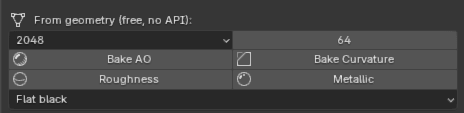
From Geometry — recommended path
|
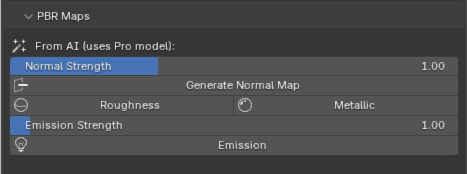
From AI — experimental
|
|
FROM AI — EXPERIMENTAL
|
FROM GEOMETRY — FREE
|
About the AI PBR maps: Normal, Roughness, and Metallic from AI are interpretations of the albedo, not measurements — function as editable starting points, not measured physical maps. For deterministic physical maps, use the From Geometry path (free, no API cost).
Actions panel
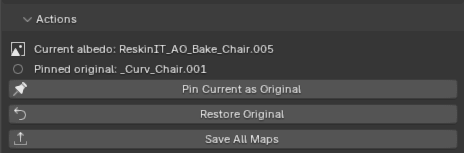
- Pin Current as Original — promotes the current albedo to the revert baseline. Useful when iterating in stages.
- Restore Original / Clear Starter — reverts to the pinned original; on a Cold-Start starter with no pin, this clears the starter.
- Save All Maps — exports the albedo and every generated/baked PBR map to disk in one operation (PNG).
The original albedo path is stashed in the material's metadata — you can always get back to where you started, even after closing and reopening the file.
Session Stats
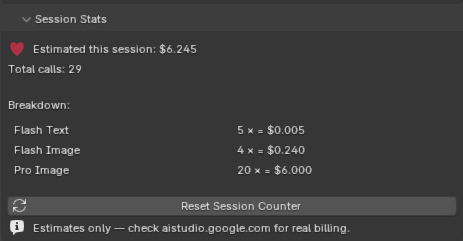
Running estimate of Gemini spend this session, broken down per model. Reset Session Counter zeroes the counters.
Important — this is not an invoice. The Session Stats number is a per-call estimate computed from Google's published pricing, not real billing metadata. The amount you actually owe is whatever shows in your Google AI Studio billing dashboard.
Common errors & fixes
| Error / symptom | Fix |
|---|---|
| "No albedo image found" | The material's Base Color isn't an Image Texture. Run Cold Start, or add an Image Texture node to Base Color. |
| "Mesh has no UV layers" | Unwrap: Tab → A → U → Smart UV Project. Or use Flat Cold Start. |
| Gemini 400 / 403 / 429 | Bad prompt (400), invalid/expired key (403), or quota hit (429). Verify the key in Preferences, check quota at aistudio.google.com. |
| Result looks like a 3D render, not a flat texture | Lower Creativity to 3–5, set Art Style to Game-Ready, regenerate. |
| Normal map inverted in another engine | Toggle Flip G. Off = Blender/OpenGL; On = Unreal/DirectX. |
| Emission too dark | Raise Emission Strength, or regenerate with a more emissive prompt ("glowing", "lit", "neon"). |
| AI Metallic — too much or too little metal | Lower or raise Metal threshold (default 0.55) and regenerate. |
| Session cost doesn't match Google bill | Session Stats is an estimate. Check aistudio.google.com for actual billing. |
| UI stuck on "Generating…" | The watchdog should clear it within seconds. If not, disable then re-enable the add-on from Preferences. |
FAQ highlights
Does it work offline? No for AI calls. The geometry-baked maps (AO, Curvature, derived Roughness/Metallic/Normal) work offline.
Does my API key get sent to your servers? No. There are no ReskinIT servers. The key is stored locally in Blender's add-on preferences and is sent only to Google's generativelanguage.googleapis.com endpoint.
Can I use ReskinIT commercially? Yes — the textures you generate are yours to use commercially in games, films, ArchViz, etc. Rights flow from Google's Gemini API terms. Don't prompt protected IP (logos, trademarked characters); reselling AI-generated textures on third-party marketplaces is subject to each marketplace's AI-content policy.
What's the Cold Start vs Reskin distinction? Reskin assumes you already have an albedo Image Texture and replaces it. Cold Start creates a starter so Reskin has something to work from. Reskin auto-runs Cold Start if there's no albedo. "Cold Start" refers to materials, not UVs.
Why is the result an 8-bit PNG? The Gemini image API rejects 16-bit and EXR inputs, so all outputs are forced to 8-bit PNG. For HDR workflows, generate here and promote bit-depth in your finishing tool.
Can I batch-reskin many objects? Not in v1.0.0 — reskin is per-active-object. Workaround: pin a Style Reference image of your first result and use it across each subsequent object to keep them consistent.
Stuck? Found a bug?
Discord: discord.gg/NkKkzNTaP — fastest channel
Email: [email protected] — for longer reports
Please include: Blender version, ReskinIT version (1.0.0), your OS, what you clicked, what you expected, what happened, and any error message from the status line.
Full documentation with every panel screenshot: reskinitstudio.com/docs
Discover more products like this
albedo ai texture surfacing retexture PBR Texturing automation reskin normal map game assets Material