Retail Store Bundle – 5 Luxury Boutique Scenes
 Media Brennt GmbH



Documentation
Retail Store Bundle – User Guide
This documentation explains how to navigate, render, customize and optimize the five-store Blender bundle.
Quick Start
- Open MB-Retail_Store-BUNDLE-BLENDPACK.blend.
- Use the Scene dropdown at the top of Blender to switch between Store 01, Store 02, Store 03, Store 04 and Store 05.
- Select one of the prepared cameras from the 00-CINEMATICS collection.
- Hide or show product, furniture, storefront or lighting collections depending on your needs.
- Customize logos, screens, signage, product colors or material parameters.
- Render with Cycles for the intended look.
1. File Overview
The bundle is built around one main Blender file containing five different store scenes. In addition to the main bundle file, the package includes individual layout files for each store and a separate street asset layout file for modular use.
| Main Bundle File | MB-Retail_Store-BUNDLE-BLENDPACK.blend |
| Street Layout File | MB-Retail_Store-00_STREET-AssetPack-Baked.blend |
| Individual Store Layouts | MB-Retail_Store-01-ASSET-LAYOUT.blend to MB-Retail_Store-05-ASSET-LAYOUT.blend |
| Renderer | Cycles |
| Recommended Use | Product visualization, retail interiors, archviz, store concepts, advertising renders and scene kitbashing |
2. Working With the 5 Scenes
The main bundle file contains five separate scenes. Each scene represents one retail store concept and has its own camera setup, lighting mood and store design.
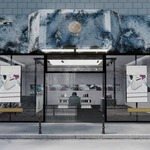
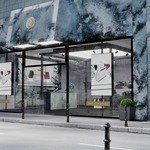
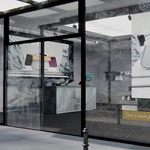
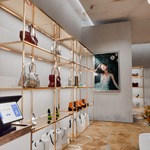
- Store 01 – Luxury marble storefront and interior.
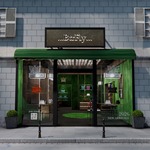
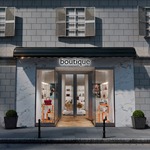
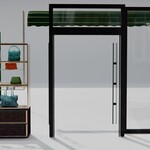
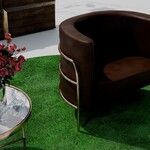
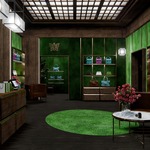
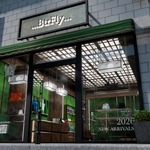
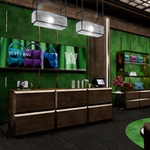
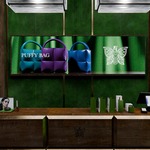
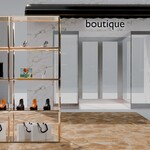
- Store 02 – Green boutique storefront and interior.
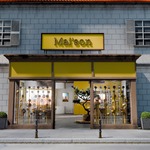
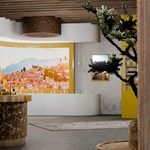
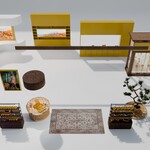
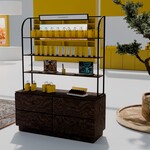
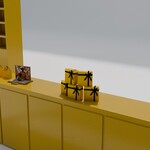
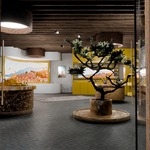
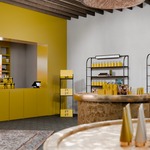
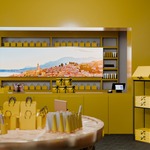
- Store 03 – Mediterranean yellow retail concept.
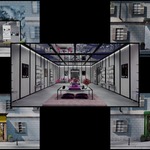
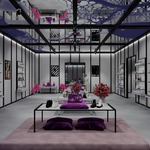
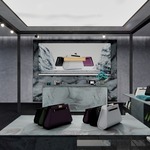
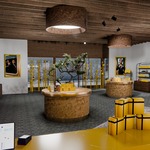
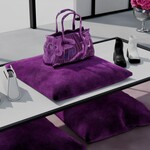
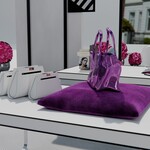
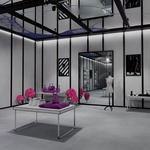
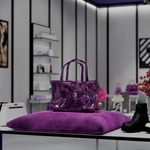
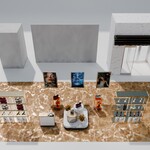
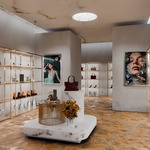
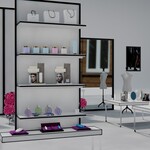
- Store 04 – Luxury boutique interior with mirror ceiling and purple accents.
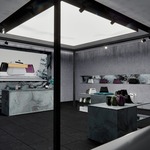
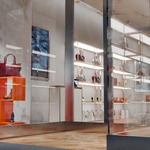
- Store 05 – Clean bag boutique with marble, glass and orange display details.
Tip
Before making heavy changes, duplicate the scene you want to customize. This keeps the original store scene intact and gives you a safe working copy.
3. Collection Structure
The scene collections are organized so larger parts of the environment can be enabled, disabled or customized quickly.
| 00-CINEMATICS | Prepared cameras for storefronts, interiors, details and cinematic angles. |
| Building / Street | Urban facade, windows, sidewalk, curb, street details and exterior props. |
| Across Street | Opposite street/background elements used for reflections and exterior depth. |
| Storefront | Storefront architecture, glass, doors, signage and facade-related objects. |
| Store Construction | Walls, floors, ceilings, architectural structure and interior construction elements. |
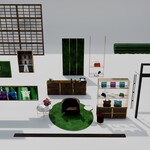
| Furniture | Counters, shelves, display tables, seating, mirrors, signage screens and display systems. |
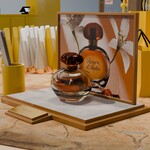
| Retail Products | Example products such as bags, shoes, cosmetics, perfumes, packaging and decorative product props. |
| Lighting | Spotlights, product lights, shelf lights, roof lights and scene lighting elements. |
4. Navigation Workflow
- Start by choosing the store scene from the Blender Scene dropdown.
- Open the 00-CINEMATICS collection and select a camera.
- Use the Outliner to hide large collections, for example products or furniture, if you want a cleaner base scene.
- Use Viewport Rendered mode for look development, but switch to Solid mode for faster navigation in heavy scenes.
- For asset browsing, open the individual layout files and append or link only the objects you need.
5. Individual Layout Files
The individual layout files are included to make the pack easier to use as a modular asset library. They are especially useful if you do not want to load the entire bundle scene just to extract a shelf, prop, storefront element or street object.
- Use Append if you want a fully independent copy of an asset in your own file.
- Use Link if you want to keep the original data connected and lighter.
- Use Make Library Override when you linked assets but still need to adjust them locally.
Recommended Modular Workflow
Open the relevant ASSET-LAYOUT file, select the furniture or prop group you want, then append it into your own project. This is usually faster than extracting assets from the full bundle scene.
6. Editing and Customization
The scenes are intended to be customized. You can hide the example products, rearrange display furniture, swap visuals, replace store names, adjust colors and build your own boutique variation from the included assets.
Common Customization Tasks
- Remove example products: hide or delete the retail product collections.
- Change store branding: replace logo images or edit text/signage objects where applicable.
- Change screen content: replace the image texture used by the signage screen material.
- Change product colors: adjust the material color values or duplicate objects to trigger object-based shader variation.
- Create a clean version: disable products, decor and extra furniture collections.
- Create a denser version: duplicate shelves, products and signage elements using instances where possible.
7. Material System
Many materials use node-based shader setups. The bundle combines PBR texture-based materials with procedural shaders for fabrics, leather, metals, stone, marble, wood, glass, plastic and display surfaces.
Material Naming
- MB_PROC materials are mainly procedural or shader-driven.
- MB_PBR materials use texture maps such as albedo, normal, roughness, height or metallic.
- MB_CLEAR / MB_GLASS materials are used for glass, storefront windows and transparent display surfaces.
- Visual / WallImage / Signage materials are used for replaceable visual content.
Imperfections and Weathering
Several materials include imperfections, dirt, dust, edge wear, roughness variation or weathering masks. These are useful for making the scenes feel more realistic and less computer-generated.
Tip
When changing a material, duplicate it first if you only want to affect one object. If multiple objects share the same material, editing it will update all linked objects using that material.
8. Shader-Based Variation
Some materials use object-based variation, texture selection systems or randomness nodes. This can help repeated products look less identical when duplicated.
- Object Info Randomness can create color or value variation between duplicated objects.
- Some image-based visuals use texture picker node groups to switch between several prepared images.
- Some materials include procedural dust, dirt, scratches, roughness breakup or weathering variation.
Important
This pack is not a procedural store generator. The procedural systems are mainly used inside materials and shaders to improve variation, customization and visual realism.
9. Working With Collection Instances
Repeated shelves, lights, furniture modules and signage elements may be placed as Collection Instances. This helps keep repeated elements easier to manage and can improve scene organization.
Editing Collection Instances
- If you edit the original source collection, all instances of that collection will update.
- If you want to edit only one instance, convert or make the instance real first.
- For layout work, keep repeated shelves and lighting modules as instances whenever possible.
- For final hero renders, you can make selected instances real if you need unique object-level modifications.
10. Replacing Screens, Logos and Visuals
The bundle contains several editable visual surfaces such as storefront signage, retail screens, poster frames, wall graphics, product visuals and window decals.
- Select the screen, sign, poster or decal object.
- Open the Shader Editor.
- Find the Image Texture node connected to the visual material.
- Replace the image with your own artwork.
- Use the same aspect ratio where possible to avoid stretching.
- If the material uses multiple visuals, check the texture picker or image selection node group.
Using Video Loops
For screens, you can use an image sequence workflow. Import your frames as an image sequence inside the Image Texture node, enable Auto Refresh and set the frame range in Blender.
11. Performance Tips
This is a detailed render-ready environment bundle. Some objects, floral elements, facade pieces and decorative props can be heavy, especially when several scenes are loaded in one file.
- Work in Solid View while editing the layout.
- Hide unused store scenes and large collections in the viewport.
- Disable products, flowers, street elements or background facade objects when they are not visible in the camera.
- Render one store scene at a time.
- Use the individual layout files when you only need specific assets.
- Lower viewport subdivision and render samples while testing.
- Keep repeated assets as Collection Instances when possible.
- Use camera clipping and simplify settings for heavy preview work.
- Turn off reflective glass or replace glass with simpler transparent materials for faster preview renders.
Fast Preview Workflow
Select your scene, choose a camera, hide non-visible collections, switch to Solid View for layout changes, then use low-sample Cycles previews before starting the final render.
12. Troubleshooting
| Textures appear pink | Use File > External Data > Find Missing Files and point Blender to the included texture folder, or check if the images are packed in the file. |
| Scene feels slow | Hide heavy products, flowers, street/background elements and unused store scenes. Work in Solid View and render only the active scene. |
| Changing one shelf changes all shelves | The shelf may be a Collection Instance. Edit the source collection to update all, or make the instance real if you need a unique copy. |
| Glass looks noisy | Increase render samples, use denoising, simplify glass for preview renders, or hide glass layers that are not visible to camera. |
| Screen content is stretched | Use an image with the same aspect ratio as the original screen texture or adjust the UV mapping. |
| Randomized colors do not change | Object-based randomness often changes per object. Duplicate the object as a real duplicate instead of linked data, or adjust the shader variation inputs. |
| Viewport and render do not match | Check viewport/render visibility icons in the Outliner, color management settings and active camera selection. |
13. Support
If you need help with navigation, missing textures, material customization, signage replacement or render optimization, please contact us through Superhive and include your Blender version, a screenshot and a short description of the issue.
 Included
Includes 12 months of
- Support from Media Brennt GmbH
- Product updates
Extend this product’s Support Period +12 months: 75% of product price
Have questions before purchasing?
Login to message
| Published | 3 months ago |
| Blender Version | 5.1 - 5.2 |
| Render Engine Used | Cycles |
| Misc Data | Uvs-Unwrapped, Low-High-Resolution, Normal-Mapped, Textured |
| License | Royalty Free |
Discover more products like this
storefront Shop environment retail store Scene luxury ArchViz boutique Interior architecture 3d-bundle bundle