Retargeting Automation System
 VertSoftex Studio - Support Periods Included at NO Extra Cost!
in Rigging
VertSoftex Studio - Support Periods Included at NO Extra Cost!
in Rigging


Retargeting Automation System –
Documentation
1. Introduction
Effortless Animation Retargeting for Auto-Rig Pro
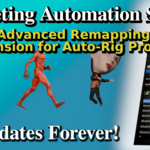
The Retargeting Automation System is an advanced extension designed to eliminate the tedious setup often required by the standard Auto-Rig Pro workflow. Whether you are retargeting a single clip or a massive library of motion capture files, this addon automates rig identification, preset building, and scaling logic.
It allows you to focus on the result—the animation—rather than managing bone lists and complex menus.
2. Installation & Requirements
⚠️ CRITICAL REQUIREMENT
This is not a standalone addon.
You must have a valid, working installation of Auto-Rig Pro installed in Blender for this tool to function.
Installation Steps
Open Blender.
Go to Edit > Preferences > Add-ons.
Click Install... and select the .zip file you downloaded.
Search for "Retargeting Automation System" in the list and enable the checkbox.
The addon panel will appear in the 3D Viewport N-Panel (usually under the "RAS" or a dedicated tab).
3. Core Features & Workflow
A. Single Animation Retargeting
Retargeting a specific animation file to your character has never been faster.
Select Target: Select your Auto-Rig Pro armature.
Select Source: In the panel, choose the source animation file/armature.
-
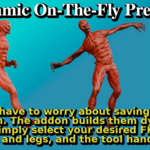
Limb Settings: Choose your desired mode (FK or IK) for Arms and Legs.
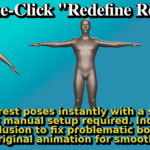
Enable "Redefine Rest Pose": If your rigs have different rest pose.
Click Retarget: The system automatically builds the preset and processes the animation.
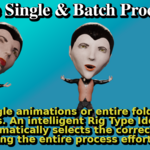
B. Batch Processing (Folder Retargeting)
Convert entire libraries of animations in seconds.
Select Folder: Point the addon to the directory containing your animation files.
Filter Formats: Toggle which file types you want to process.
-
Batch Identification:
Manual: Set the source rig type and FK/IK limb modes once for all files.
Auto (First): Detects rig type based on the first file (fastest for uniform libraries like Mixamo).
Auto (Each): Scans every file individually and set rig type and limb modes (best for mixed folders).
Process: Click Batch Retarget. A progress bar will appear. You can interrupt the process safely at any time.
4. Advanced Tools
Exclusive Auto-Scaling (Fix Foot Sliding)
Standard retargeting sometimes causes "Root Motion Drift" (where the character appears to slide or move at the wrong speed) due to size differences between the source and target. We provide three scaling modes:
Pelvis Mode (Exclusive): Calculates scaling based on the c_root_master.x (Pelvis) height. Ideal for standard locomotion (walking, running) to ensure foot-ground contact matches the velocity.
Shoulder Mode (Exclusive): Calculates scaling based on shoulder width/height. Best for upper-body focused acting or animations where leg stride is less critical.
Original Mode: Uses the legacy Auto-Rig Pro scaling calculation.
Smart "Redefine Rest Pose"
Easily fix the common T-Pose vs. A-Pose problem.
If your source animation is in a T-Pose but your rig is in an A-Pose, simply check "Redefine Rest Pose".
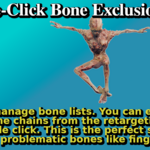
Bone Exclusion: You can exclude specific problematic bone chains (like Shoulders or Toes) from the redefinition process with one click. This prevents mesh distortion while still aligning the limbs correctly.
In-Place Conversion
If your source animation moves through space (Root Motion) but you need it stationary for a game engine or cycle:
Enable the "In Place" option.
The addon automates the removal of root displacement while keeping the animation fidelity.
5. Utilities & Workflow Enhancers
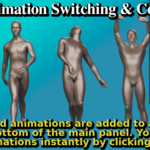
Animation List & Instant Review
All retargeted animations are automatically populated into a list at the bottom of the addon panel.
Click to Switch: Instantly jump between different animations on your rig without opening any animation editor.
Comparison: Great for quickly audition a batch of downloaded animations to see which one fits your model best.
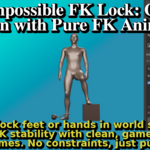
Limb Locker
A dedicated tool for FK animations to solve "dancing feet" or slipping hands. It locks the limb in place for a specified duration, perfect for grounding a character or creating special effects.
Quick Mirroring
Mirror the entire animation (Left to Right) with a single button press.
6. Troubleshooting / FAQ
Q: The buttons are greyed out.
A: Ensure you have selected a target armature that is compatible with Auto-Rig Pro.
Q: My character's feet are sliding.
A: Try changing the Auto-Scale Method. For walking/running, the Pelvis mode usually provides the best synchronization.
Q: The arms look twisted after retargeting.
A: The source rest pose likely didn't match the target. Enable "Redefine Rest Pose" and try again. If the shoulders look wrong, add the "Shoulder" chain to the Exclusion list.
Have questions about this product?
Login to message
VertSoftex Studio - Support Periods Included at NO Extra Cost!
Visit Website See all items by this creatorDiscover more products like this
mocap auto-rig pro 3d-workflow-automation 3d character rigging animation blender rigging retargeting