 Necropanik


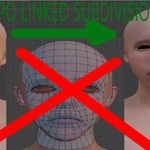
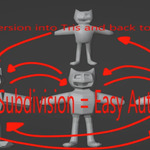
Retopo Linked Subdivision (BETA for Windows only)
Sculpt with Linked Subdivision Levels for Blender 3.6 – 4.5
Important
This addon works best when the mesh is created from scratch using its linked subdivision system. Existing meshes will still work, but the original topology will be subdivided and linked rather than fully rebuilt.
Overview
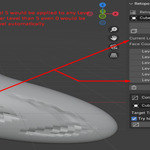
Retopo Linked Subdivision uses subdivision levels stored as linked layers instead of applying them directly to the mesh. This keeps performance high while allowing you to sculpt as if the subdivisions were fully applied.
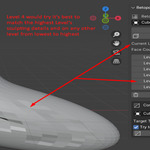
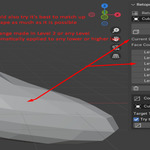
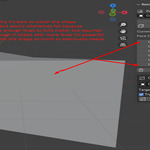
Each subdivision Level affects all other Levels in real time, except for the Original Object, which always remains unchanged. Sculpting on any Level automatically propagates changes across higher and lower Levels while preserving each Level’s poly count.
This makes high-to-low poly baking, LOD creation, and sculpt iteration much faster, with little to no need for manual retopology.
Key Features
-
Keeps the original object fully intact
-
Adds standard subdivision Levels
-
Linked subdivision Levels (excluding Original Object)
-
Levels adapt to the highest subdivision shape
-
One-click duplication for baking or LODs
-
Delete individual Levels or clear all Levels
-
Real-time face count per Level
-
Integrated into the 3D Viewport sidebar
-
Convert quads to tris
-
Convert tris back to quads when adding subdivisions
Why Use Retopo Linked Subdivision
-
Linked subdivision workflow from low to high poly
-
Automatic shape synchronization across Levels
-
Ideal for sculpting without repeated retopology
-
Optimized for viewport performance
-
Lightweight, fast, and easy to learn
-
Designed for organic sculpting and game development
-
Precise subdivision face count tracking
-
Clean LOD generation for baking pipelines
How to Use
-
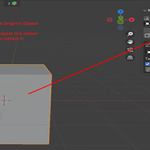
Start with any mesh (a cube or base mesh is recommended but make sure that base mesh is the final form of your final desired topology).
The Original Object remains unchanged, while Level 0 and above are linked subdivisions. -
Select the object. The addon automatically detects it.
-
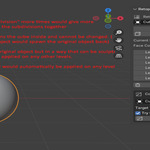
Click Add Subdivision to create new Levels and sculpt on any Level.
-
Sculpting on one Level updates all other Levels automatically, except the Original Object.
-
Click Duplicate to apply a Level and create a mesh for baking or LODs.
-
Use Delete to remove the current Level and higher Levels.
-
Use Clear All to remove all subdivision Levels.
-
Use Convert to Tris to triangulate the mesh.
-
Use Add Subdivision to convert tris back to quads.
Future Updates
-
Support for older Blender versions