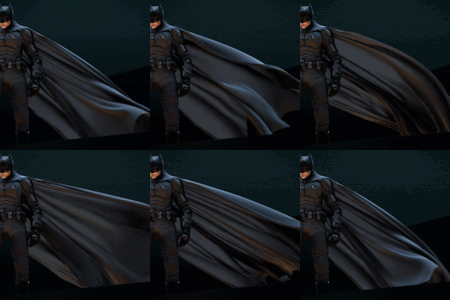
The generated loop is a jumbled mess. What happened?
This can happen when the animated mesh contains modifiers that change the number/index of the vertices. The add-on works with the unmodified version of the mesh – modifiers are not taken into account. If you want them to be taken into account, you must either apply them first or add them to the loop Alembic file again later.
So if you have a Subdivision Surface modifier in front of your cloth simulation when creating the loop, your loop will just be a mess. If you don't have modifiers on it and the loop is still messed up, feel free to message me!
Why can't my "Transition Length" be longer that "Loop Start"? (only applies to v1.0)
The frame you set as the loop start will be the first and last frame of your loop. This means that the add-on needs some time before and after this frame to create the transition. So if you have your loop start at frame 20, the add-on has a maximum of 20 frames available to create the transition. Fewer frames, such as 10, are possible, but it cannot create a 30-frame transition if it only has 20 frames available.
Can it loop Geometry Nodes?
As long as the number of vertices and their indices remain the same, yes. Example: You have created fireworks that shoot up into the air and create thousands of glowing objects that explode outward. This cannot be repeated in a loop because there were no glowing objects at the beginning.
What can I loop with this add-on and what can't I loop?
As long as the actual mesh deforms, you can make a loop out of it. In most cases, however, you can simply loop it by animating it in a loop - for example, if your object has an armature or uses shape keys.
This add-on is primarily intended for mesh deformations that cannot be easily repeated in a loop. Take fabric or soft body simulations, for example. You cannot control how the mesh behaves because this is determined by physics. So if you already have direct control over your mesh deformation, it's better to animate it in a loop without the add-on.
You cannot loop something that has no vertices/points or a mesh that has changing vertex count/indices.
How can I loop cloth simulations from Marvelous Designer?
In the newest version "Mesh Looper v2.0", it is as simple as exporting your simulation as an alembic and importing it into Blender. Change the settings to your taste and click "Create Loop".
For "Mesh Looper v1.0":
In Marvelous Designer:
1. Select your simulated garment and export it as "OBJ (selected)"
2. Export it again as "MDD Cache (Standard)". Be sure to export it with the exact settings as the OBJ file.
In Blender:
1. Import the OBJ file (File -> Import -> Wavefront .obj)
2. Install the extension "NewTek MDD format" that comes with Blender (Edit -> Preferences -> Get Extensions -> 'NewTek MDD format' -> Install)
3. Select the imported OBJ object from step 1 and import the MDD cache onto it (File -> Import -> Lightwave Point Cache .mdd)
4. In the "Revolve - Mesh Looper" addon check the box "Selected object is MDD cache"
5. Press "Create Loop" with the settings you like
Why do I need the extension "NewTek MDD format"? (only applies to v1.0)
'NewTek MDD format' is a free extension, that comes with Blender. It is used by the addon, since it makes it way easier to manipulate the animated mesh data than alembic for example.
What does the "Smooth" and "Linear" transition mode do?
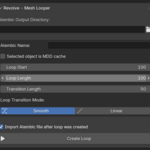
When creating a loop, the animation of the mesh is essentially blended into itself. During the time specified as “Transition Length,” the original animation is blended with a copy of the original so that the first and last frames of the animation are identical. With “Smooth” and “Linear,” you can now either fade gradually or evenly—just like the interpolation mode you can set in Blender's Graph Editor. In most cases, you will probably use “Smooth” to achieve the best results.
 CGI Forge