Rig Export Preflight
 Anvil Interactive Solutions
# Rig Export Preflight: User Guide
Version 1.0.0 · Anvil Interactive Solutions · Blender 4.2 LTS to 5.2 LTS
---
## Contents
1. [What Rig Export Preflight does](#1-what-rig-export-preflight-does)
2. [Requirements](#2-requirements)
3. [Installation](#3-installation)
4. [Finding the panel](#4-finding-the-panel)
5. [Quick start](#5-quick-start)
6. [The panel, option by option](#6-the-panel-option-by-option)
7. [Fix modes](#7-fix-modes)
8. [Reading the results](#8-reading-the-results)
9. [Engine presets](#9-engine-presets)
10. [Bone renaming](#10-bone-renaming)
11. [All 32 checks](#11-all-32-checks)
12. [Exported files](#12-exported-files)
13. [The report](#13-the-report)
14. [Workflows by rig type](#14-workflows-by-rig-type)
15. [Troubleshooting](#15-troubleshooting)
16. [FAQ](#16-faq)
17. [Uninstalling and updating](#17-uninstalling-and-updating)
18. [Support](#18-support)
---
## 1. What Rig Export Preflight does
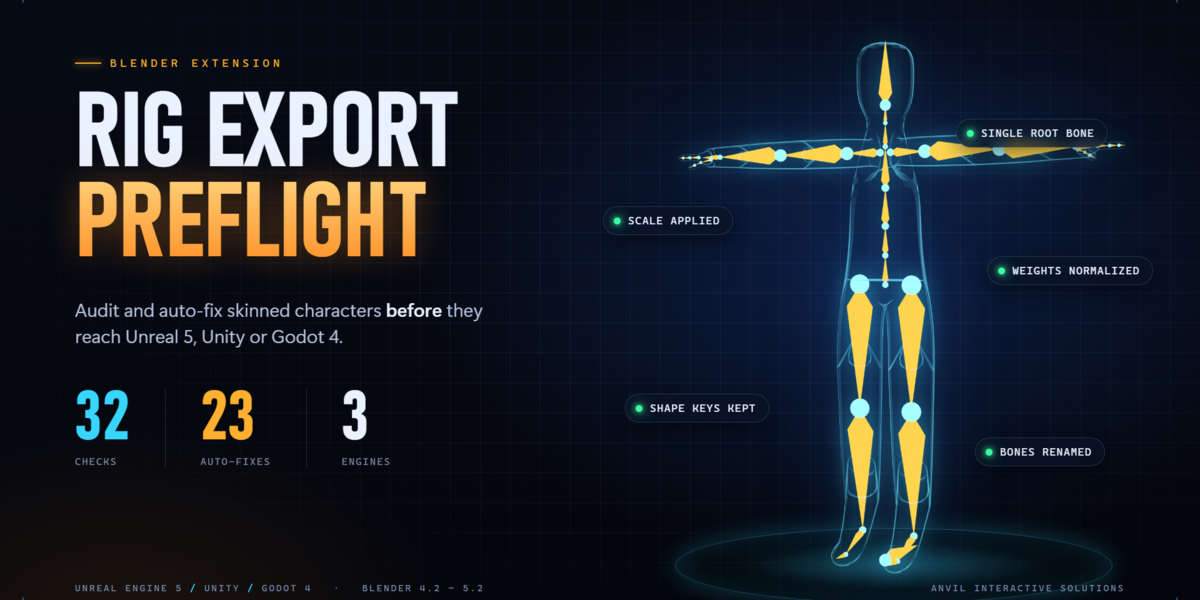
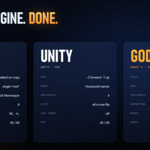
Rig Export Preflight checks a skinned character (an armature plus the meshes it deforms) before you export it to Unreal Engine 5, Unity or Godot 4, and fixes the problems it finds.
There are three buttons that matter:
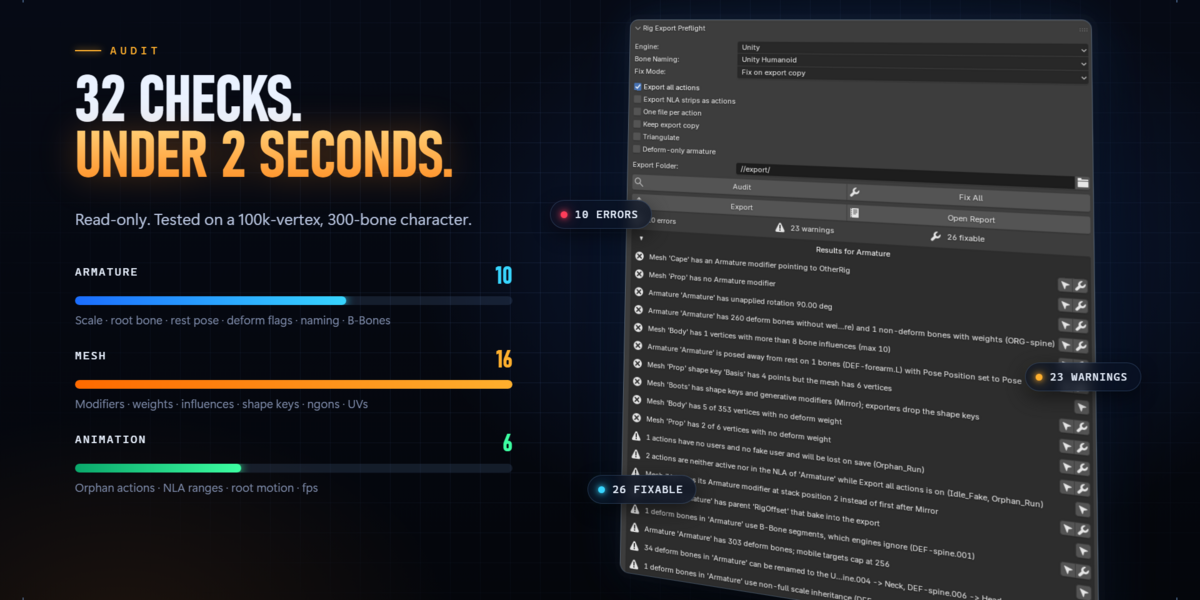
- **Audit** runs 32 read-only checks and lists every problem.
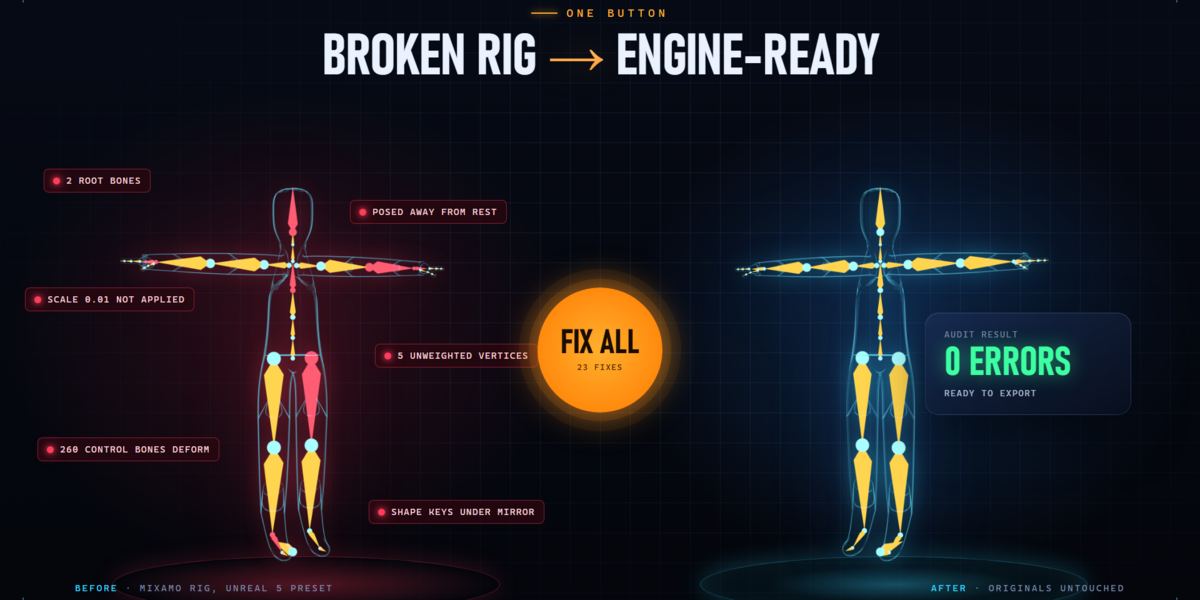
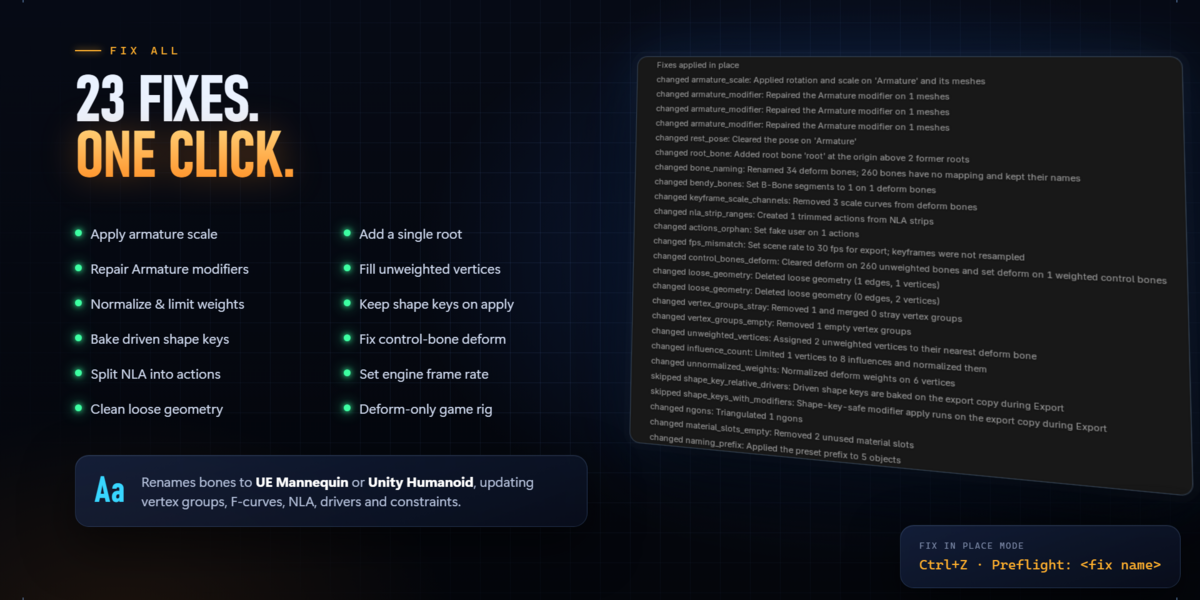
- **Fix All** fixes everything that can be fixed automatically (23 kinds of fix).
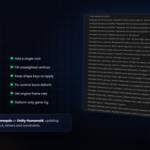
- **Export** audits, fixes and writes the FBX or glTF file with the right settings for your engine, plus a text report.
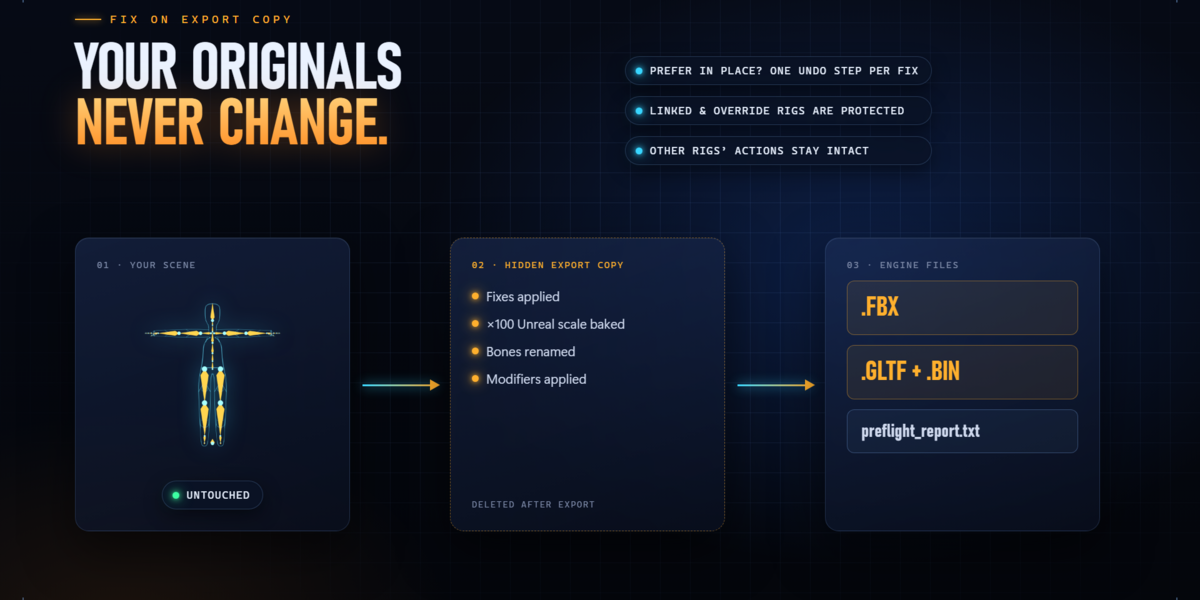
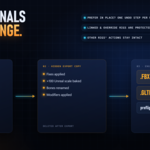
By default your original objects are **never modified**. Fixes are made on a temporary copy, the copy is exported, and then the copy is deleted.
Rig Export Preflight reads only standard Blender data: armatures, bones, vertex groups, shape keys, modifiers, actions and the NLA. It works with rigs made by Rigify, Auto-Rig Pro, Mixamo, Character Creator 4 and Human Generator, and with hand-made rigs, without needing any of those add-ons installed.
---
## 2. Requirements
- Blender 4.2 LTS or newer. Tested on 4.2 LTS, 4.4 and 5.2 LTS.
- Windows, macOS or Linux. The extension is pure Python; it was tested on Windows.
- No internet connection is needed. Nothing is downloaded or sent anywhere.
- The extension asks for **file access** only to write the exported files and the report into the folder you choose.
---
## 3. Installation
1. Download `rig_export_preflight-1.0.0.zip`. **Do not unzip it.**
2. Open Blender.
3. Go to **Edit → Preferences → Get Extensions**.
4. Click the **⌄** drop-down arrow in the top-right corner of the Preferences window and choose **Install from Disk…**
5. Select the zip and click **Install from Disk**.
6. The extension is enabled automatically. You can confirm under **Edit → Preferences → Add-ons**: **Rig Export Preflight** should be ticked.
Each Blender version keeps its own extensions. If you use several versions (for example 4.2 and 5.2), install the zip in each one.
---
## 4. Finding the panel
The panel lives in the 3D Viewport sidebar, in its own **Preflight** tab (not the Tool tab).
1. Select an **armature**, or a **mesh that has an Armature modifier**.
2. Hover the mouse over the 3D Viewport and press **N** to open the sidebar.
3. Click the **Preflight** tab on the right edge of the sidebar.
The tab is hidden on purpose when the active object is anything else (a camera, a light, a mesh without an Armature modifier, or nothing at all). If you don't see it, select your armature first.
If you select one of the character's meshes, Rig Export Preflight finds the armature through the mesh's Armature modifier, so you don't need to select the armature itself.
---
## 5. Quick start
1. Select your character's armature.
2. In the Preflight tab, choose your **Engine**: Unreal 5, Unity or Godot 4. Bone Naming switches to that engine's default.
3. Leave **Fix Mode** on **Fix on export copy**.
4. Set the **Export Folder**. The default `//export/` means a folder called `export` next to your .blend file, so save the .blend first.
5. Click **Audit**. A popup lists every finding, and the panel shows the count of errors, warnings and fixable findings.
6. Click **Fix All** to preview what the rig looks like after the fixes. Your objects stay unchanged.
7. Click **Export**. Your files and a report are written to the export folder.
8. Import the file into your engine.
---
## 6. The panel, option by option
### Engine
The target engine. This picks the export format, axes, scale, bone limits, frame rates and naming prefixes. See [Engine presets](#9-engine-presets).
Changing the engine also resets **Bone Naming** to that engine's default. If you want a different naming scheme, change Bone Naming after choosing the engine.
### Bone Naming
| Option | What it does |
| --- | --- |
| **UE Mannequin** | Renames deform bones to Unreal's Mannequin names (`pelvis`, `spine_01`, `thigh_l`…). Default for Unreal. |
| **Unity Humanoid** | Renames deform bones to Unity Humanoid names (`Hips`, `Spine`, `LeftUpperLeg`…). Default for Unity. |
| **Keep names** | Leaves bone names as they are. Default for Godot. |
See [Bone renaming](#10-bone-renaming) for details.
### Fix Mode
| Option | What it does |
| --- | --- |
| **Fix on export copy** (default) | Fixes are made on a hidden duplicate. Your original objects are never changed. |
| **Fix in place** | Fixes change your original objects. Each fix is its own undo step. |
See [Fix modes](#7-fix-modes).
### Export all actions
On by default. Exports every action that belongs to the rig, not only the active one. Turn it off to export only the action currently assigned to the armature.
### Export NLA strips as actions
Off by default. When on, each NLA strip is exported as its own animation, using the strip's frame range. Use this when you've built your animations as strips that trim or reuse parts of a longer action.
### One file per action
Off by default. When on, each animation is written to its own file (for example `A_Walk.fbx`, `A_Run.fbx`), and the character mesh is written to a separate file without animation. When off, all animations go into one file with the mesh.
### Keep export copy
Off by default. When on, the fixed copy is left in a hidden collection called `RigPreflight_Export` after export, so you can inspect exactly what was exported. Delete that collection when you're done. Leave it off for normal use.
### Triangulate
Off by default. When on, every mesh on the export copy is triangulated before export. Ngon findings then become INFO instead of WARN or ERROR, because the exported mesh will have no ngons. Your original meshes are never triangulated unless you use the Triangulate fix in Fix in place mode.
### Deform-only armature
Off by default. When on, the export copy gets a new, clean game skeleton that contains only the bones that actually deform the mesh (plus the root and any bones needed to keep the hierarchy connected). Every action is baked onto it frame by frame. This is the best option for complex control rigs such as Rigify or Auto-Rig Pro, whose control and mechanism bones should never reach the engine.
### Export Folder
Where the exported files and the report are written. `//` means "next to the .blend file", so `//export/` is a folder called `export` beside your .blend. The folder is created if it doesn't exist. You can also pick any absolute folder with the folder button.
### Buttons
| Button | What it does |
| --- | --- |
| **Audit** | Runs all 32 checks without changing anything and shows the results. |
| **Fix All** | Applies every available fix. In copy mode this is a preview: originals stay untouched. Available after an Audit. |
| **Export** | Audits, fixes (according to the Fix Mode) and exports, then writes the report. |
| **Open Report** | Opens the most recent report file, or shows the last audit report if nothing has been exported yet. The text is also copied to a text block named `Preflight Report`, which you can view in Blender's Text Editor. |
### Summary row and results list
After an Audit the panel shows how many **errors**, **warnings** and **fixable** findings there are, followed by **Results for <armature>**. Each result has:
- an icon showing its severity (error, warning or info);
- the message;
- a **Select Affected** button (arrow icon) that selects the objects involved;
- a **Fix** button (wrench icon), if that finding can be fixed automatically.
Click the triangle next to the results header to collapse or expand the list.
---
## 7. Fix modes
### Fix on export copy (default, recommended)
- **Audit** reads your objects without changing them.
- **Fix All** and the individual **Fix** buttons make a temporary copy of the rig, apply the fixes to it, re-audit it and show what's left, then delete the copy. Nothing in your scene changes. This lets you see what export will produce.
- **Export** makes a copy of the armature, its meshes and its actions in a hidden collection, fixes the copy, exports it and deletes it.
During export, objects in your scene that use the names the exported file needs are renamed for a moment and then restored straight after export. Bone renames don't touch other rigs' actions.
### Fix in place
- Each fix changes your original objects.
- Each fix is recorded as its own undo step named **Preflight: <fix name>**, so you can undo fixes one at a time with **Ctrl+Z** or through **Edit → Undo History**.
- **Export** still works from a temporary copy, so the export-only steps never touch your scene: Unreal's ×100 scale bake, applying modifiers with shape keys, baking driven shape keys, and the temporary renames.
- **Fix in place is refused for linked and library-override armatures**, to protect the source library file. Use Fix on export copy for those; Audit and Export work normally.
### Which should I use?
Use **Fix on export copy** unless you want your working file itself cleaned up, for example to hand a corrected .blend to someone else. Copy mode is safer, works on linked characters, and lets you keep using your control rig exactly as it was.
---
## 8. Reading the results
### Severities
| Severity | Meaning |
| --- | --- |
| **ERROR** | The export will break or deform wrongly in the engine. Fix these. |
| **WARN** | The export works but doesn't follow the engine preset (wrong frame rate, too many bones for mobile, and so on). Fix these, or understand why you're ignoring them. |
| **INFO** | Advice only. Nothing is wrong, but you should know (for example "this animation has root motion"). |
### Fixable vs report-only
Some problems can't safely be fixed automatically, such as a shape key with the wrong number of points or a mesh with no UV map. These have no Fix button; the message tells you what to correct by hand. The full list is in [All 32 checks](#11-all-32-checks).
### Select Affected
Click the arrow button on any result to select the objects it refers to. This makes it quick to find which mesh has unweighted vertices or which object has the wrong modifier.
---
## 9. Engine presets
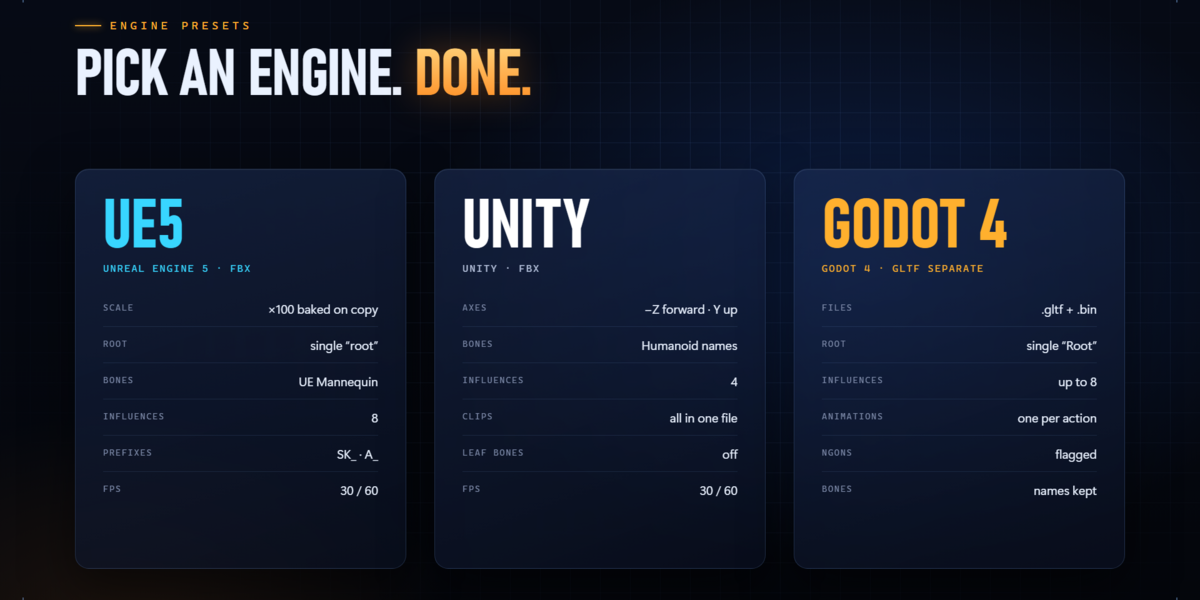
### Unreal Engine 5 (FBX)
| Setting | Value |
| --- | --- |
| File | `SK_<armature>.fbx` |
| Scale | Scene unit 0.01, with ×100 baked into the export copy (`FBX_SCALE_NONE`), so the character imports at the right size with scale 1 |
| Axes | Forward −Y, up Z |
| Root bone | Required: a single bone named `root` at the origin with an identity rest transform |
| Armature node | Exported as a null named `Armature`, so Unreal does not add the armature as an extra root bone |
| Leaf bones | Off |
| Bones exported | Deform bones only |
| Bone naming | UE Mannequin |
| Max influences per vertex | 8 |
| Bone count warning | Above 256 deform bones (mobile limit) |
| Frame rate | 30 or 60 fps |
| Prefixes | `SK_` for meshes, `A_` for animations |
| Animations | One file with one take per action, or one file per action |
| Normal maps | DirectX |
**Importing into Unreal:** drag the FBX into the Content Browser. Import as Skeletal Mesh, with Import Animations on. You don't need to change the import scale.
### Unity (FBX)
| Setting | Value |
| --- | --- |
| File | `<armature>.fbx` |
| Scale | `FBX_SCALE_ALL` |
| Axes | Forward −Z, up Y |
| Root bone | Optional; if one is added it is called `Root` |
| Leaf bones | Off |
| Bones exported | Deform bones only |
| Bone naming | Unity Humanoid |
| Max influences per vertex | 4 is the target: more than 4 is a warning, more than 8 an error; the fix limits to 4 |
| Frame rate | 30 or 60 fps |
| Animations | All actions as clips in one file |
| Normal maps | OpenGL |
**Importing into Unity:** drop the FBX into Assets. In the Rig tab set Animation Type to **Humanoid** and click Apply. Because the bones already have Humanoid names, the Avatar maps them automatically.
### Godot 4 (glTF 2.0 Separate)
| Setting | Value |
| --- | --- |
| Files | `<armature>.gltf` plus `<armature>.bin` (keep them together) |
| Axes | glTF default, Y-up |
| Root bone | Required: a single bone named `Root` |
| Contents | Skins, morph targets (shape keys) and animations |
| Animations | Each action becomes one glTF animation |
| Max influences per vertex | All influences are exported; Godot 4 supports 8 |
| Ngons | Errors unless Triangulate is on |
| UV maps | Up to 2 |
| Frame rate | Any |
| Bone naming | Names kept |
**Importing into Godot:** copy the `.gltf` and `.bin` files into your project folder. Godot imports the scene automatically, and the animations appear in its AnimationPlayer.
---
## 10. Bone renaming
### Target names
**UE Mannequin:** `pelvis`, `spine_01`…`spine_05`, `neck_01`, `neck_02`, `head`, `clavicle_l`, `upperarm_l`, `lowerarm_l`, `hand_l`, `thumb_01_l`…, `index_01_l`…, `middle_01_l`…, `ring_01_l`…, `pinky_01_l`…, `thigh_l`, `calf_l`, `foot_l`, `ball_l`, the `_r` mirrors, and the twist bones.
**Unity Humanoid:** `Hips`, `Spine`, `Chest`, `UpperChest`, `Neck`, `Head`, `LeftShoulder`, `LeftUpperArm`, `LeftLowerArm`, `LeftHand`, the finger Proximal / Intermediate / Distal names, `LeftUpperLeg`, `LeftLowerLeg`, `LeftFoot`, `LeftToes`, and the Right mirrors.
### Recognized source rigs
| Rig source | How bones are recognized |
| --- | --- |
| Rigify | `DEF-` prefix, `.L` / `.R` sides |
| Auto-Rig Pro | `c_` controls, `.l` / `.r` / `.x` sides |
| Mixamo | `mixamorig:` prefix, `Left` / `Right` sides |
| Character Creator 4 | `CC_Base_` prefix, `L_` / `R_` sides |
| Human Generator | Rigify metarig names |
| Generic | `.L/.R`, `.l/.r`, `_l/_r` and `Left/Right` side markers |
### What gets updated
Renaming a bone also updates everything that refers to it:
- vertex group names on every mesh;
- action F-curves, including channel groups;
- NLA strips;
- driver targets;
- constraint subtargets.
Actions that belong to **other** rigs in your scene are left exactly as they were.
### Bones with no mapping
Bones the naming table doesn't know (extra spine bones, props, hair, accessories) keep their names. They're listed in the report as INFO so you know which ones they are.
### Unity Humanoid: rename only
Renaming does **not** reparent bones into Unity's exact Hips → Spine → Chest chain. If your rig has extra spine bones, they keep their names and are reported. Unity's Avatar configuration tolerates extra bones between mapped ones.
---
## 11. All 32 checks
"Export copy only" means the fix runs only on the export copy, even in Fix in place mode.
### Armature checks
| # | Check | Severity | What it means | Fix |
| --- | --- | --- | --- | --- |
| 1 | Armature scale | ERROR | The armature has unapplied rotation or scale. Engines import this as a wrongly sized or rotated skeleton. | Applies rotation and scale, bakes them into the child meshes and scales the location keys of every action |
| 2 | Armature parent | WARN | The armature is parented to another object whose transform will be baked into the export | Report only: unparent it or check the parent's transform |
| 3 | Root bone | ERROR / WARN | No root bone, several root bones, or a root that isn't at the origin or isn't named as the preset requires | Adds a root at the origin, adopts the existing one, or renames it |
| 4 | Rest pose mismatch | ERROR | Bones are posed away from their rest position while Pose Position is Pose, so the bind pose would be wrong | Clears the pose; sets Pose Position to Rest only when no actions are exported |
| 5 | Bone scale | WARN | Bones have non-uniform rest scale, or deform bones use a scale inheritance mode other than Full or Average | Report only |
| 6 | Control bones deform | ERROR / WARN | Bones with no weights are marked Deform, or bones that have weights are not marked Deform | Corrects the Deform flags; with Deform-only armature on, builds a clean game skeleton |
| 7 | Bone count | ERROR / WARN | More deform bones than the preset allows (256 warning for mobile targets) | Report only: consider Deform-only armature |
| 8 | Bone naming | WARN / INFO | Bones can be renamed to the selected scheme (WARN), or have no mapping (INFO) | Renames using the naming table |
| 9 | Bendy bones | WARN | Deform bones use B-Bone segments, which engines ignore, so the mesh will deform differently | Sets B-Bone segments to 1 |
| 10 | Constraints on deform bones | INFO | Deform bones have constraints; the export bakes their visual result but the constraints themselves are not exported | Report only |
### Mesh checks
| # | Check | Severity | What it means | Fix |
| --- | --- | --- | --- | --- |
| 11 | Mesh scale / transform | WARN | A mesh has unapplied rotation or scale relative to the armature | Applies the mesh rotation and scale |
| 12 | Armature modifier | ERROR / WARN | Missing Armature modifier, a modifier pointing at a different armature, or the modifier not first in the stack | Adds, repoints or moves the modifier |
| 13 | Stray vertex groups | WARN | Vertex groups whose names match no bone | Removes them, or merges their weights into the renamed bone's or parent bone's group |
| 14 | Empty vertex groups | WARN | Vertex groups that have no weights at all | Removes them |
| 15 | Unweighted vertices | ERROR | Vertices with no deform weight. They stay behind when the character moves. | Assigns each one to the nearest deform bone (not the root) with weight 1.0 |
| 16 | Unnormalized weights | WARN | Deform weights on a vertex don't add up to 1.0 | Normalizes them |
| 17 | Influence count | ERROR / WARN | Vertices influenced by more bones than the preset allows | Keeps the strongest influences up to the limit and normalizes |
| 18 | Shape keys with modifiers | ERROR | The mesh has shape keys and a generative modifier (Mirror, Subdivision…). Exporters drop the shape keys in this case. | Applies the modifiers while keeping every shape key (export copy only) |
| 19 | Shape key basis mismatch | ERROR | A shape key has a different number of points than the mesh, usually after editing topology | Report only: the key must be rebuilt. The export copy drops it and the report logs it. |
| 20 | Shape key drivers | WARN | Shape keys are driven. Drivers don't export, so the shapes won't move in the engine. | Bakes the driven values into keyframes, or freezes them (export copy only) |
| 21 | Ngons | WARN / ERROR / INFO | Faces with more than 4 sides. ERROR for Godot; INFO when Triangulate is on. | Triangulates only the ngons (Beauty method) |
| 22 | Loose geometry | WARN | Vertices or edges that belong to no face | Deletes them |
| 23 | Custom split normals | WARN | The mesh has custom normals but every face is flat shaded, so exported normals won't match the viewport. This is typical of old files converted after Blender 4.1. | Report only: shade smooth, or clear the custom normals |
| 24 | Missing UVs | WARN | The mesh has no UV map, or more than the preset allows | Report only |
| 25 | Empty material slots | WARN | Material slots that no face uses, or slots with no material | Removes the slots no face uses |
| 26 | Naming prefix | WARN | Meshes don't use the preset's prefix (`SK_` for Unreal) | Adds the prefix |
### Animation checks
| # | Check | Severity | What it means | Fix |
| --- | --- | --- | --- | --- |
| 27 | Orphan actions | WARN | Actions with no users and no fake user. Blender deletes them when the file is saved and reopened. | Sets a fake user |
| 28 | Unassigned actions | WARN | Actions that are neither active nor in the NLA while Export all actions is on | Report only: they're exported anyway |
| 29 | NLA strip ranges | WARN | NLA strips use a frame range that differs from their action | Creates one trimmed action per strip |
| 30 | Root motion | INFO | An action moves the root bone, which matters if the engine expects in-place animation | Report only |
| 31 | Scale keys on deform bones | WARN | Actions key scale on deform bones, which causes stretching and wasted data in engines | Removes the scale F-curves on deform bones |
| 32 | Frame rate | WARN | The scene frame rate isn't one the preset expects (30 or 60 for Unreal and Unity) | Sets the preset frame rate. A dialog asks whether to also resample the keys so animations keep their timing. |
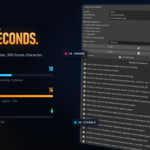
Audit is read-only and takes under 2 seconds on a 100,000-vertex, 300-bone character.
---
## 12. Exported files
All files go into the **Export Folder**.
| Engine | One file (default) | One file per action |
| --- | --- | --- |
| Unreal 5 | `SK_<armature>.fbx` (mesh, skeleton and every action as a take) | `SK_<armature>.fbx` (no animation) plus `A_<action>.fbx` for each action |
| Unity | `<armature>.fbx` (mesh, skeleton and every action as a clip) | `<armature>.fbx` plus one FBX per action |
| Godot 4 | `<armature>.gltf` + `<armature>.bin` | `<armature>.gltf` + `.bin` plus one glTF per action |
Every export also writes `<armature>_preflight_report.txt`.
Existing files with the same names are overwritten.
---
## 13. The report
The report is plain text that lists:
- the armature and the engine preset;
- a summary line ("10 errors, 23 warnings, 26 fixable");
- every **error**, **warning** and **info** finding, each with its check name, message, the objects affected and, if it can be fixed, which fix applies;
- after a Fix All or an Export, the list of **fixes applied**, each marked *changed* or *skipped*, with what was done ("Renamed 34 deform bones", "Assigned 2 unweighted vertices to their nearest deform bone"…).
Where to find it:
- in a popup straight after **Audit** and **Fix All**;
- in the **Preflight Report** text block in Blender's Text Editor;
- as `<armature>_preflight_report.txt` in the Export Folder after each export;
- by clicking **Open Report** at any time.
Attach the report file when you send a character to a teammate or report a bug, so they can see exactly what was found and changed.
---
## 14. Workflows by rig type
### Rigify
1. Select the generated rig (`rig`), not the metarig.
2. Engine: your target. Turn on **Deform-only armature**. Rigify has hundreds of `ORG-`, `MCH-` and control bones that must not reach the engine; this builds a clean skeleton from the `DEF-` bones and bakes your actions onto it.
3. Audit → Fix All → Export.
### Auto-Rig Pro
1. Select the rig armature.
2. Turn on **Deform-only armature** to drop the `c_` controls.
3. Audit → Fix All → Export.
You can still use Auto-Rig Pro's own exporter if you prefer. Rig Export Preflight's Audit is useful before either exporter.
### Mixamo
1. Import the Mixamo FBX. Mixamo rigs usually come in with 0.01 scale and the `mixamorig:` prefix.
2. Select the armature, choose the engine, then Audit. Expect "unapplied scale" and "bone naming" findings.
3. Fix All → Export. Bones are renamed to UE Mannequin or Unity Humanoid, and the scale is applied.
### Character Creator 4
1. Import with the CC4 Blender Tools as usual.
2. Select the armature, then Audit. CC4 characters often have many shape keys under modifiers and driven expressions; the shape-key fixes keep them during export.
3. Fix All → Export.
### Hand-made rigs
Run Audit first and read every ERROR. Hand-made rigs most often have no single root bone, unweighted vertices, control bones marked Deform, and scale keys in animations.
### Linked or library-override characters
Use **Fix on export copy**. Audit, preview and Export all work; only Fix in place is refused, to protect the library file.
---
## 15. Troubleshooting
**The Preflight tab doesn't appear.**
Select an armature or a mesh with an Armature modifier, then press N with the mouse over the 3D Viewport. Check that the extension is ticked in Edit → Preferences → Add-ons, and that you installed it in the Blender version you're running.
**Fix All is greyed out.**
Run Audit first.
**I clicked Fix All but my rig didn't change.**
That's expected in **Fix on export copy** mode: Fix All previews the result without touching your objects, and the fixes are applied when you Export. Switch to **Fix in place** if you want your objects changed.
**Export says it can't write the file / the folder is wrong.**
Save your .blend first: `//export/` means "next to the .blend", and an unsaved file has no location. Or choose an absolute folder.
**"Fix in place is refused".**
The armature is linked from another file or is a library override. Use Fix on export copy.
**My character is 100 times too big or small in Unreal.**
Use the Unreal 5 preset and don't change the import scale in Unreal. The preset bakes the ×100 into the export copy and exports with `FBX_SCALE_NONE`.
**Unreal shows an extra bone called "Armature" at the top of the skeleton.**
This happens with Blender's FBX exporter used directly. The Unreal preset's export avoids it; re-export with Rig Export Preflight.
**Shape keys are missing in the engine.**
Check for finding 18 (shape keys with modifiers) or 19 (basis mismatch). Number 18 is handled automatically on export. Number 19 needs the shape key rebuilt by hand.
**Facial shapes don't move in the engine.**
They were driven in Blender (finding 20). Drivers don't export: either let the fix bake them, or recreate the logic in the engine.
**Animations play at the wrong speed.**
Check finding 32 (frame rate). When you apply the fix, choose to resample the keys so the timing stays the same.
**Only one animation was exported.**
Turn on **Export all actions**. If your animations are NLA strips, also turn on **Export NLA strips as actions**.
**Where did the hidden copy go?**
It's deleted after export. Turn on **Keep export copy** to keep it in the `RigPreflight_Export` collection.
**The Export Folder field is red (Blender 5.x).**
The folder doesn't exist yet, or the .blend isn't saved. It's created on export.
---
## 16. FAQ
**Will it change my file?**
Not unless you choose Fix in place. The default mode fixes and exports a temporary copy.
**Can I undo a fix?**
Yes. In Fix in place mode every fix is its own undo step named "Preflight: <fix name>".
**Do I need Rigify, Auto-Rig Pro or the CC4 tools installed?**
No. Rig Export Preflight reads the rig data directly.
**Does it retarget animations?**
No. It renames bones so the engine's own retargeting (Unreal IK Retargeter, Unity Humanoid Avatar) can map them automatically.
**Does it change materials or textures?**
No, apart from removing material slots that no face uses.
**Can I use Blender's own exporter afterwards?**
Yes. Use Fix in place to clean up your file, then export however you like.
**Does it work with several characters in one scene?**
Yes. It works on the armature you select, and other rigs and their actions are left alone.
**Is it fast on big characters?**
Audit takes under 2 seconds on a 100,000-vertex, 300-bone character.
**Does it connect to the internet?**
No.
---
## 17. Uninstalling and updating
**To update**, install the new zip the same way as the first time (Preferences → Get Extensions → Install from Disk). The new version replaces the old one.
**To uninstall**, go to Edit → Preferences → Get Extensions, find Rig Export Preflight under Installed, click the **⌄** next to it and choose **Uninstall**.
Your settings are saved in each .blend file (under the scene), so uninstalling doesn't change your files.
---
## 18. Support
When asking for help, please include:
- your Blender version (Help → About);
- the engine preset you used;
- the `<armature>_preflight_report.txt` file, or the text from Open Report;
- if possible, a .blend that shows the problem.
Anvil Interactive Solutions
Have questions about this product?
Login to message
| Blender Extension Compatible | Yes |
| Published | about 2 hours ago |
| Blender Version | 4.2 - 5.2 |
| Extension Type | Add-on |
| License | GPL |
Discover more products like this
rigging Export armature gltf fbx pipeline godot Unreal Engine validation character unity skeletal-mesh