 Skava
Skava

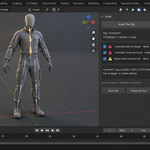
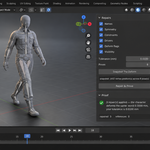
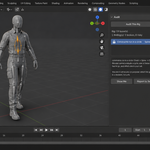
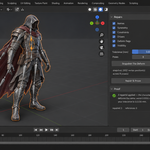
RigStation — documentation
Version 1.0.0. Blender 4.2 and newer, tested up to 5.2. The add-on lives in the 3D viewport sidebar under the tab Rig Fix.
Installation
Blender 4.2 LTS or newer; tested live on 4.2.9, 5.1.0 and 5.2.0. Windows, macOS and Linux. Nothing is downloaded and no external Python packages are installed: everything the add-on needs ships inside the archive.
- Keep the downloaded archive zipped. Do not unpack it.
- In Blender open Edit, then Preferences, then Add-ons.
- Press the arrow button in the top right corner of that window and choose Install from Disk.
- Pick the archive you downloaded.
- Tick the checkbox next to the add-on name.
Press N in the 3D Viewport to open the sidebar. A tab named Rig Fix appears down its right edge, and everything the add-on does lives in that tab. The same instructions ship inside the archive as README.txt, and the full GPL-3.0 licence text as LICENSE.txt.
To remove it: Edit, Preferences, Add-ons, untick RigStation, expand its entry and press Uninstall. Snapshots live inside your own .blend files and are not touched.
The order of work
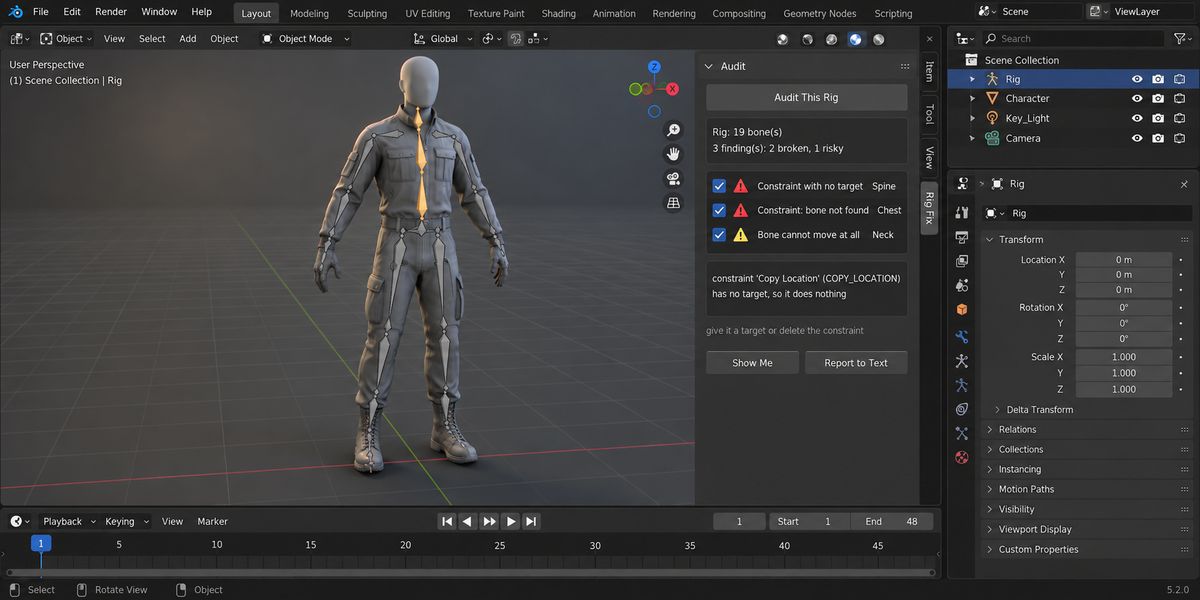
- Audit This Rig. Select the armature — or any mesh it deforms — and press it. Nothing is written; the rig is only read. You get a list of findings, each with the bone, what is wrong and what it means.
- Snapshot The Deform. This records where every vertex of the evaluated mesh sits across a range of poses, together with the rig itself. It is kept inside the blend file, so it survives saving and reopening.
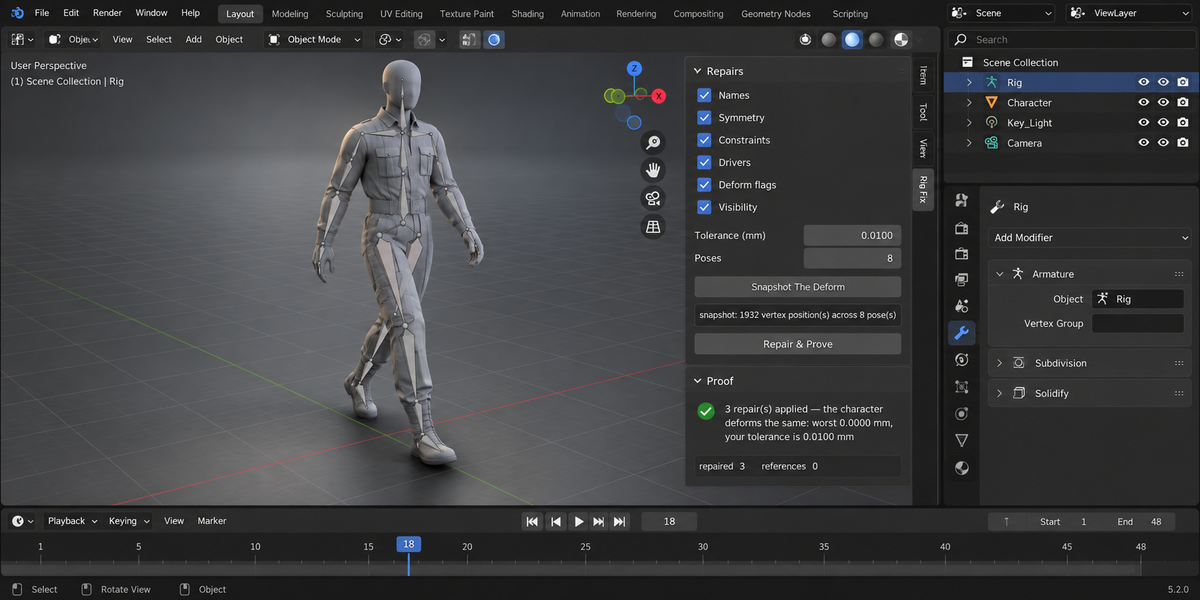
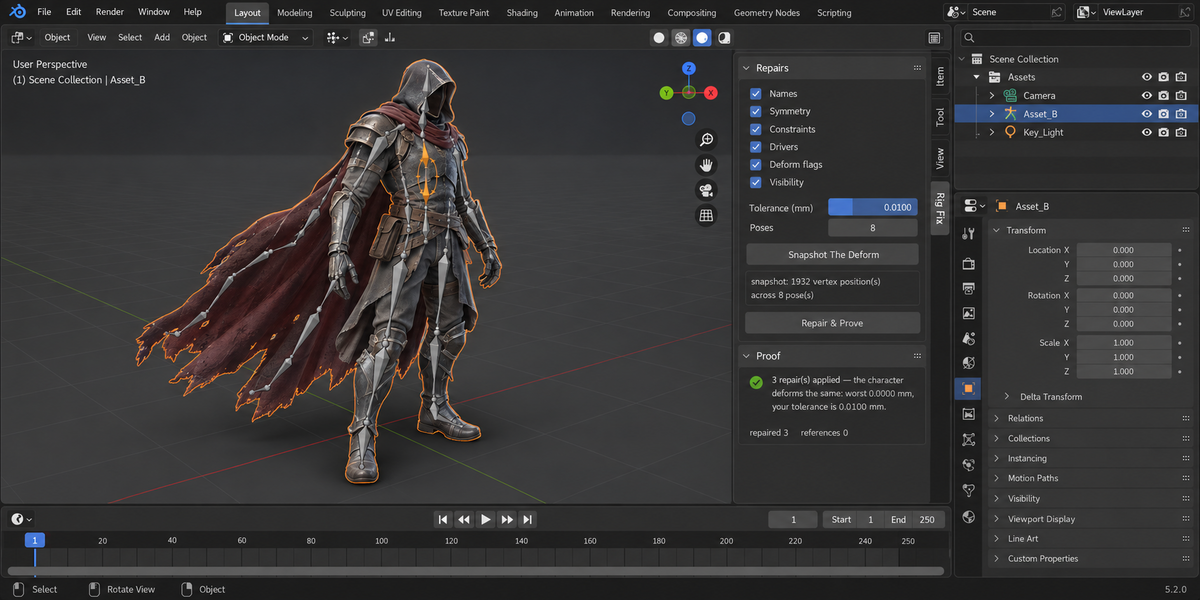
- Repair & Prove. The repair groups you switched on are applied, and the deformation is measured again. The verdict states how far the worst vertex moved, in millimetres, against the tolerance you set.
- Undo These Repairs puts the rig back the way the snapshot found it — including constraints that were removed.
The panels
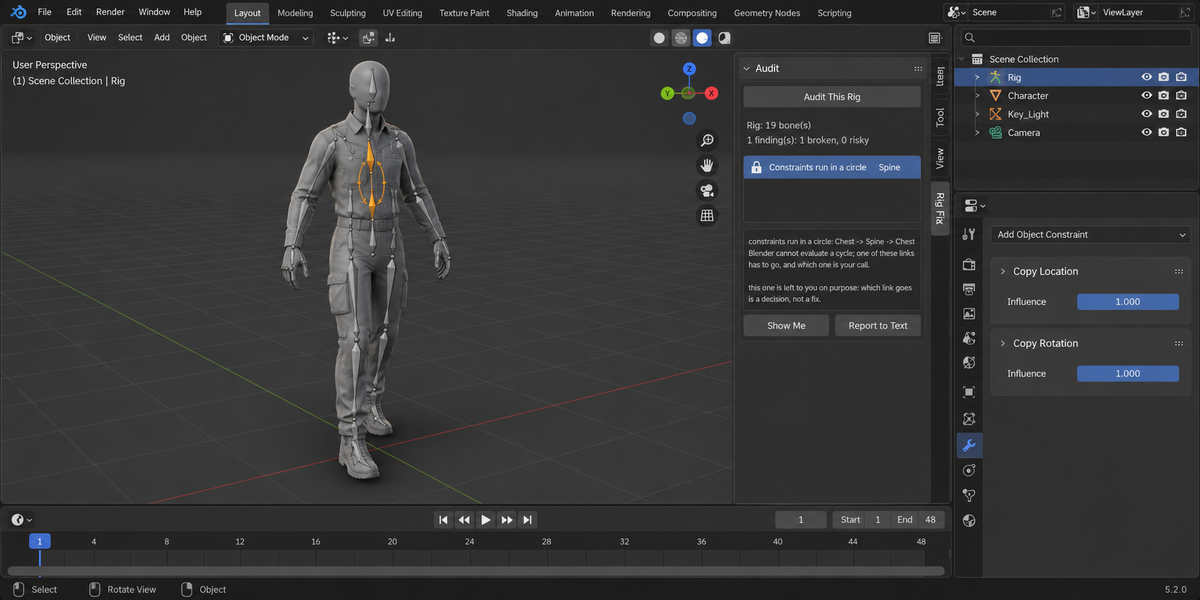
Audit lists the findings. Broken items are shown with a warning icon, risky ones with an information icon. Selecting a finding shows its explanation; Show Me jumps to the bone and selects it in pose mode. Findings that will not be repaired automatically carry a lock icon — see "What is left to you" below.
Repairs holds the six groups, the naming scheme, the tolerance in millimetres and the number of poses sampled. Nothing here is applied until you press the button.
Proof shows the verdict, how many repairs were applied, how many references followed them, and how many findings were left to you. From here you can undo, write a report, or clear everything.
Whole Delivery runs the same audit across a folder of blend files, each in its own background Blender, and writes one self-contained report. Next to it sits Sign Off This File, which records the current state so a later run can say what moved since.
These two panels come from the shared layer used by the whole line, and they carry a button called Group Into One Tab: pressing it moves the panels of every add-on from this line into a single sidebar tab, so a studio owning several of them does not end up with a row of tabs. The repair panels themselves always live under Rig Fix.
The six repair groups
Names. Bone names are brought to the scheme you choose: Mixamo, Unreal, Unity, Rigify, or a mask of your own. Every reference follows — vertex groups, constraint targets, driver variables, keyframes and parents. The panel reports how many names changed and how many references moved with them, counting what actually changed rather than what was intended. If the name a bone should take is already occupied, that bone is left alone and named in the report.
By default no scheme is imposed. A rig using Blender's own side suffixes is correct, and reporting it as wrong would be a false alarm.
Symmetry. A bone that carries a side in its name while its mirror does not exist is reported, as are mirrored pairs whose lengths have drifted apart. Neither is repaired automatically: creating or resizing a bone changes the skeleton, and that is your decision.
Constraints. A constraint with no target, one pointing at a bone or a vertex group that does not exist, one Blender marks invalid, or one targeting the armature with no bone chosen — these do nothing but look alive. They are removed. Where the target is found again after renaming, the constraint is reconnected instead.
Drivers. The same treatment, and the search covers drivers on the object, on the armature data, on the meshes and on their shape keys — facial rigs keep their drivers in the last place, and a broken one there looks to the animator exactly like "it does not work".
Deform flags. A bone marked as deforming that no mesh has a vertex group for is either cleared of the flag or given an empty group, as you choose. Weights are never painted for you.
Visibility. Bones whose every collection is hidden are made reachable again, bones locked on every channel with no constraint driving them are unlocked, and custom shapes that exist in the file but in no scene are filed into a hidden collection so the bone draws as something.
What is left to you
Two kinds of finding are never repaired automatically:
- a circle of constraints — A follows B, B follows A. Blender cannot evaluate it, and which of the two links should go is a judgement about the rig, not a repair;
- a driver that reads the very property it drives.
A bone with no length is reported as risky and left alone: deleting it may be right, but it is not ours to decide.
The tolerance
The tolerance is in millimetres and it is yours. The default is 0.01 mm, which is strict. There is no magic number here: how far a skin may move before you call it a change depends on the shot, so the add-on gives you the measurement and the choice.
Millimetres are computed through the scene's unit scale, so a file imported at a hundredth of the usual size still reports real millimetres.
Two armatures on one mesh
A character deformed by two armatures — body and cape, body and face — is handled as such: every armature modifier counts, and Blender applies them in order. Tools that take "the first armature modifier" report no movement while the skin moves hundreds of millimetres.
When it refuses
The add-on refuses in words rather than printing a comfortable zero:
- the rig deforms nothing — a snapshot would prove nothing;
- the snapshot in the file belongs to a different rig;
- the topology changed since the snapshot, so the same vertex is no longer the same point;
- the rig or a mesh was moved as an object, which looks exactly like a changed deformation and is not one;
- the data is linked from a library and cannot be edited here.
"Could not be measured" is kept apart from "nothing moved" everywhere, including the return code of a pipeline run.
Frequently asked
How do I know the repairs did not break my character?
It measures the deformation, not the weights. Before it writes anything, RigStation records where every vertex of the evaluated mesh sits across a range of poses. After the repairs it compares the two and prints the worst movement in millimetres against a tolerance you set. Zero means the rig is cleaner and the character deforms exactly as it did; anything above the tolerance names the vertex, the pose and the vertex group responsible, so you can judge it yourself.
On a 19-bone character with three defects planted on purpose the audit found 3 of 3 and not one extra, the repairs applied three, and the deform moved 0.0000 mm against a tolerance of 0.0100 mm. A mesh driven by two armatures is handled as two, because taking only the first armature modifier reports zero movement while the skin can move hundreds of millimetres.
Changelog
v1.0.1 — The Whole Delivery folder check no longer replaces a file in the folder you pick. Before, the report was always written as rig_station_report.html (and the baseline as rig_station_report_baseline.json), and a file with that name already there, such as an earlier report you kept, was overwritten. Now a free name is taken (rig_station_report_2.html and so on), the message at the bottom of Blender names the file it wrote, and a run that fails while writing removes only the file it created. The report is written as UTF-8, as the page declares. The report and the baseline keep one number (rig_station_report_2.html with rig_station_report_2_baseline.json). A folder that cannot be written to is now refused in words instead of a Python error (and no empty report is left behind when only the baseline cannot be created), a folder that already has the report's name is skipped like a taken file, and the closing message is shown: before, a run with no problems or with unchecked files ended in a Python error instead of the message. Checking a folder no longer stalls on a file whose check prints a lot: on Windows such a file sat until the 30-minute limit and was reported as not finished. A file Blender cannot open, or one with nothing to check, is now explained in words instead of a Python error.
v1.0.1 — README names the version and the sidebar tab.
v1.0.0 — first release. Six repair groups, the deform proof in millimetres, an undo that survives saving and reopening, and the whole-delivery run.
Have questions about this product?
Login to message
| Published | 12 days ago |
| Blender Version | 4.2 - 5.2 |
| Extension Type | N/A |
| Render Engine Used | Cycles |
| License | GPL |
Discover more products like this
animation deformation drivers pipeline rig character constraints validation rigging cleanup armature weights