 chowFrogStudio
● Blender add-on
Stay with
the pose.
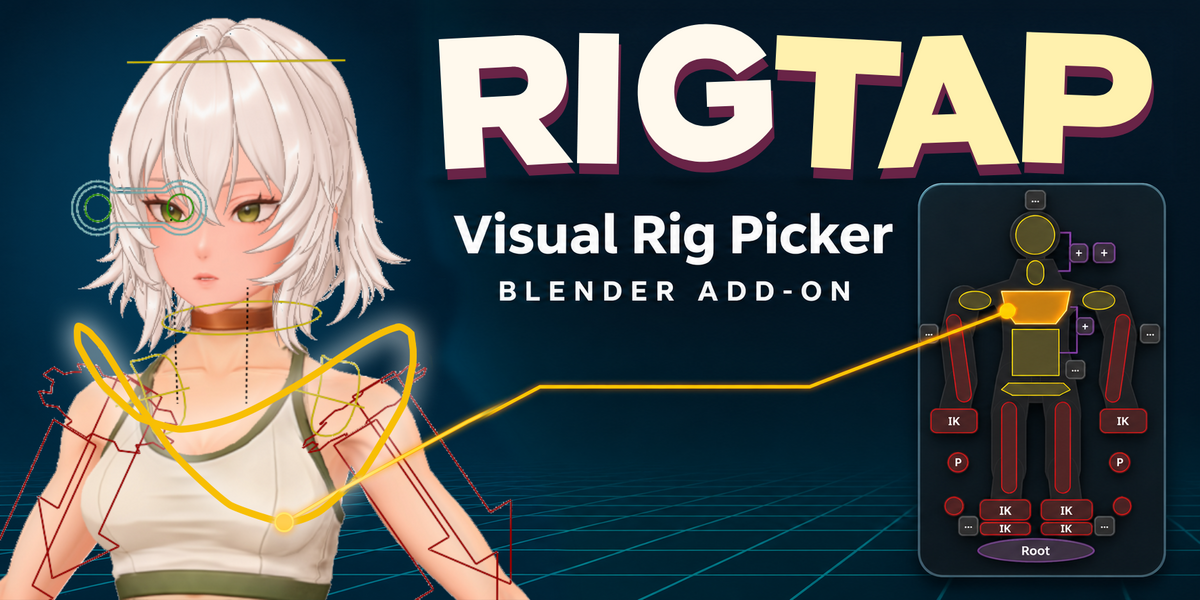
RigTap puts your character’s rig controls on a 2D map, so you can find the right finger, face, or body control and keep animating.
Blender 4.5–5.3 · Works with your existing rig
Workflow overview
See RigTap in action.
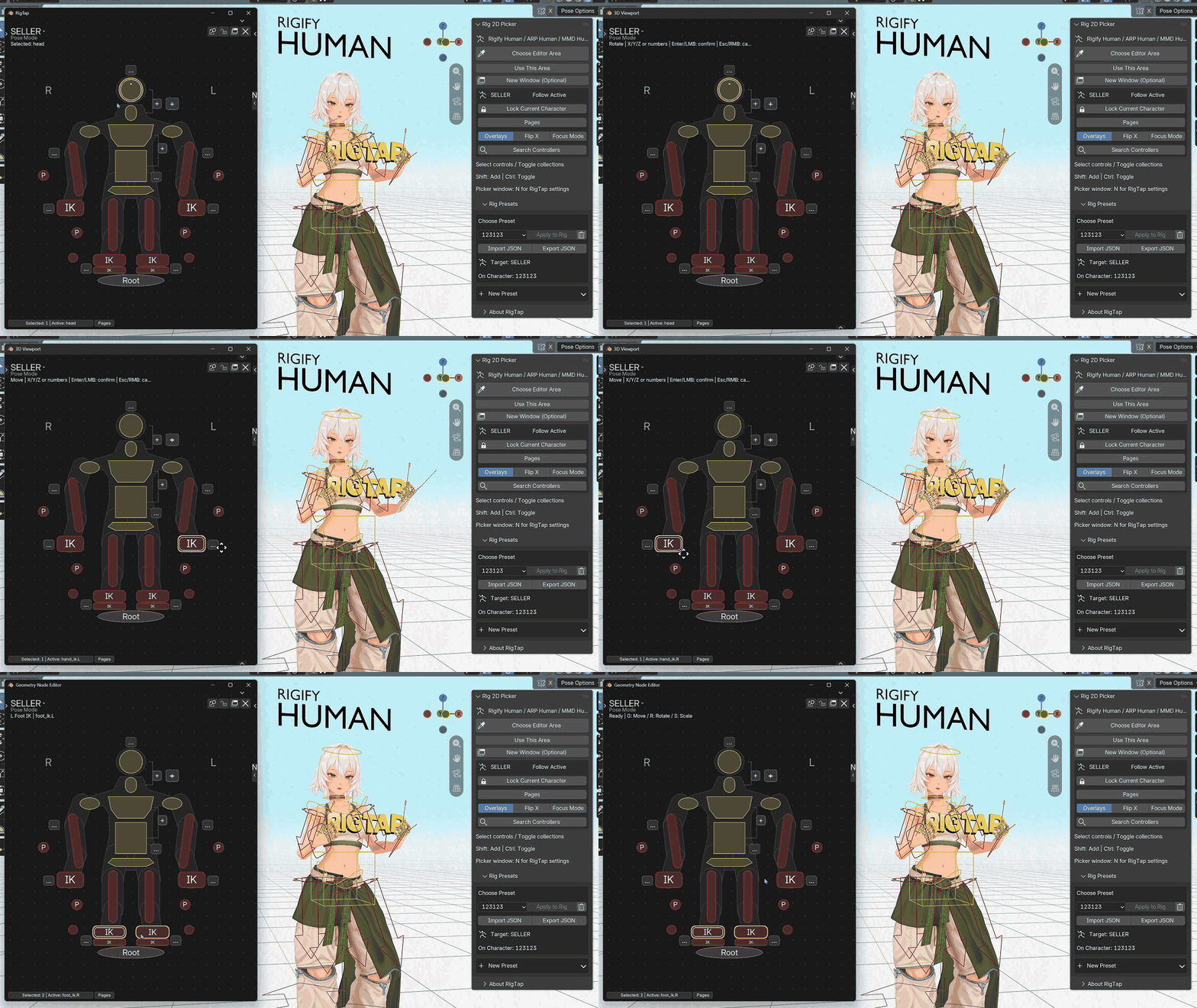
See the picker and the 3D Viewport work together as you select controls and pose a character.
RigTap // Workflow overview
This is my OC! (๑>◡.
Getting Started · 3:23
The picker
From the whole rig
to one finger.
When you’re polishing a hand pose, click the hand IK control on the Body page and press Tab to open the finger controls. Available pages depend on your rig preset and can include the chest, legs, hands, and face.
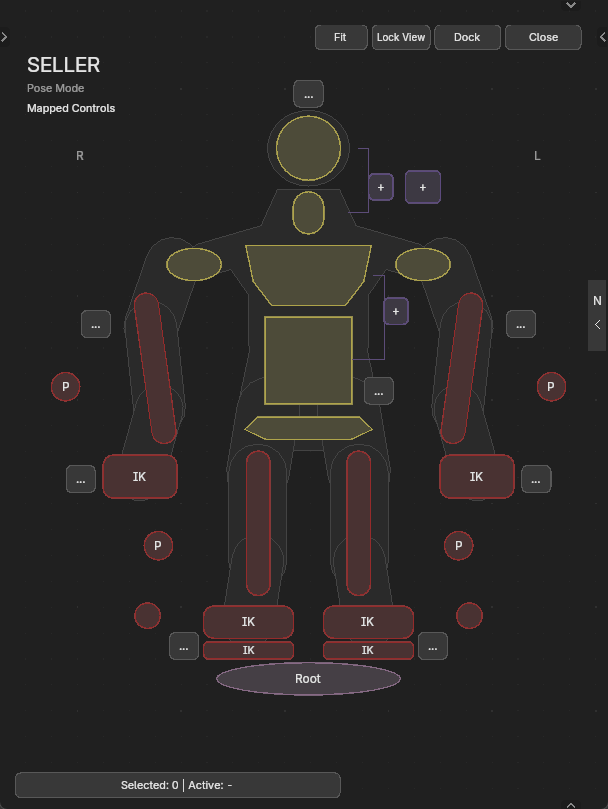
Body overview
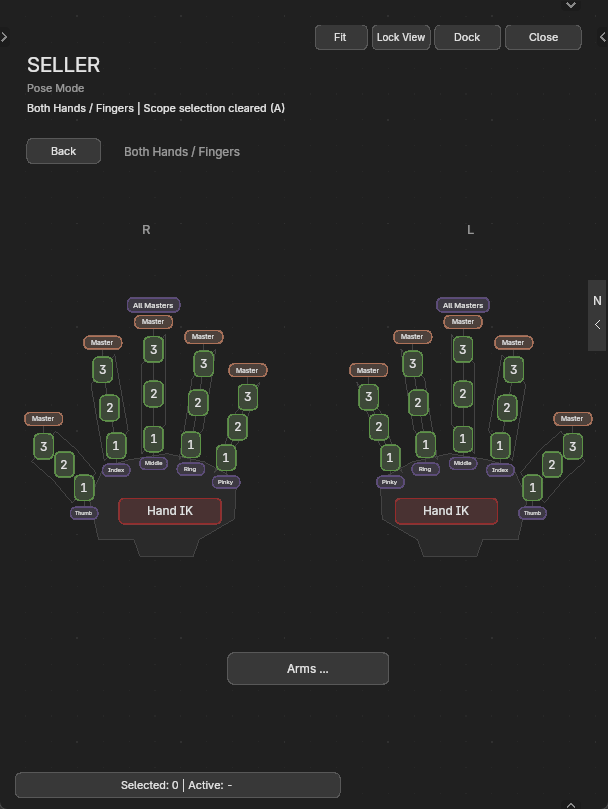
Hand and finger controls
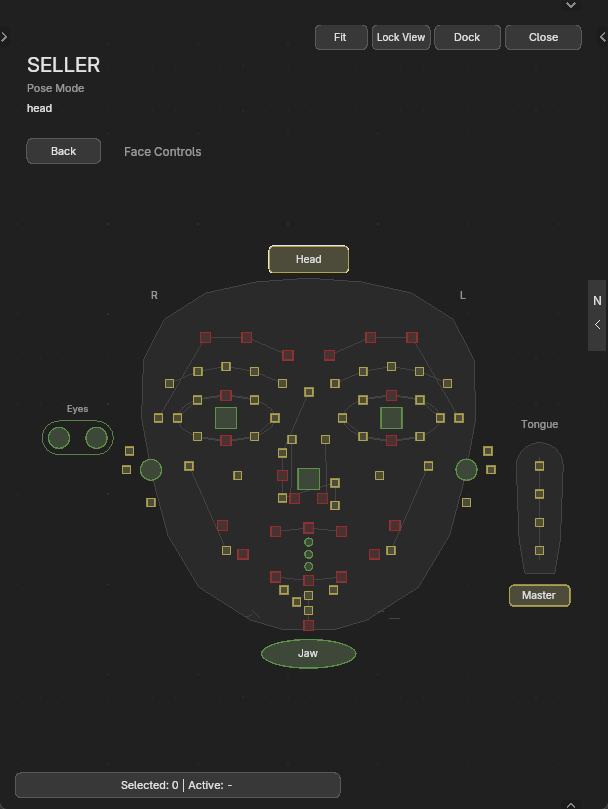
Facial controls
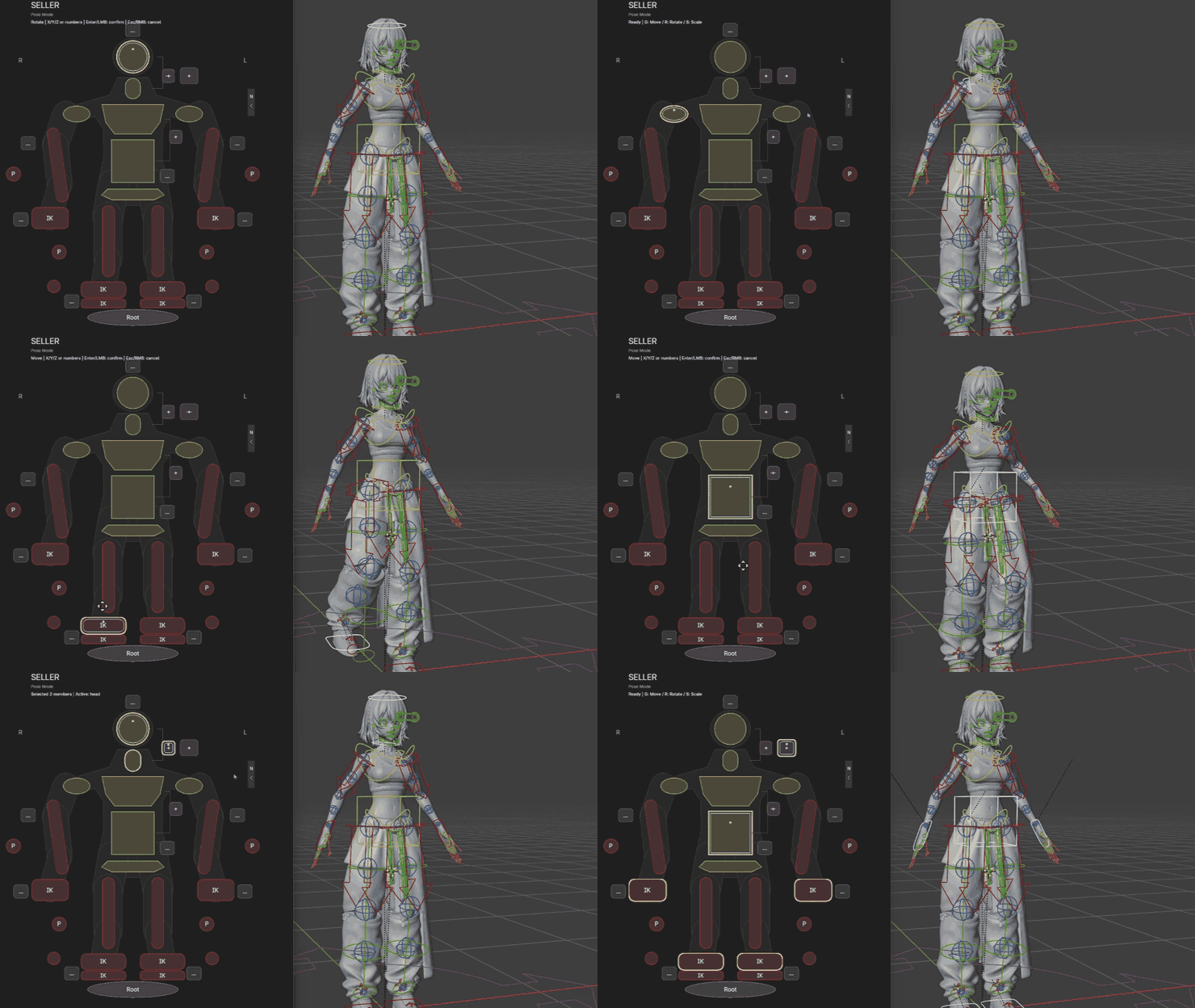
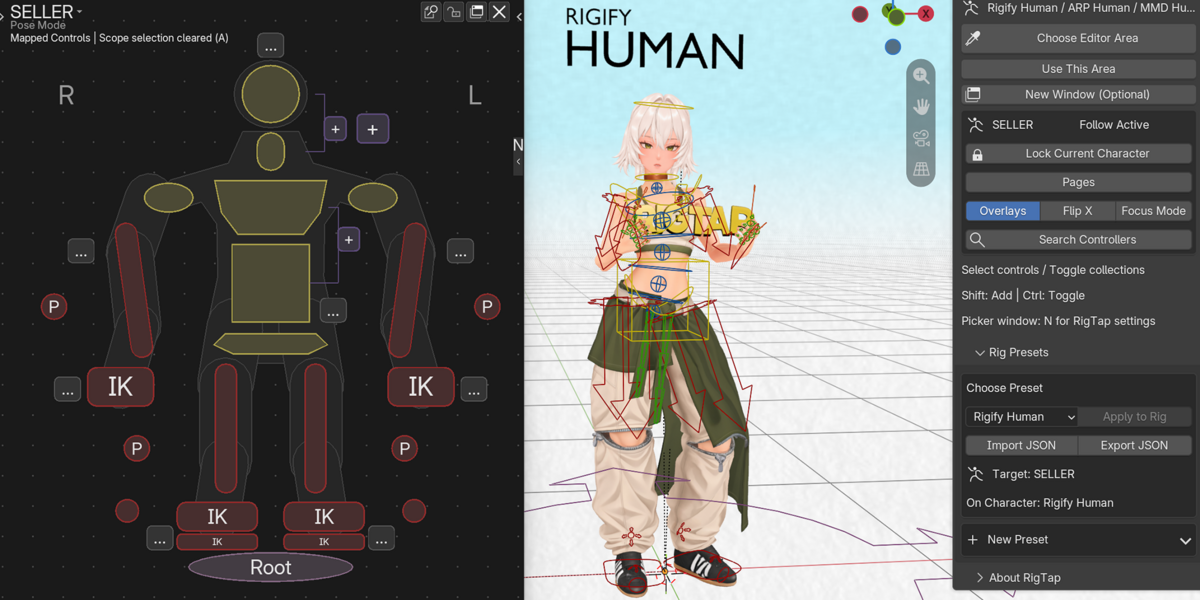
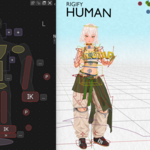
Select rig controls from the body picker and see the selection in the 3D Viewport.
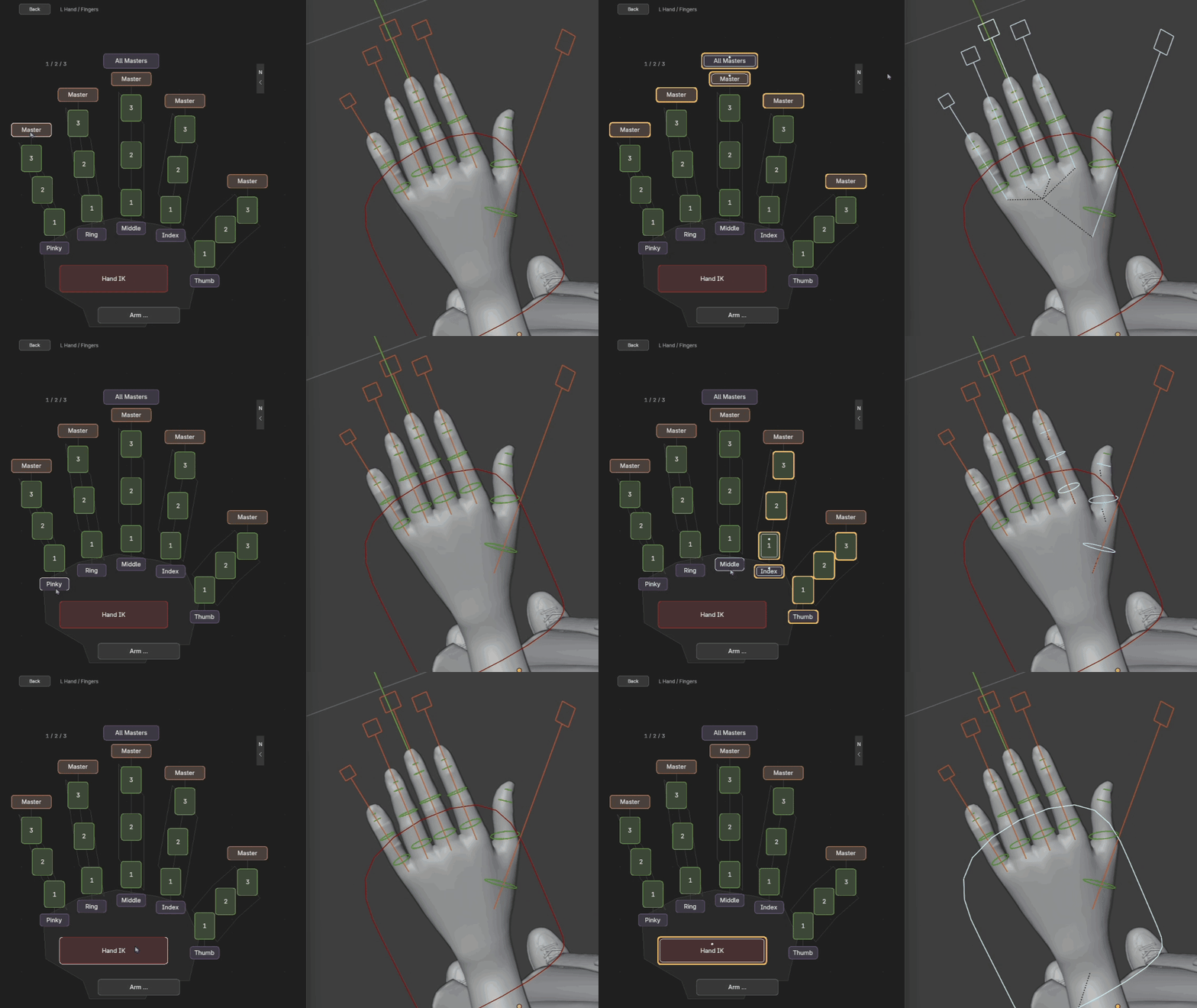
Quick Select Hand Controllers.
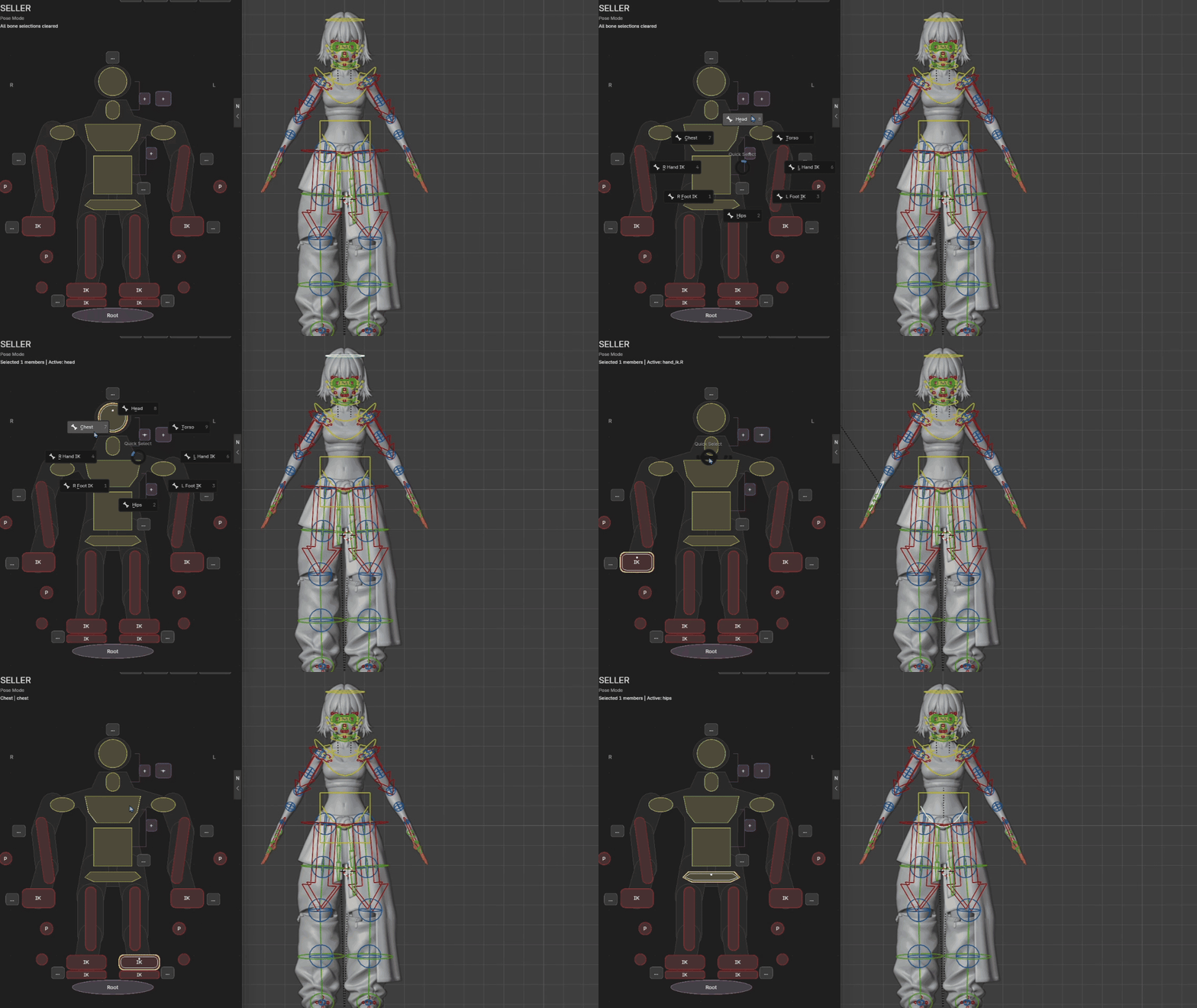
Press Q to quick-select controls.
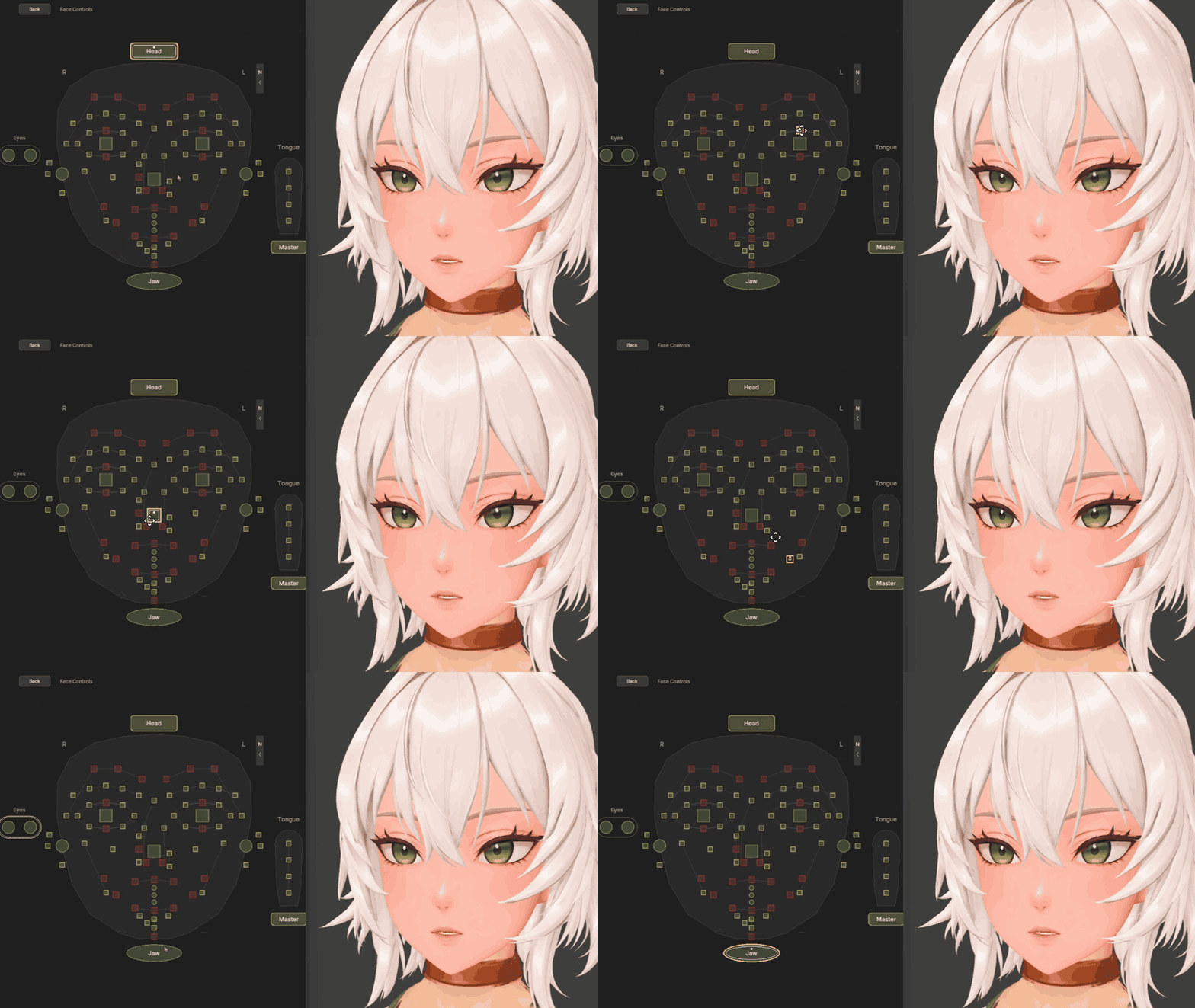
Quick Select Face Controllers.
- Find a control by name. Press F3 to search for a control or its bound bone. Use Q to open the page’s quick-select menu and E to switch pages.
- Select one side or both. Box-select multiple controls, double-click to pick the opposite bone, or use Mirror X to link mirrored selection.
- Put the picker where you work. Dock it in a Blender editor area or open a floating window. Lock it to the current character when you need to keep that rig in view.
Focus Mode
See the character.
Keep the controls.
Hide the regular bone overlays in the 3D Viewport while you keep selecting and transforming bones from the picker. Check the silhouette or facial expression with less visual clutter.
RigTap // Focus ModeBlender viewport demo
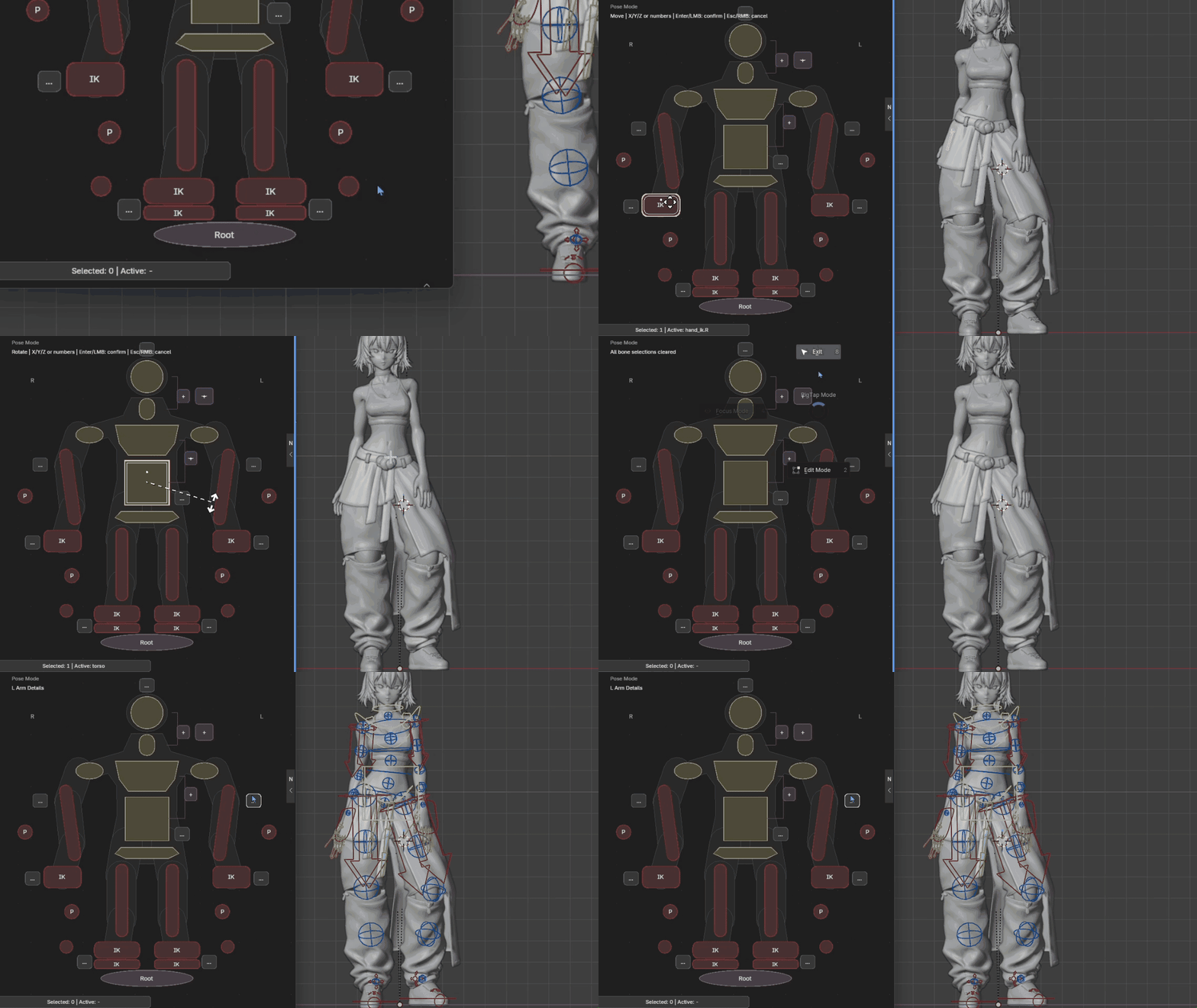
Pose the character from the picker with the regular bone overlays hidden.
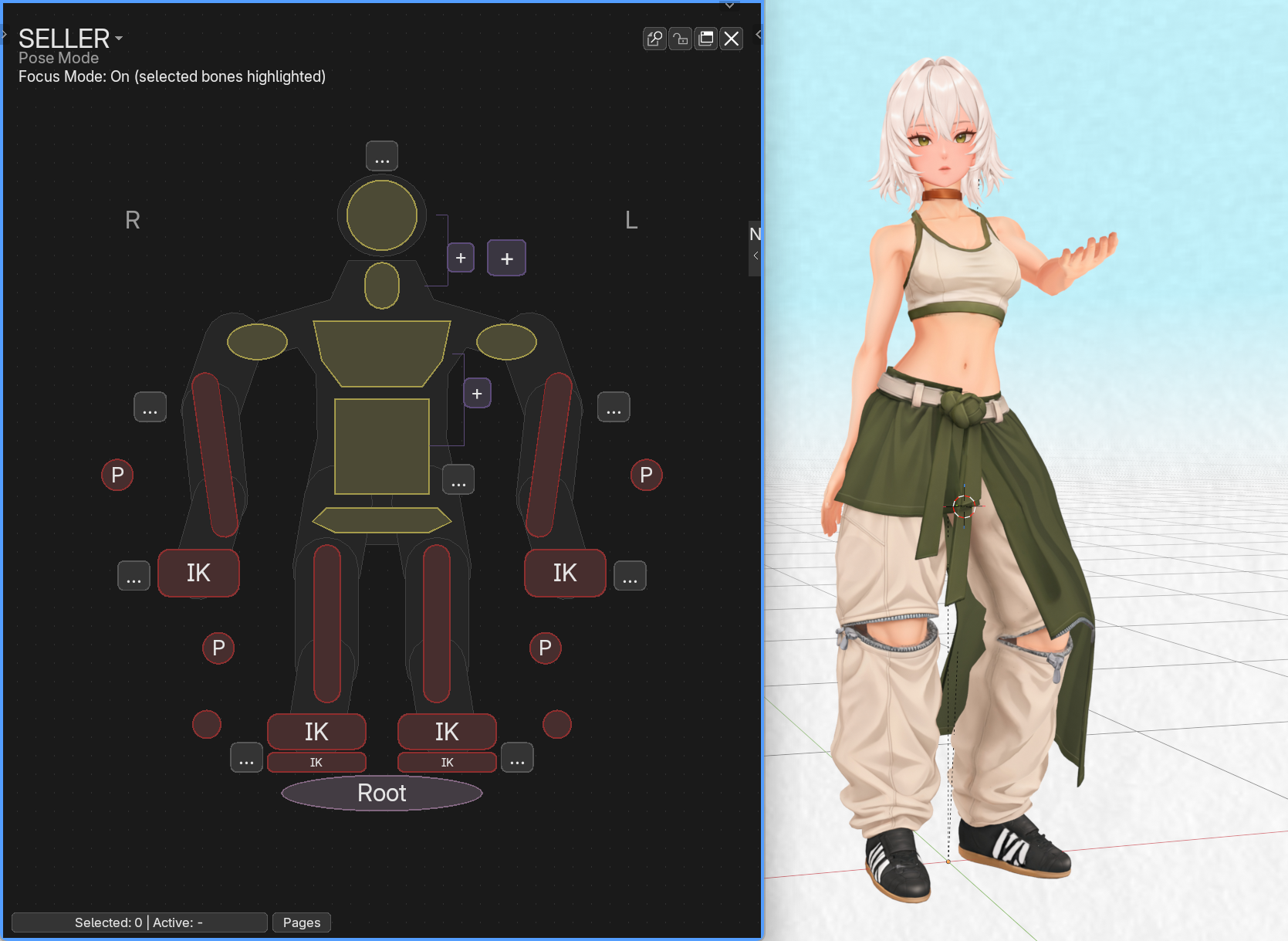
The picker stays active while the character viewport stays clear.
Viewport display
Keep the controls you need in view.
Use the Bone Collections list to show, hide, or isolate groups on the rig. The picker also lets you switch between its Soft colors and the rig’s original colors.
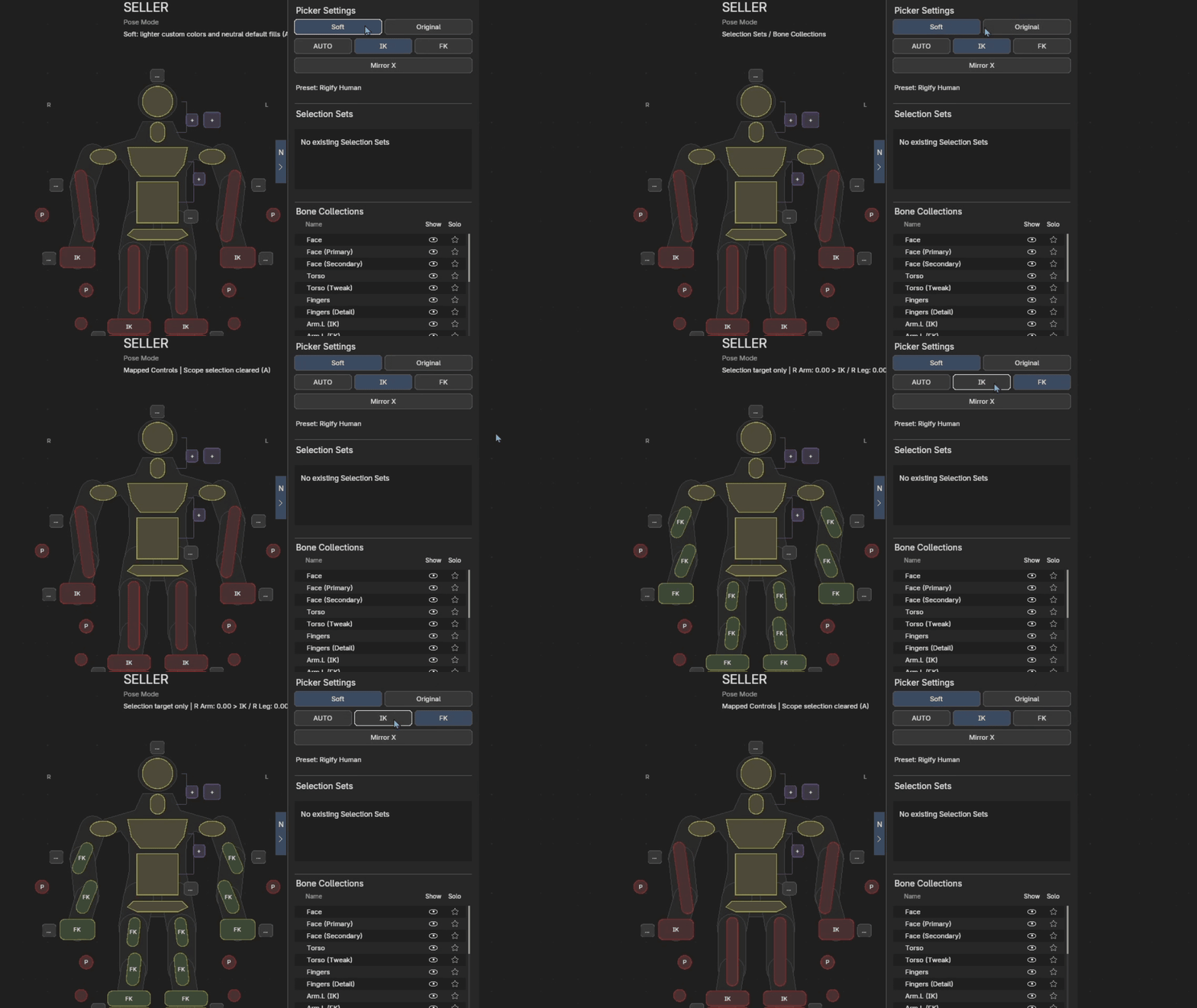
Switch picker colors and manage which bone collections are visible.
Custom layouts
Make the picker fit your rig.
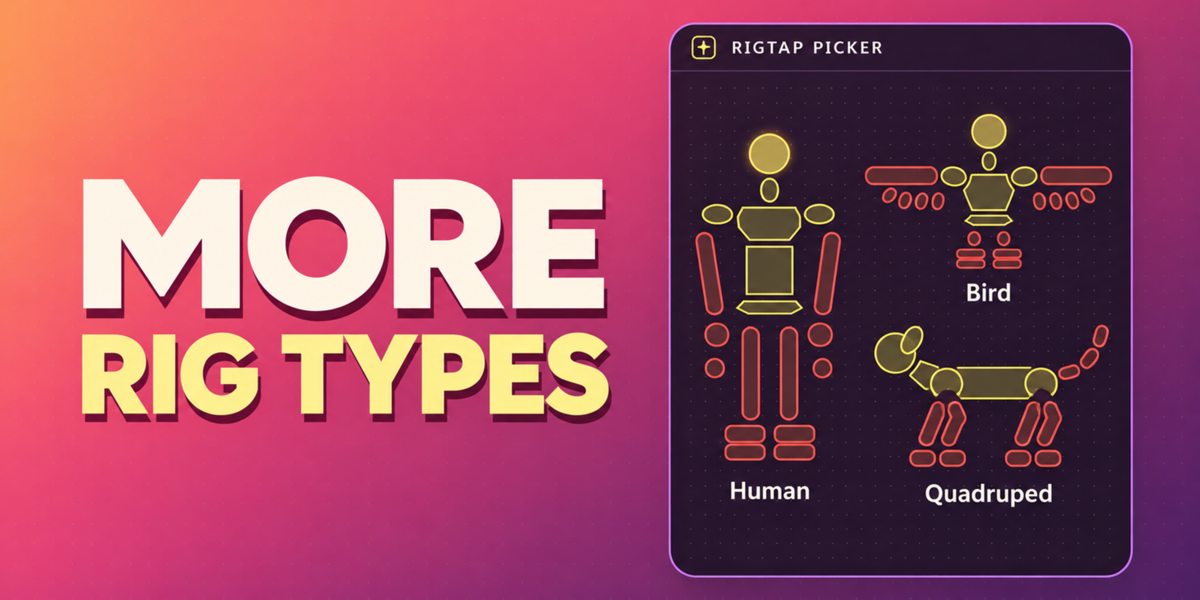
Start with a preset for Rigify Human, Auto-Rig Pro Human, MMD Human, CloudRig, or supported Rigify animals. For a custom rig, copy an existing layout or start with a blank canvas and map your own controls.
- Organize the way you pose. Move, rotate, and scale 2D controls. Add detail pages and create selection groups for bones you often pose together.
- Bind controls efficiently. Pick bones or objects directly in the viewport, bind a series of controls in order, or update binding names in batches.
- Reuse your work. Save the layout with the .blend file, keep it in your local preset library, or export it as JSON for another project.
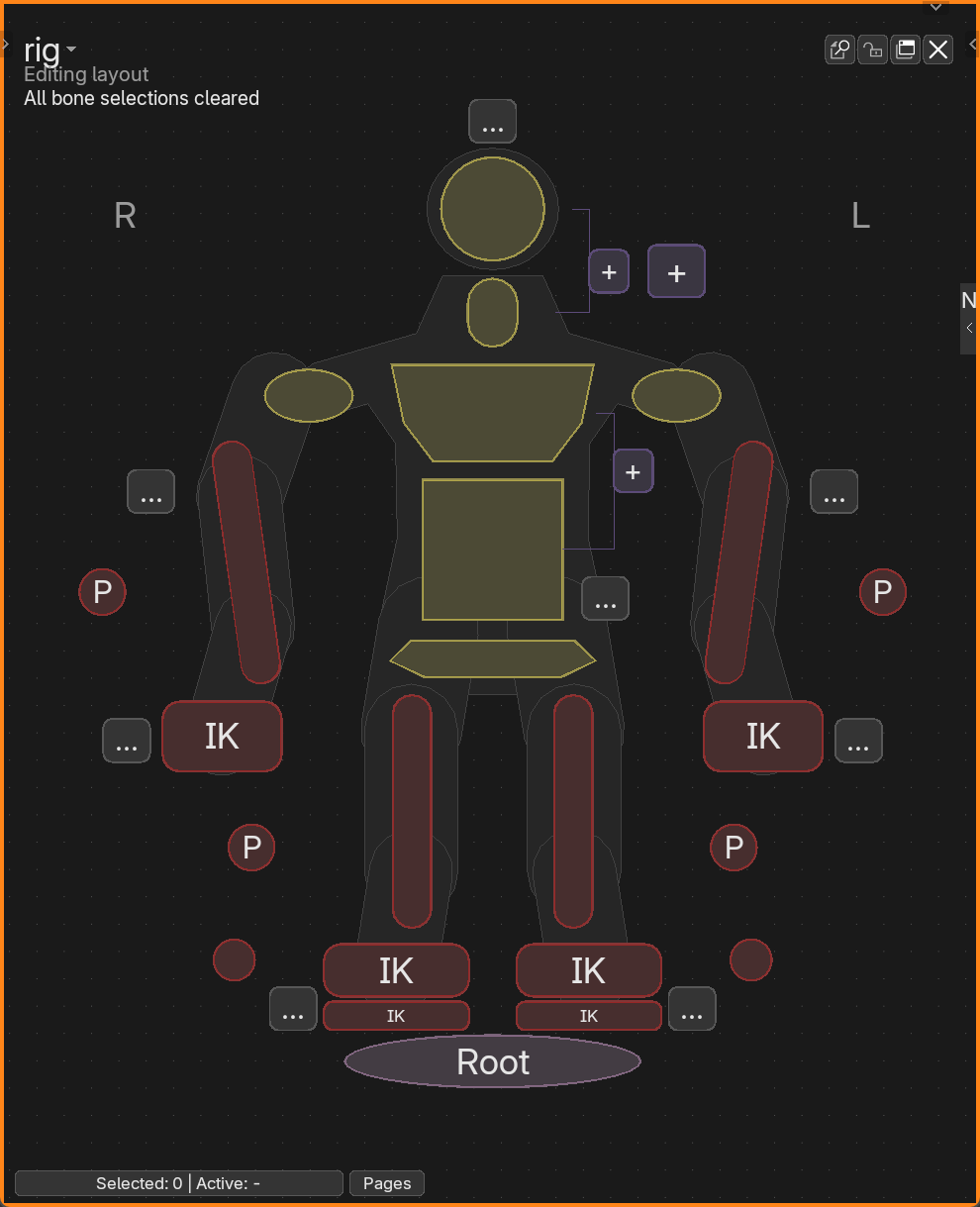
Edit Mode on the Body page.
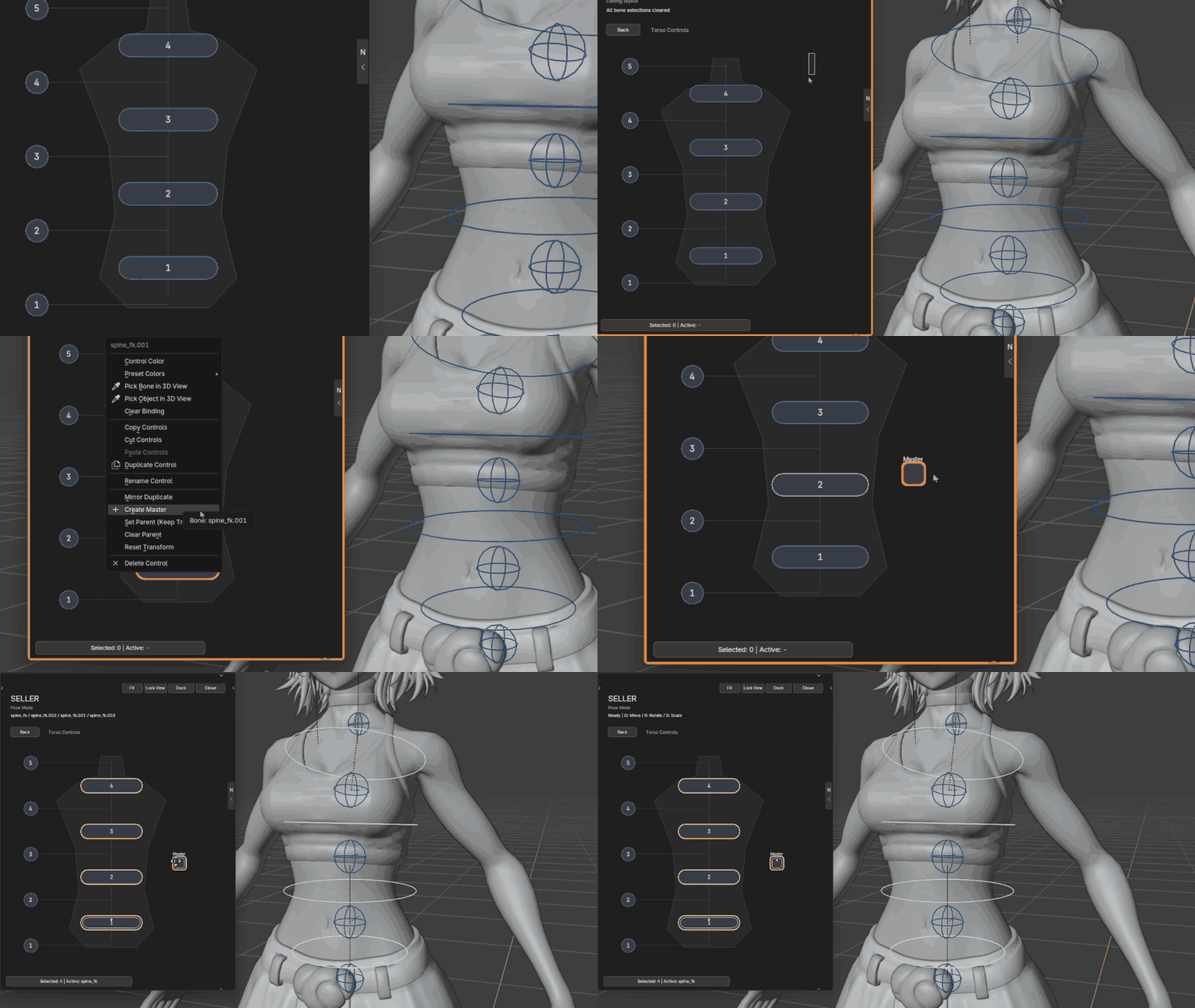
Customize the shape and placement of controls in Edit Mode.
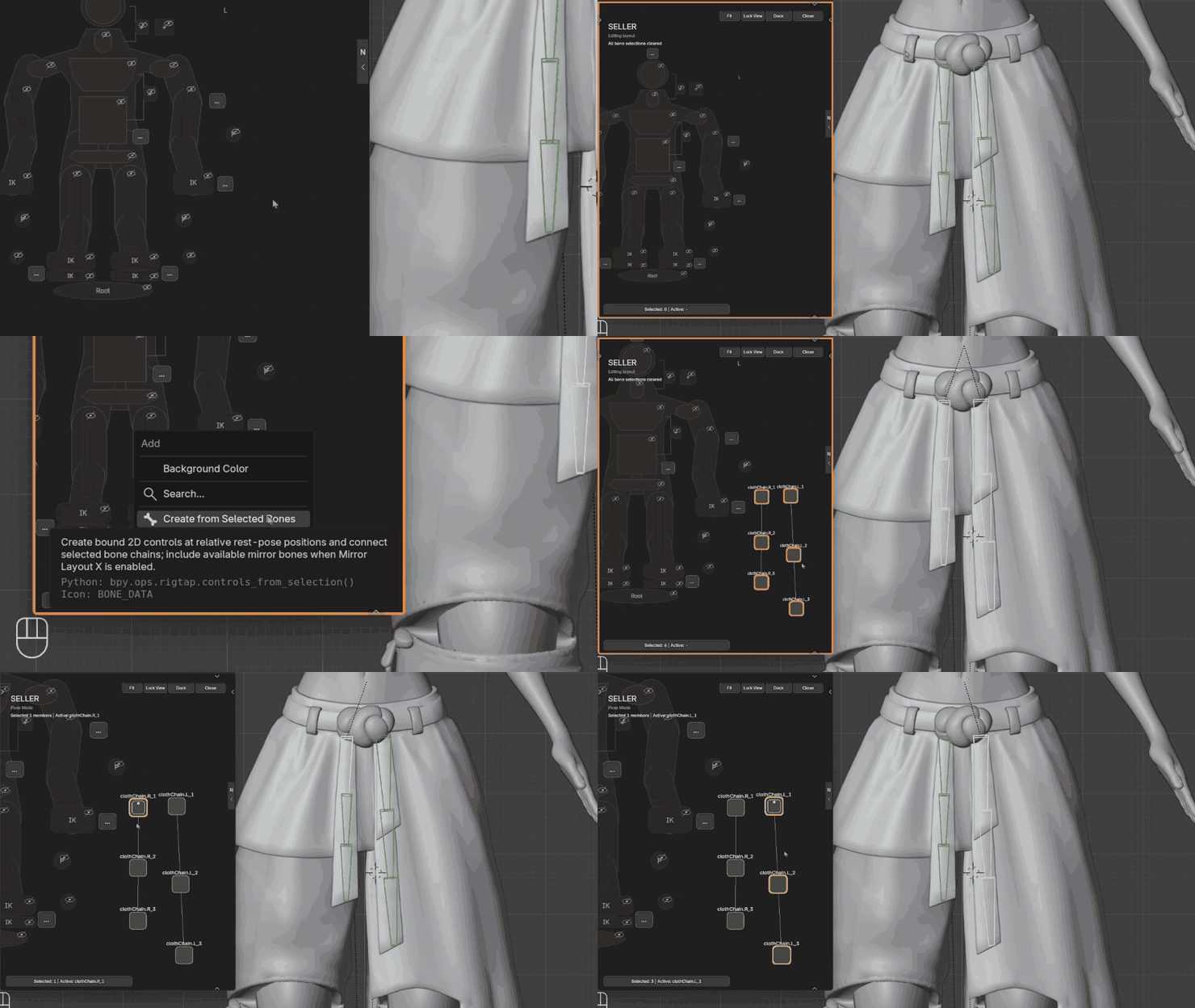
Set up picker controls for a custom chain, such as a hanging belt strap.
Preset library
Start with a layout
for your rig.
Use a built-in layout for Rigify Human, Auto-Rig Pro Human, MMD Human, CloudRig, or one of the supported Rigify animal rigs. More preset types are being added over time.
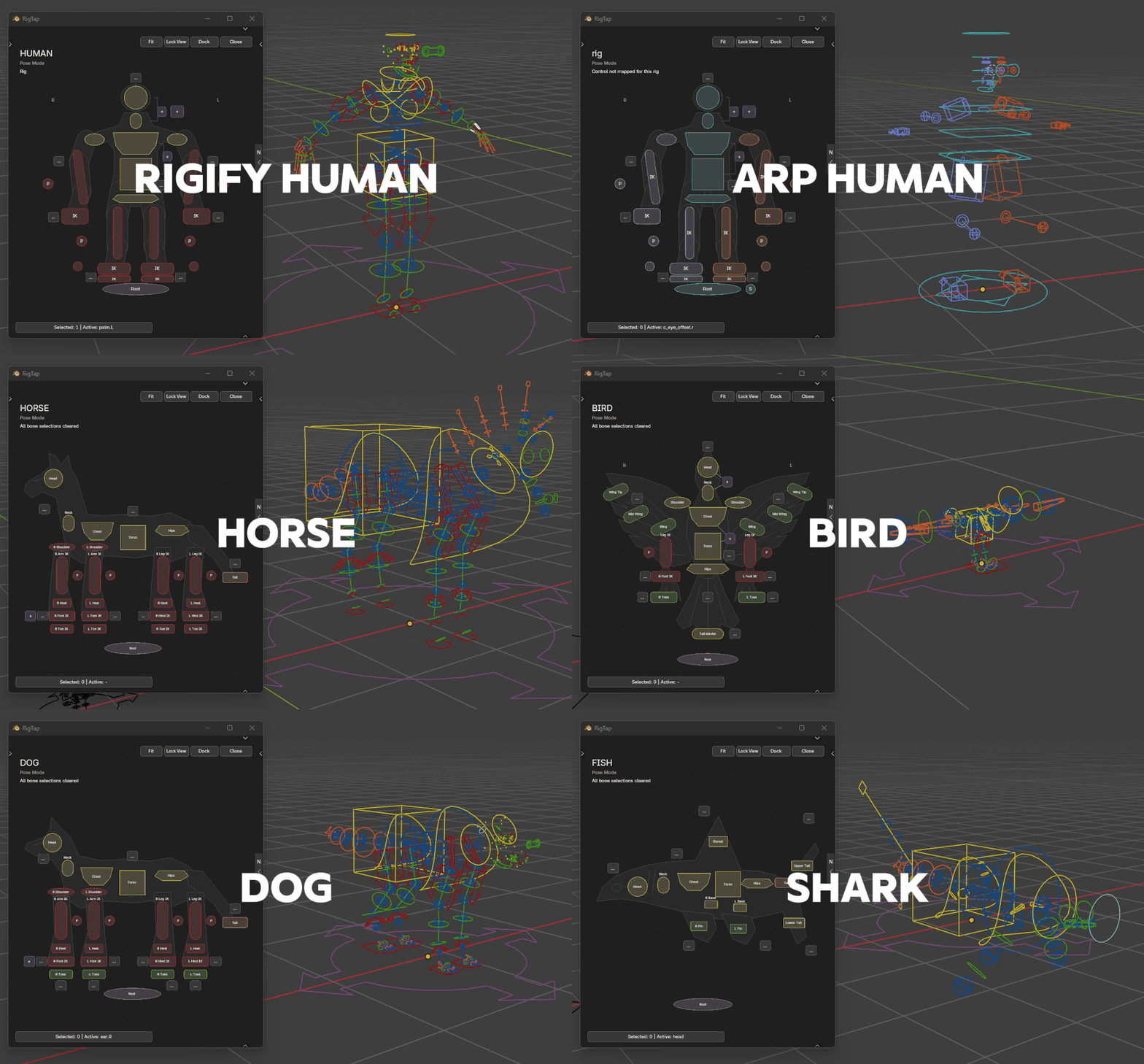
A look at picker layouts for different rigs, including Auto-Rig Pro Human.
Hair controls
Pose a whole chain or a single bone.
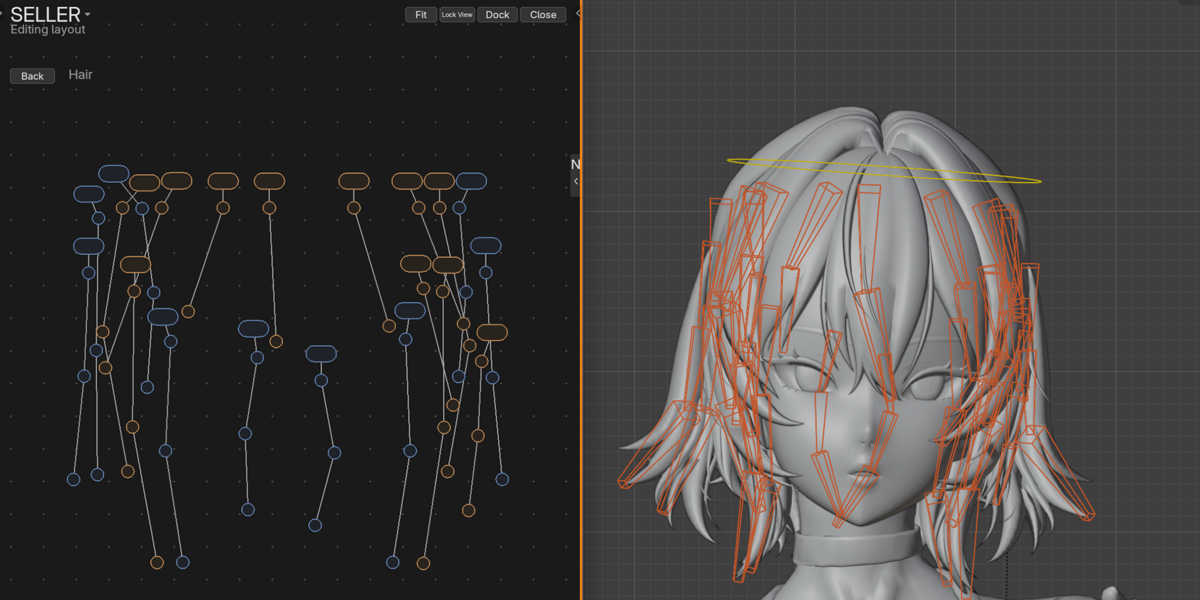
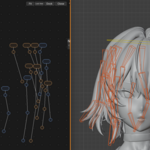
On rigs with appropriately named hair control bones, Create Hair Masters builds a dedicated Hair page. Click a master to select its chain, or choose an individual control for a smaller adjustment.
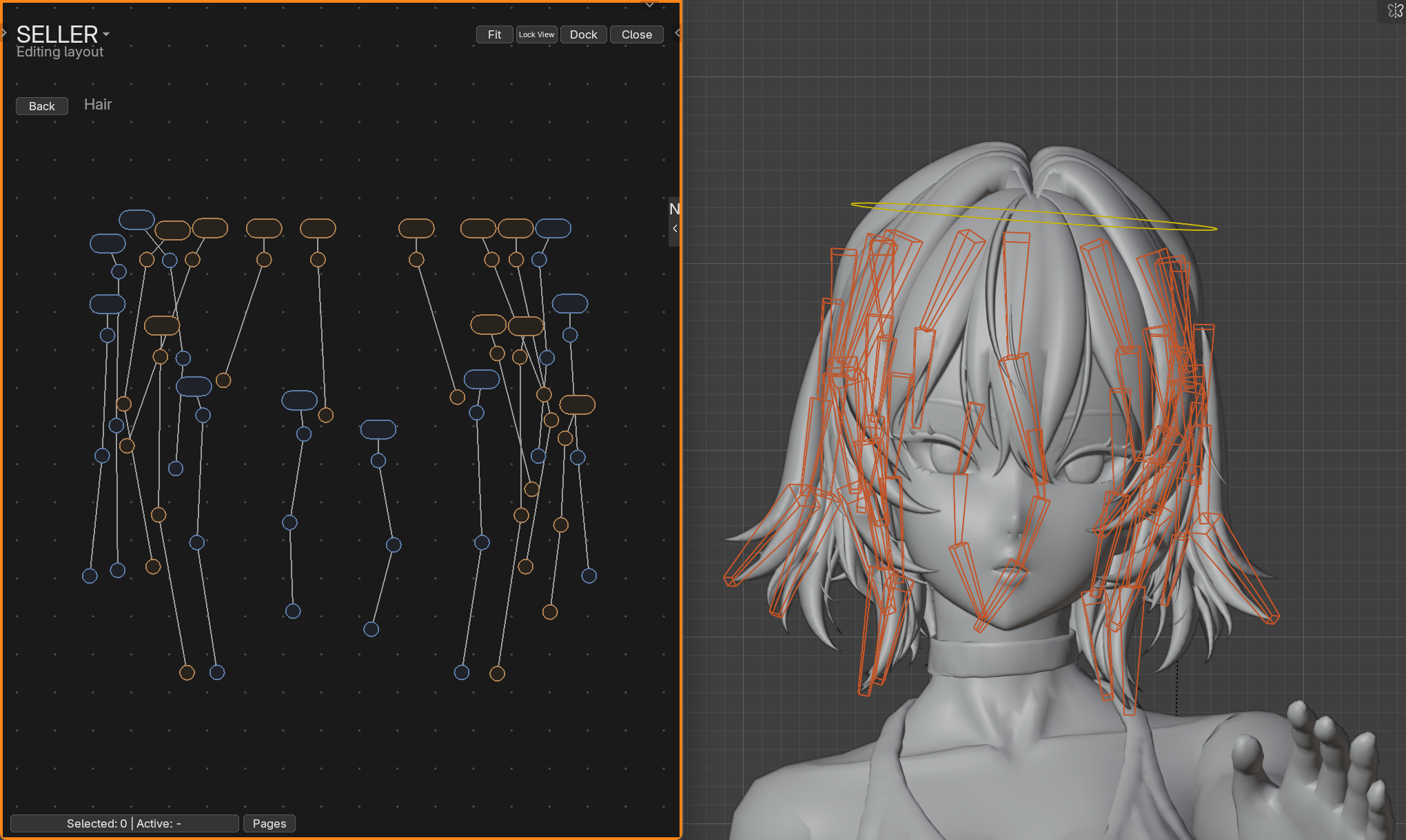
Hair chain masters and individual bone controls.
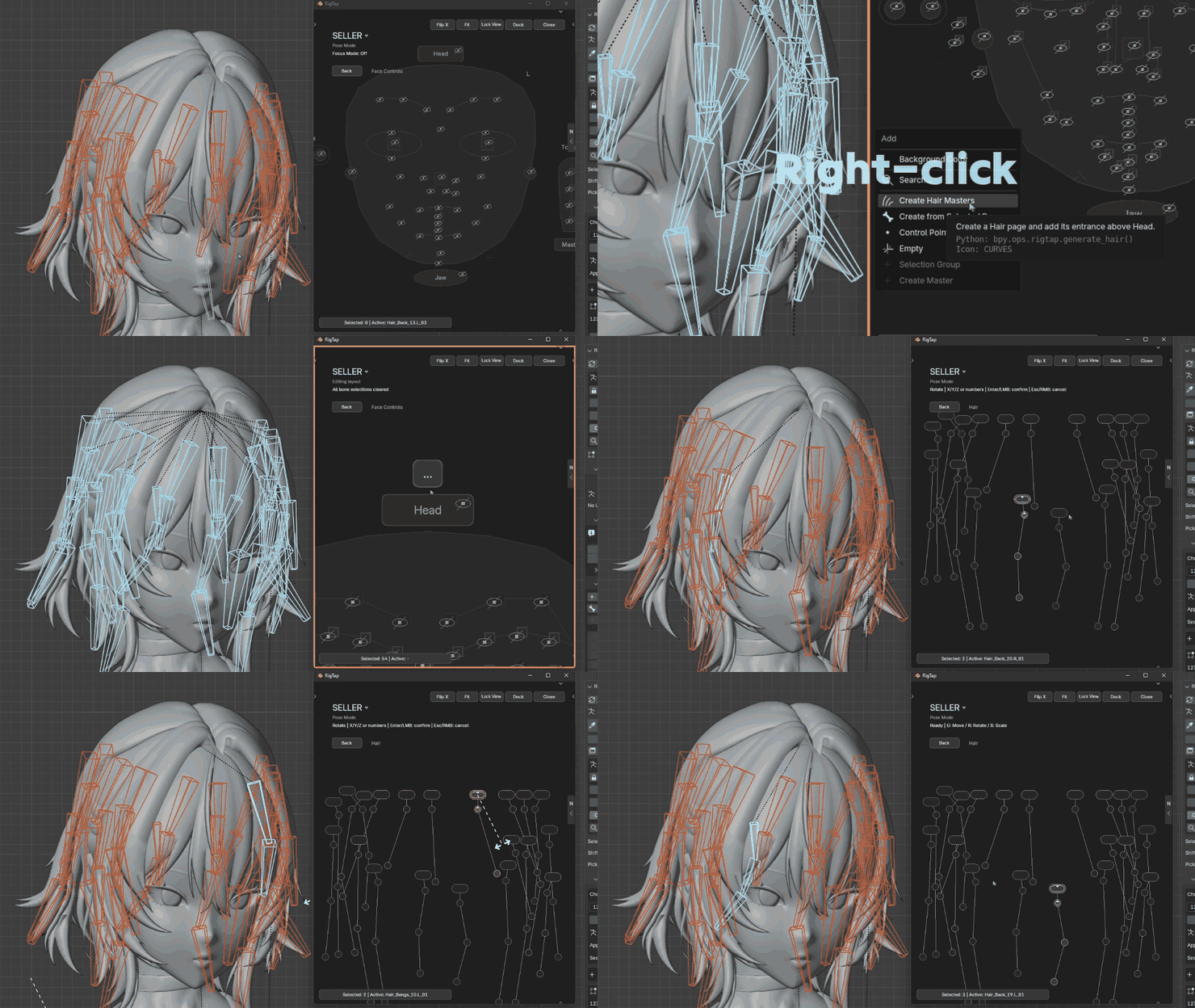
Use Create Hair Masters to build a Hair page from the rig’s hair controls.
RigTap 1.0.0
What you get.
Compatibility
RigTap 1.0.0 supports Blender 4.5–5.3. Built-in layouts use the matching generated rig.
RigTap 1.0.0 for Blender.
An installable ZIP with the 2D picker, Focus Mode, and tools for creating and editing layouts.
Built-in picker layouts.
Start with Rigify Human, Auto-Rig Pro Human, MMD Human, CloudRig, or supported Rigify animal rigs.
Layouts you can take to another shot.
Save your own picker with the character in a .blend file or export it as a JSON preset to reuse or share.
Before you buy
Can I use my own rig?
Yes. Open a blank picker preset or copy an existing layout, then bind the controls to your own bones or objects.
What is in the download?
An installable Blender extension ZIP with RigTap’s 2D picker, Focus Mode, layout editor, and built-in picker presets.
A note from the creator
I built RigTap because I kept losing my place while hunting for controls in a crowded viewport. I wanted to find the bone I needed and get straight back to the pose. That’s the workflow I had in mind when I built the picker and Focus Mode.
— SZ
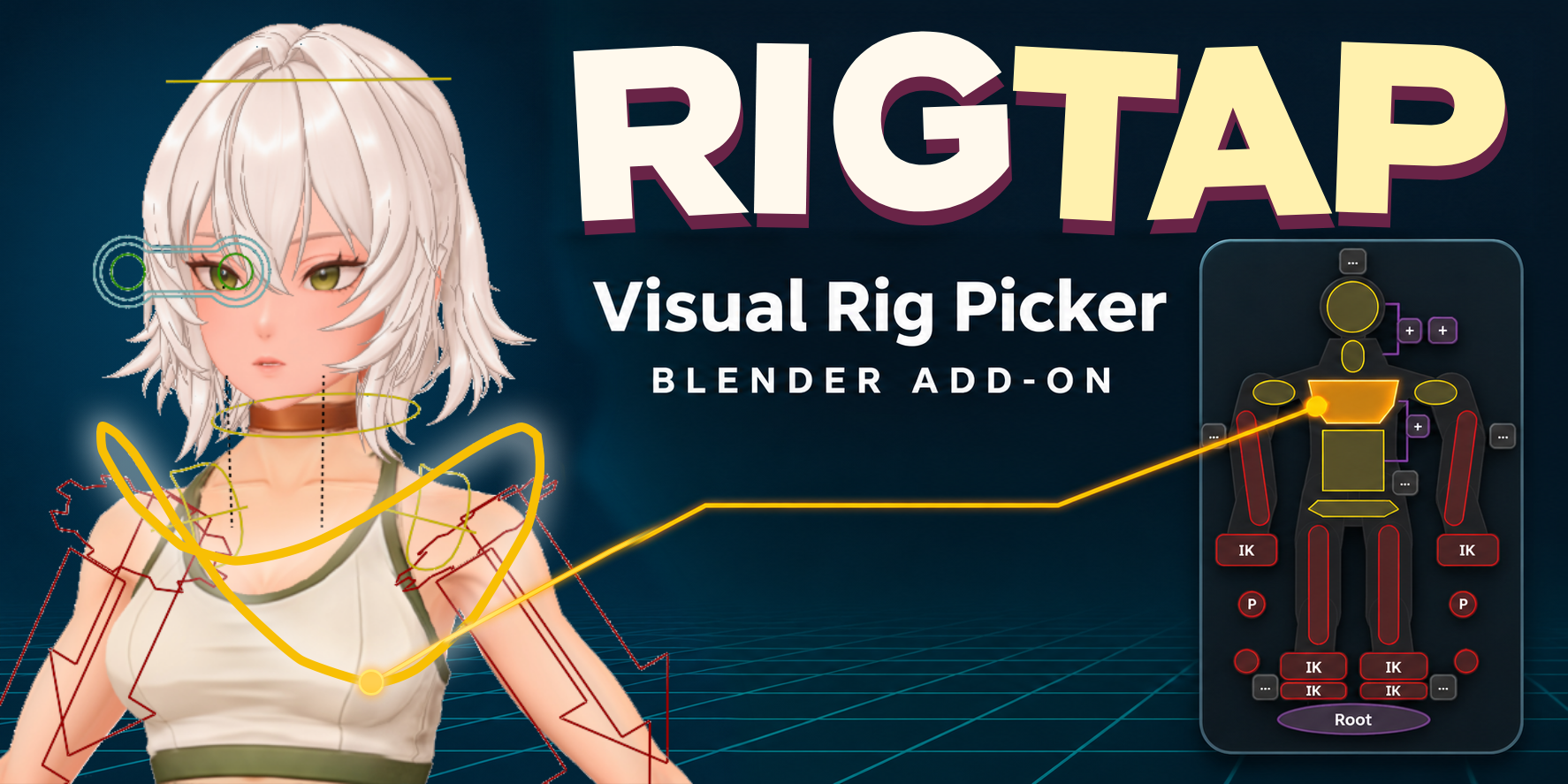
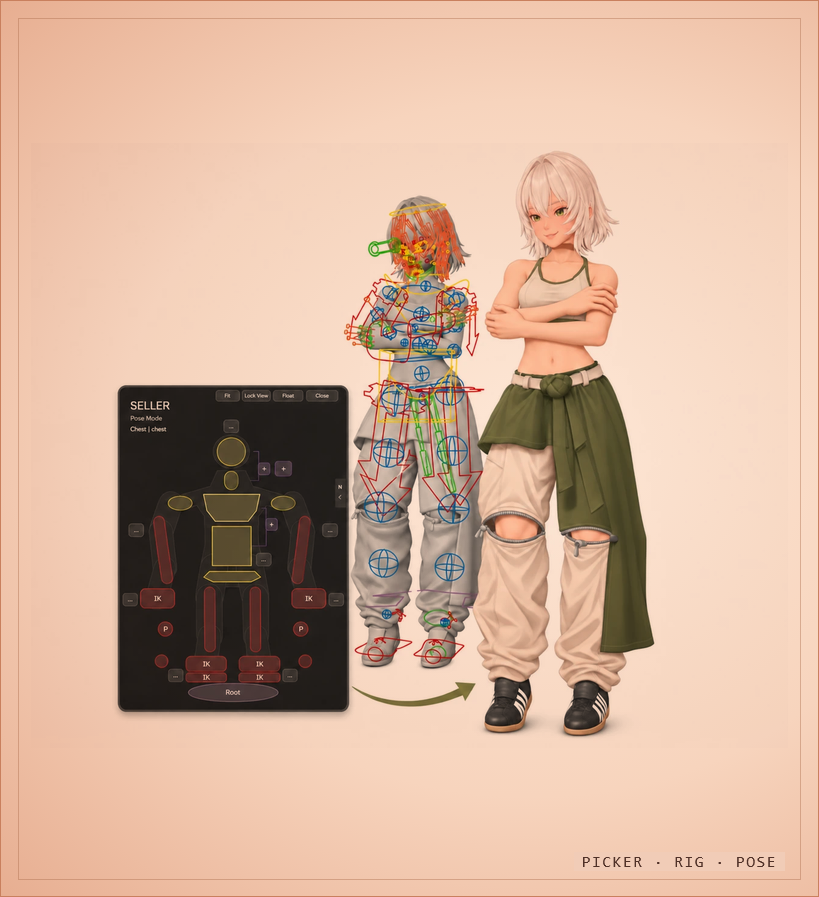
The example character with the body picker and its rig controls.
