Rolling Rolling - Blender Geomerty Node Gadget
 Swingby


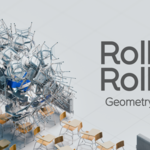


Rolling Rolling Manual
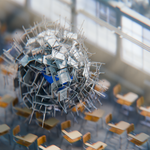
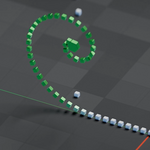
A playful Blender Geometry Nodes gadget for rolling objects
and snowball-like growth.Created by Swingby
Requirements
Before using Rolling Rolling, please check the basic requirements below.
Supported Blender Version
Rolling Rolling supports Blender 5.0 and later.
This product was created and tested in Blender 5.0
Required Knowledge
Basic familiarity with the Blender UI is recommended.
You do not need advanced Geometry Nodes knowledge to use Rolling Rolling, but it is helpful to know how to:
- Open and navigate a Blender file
- Select objects
- Adjust modifier values
- Use the timeline and viewport playback
- Save your own edited version of the file
What It Can and Cannot Do
Rolling Rolling is designed to create playful rolling motion and snowball-like object attachment using Blender Geometry Nodes.
Please check the following features and limitations before using the product.
What it can do
Rolling Rolling can:
- Use the shape of an object to generate rolling motion
- Attach objects that have keyframed position, rotation, and scale
- Work with Rigid Body workflows based on animated transform values
- Provide adjustable parameters for controlling how objects attach
- Bake simulation values for more stable playback and repeated use
These features make it useful for procedural motion, playful object interactions, snowball-like growth effects, and visual experiments in Blender.
Limitation
- Attached objects may not perfectly fit every surface, depending on the shape of the rolling object
- Complex meshes or a large number of connected objects may make the scene heavier and slower to calculate
- This is a Geometry Nodes-based setup, not a full physical simulation system
- Shape Keys are not supported
- Some parameter adjustments may be required depending on the scale and structure of your scene
For best results, start with simple objects and lower values, then gradually increase complexity as needed.
Quick Start
This section shows the fastest way to try Rolling Rolling using the included example file.
Step 1 — Prepare the Scene and Objects
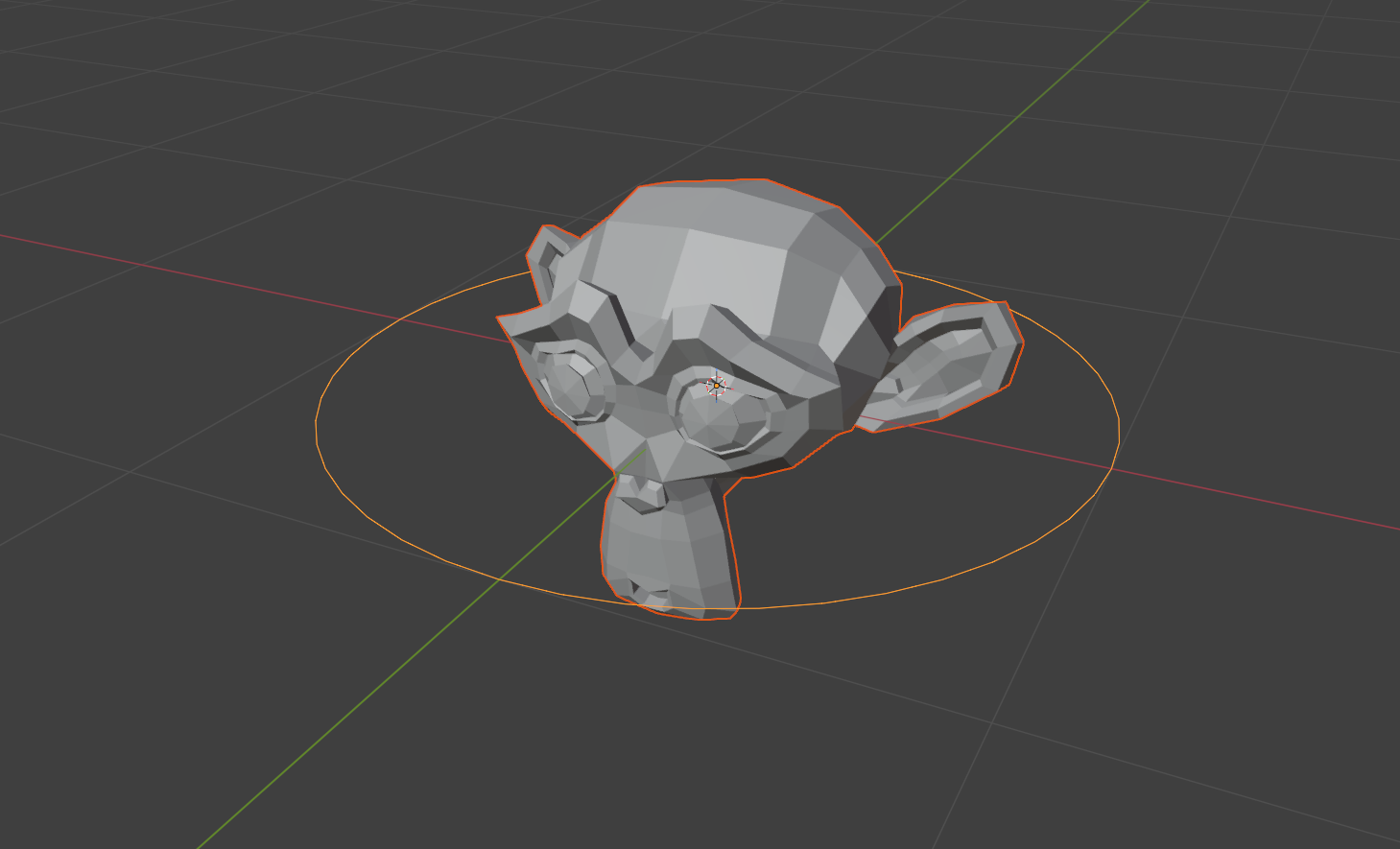
For best results, it is recommended to start the setup at the world origin: (0, 0, 0).
Prepare the object you want to roll.
You may also prepare a controller object if you want to control the motion with a separate object, but this is optional.
Before using Rolling Rolling, select the rolling object and apply all transforms:
- Location
- Rotation
- Scale
To apply transforms in Blender, select the rolling object and use:
Ctrl + A → All Transforms
Applying transforms helps Rolling Rolling calculate the object’s shape, position, and rolling motion more reliably.
Step 2 — Append the Rolling Rolling Node Tree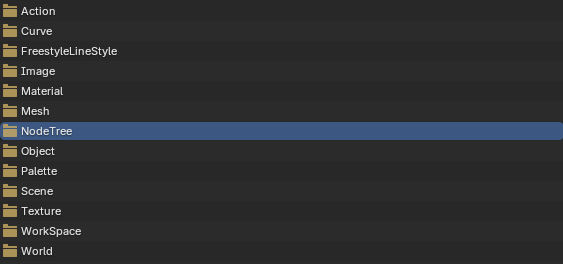
Import the Rolling Rolling Geometry Nodes setup into your Blender file.
Go to:
File → Append
Then open:
01.Rolling Rolling.blend
Inside the file, go to:
NodeTree → Rolling Rolling
Select Rolling Rolling and click Append. After appending, the Rolling Rolling node tree will be available in your current Blender file.
If any extra objects are imported during the process, delete them.
You only need the Rolling Rolling Geometry Nodes node tree.
Next, select the object you want to roll and add a Geometry Nodes modifier to it.
In the modifier, choose the appended node tree:
Rolling Rolling
Now the Rolling Rolling setup is applied to your selected object.
Step 3 — Create the Pickup Collection
Create the objects you want to attach to the rolling object.
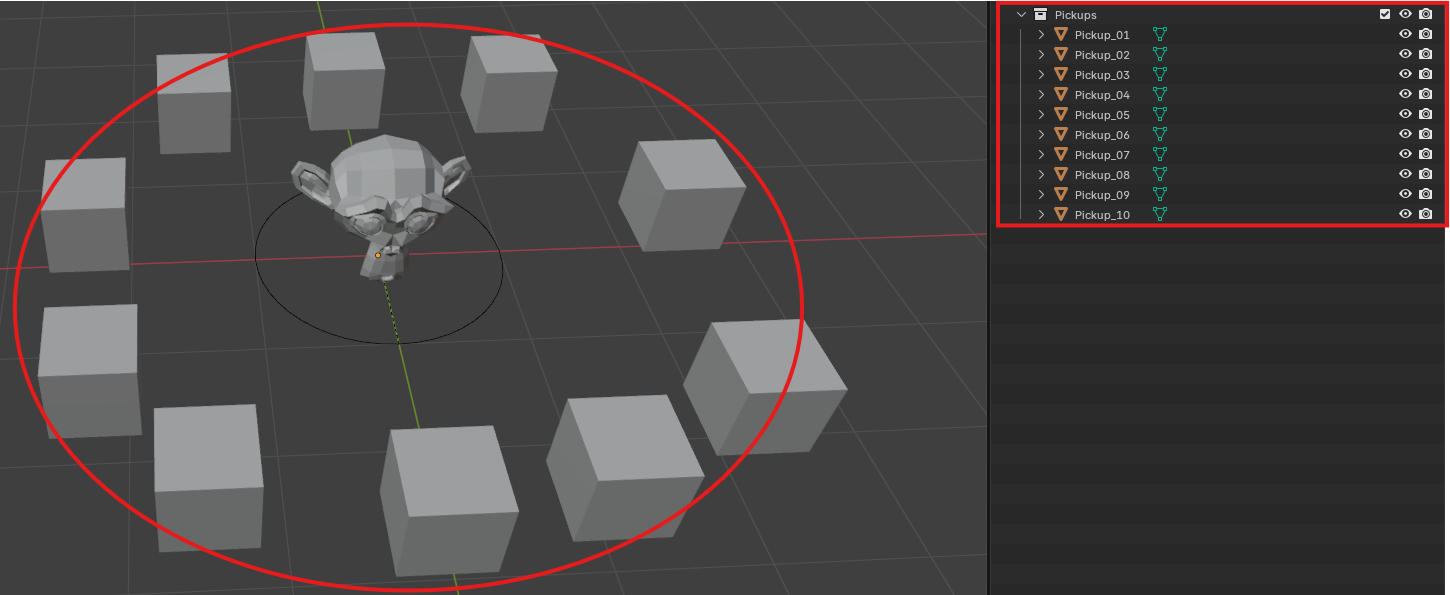
These can be any objects you want to use as pickup objects, such as small shapes, meshes, or decorative elements.
After creating the pickup objects, place them into a separate collection.
Then select the object with the Rolling Rolling Geometry Nodes modifier.
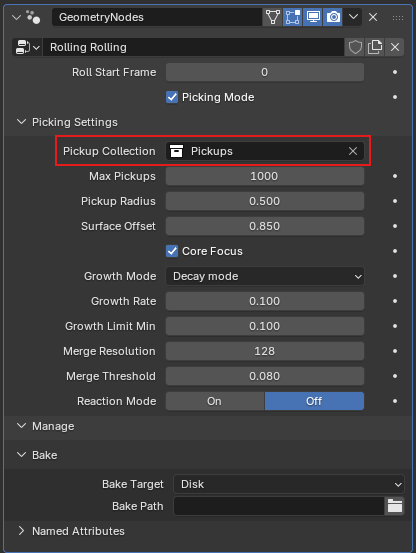
After assigning the collection, you can hide the original pickup object collection in the viewport to keep your scene clean.
Do not delete the pickup objects or the collection.
Rolling Rolling uses this collection as the source for the objects that will attach to the rolling object.
Step 4 — Test the Rolling and Attachment
Press Spacebar to play the timeline.
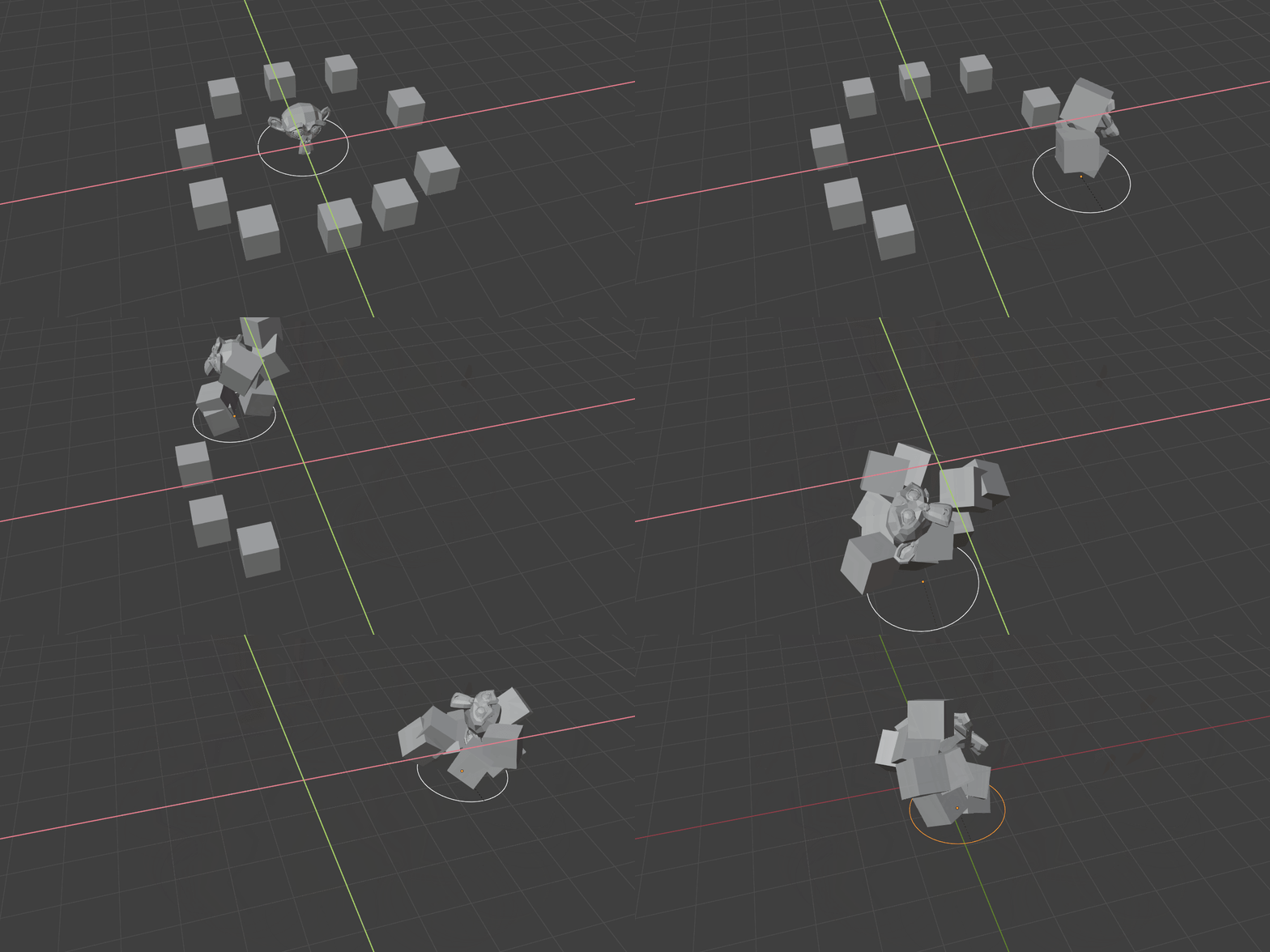
While the timeline is playing, move the controller object and check if the rolling object moves correctly and the pickup objects attach properly.
If you are not using a separate controller object, move the rolling object directly and check the result.
Make sure that:
- The rolling object rolls correctly
- The pickup objects attach to the rolling object
- The attached objects appear in the expected shape and position
- The motion feels stable during playback
- The scene plays back without becoming too slow
If the object does not roll or the pickup objects do not attach as expected, check the controller object, the rolling object, and the Pickup Collection setting.
Parameters
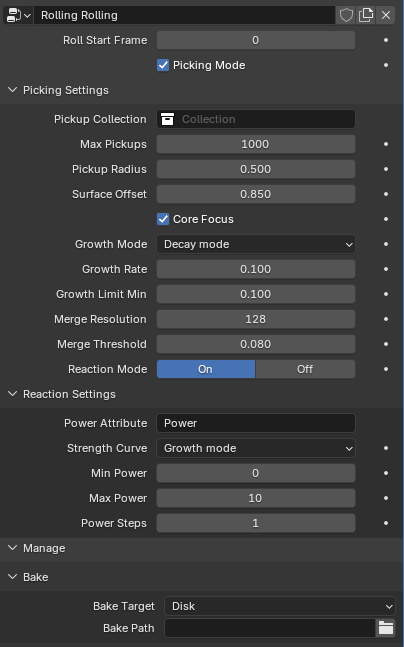
This section explains the main parameters in the Rolling Rolling Geometry Nodes modifier.
Use these controls to adjust when the simulation starts, how objects are picked up, how they attach to the rolling object, and how the result is baked.

Roll Start Frame
Sets the frame where the Rolling Rolling simulation starts.
If the rolling object needs a pre-animation before the pickup effect begins, move the start frame later.
For example, if you want the object to move into position first and start picking up objects afterward, increase the Roll Start Frame value.
Picking Mode
Enables or disables the pickup system.
When Picking Mode is enabled, the rolling object can pick up objects from the assigned pickup collection.
If you only want to roll the object without attaching anything, disable Picking Mode.
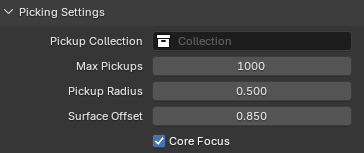
Pickup Collection
Assigns the collection that contains the objects to be picked up.
Create a separate collection for the pickup objects, then assign it to Pickup Collection.
Do not delete the collection after assigning it.
Rolling Rolling uses this collection as the source for the objects that attach to the rolling object.
Max Pickups
Limits the maximum number of objects that can be picked up.
Use a lower value for lighter scenes and faster playback.
Use a higher value when you want a denser snowball-like growth effect.
Pickup Radius
Controls the detection range for picking up objects.
A larger radius allows objects to be picked up from a wider area.
A smaller radius makes the pickup area tighter and more focused.
Surface Offset
Controls the position of attached objects on the rolling object’s surface.
A value closer to 0 places the attached objects closer to the core object.
Adjust this value if the attached objects appear too far from or too close to the rolling object.
Core Focus
Sets the pickup detection range based on the center of the core rolling object.
When Core Focus is enabled, the pickup range is calculated from the center of the core object.
When Core Focus is disabled, the pickup range is based on the outermost attached objects.
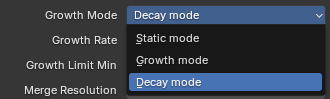
Growth Mode
Controls how the Pickup Radius changes over time.
Decay Mode
The Pickup Radius gradually decreases toward the set limit value.
Use Growth Rate to control how quickly the radius decreases.
Growth Mode
The Pickup Radius gradually increases toward the set limit value.
Use Growth Rate to control how quickly the radius increases.
Static Mode
The Pickup Radius stays the same.
Use this mode when you want a consistent pickup range throughout the animation.
Merge Resolution
Controls the voxel grid resolution used when merging picked-up objects in Picking Mode.
Higher values create finer detail, but they can make the scene heavier and slower to calculate.
Lower values are lighter, but the merged result may look less detailed.
Merge Threshold
Controls the voxel surface threshold for the merged Picking blob.
Lower values can create thinner and tighter surfaces.
Higher values can create thicker or more expanded merged shapes.
Adjust this value together with Merge Resolution to control the final merged look.
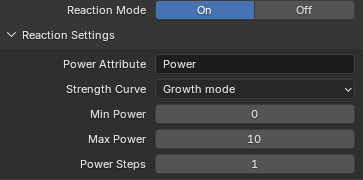
Reaction Mode
Enables or disables the reaction system for attached objects.
When Reaction Mode is enabled, attached objects can react based on their strength values.
When Reaction Mode is disabled, the reaction system is turned off.
Power Attribute
Sets the name of the float attribute used to drive reaction strength on attached objects.
The default attribute name is: Power
If you use a custom attribute, make sure the name matches exactly.
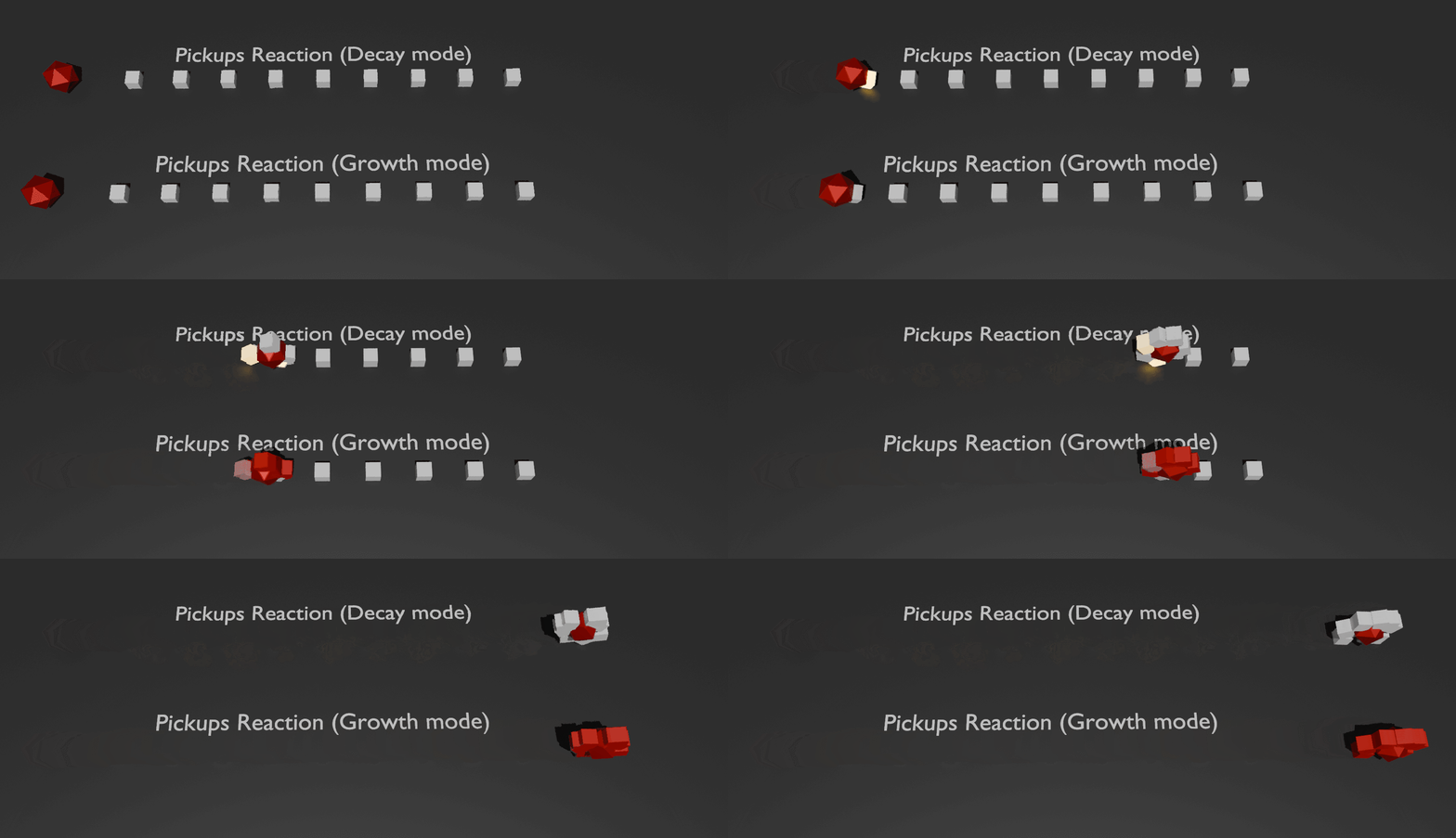
Strength Curve
Controls how the Power attribute is converted into reaction strength.
Use this setting to adjust how strongly or gradually the attached objects react.
Min Power / Max Power
Sets the minimum and maximum values for Reaction Power.
Use these values to control the range of the reaction strength.
Power Steps
Controls the quantization steps for Power.
A value of 1 keeps the Power value continuous.
Higher values divide the reaction strength into stepped levels.
Use higher values if you want a more segmented or stylized reaction.
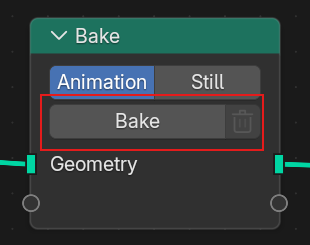
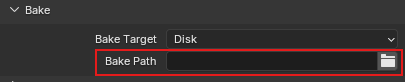
Bake
Sets the bake target and bake path for the simulation cache.
Use Bake Path to choose the folder where the baked simulation files will be saved.
Baking is recommended before rendering or when using Rolling Rolling in a heavier scene,
because it can make playback and repeated previews more stable.
Tips for Better Results
- Rolling Rolling uses Geometry Nodes simulation. If you change simulation values, replay the timeline from the beginning to update the result.
- Use pickup objects with a reasonable number of vertices for better performance.
- Apply Scale and Rotation to all objects used in the setup.
- Place the Origin of each pickup object near the bottom for better attachment.
- For grouped objects, such as a desk and objects on top of it, set their Origins to the same position so they attach together.
- If the simulation is already baked, delete the bake before changing parameters or materials.
-
If the bake cache is set to Pack, all cache data will be stored inside the .blend file, which can greatly increase the file size.
License / Copyright
Rolling Rolling is a digital product created by Swingby.
By purchasing this product, you are granted a license to use Rolling Rolling in your personal and commercial projects.
You May
- Use Rolling Rolling in personal projects
- Use Rolling Rolling in commercial projects
- Create and render your own images, animations, videos, and artworks using Rolling Rolling
- Modify the setup for your own project use
You May Not
- Resell, redistribute, share, or upload the original product files
- Resell, redistribute, share, or upload modified versions of the Geometry Nodes setup as a standalone product
- Include the original node setup, example files, or manual in another asset pack, template, product, or downloadable file
- Claim the product, node setup, example files, or manual as your own
- Transfer, sublicense, or give away the product files to another person or organization
Copyright
Rolling Rolling, including the Geometry Nodes setup, example files, manual, and related product materials, is copyrighted by Swingby.
All rights reserved.
Have questions about this product?
Login to message
| Published | 5 months ago |
| Blender Version | 5.0 |
| Render Engine Used | Cycles, Eevee |
| License | Royalty Free |
Discover more products like this
gadget animation geometrynodes Procedural Animation motion design blender rolling funny