 IKA
IKA




Space: Documentation
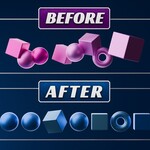
Space is a precision layout tool for Blender designed to streamline the way you align and distribute objects. By focusing on both Origin and Bounding Box data, it ensures that your gaps are mathematically perfect, whether you are working with simple primitives or complex high-poly meshes.
1. Installation
Download the
space.pyfile.In Blender, go to Edit > Preferences > Addons.
Click Install... and select the downloaded file.
Check the box next to Object: Space to enable it.
2. Interface Overview
Once enabled, you can find the tool in the 3D Viewport Sidebar (N-Panel) under the tab labeled Space.
The interface is divided into three main sections:
Distribute: For spreading objects apart.
Align: For lining objects up.
Status Bar: Displays real-time selection info to help you avoid errors.
3. Features & Usage
🛰 Distribute
Use this section to create even spacing between 2 or more selected objects.
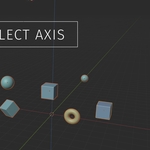
Axis (X, Y, Z): Choose which direction the objects will move.
-
Object (Bounding Box vs. Origin):
Bounding Box: Calculates space based on the actual edges of your mesh.
Origin: Calculates space based on the object's orange dot (pivot point).
-
Method:
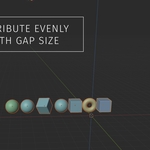
Gap: Sets a fixed distance (in Blender units) between every object.
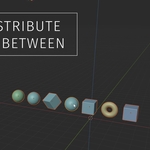
In-Between: Keeps your first and last object exactly where they are and spreads the middle objects evenly between them.
Gap Slider: Only appears in "Gap" mode to let you adjust the distance numerically.
📐 Align
Use this to snap objects into a line relative to a specific reference point.
-
Method (Active vs. Bounding Box):
Active: Aligns everything to the last selected object (the one highlighted in yellow).
Bounding Box: Aligns everything to the furthest edge of the entire selection group.
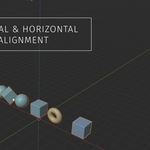
Horizontal Alignment: Choose Left, Middle, or Right to align along the X/Y plane.
Vertical Alignment: Choose Top, Middle, or Bottom to align along the Z axis.
4. Pro Tips
The Status Bar: If the "Distribute Evenly" button is greyed out, check the Status Bar at the bottom of the panel. It will tell you if you need to select more objects or if an "Active Object" is missing.
Use Bounding Box for Modules: If you are building a modular environment (like walls or floors), always use Bounding Box mode. This ensures the pieces touch edge-to-edge even if their origins aren't perfectly centered.
In-Between for Layouts: Use In-Between when you have a specific area (like a table) and you want to spread a set of items (like plates) across it without them going over the edges.
Have questions about this product?
Login to message
| Published | 6 months ago |
| Blender Version | 3.0 |
| Extension Type | N/A |
| Render Engine Used | Cycles |
| License | GPL |