 Silvie 3D




Documentation
The addon targets users with limited screen real estate, like laptop or single-monitor users. It reduces UI clutter and allows for quick one-click solution to switch between editor areas, enhancing productivity while keeping a clean workspace.
Key Features
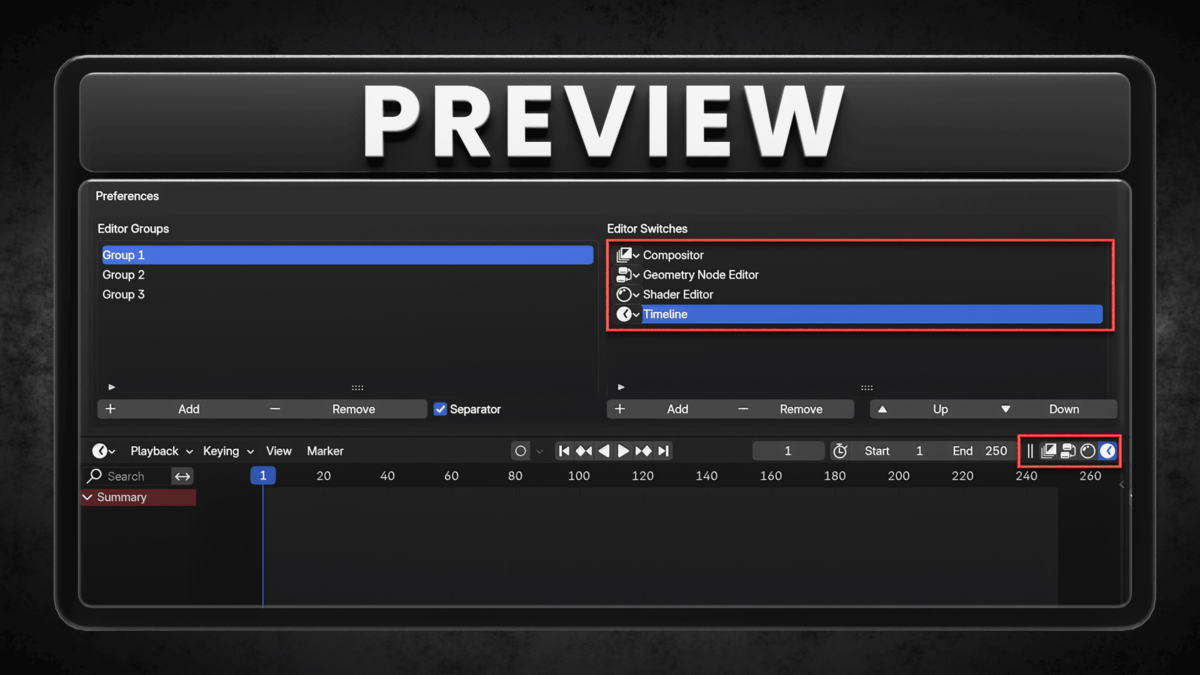
- Header Integration: Quick switch buttons are automatically added to right most end of the editor headers for seamless navigation.
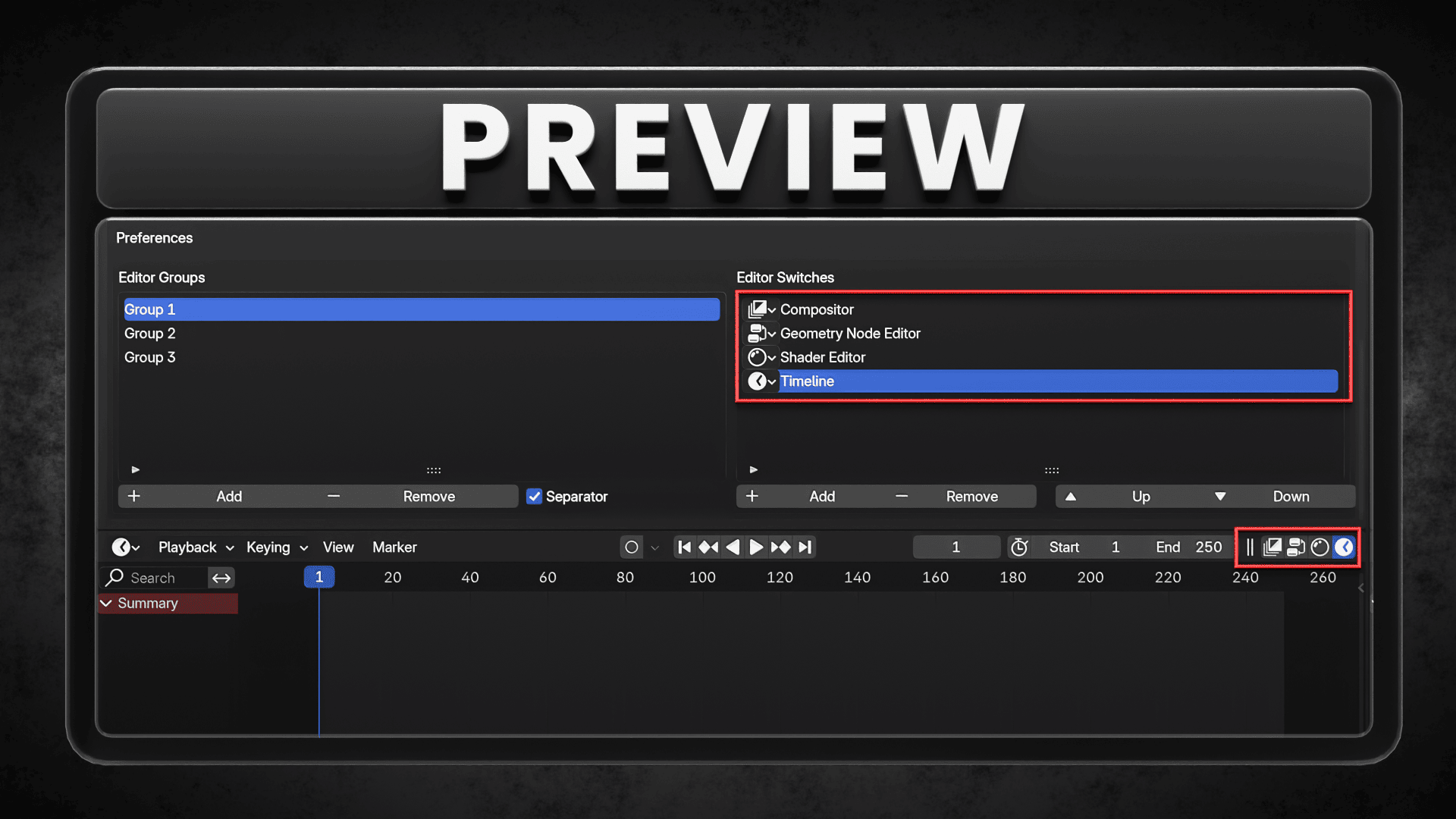
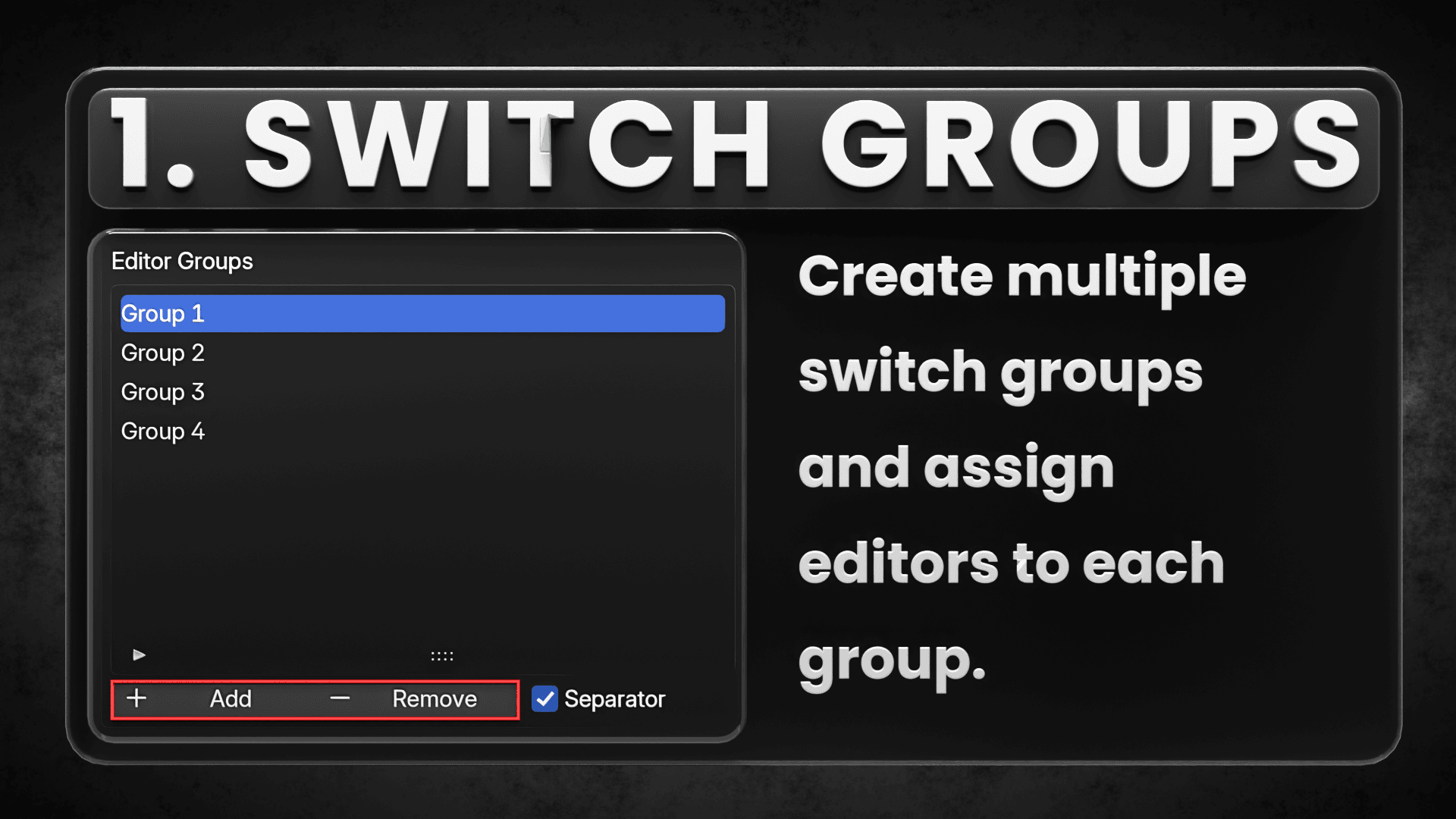
- Grouped Editor Switching: Users can define groups of editors and switch between them effortlessly.
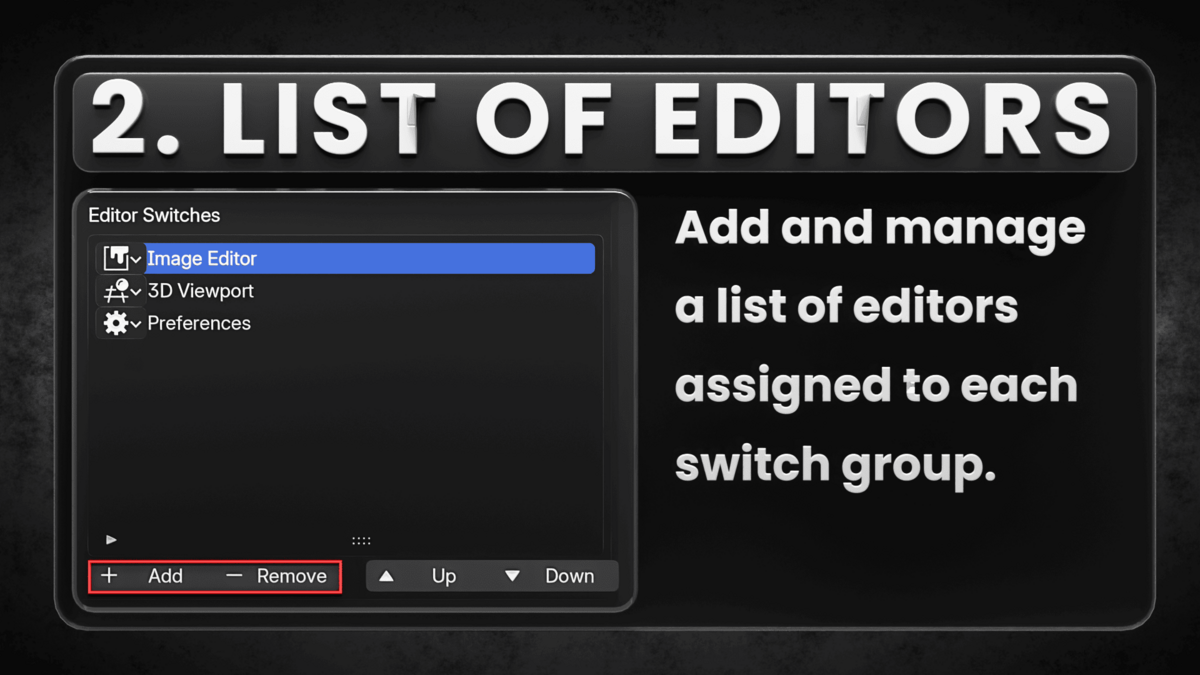
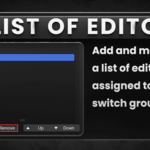
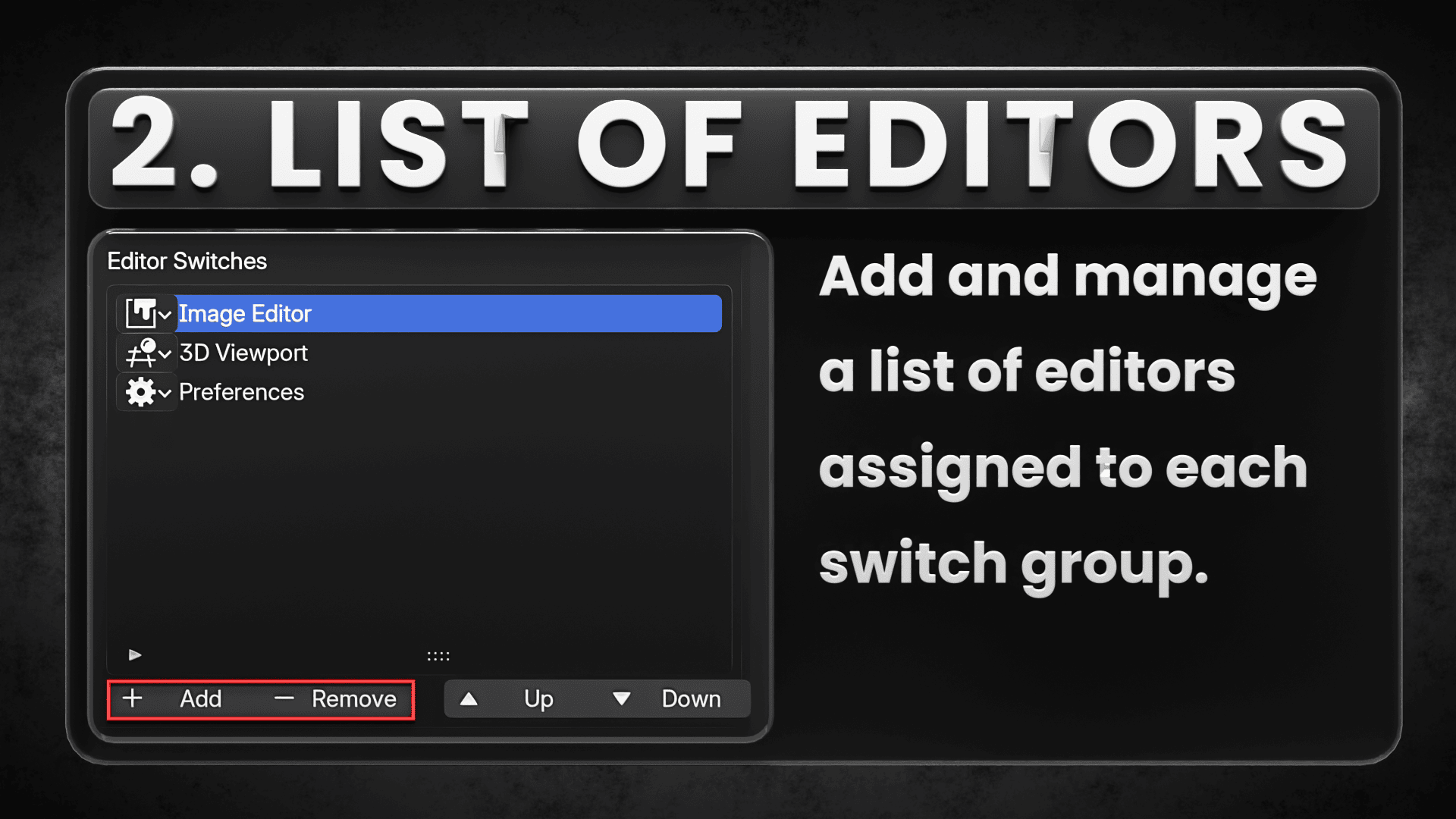
- Add Editors: Add list of editors under each groups.
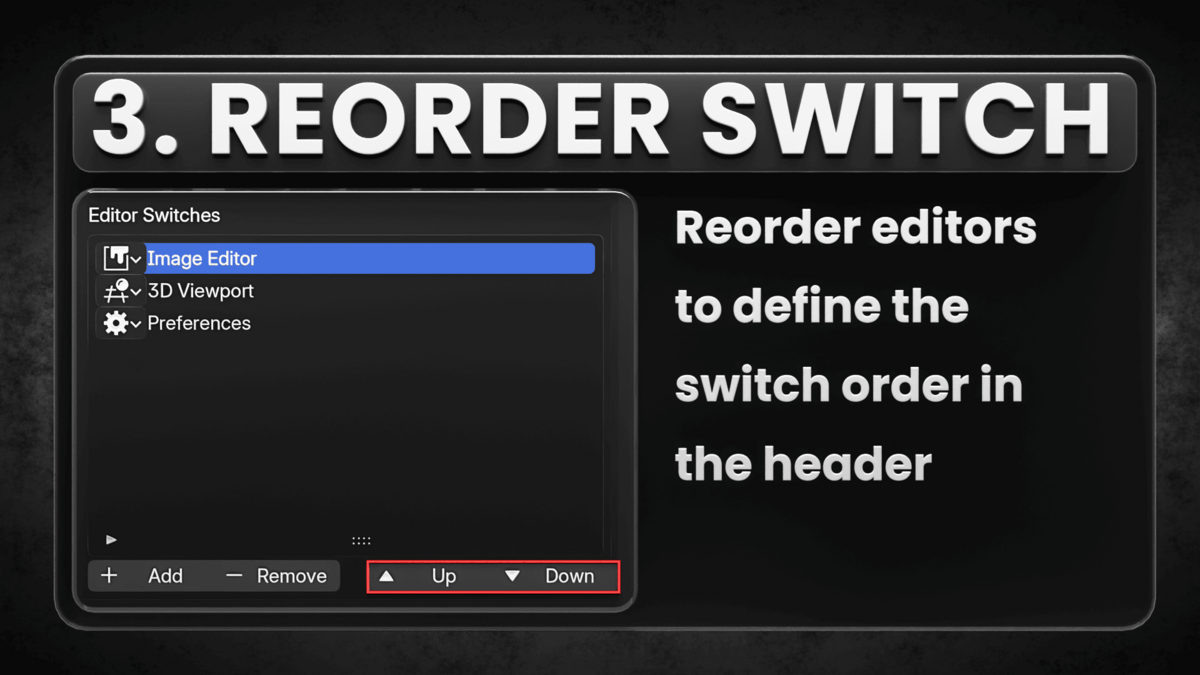
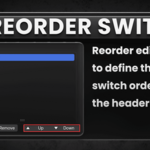
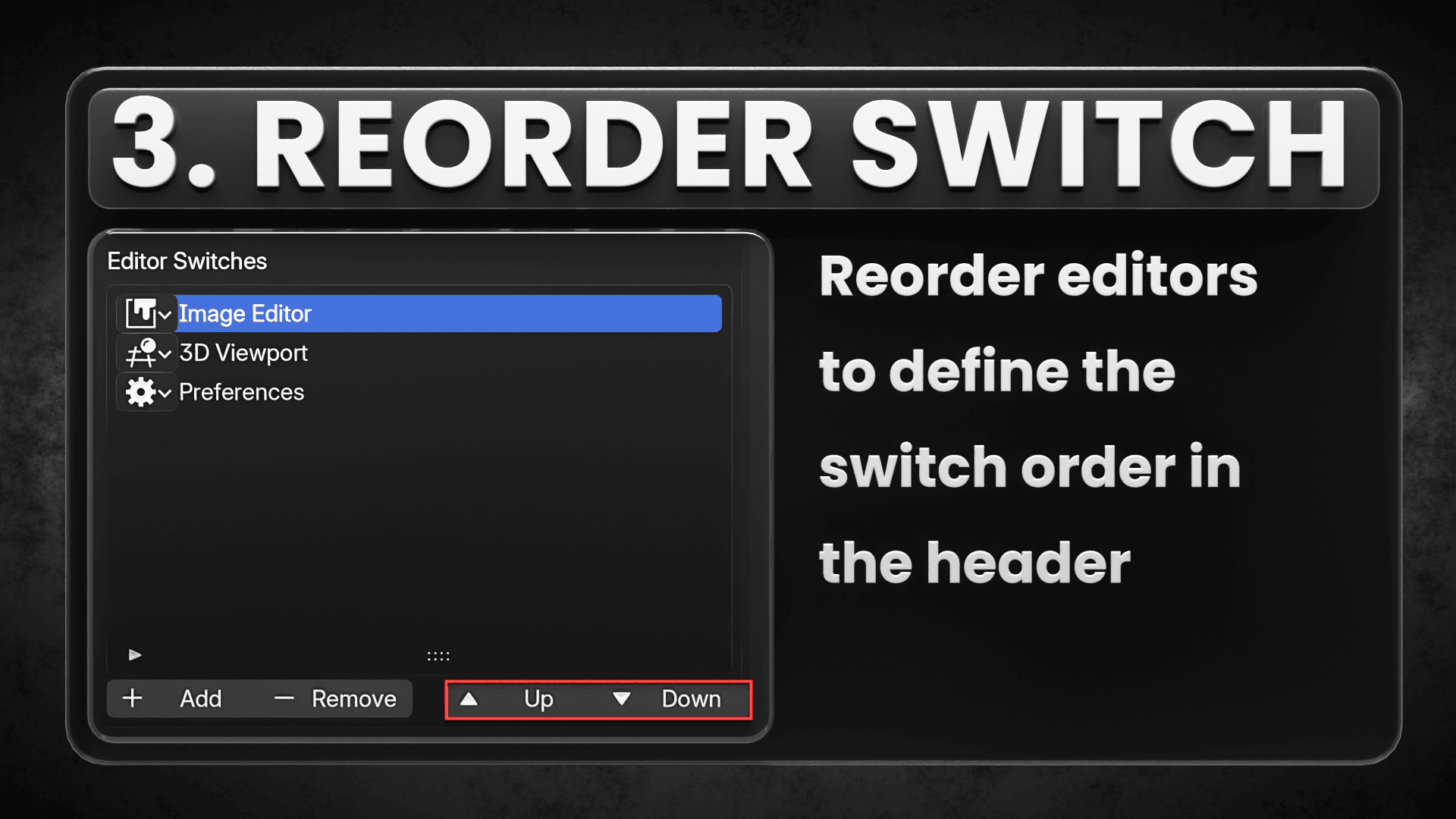
- Reorder Editors: Move editors up or down within a group to customize the switch sequence.
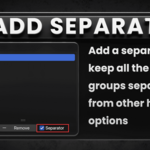
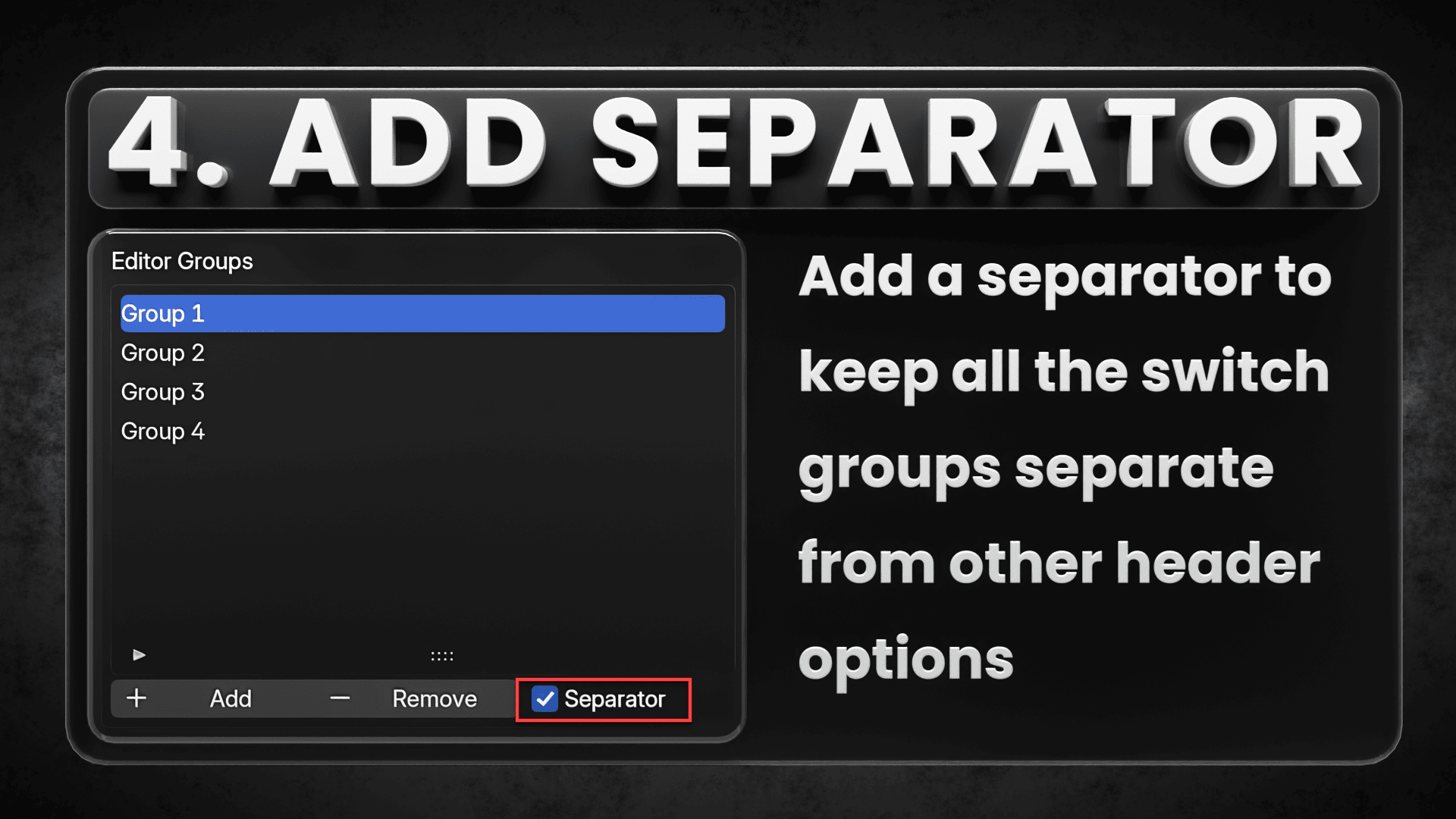
- Separator Toggle: Option to enable or disable a visual separator between editor switches and other header operators for better UI clarity.
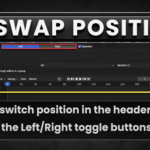
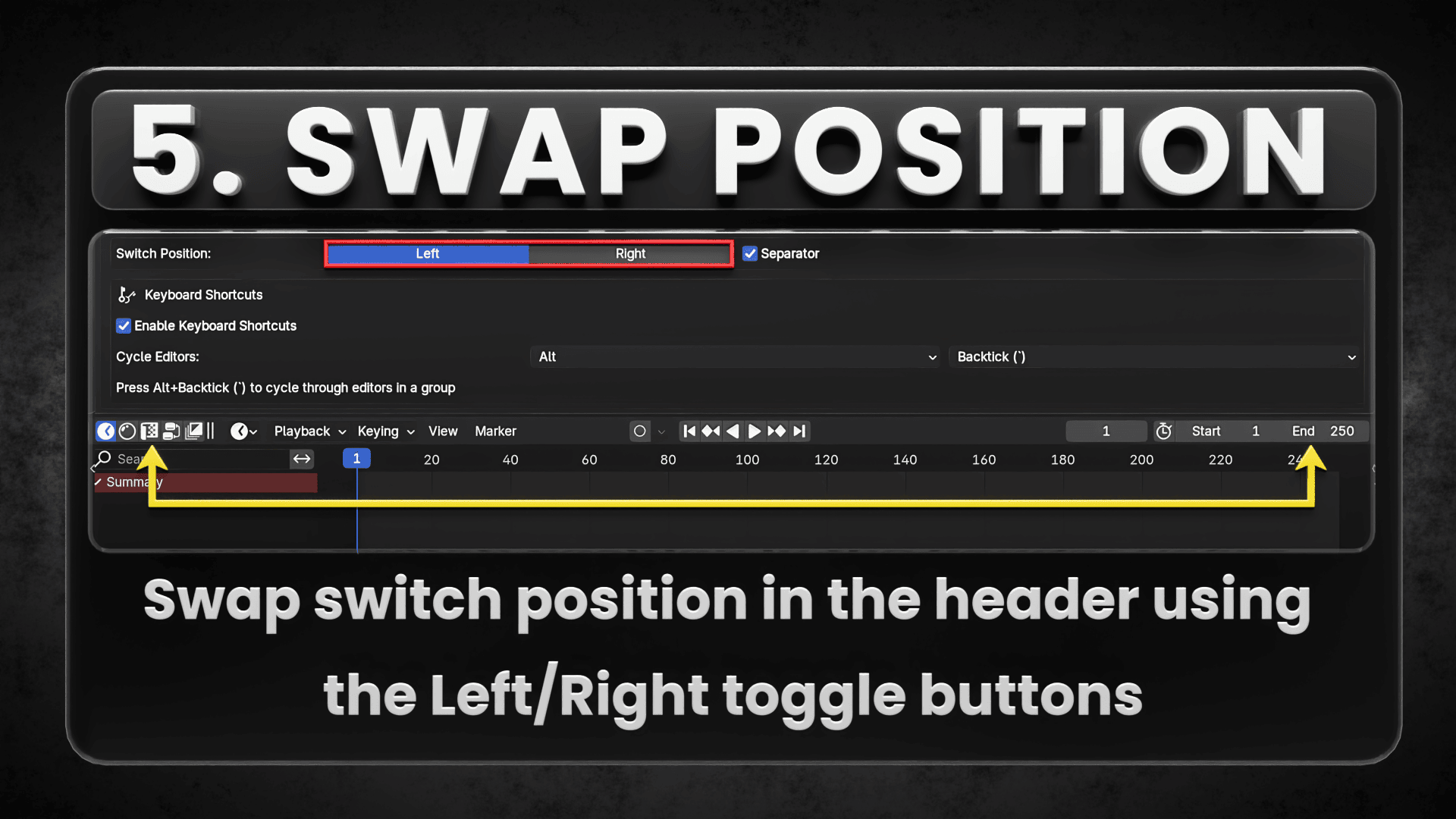
- Position Toggle: Option to toggle position of the switches between Left and right side of header.
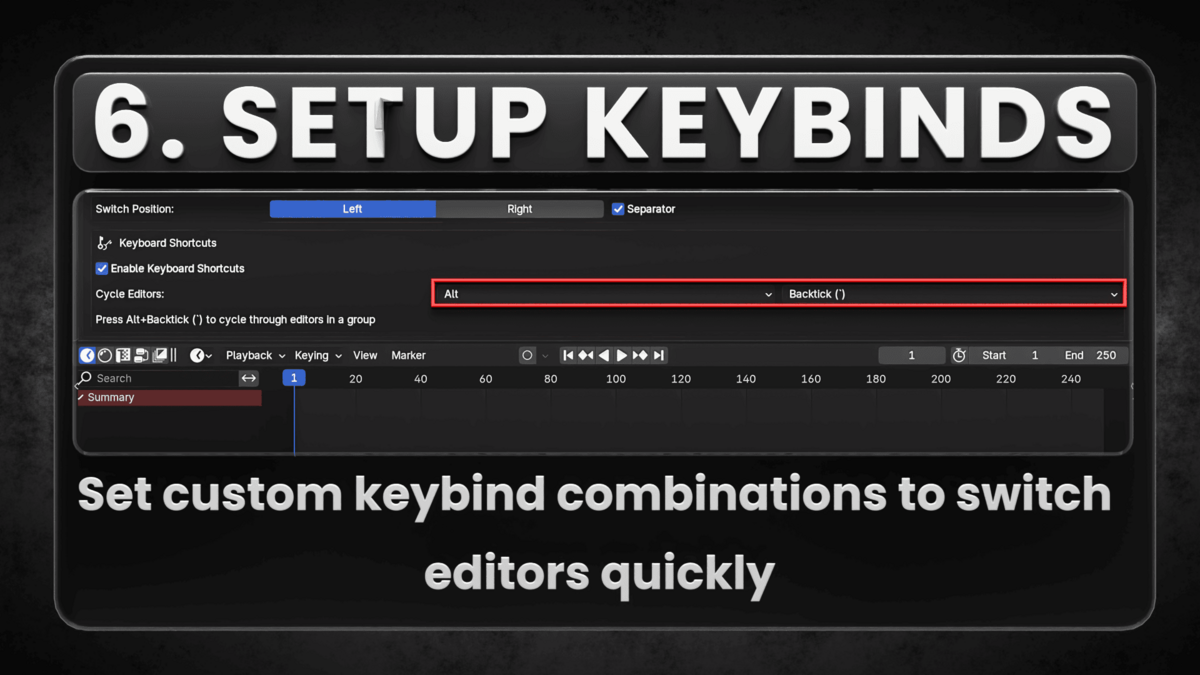
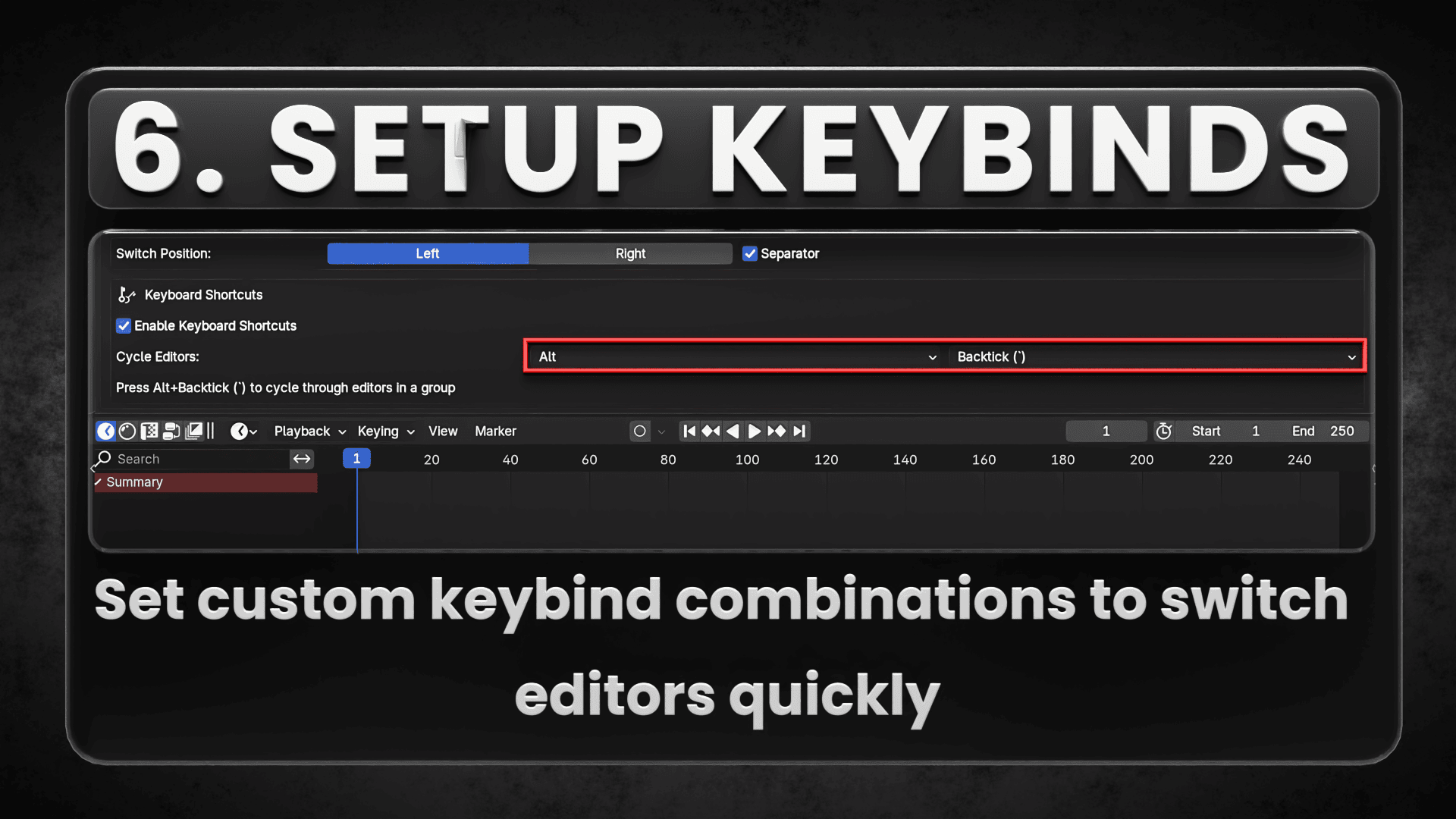
- Custom Key binding: Set custom key binding combinations to switch editors quickly (Similar to browser tabs) without interfering with Blender's In-built key binds.
Setup and Configuration
Accessing Preferences
1. Install the addon from this page or search through Blender Preferences > Extensions (type "Quick Switch" on the search bar)
2. Access the addon preferences through Edit > Preferences > Add-ons > QuickSwitch
Creating Editor Groups
1. In the preferences panel, locate the "Editor Groups" section
2. Click "Add" to create a new group
3. Rename the group to something meaningful (e.g., "Modeling", "Texturing", "Animation")
Adding Editors to Groups
1. Select a group from the "Editor Groups" list
2. In the "Editor Switches" section, click "Add" to add a new editor
3. Select the desired editor type from the dropdown menu
4. Add multiple editors to create a complete workflow group
5. Use the "Up" and "Down" buttons to reorder editors in the group
UI Appearance Settings
* In the "Position and Separator" box:
- Choose "Left" or "Right" for the switch position in editor headers
- Toggle the separator visibility on/off
Keyboard Shortcuts
In the "Keyboard Shortcuts" box:
- Enable keyboard shortcuts
- Select your preferred modifier key (Alt, Ctrl, Shift, or combinations)
- Select your preferred key to combine with the modifier
- The current shortcut will be displayed below the selection
Using the Addon
Switching Editors with UI Buttons
1. Look for the editor switch buttons in the header of any Blender editor
2. When in an editor that belongs to a group, all editors from that group will be displayed
3. Click on any icon to switch to that editor type
4. The current editor is shown as depressed (highlighted)
Using Keyboard Shortcuts
1. Place your cursor over an editor area
2. Press your configured shortcut (e.g., Alt + Backtick) to cycle to the next editor in the group
3. Continue pressing to cycle through all editors in the group
Supported Editor Areas
All Editor areas are now supported from version 2.1.0
$5
Have questions about this product?
Login to message
| Blender Extension Compatible | Yes |
| Published | over 1 year ago |
| Blender Version | 4.4, 4.3, 4.2 |
| Extension Type | Add-on |
| Render Engine Used | Cycles, Eevee |
| License | GPL |

Discover more products like this
switch quick-switch custom interface editor-area ui editor-switch Workflow pipeline app-interface Blender interface addons tabs switch