 LaoMa 3D


S4D Loop — User Documentation
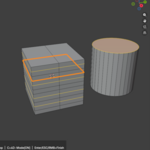
S4D Loop brings a seamless, visual selection workflow to Blender's Edit Mode. This documentation explains how to launch, use, customize, and make the most out of S4D Loop.
1. How to Launch S4D Loop
You can launch S4D Loop in Edit Mode using three convenient entry points:
-
N-Panel: Open the sidebar (
Nkey), go to the S4D Loop tab, and click Loop Select or Ring Select.
- Select Menu: Go to the top of the 3D Viewport and click Select > Loop Select (Preview) or Ring Select (Preview).
- Hotkeys:
-
Press
Alt + Uin the viewport to open the S4D Loop Quick Menu, then select your tool.
-
(Optional) Enable
Alt + Left Mouse (LMB)inside the plugin's N-panel settings to trigger loop selection directly in the viewport.
2. Core Tool Controls & Hotkeys
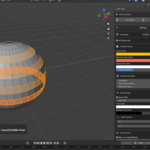
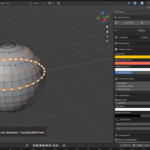
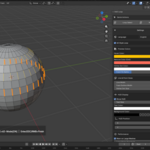
Once the modal tool is active, S4D Loop will highlight edge loops or rings dynamically as you hover your mouse over the mesh.
-
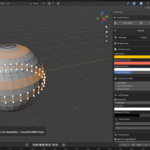
Confirm Selection: Click
Left Mouse Button (LMB).
-
Add to Selection: Hold
Shiftand clickLMB.
-
Remove from Selection: Hold
Ctrland clickLMB(the preview color will change to warn you).
-
Deselect All: Click
LMBin empty space.
-
Toggle Style: Press
Rto switch to Ring, orLto switch to Loop (Vertex and Edge modes only).
-
Toggle 4D Mode: Press
Cto toggle 4D Style Loop walking.
-
Exit the Tool: Press
Esc,Right Click (RMB),Enter, orTabto finish. Your confirmed selection will remain active in Blender.
3. 4D Style Loop walking
Blender's native loop selection often stops abruptly at triangular poles (such as the top of a UV sphere).
When 4D Style Loop is enabled (default), S4D Loop runs a side-aware loop walker that can intelligently cross pole vertices on symmetrical triangle fans. If you prefer Blender's traditional topological strictness, you can turn off 4D Mode by pressing
C or disabling it in the Settings box.
4. Instant Modeling Handoff (Fast Workflow)
S4D Loop is designed for speed. You do not need to press
Esc to exit S4D Loop before you model. Once you click to select a loop, you can immediately press:
-
E— Extrude
-
Alt + E— Extrude Menu
-
I— Inset
-
Ctrl + B— Edge Bevel
-
Ctrl + Shift + B— Vertex Bevel
The plugin will automatically commit your selection, close the preview HUD, and hand off the action to Blender’s interactive modeling operator in one single stroke.
5. Draggable HUD Position
A heads-up display (HUD) is shown in the viewport to track your selection stats.
- To move the HUD, simply click and drag the HUD panel with your mouse inside the 3D Viewport.
- The customized HUD position is saved per scene. If you ever want to reset it, you can find a reset button in the N-panel under Settings.
6. Customizing S4D Loop Settings
To keep your N-panel clean and readable, all advanced options are tucked away inside the Settings box. Click the arrow next to Settings in the N-panel to customize:
- Interface Language: Switch between English and Chinese.
- Preview Colors: Change hover colors, Ctrl (remove) warning colors, and vertex dot colors.
- Line & Point Sizes: Adjust the thickness of preview lines and the size of vertex dots.
- HUD Display: Toggle HUD visibility, adjust font size, and change HUD text/background colors.
- Performance Control: Enable warnings on high-density meshes and define your custom face-count threshold.
-
Blender Keymaps: View, customize, or disable the default
Alt + Umenu keymap andAlt + Left Clickselection keymaps.
$5
Have questions about this product?
Login to message
| Blender Extension Compatible | Yes |
| Dev Fund Contributor | |
| Published | about 2 months ago |
| Blender Version | 5.0 - 5.2 |
| Extension Type | Add-on |
| License | GPL |
Discover more products like this
blender 5.2 mesh selection edit mode modeling workflow edge-loop topology viewport tools edge ring loop selection blender modeling hard surface blender addon