 LaoMa 3D


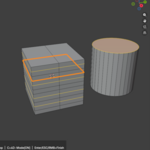
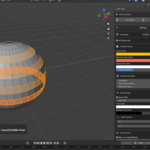
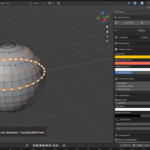
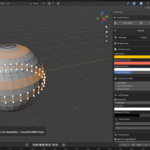
Is S4D Loop included with Swift 4D Pro?
Yes. S4D Loop is included in Swift 4D Pro. Buy S4D Loop if you want a focused standalone visual Loop and Ring selection tool. Choose Swift 4D Pro if you want the complete S4D modeling workflow toolkit.
Can I use Extrude, Inset, or Bevel without manually exiting S4D Loop?
Yes. Confirm a Loop or Ring selection first, then press E for Extrude, Alt + E for Blender’s Extrude Menu, I for Inset, Ctrl + B for Edge Bevel, or Ctrl + Shift + B for Vertex Bevel. S4D Loop automatically clears its preview and hands the confirmed selection to Blender.
Why is Alt + Left Mouse disabled by default?
Blender already uses Alt-click for native loop selection behavior. To avoid changing or conflicting with Blender’s default workflow, S4D Loop keeps Alt + Left Mouse disabled by default. You can enable or customize it in S4D Loop > Settings > Keymap.
How do I start S4D Loop?
Select a mesh object, enter Edit Mode, then start S4D Loop from the 3D Viewport N Panel > S4D Loop tab. You can also press Alt + U to open the S4D Loop menu.
Why does the Loop or Ring stop on my mesh?
Loop and Ring traversal depends on mesh topology. The most predictable results come from connected quad topology. Boundaries, ngons, non-manifold geometry, wire edges, triangles, and pole regions can stop or change the traversal result. Try enabling 4D Style Loop mode with the C key for supported triangle-fan pole areas.
Which Blender versions are supported?
S4D Loop requires Blender 5.2 or newer. It is designed for Blender mesh Edit Mode workflows and has been tested up to Blender 5.2.
$5
Have questions about this product?
Login to message
| Blender Extension Compatible | Yes |
| Dev Fund Contributor | |
| Published | about 2 months ago |
| Blender Version | 5.0 - 5.2 |
| Extension Type | Add-on |
| License | GPL |
Discover more products like this
edge ring viewport tools mesh selection modeling workflow topology hard surface blender 5.2 blender modeling edge-loop loop selection edit mode blender addon