 Wondart
Description
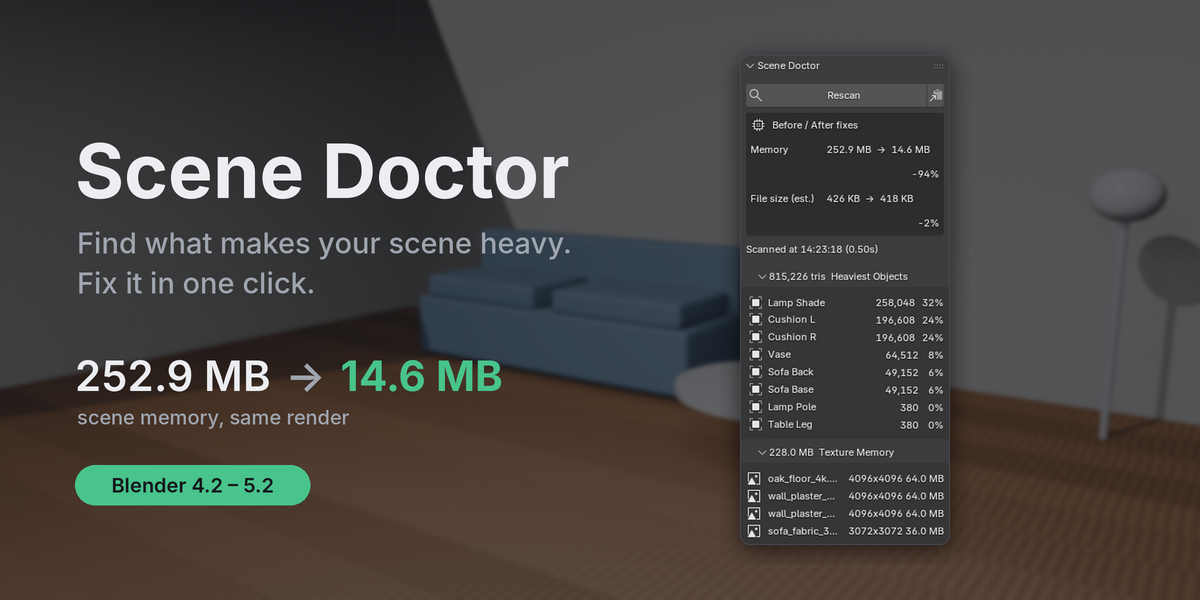
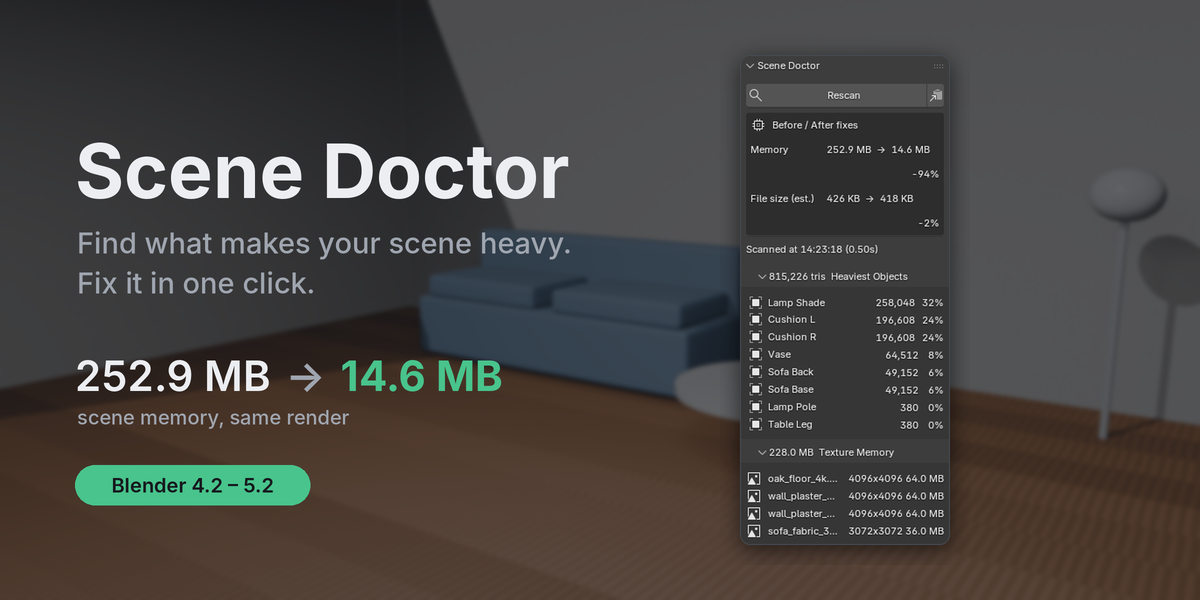
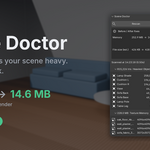
Big archviz and animation scenes get slow for boring reasons: an 8K floor texture that is only ever seen from far away, three copies of the same material from appended assets, a cushion with Subdivision level 5 in the viewport, and dozens of leftover meshes from old versions. Scene Doctor finds all of that in one scan and fixes it for you.
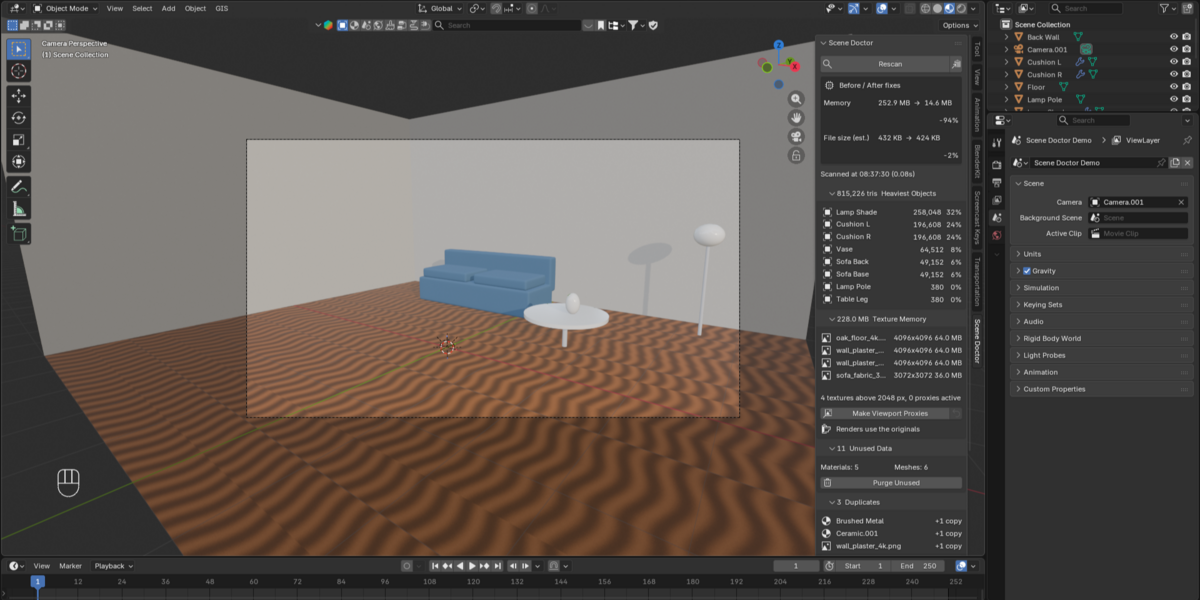
Scan once, see everything
- Heaviest objects: triangle counts after modifiers, as shown in the viewport. Collection instances and particles count toward the object that creates them. Click a name to select the object.
- Texture memory: memory used by every image (8-bit, float and UDIM), largest first.
- Unused data: meshes, materials, images, node groups, actions and more that nothing uses.
- Duplicates: materials with the same nodes and settings, and images that are the same file (or byte-identical copies under other names, including packed images).
- High viewport subdivision: Subdivision Surface and Multires modifiers above your limit.
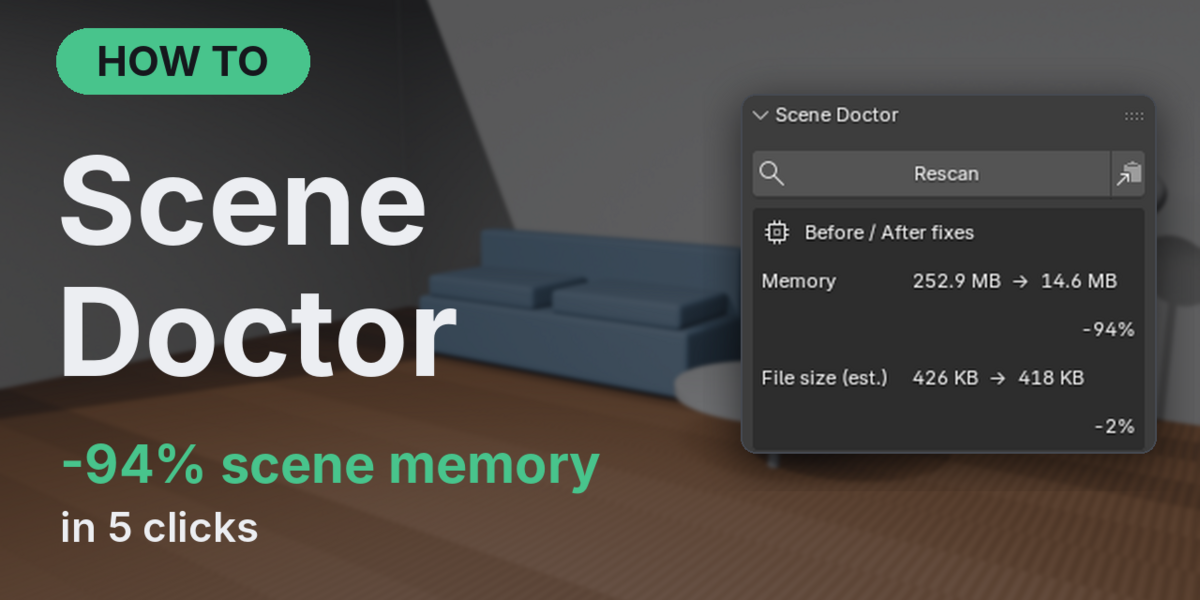
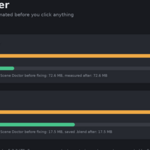
- Before / After: estimated memory and file size after all fixes, shown before you change anything.
One-click fixes
- Purge Unused: removes unused data, including data that only becomes unused after the first pass. Data with a Fake User is always kept.
- Merge Duplicates: points every user of a duplicate image or material to one copy and removes the extra copies. Images are merged first, so materials that only differed by a duplicate image get merged too.
- Lower Viewport Subdivision: lowers viewport levels only. Render levels are never touched, and Restore Subdivision puts the old levels back.
- Make Viewport Proxies: big textures get a small copy (1024 px by default) for the viewport. Before any render or bake, Scene Doctor switches every texture back to the original file, and switches back to the proxy afterwards. Saved .blend files always point to your original textures. Restore Original Textures removes the proxies.
Safe by design
- Scanning is read-only: it never changes your file.
- Every fix is a single Ctrl+Z step.
- Your original textures on disk are never modified. Proxies are written to the add-on's own user folder.
- Disabling the add-on switches every proxied texture back to the original.
Tested, not promised
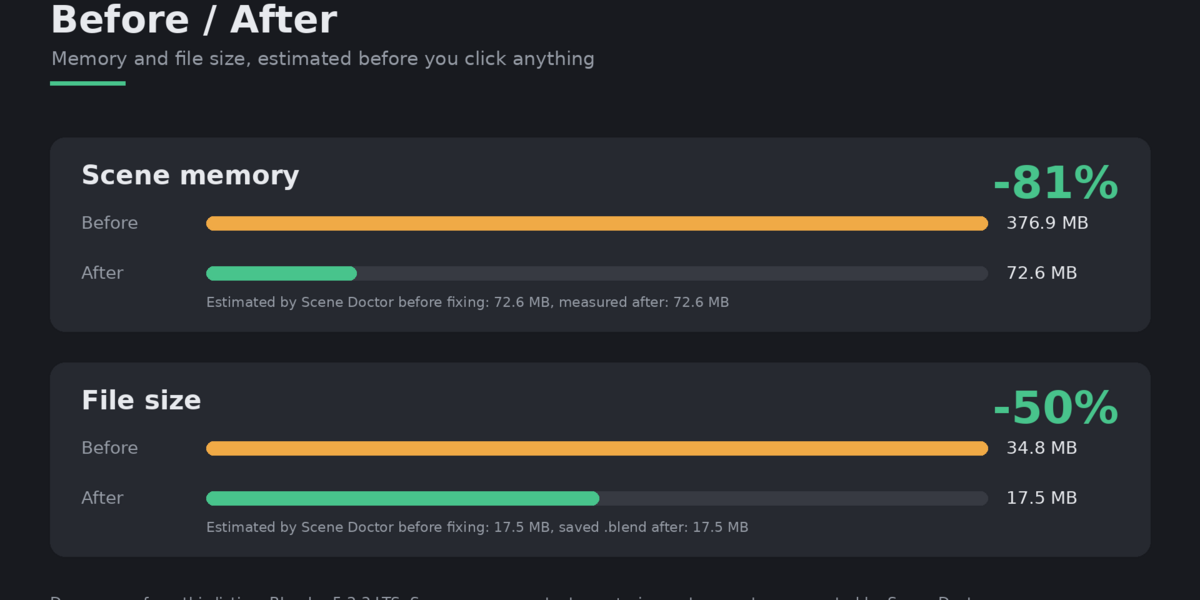
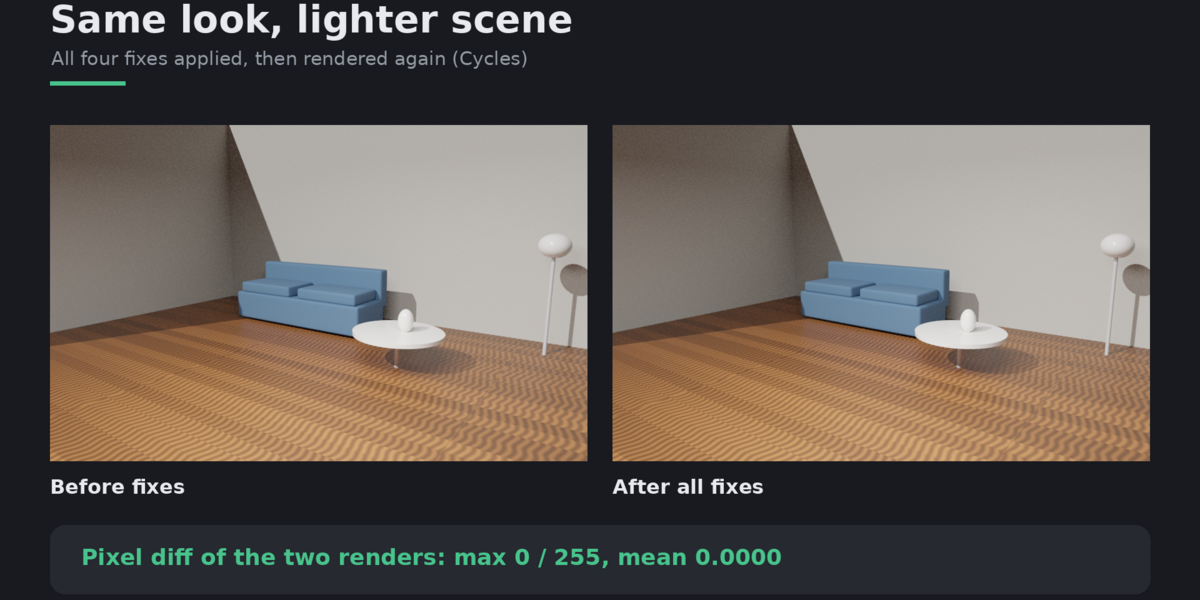
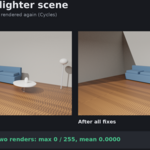
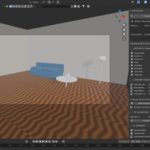
Every feature has an automated test that runs in headless Blender 4.5 LTS and 5.2 LTS, installing the same zip you download. The look tests render a scene in Cycles and EEVEE before and after the fixes and compare the images pixel by pixel. In the demo room shown in the images, all fixes together lowered scene memory from 376.9 MB to 72.6 MB and the saved file from 34.8 MB to 17.5 MB, with a pixel difference of 0 between the before and after renders.
Features
- Scan: heaviest objects (triangles after modifiers, instances included)
- Scan: texture memory per image (8-bit, float, UDIM tiles)
- Scan: unused data-blocks by type
- Scan: duplicate materials (same node tree and settings)
- Scan: duplicate images (same file, identical copies, identical packed data)
- Scan: high viewport subdivision (Subdivision Surface and Multires)
- Before / after memory and file-size estimate
- One click: Purge Unused (recursive, keeps Fake User data)
- One click: Merge Duplicates (images first, then materials; extra copies are removed)
- One click: Lower Viewport Subdivision, with Restore
- One click: Viewport proxy textures that switch back to the originals for F12, animation renders and bakes
- Saved files always reference the original textures
- Full undo for every fix
- Copy the full report as text
- Settings for big-texture size, proxy size, subdivision limit and target level
How to use
- Open the 3D Viewport sidebar (press N) and click the Scene Doctor tab.
- Click Scan Scene.
- Look at the Before / After box at the top to see how much the fixes would save.
- Open the sections (Heaviest Objects, Texture Memory, Unused Data, Duplicates, Viewport Subdivision) to see what was found. Click an object name to select it.
- Click the fixes you want, for example in this order: Merge Duplicates, Purge Unused, Lower Viewport Subdivision, Make Viewport Proxies. The scan updates after each fix.
- Don't like a change? Press Ctrl+Z, or use Restore Subdivision / Restore Original Textures.
- Render as usual. Proxies switch to the original textures for the render and back afterwards.
- Optional: Edit > Preferences > Add-ons > Scene Doctor to change the big-texture size (default 2048 px), proxy size (1024 px), subdivision limit (3) and target level (1).
 Included
Includes 12 months of
- Support from Wondart
- Product updates
Extend this product’s Support Period +12 months: 25% of product price
Have questions before purchasing?
Login to message
| Dev Fund Contributor | |
| Published | about 4 hours ago |
| Blender Version | 4.2 - 5.3 |
| Extension Type | N/A |
| Render Engine Used | Blender-Internal, Blender-Game-Engine |
| License | GPL |
Discover more products like this
Render cleanup viewport performance Scene Optimization purge textures proxy memory ArchViz Duplicate Materials