User Manual :
https://meiu-3d.notion.site/scene-optimization
Scene Optimization User Manual
Blender Scene Optimization Add-on — Complete Usage Guide
📋 Table of Contents
- 1. Add-on Overview
- 2. Installation & Enable
- 3. Basic Workflow
- 4. Panel Layout
- 5. Four Optimization Modes
- 6. Optimization Tools
- 7. Important Notes & Best Practices

1. Add-on Overview
⚡ What is Scene Optimization?
Scene Optimization is a Blender add-on that helps you work faster in heavy scenes. From a single N-panel you can hide unseen geometry, cull objects outside the camera frustum, simplify meshes for the viewport only, and color-code models by polygon count — all with one-click Activate and fully reversible Cancel.
-
Four optimization modes with visual thumbnail selection
-
Collection-based workflow — apply effects to a chosen collection only
-
Cancelable effects — undo any mode without breaking your original keyframes
-
Bilingual UI — toggle between English and Traditional Chinese
-
Utility tools — purge orphan data and delete empty collections
📋 System Requirements
-
Add-on Name: Scene Optimization
-
Author: MeiU
-
Version: 2.0
-
Minimum Blender: 4.2.0
-
Panel Location: View3D → N Panel → Scene Optimization
⚠️ Before You Start
Organize your scene into multiple collections before running any mode. Do not put every object into a single collection — large collections (100+ objects) can cause long computation times or crash Blender.
2. Installation & Enable
1
Install the Add-on
Edit → Preferences → Add-ons → Install → Select the Scene Optimization zip file
2
Enable & Open the Panel
Enable Scene Optimization in the Add-ons list. Press N in the 3D Viewport and open the Scene Optimization tab. You will see three sections: MeiU Info, Scene Optimization, and Optimization Tools.
3. Basic Workflow
Set your scene camera, pick a collection, choose an optimization mode, adjust settings if needed, then click Activate. When finished, click Cancel to restore the scene.
1
Set the Scene Camera
In the Scene Optimization panel, use Select Camera to assign the active render camera. Most modes require a valid camera — if none is set, the add-on will show a warning.
2
Select Collection
Choose the target collection from the Select Collection dropdown. Only objects inside this collection will be affected.

3
Choose Mode → Activate
Click one of the four mode thumbnails under Choose Mode, fine-tune the mode-specific sliders if needed, then click Activate.
4
Cancel When Done
Click Cancel to remove the active effect and restore the collection. Effects are fully reversible and do not overwrite existing object keyframes on unrelated properties.

4. Panel Layout
🔗 MeiU Info
-
Discord / Twitter X / Website — quick links to MeiU community and homepage
-
En < Tw — toggle UI language between English and Traditional Chinese
⚙️ Scene Optimization
-
Select Camera — assign the scene render camera
-
Select Collection — target collection for all optimization modes
-
Choose Mode — four thumbnail icons for each optimization type
-
Activate — apply the selected mode to the collection
-
Cancel — remove the active mode and restore objects
-
? (header icon) — opens the online documentation
🛠️ Optimization Tools
-
Purge Orphans — removes unused data blocks (meshes, materials, etc.) from the file
-
Delete Empty Collections — removes collections that contain no objects and no child collections
5. Four Optimization Modes
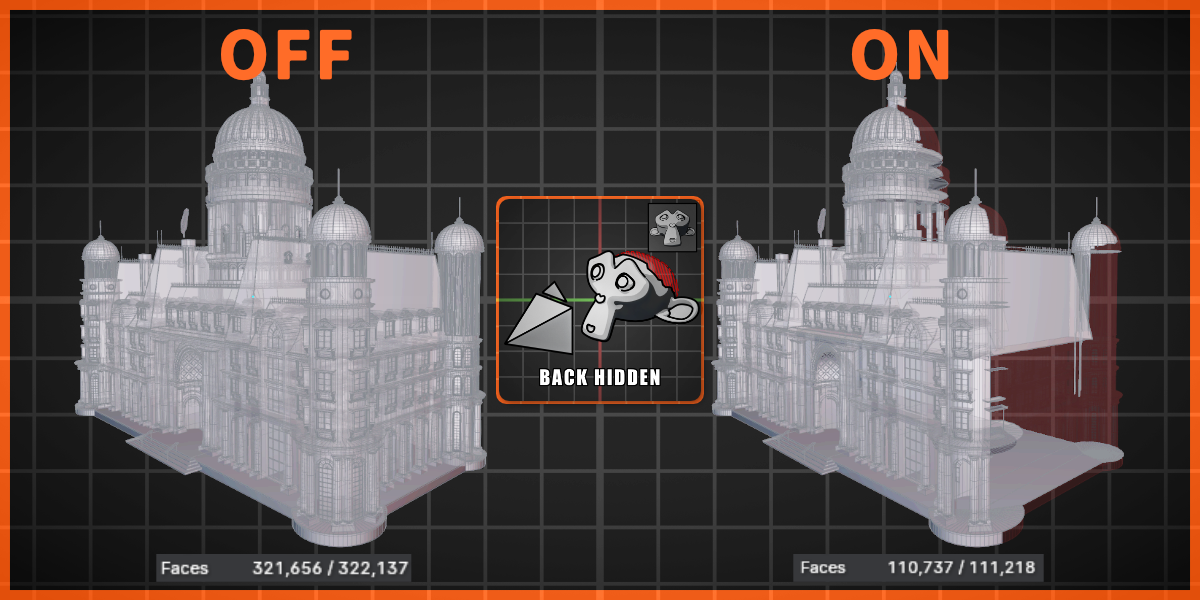
Mode 1 — Hiding of Unseen Backfaces
Uses ray casting from the camera to detect vertices that are not visible from the current viewpoint, then applies a Mask modifier to hide occluded backfaces. This reduces geometry processed during rendering without permanently deleting mesh data.

Settings
-
Visibility Tolerance (0.001 – 1.0) — ray-hit distance tolerance for determining whether a face is visible
-
Mask Threshold (0 – 0.999) — threshold for the Mask modifier vertex group
-
Mask Smooth — enable smooth falloff on the mask
-
Apply Mask — permanently apply the Mask modifier to mesh objects (destructive — use with care)
Note: Mode 1 only optimizes mesh geometry. Scenes with many reflective or refractive objects may show affected lighting and shadows.

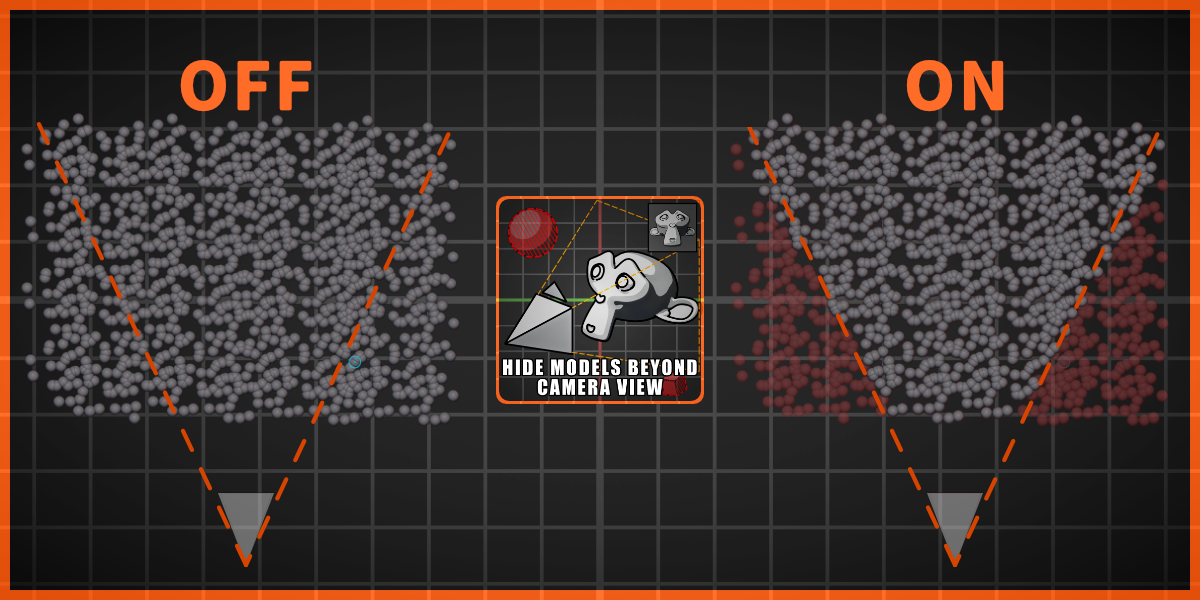
Mode 2 — Hide Models Outside the Camera's View
Checks each object's bounding box against the camera frustum. Objects entirely outside the field of view are hidden from both the viewport and render, speeding up preview and final output.

Settings
-
Apply to Lights — also hide light objects outside the camera view
-
Animation Mode — when enabled, clicking Activate bakes visibility keyframes across the timeline (from frame start to frame end) instead of a single static hide
With Animation Mode on, the add-on first bakes hide_render keyframes per frame, then syncs hide_viewport to match. Click Cancel to remove all visibility keyframes and restore object visibility.
Mode 3 — Simplification of Models in 3D View
Adds a Decimate modifier to high-poly meshes in the selected collection. The modifier affects the viewport only (show_render is off), so your final render quality stays unchanged while navigation and editing become smoother.

Settings
-
Decimate Ratio (0 – 1.0) — base simplification ratio; higher poly counts receive a dynamically reduced ratio
-
Simplify Threshold — meshes with fewer faces than this value are skipped (default: 2000)
3D View — simplified for workflow

Render — full quality unchanged

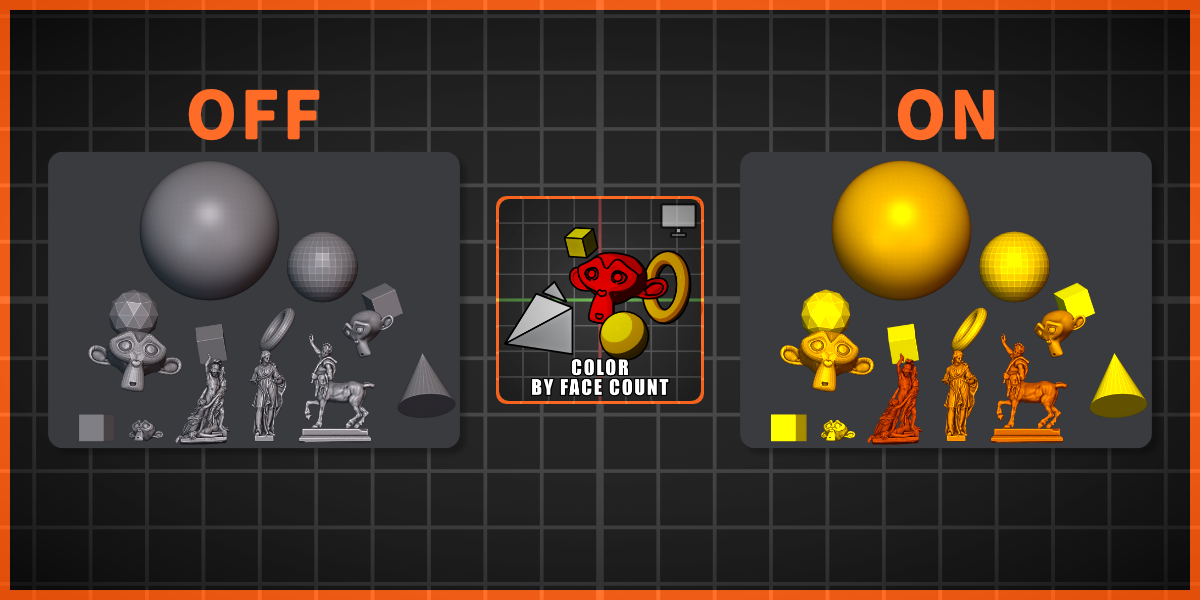
Mode 4 — Polygon Count Detection & Color Coding
Temporarily replaces materials with a color gradient based on polygon count — higher poly models appear more red, lower poly models appear yellow or grey. The viewport shading switches to Material color mode automatically so you can instantly spot heavy geometry.

Tools
-
Focus on Highest Poly Model — selects and frames the mesh with the most faces in the collection

Important: After inspecting models with Color by Face Count, always click Cancel before closing Blender. If you skip Cancel, original material assignments may not be restored.

Customizable Settings for Different Models
Each mode exposes sliders and toggles so you can fine-tune behavior per collection. Adjust tolerance, thresholds, and ratios before clicking Activate, then iterate until the result fits your scene.

7. Important Notes & Best Practices
💡 Recommended Workflow
- Split your scene into logical collections (characters, props, environment, etc.)
- Set the render camera before activating any mode
- Start with Mode 4 (Color by Face Count) to identify problem meshes, then use Mode 3 or manual cleanup
- Use Mode 2 before rendering stills or animation to hide off-screen objects
- Always click Cancel when switching modes or finishing a session
- Save your file before activating on collections with 100+ objects
❌ Common Issues
-
"No Camera Set." — assign a camera in the Scene Optimization panel or Scene Properties
-
"No Collection Set." — choose a collection from the dropdown before clicking Activate
-
Long wait / crash — collection may be too large; split into smaller collections
-
Materials lost after Mode 4 — click Cancel before closing Blender to restore original materials
-
100+ object warning — save first, then click Activate again to confirm
⚠️ Attention Summary
-
Collection organization: Never put the entire scene into one collection
-
Mode 1 & reflective objects: May affect lighting in reflective / refractive scenes
-
Mode 4 materials: Always Cancel before closing Blender
-
Mode 3 viewport simplification: Does not affect final render output
 MeiU
MeiU