 MeiU
MeiU

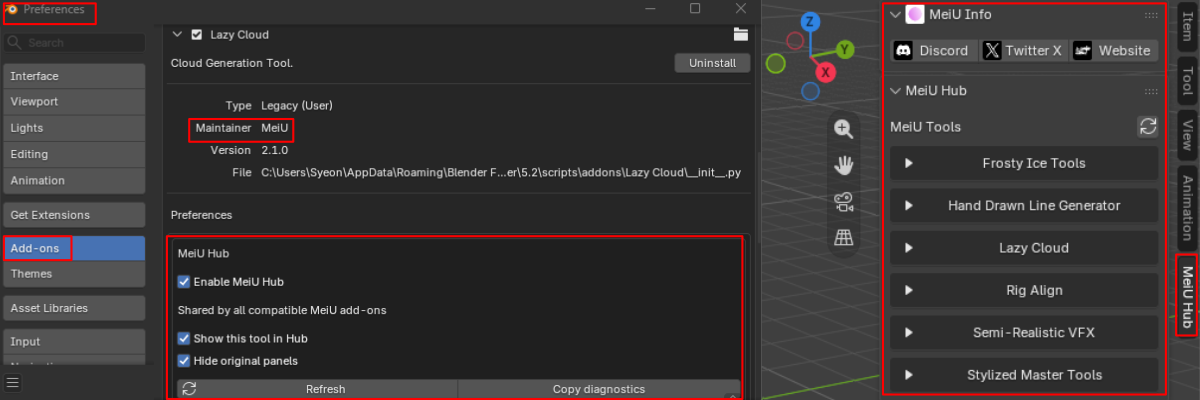
✨ New Feature: MeiU Hub
If you own multiple MeiU add-ons, you can enable MeiU Hub in each add-on’s Preferences to bring their tools together in a single MeiU Hub tab for easier access.

Scene Optimization
Optimize heavy scenes without slowing down your creative flow.
Four smart modes—from auto-hiding to simplification—help you render faster, work smoother in the viewport, and spot problem geometry before it costs you time.
ONE-CLICK OPTIMIZATION
Comprehensive model optimization in a single panel
Scene Optimization offers four modes for comprehensive model optimization—from auto-hiding to simplification. Manual adjustments let you fine-tune beyond automatic settings for ideal results.
Key Features
Built for faster renders, lighter viewports, and cleaner workflows
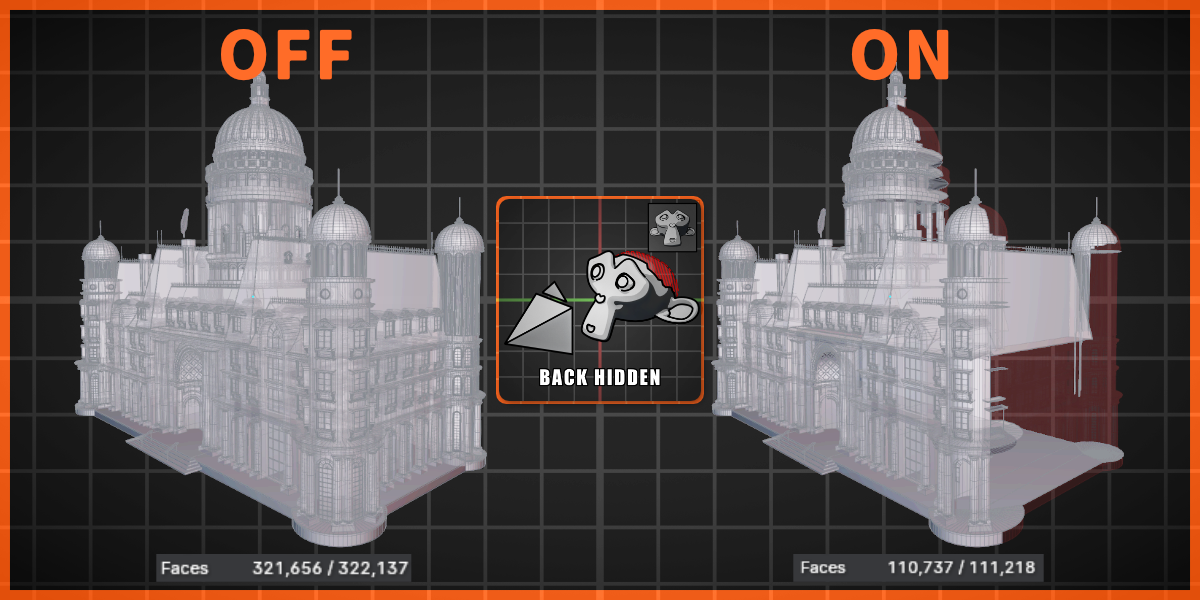
Hiding of Unseen Backfaces
Intelligent backface culling reduces resource consumption and speeds up rendering.


Customizable Settings for Different Models
Identify impractically high-polygon models within a collection so you can remove or simplify them before they slow you down.
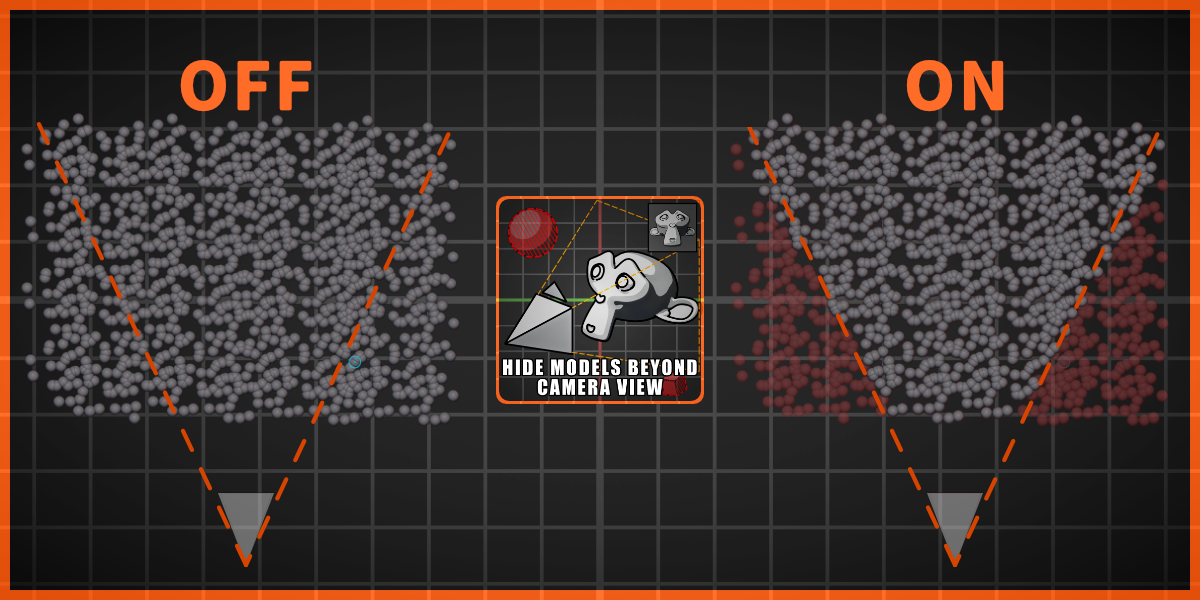
Hide Models Outside the Camera's View
Focus on what matters—automatically eliminate distractions outside the line of sight to enhance render speed.

Cancelable Effect
Every optimization is cancelable—no matter how many actions you perform afterward.
Click Cancel to undo the effect without affecting keyframes on the original objects.

Simplification of Models in 3D View
We simplify the scene behind the scenes—render quality stays intact while viewport performance improves.

Display Simplified Models in View
This effect only takes effect in the 3D viewport and does not directly affect rendering.
It helps reduce the computer resources consumed during the production process—so you can keep working smoothly without touching your final render output.
3D View — simplified for workflow

Render — full quality unchanged

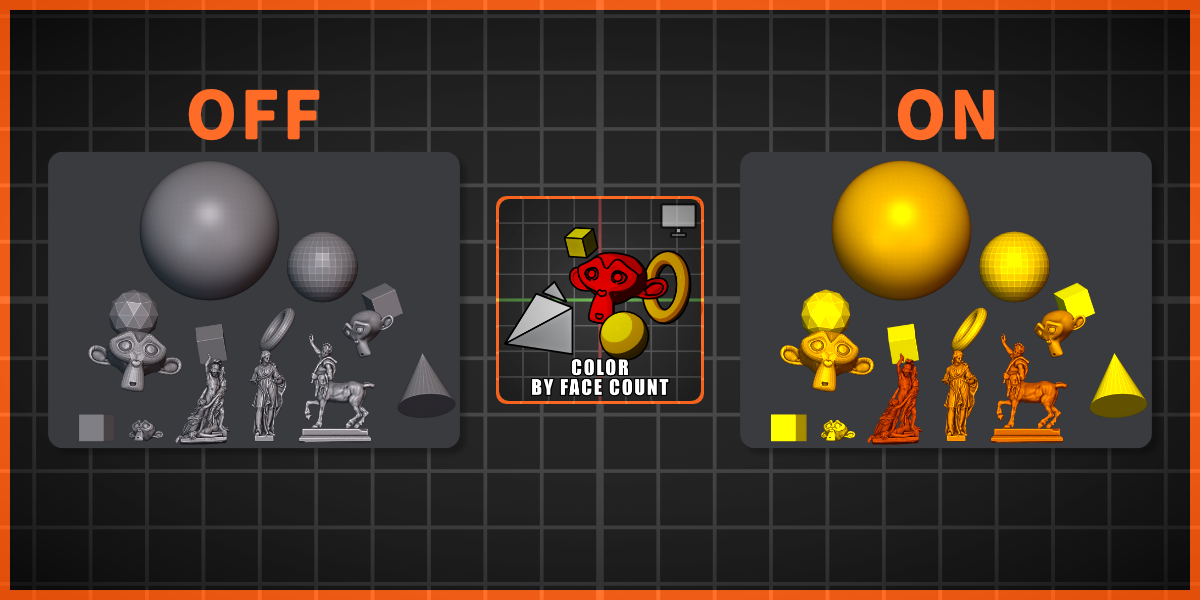
Polygon Count Detection & Color Coding
Instantly assess model complexity with color guidance for precise optimization decisions.


Focus on High Poly
Quickly spot heavy geometry in your collection and decide what to delete, simplify, or move to another collection.
Elevate Your Blender Workflow
Stop getting bogged down by repetitive optimization tasks. Scene Optimization clears the path so your creativity can move faster.
⚠️ Attention
Collection organization: Do not place every object in the entire scene into a single collection—this can cause extremely long computation times or even crash Blender. Categorize objects into collections yourself.

Mode One & reflective objects: Mode One only optimizes models. Scenes with many reflective or refractive objects may show affected lighting and shadows.

Color by face count: After inspecting models, click Cancel before closing Blender—otherwise original materials may be lost.
