 active clay


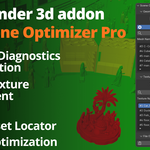

Scene Optimizer Pro
Scene Optimizer Pro is a lightweight, high-performance diagnostic toolkit built directly into Blender’s 3D viewport. Designed for 3D artists handling complex environments, large-scale exhibition layouts, and high-poly assets, this add-on instantly identifies the geometry and VRAM bottlenecks that cause viewport lag and render crashes.
Instead of digging through outliners and material nodes, Scene Optimizer Pro gives you a clean, scrollable dashboard to audit your project’s health, locate problematic assets, and purge file bloat with a single click.
Core Features Breakdown
1. Geometry Diagnostics & Visualization
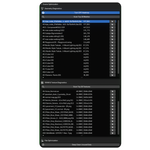
The Top 20 Mesh Leaderboard: Stop guessing what is slowing down your scene. With one click, the add-on scans your entire project and generates a ranked, scrollable list of the 20 heaviest models, displaying their exact polygon counts.
Instant Asset Locator: Found a mesh with 2 million polygons? Click the target icon next to its name on the leaderboard. Blender will immediately deselect everything else, select the heavy mesh, and frame it perfectly in your camera view so you can begin retopologizing or decimating.
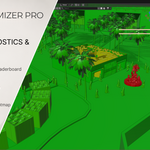
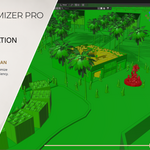
Interactive Density Heatmap: Toggle the visual heatmap to temporarily override your viewport shading. The add-on color-codes your entire scene based on geometry density: optimized models appear Green, mid-range models turn Yellow, and your heaviest, most unoptimized bottlenecks glow Red. It provides a brilliant visual audit of your scene in seconds.
2. VRAM & Texture Management
The Top 20 Texture Leaderboard: High-resolution textures are the #1 cause of GPU VRAM limits being exceeded during rendering. This tool scans every image loaded in your file, calculates its actual uncompressed memory footprint in Megabytes (accounting for bit-depth and UDIM tile sequences), and ranks the top 20 heaviest textures. It also displays the exact resolution of each file.
Material & Object Trace: If you spot an 8K texture eating up 200MB of VRAM, you need to know where it is. Click the target icon next to the texture, and the add-on will automatically scan every material node tree in your file, figure out which materials use that image, and instantly select the physical 3D objects in your scene that have those materials applied.
3. File Size Optimization
One-Click Deep Clean: Iterating on a project leaves behind hundreds of unused materials, disconnected node groups, and deleted mesh data that exponentially bloats your
.blendfile size. The "Deep Clean Unused Data" button runs a safe, recursive purge of all orphan data in the project. It finishes by giving you a clean readout in the status bar detailing exactly how many materials, meshes, images, and nodes were successfully deleted.
Location: 3D Viewport > Sidebar (Press 'N') > Tool Tab > Scene Optimization