 Mamba CG


What Scene Ready Is
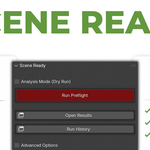
Scene Ready is a preflight QA tool for Blender scenes. It checks whether your scene is technically and structurally ready for export to a specific target such as glTF, Unity, Unreal, or USD.
Instead of guessing why an export fails, performs poorly, or breaks downstream, Scene Ready gives you a clear, structured answer:
-
What is wrong
-
How serious it is
-
What object caused it
-
Whether it can be safely fixed
It is designed for asset creators, technical artists, and small teams who want predictable exports and clean deliveries.
Installation
-
Open Blender 4.x
-
Go to Edit - Preferences - Add-ons
-
Click Install and select the Scene Ready ZIP or folder
-
Enable the addon
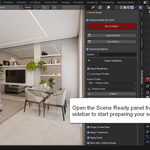
You will find the panel in:
View3D - Sidebar - Scene Ready
Basic Workflow (Recommended)
A typical Scene Ready workflow looks like this:
-
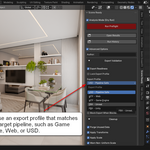
Choose an export profile
-
Run a dry analysis
-
Review issues
-
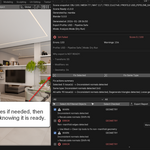
Apply safe fixes if needed
-
Re-run the check
-
Export your scene
Scene Ready is meant to be run multiple times as the scene improves, not just once at the end.
Running Your First Check
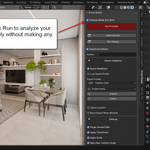
By default, Scene Ready starts in Analysis Mode (Dry Run).
This mode never changes your scene.
Steps:
-
Open the Scene Ready panel
-
Leave “Analysis Mode (Dry Run)” enabled
-
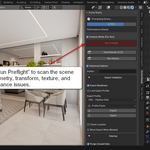
Click Run Preflight
The addon processes the scene step by step and generates a report.
When finished, you will see:
-
A QA status badge
-
A score from 0 to 100
-
A list of detected issues
Export Profiles Explained
Export Profiles define the rules Scene Ready uses.
Each profile answers the question:
“What does a correct scene look like for this target?”
Built-in profiles include:
-
glTF - Web
-
glTF - Game Engine
-
FBX - Unreal
-
FBX - Unity
-
USD - Pipeline Safe
Profiles control things like:
-
Whether unapplied transforms are allowed
-
How strict triangulation is
-
Triangle and material limits
-
Texture size limits
-
Unit scale requirements
You can lock a profile to prevent accidental changes.
Scene Health and Score
After every run, Scene Ready assigns a Scene Health status:
-
READY
The scene matches the selected profile and is safe to export. -
WARNINGS
The scene can be exported, but there are risks or inefficiencies. -
BLOCKED
The scene violates critical rules and should not be exported.
The numeric score helps track improvement over time, but the health state is the real decision signal.
Understanding the Issues List
Each issue is reported in plain language and includes:
-
Severity (ERROR, WARN, INFO)
-
Category (Geometry, Transforms, Export, Performance, etc.)
-
The affected object or datablock
-
A short explanation
-
A suggested fix when available
You can filter issues by severity, category, or text, and quickly select all affected objects in the viewport.
Clicking an issue automatically selects the related object.
Asset Health (For Asset-Based Workflows)
If objects or datablocks are marked as assets, Scene Ready tracks them individually.
Each asset receives:
-
Its own health state
-
Its own score
-
Error and warning counts
Problematic assets are highlighted visually:
-
In the Outliner using color tags
-
In the viewport using bounding box overlays
This makes it easy to identify which assets block delivery.
Fixing Problems Safely
Scene Ready includes a controlled fix system.
Fix actions are grouped into three buttons:
-
Fix Selected
-
Fix Same Type
-
Fix All Safe
Before anything is changed, you see a preview explaining:
-
What will be fixed
-
How many objects are affected
-
Whether geometry will be modified
Important safety rules:
-
Dry Run must be disabled to apply fixes
-
Linked data is never modified
-
Protected objects (armatures, drivers, shape keys) are skipped
-
Geometry-changing fixes are clearly marked
You always stay in control.
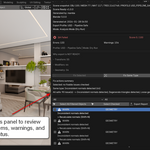
Results Window
The Results window is the main review area. It shows:
-
Scene health summary
-
Export readiness badge
-
Why the scene is blocked or risky
-
Full issue list with filters
-
Asset-level health details
This window is designed to be your checklist before export.
Reports and Exports
Scene Ready can generate reports for documentation or handoff.
Available formats:
-
Copy to clipboard (text)
-
Export as TXT
-
Export as CSV (separate issues and assets files)
Reports include:
-
Addon version
-
Blender version
-
Author name
-
Timestamp (UTC)
-
Export profile
-
Scene snapshot fingerprint
These reports are suitable for QA logs or client delivery.
Run History
Scene Ready keeps up to 10 previous runs.
Each entry shows:
-
When the run happened
-
Which profile was used
-
Scene health
-
Score change compared to the previous run
-
Errors and warnings added or fixed
This makes quality improvement measurable instead of subjective.
Advanced Options
Advanced sections let you fine-tune what Scene Ready checks:
-
Cleanup of unused data
-
Transform rules
-
Naming conventions
-
Collection organization
-
Geometry validation
-
Export readiness rules
You can adapt the addon to strict studio pipelines or lighter personal workflows.
Known Limitations
-
Geometry analysis is heuristic, not a full mesh validator
-
Exporters may behave differently across Blender versions
-
Some warnings are advisory and context-dependent
-
Only explicitly safe fixes are automated
Scene Ready is a QA assistant, not a replacement for understanding your target platform.
Best Practices
-
Always run a dry analysis first
-
Fix issues in small batches
-
Use strict profiles for final delivery
-
Export and keep reports for important handoffs
Have questions about this product?
Login to message
| Blender Extension Compatible | Yes |
| Sales | 10+ |
| Published | 8 months ago |
| Blender Version | 4.0 - 5.0 |
| Extension Type | Add-on |
| Render Engine Used | Cycles, Eevee |
| License | GPL |
Discover more products like this
export ready scene cleanup pipeline-tool scene validation gltf-export missing textures naming-convention scale fix geometry check preflight studio pipeline Production Workflow