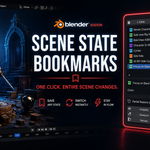
Scene State Bookmarks - Save and Restore Full Scene States in One Click
 Salman Naseem


How to Use
Installation
Download the zip file. Open Blender and go to Edit then Preferences then Extensions. Click Install from Disk and select the zip file. Enable the addon. Open your 3D viewport and press N to open the N panel. Click the SSB tab to find the panel.
Saving Your First Bookmark
Set up your scene exactly how you want it. Hide the collections you want hidden, set your render engine, position your viewport, select your camera. When everything looks right click the plus Save button. A small dialog will appear asking for a name and color. Type a name like "Hero Shot" or "BG Only" and pick a color to identify it. Click OK. Your complete scene state is now saved.
Restoring a Bookmark
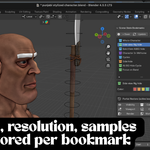
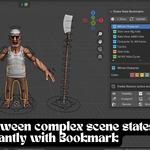
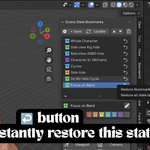
Click the arrow icon next to any bookmark in the list to instantly restore that state. Everything snaps back exactly as it was when you saved it including object visibility, collection states, viewport angle, render engine, resolution, camera and world.
Updating a Bookmark
Make changes to your scene. Select the bookmark you want to update from the list. Click the Update button in the toolbar. The bookmark now stores your new scene state while keeping its original name and color.
Partial Restore
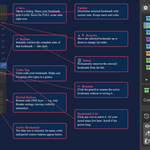
Select any bookmark from the list. At the bottom of the panel you will see 6 partial restore buttons. Click any one of them to apply only that layer from the bookmark.
- Visibility restores only object hide states
- Collections restores only collection exclude and hide states
- Viewport restores only your 3D view position and angle
- Camera switches only the active camera
- Render applies only the engine and resolution settings
- World switches only the world and HDRI
Color Coding
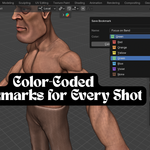
Click any bookmark to select it. In the detail box below the list click any color swatch to assign a color tag. Use red for final render setups, green for full scene states, orange for background only shots and blue for preview setups.
Reordering
Select any bookmark and use the up and down arrow buttons in the toolbar to move it to a different position in the list.
Real World Use Cases
Use Case 1: Character Animator
You are animating a dialogue scene with two characters. You need to constantly switch between a wide shot showing both characters, a close up on character A, and a close up on character B, each with different collections visible and different camera angles.
Save three bookmarks. Wide Shot with all collections visible and the master camera active. Close A with the environment collection hidden and camera A active. Close B with the environment collection hidden and camera B active.
Now switching between all three setups takes one click instead of 5 minutes of manual toggling every time.
Use Case 2: Render Artist
You are rendering a complex scene and need two different outputs. A quick EEVEE preview at 1280x720 for client approval and a final Cycles render at 3840x2160 for delivery.
Save a Preview bookmark with EEVEE and 1280x720. Save a Final 4K bookmark with Cycles and 3840x2160. Switch between them in one click. No more manually changing the engine and resolution every time you want to check or submit a render.
Use Case 3: Rigger
You are rigging a character and need to constantly switch between checking the rig controls visible, checking the clean mesh without controls, and checking the wireframe topology.
Save three bookmarks. Rig View with controls visible and solid shading. Clean Mesh with controls hidden and solid shading. Wireframe Check with wireframe shading enabled. Jump between all three instantly without touching the viewport shading buttons or the outliner.
Use Case 4: Background Artist
You are working on a scene with Characters, Props and Environment collections. You need to work on the background without the characters in the way, then review the full scene, then check just the props.
Save Full Scene with everything visible. Save BG Only with the Characters collection hidden. Save Props Only with Characters and Environment hidden. Each state restores in one click so you can focus on your work without managing the outliner constantly.
Frequently Asked Questions
Q: Are my bookmarks saved when I close the blend file?
Yes. All bookmark data is stored directly inside the blend file as custom scene properties. When you reopen the file all your bookmarks are exactly where you left them. If you share the blend file with a teammate they will also see all the bookmarks when they open it.
Q: Can I use partial restore to apply just the render settings from one bookmark without changing my current visibility?
Yes and this is one of the most powerful features of the addon. Select any bookmark from the list then scroll to the Partial Restore section at the bottom of the panel. Click the Render button and only the render engine and resolution from that bookmark will be applied. Your current object visibility, collections, viewport angle, camera and world all stay exactly as they are.
Q: Does this work with Blender 5.0?
Yes. Scene State Bookmarks is fully compatible with Blender 4.2, 4.3, 4.4 and Blender 5.0 on Windows, macOS and Linux. The addon automatically detects which version of Blender you are running and uses the correct API for that version. You do not need to do anything different between versions.
Have questions about this product?
Login to message
| Blender Extension Compatible | Yes |
| Published | 4 months ago |
| Blender Version | 3.2 - 5.2 |
| Extension Type | Add-on |
| Render Engine Used | Blender-Game-Engine, Cycles, Eevee |
| License | GPL |
