Scene Visual Manager - Scene Resource Visualization & Smart Filtering
 peterz


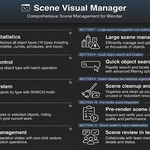
Scene Visual Manager - Documentation
Version: 0.1.0
Compatible with: Blender 4.2.0 and later
License: GNU General Public License v3.0 or later
📋 Overview
Scene Visual Manager is a powerful Blender addon designed to help you efficiently manage and visualize scene resources. Perfect for working with complex scenes containing hundreds or thousands of objects, this tool provides real-time statistics, quick visibility controls, smart filtering, and isolation tools to streamline your workflow.
Key Features
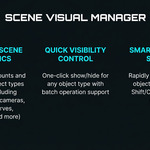
- ✨ Real-time Scene Statistics - Instantly see counts for all 16 object types
- 👁️ Quick Visibility Control - One-click show/hide for any object type
- 🔍 Smart Filtering System - Filter by type, properties, and custom criteria
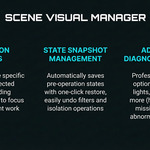
- 🎯 Isolation Tools - Focus on specific objects or types, hide distractions
- 💾 State Snapshots - One-click restore, easy undo for all operations
- 📊 Advanced Diagnostics - Professional filters for meshes, lights, cameras, and more
🚀 Installation
Method 1: Install from BlenderMarket
- Download the addon from your BlenderMarket purchase
- Open Blender
- Go to Edit > Preferences > Add-ons
- Click Install... and select the downloaded
.zipfile - Search for "Scene Visual Manager" in the add-ons list
- Enable the checkbox next to the addon
Method 2: Manual Installation
- Extract the addon folder from the downloaded archive
- Place it in your Blender addons directory:
-
Windows:
[Blender Installation]/4.2/scripts/addons_core/scene_visual_manager/ -
macOS:
[Blender Installation]/4.2/scripts/addons_core/scene_visual_manager/ -
Linux:
[Blender Installation]/4.2/scripts/addons_core/scene_visual_manager/
-
Windows:
- Open Blender and go to Edit > Preferences > Add-ons
- Search for "Scene Visual Manager" and enable it
🎮 Quick Start
-
Access the Panel:
- Open the 3D Viewport
- Press
Nto open the sidebar (or click the+icon) - Look for the "Scene Vis" tab
- Click to open the Scene Visual Manager panel
-
View Scene Statistics:
- The Scene Overview section shows real-time counts for all object types
- Statistics update automatically (or click the refresh button)
-
Control Visibility:
- Click the Vis button (eye icon) next to any object type to toggle visibility
- Click the Isolate button (zoom icon) to show only that type
-
Filter Objects:
- Click the type name button to select all objects of that type
- Hold
Shiftto add to selection,Ctrlto subtract
📖 Main Features
Scene Statistics
The Scene Overview section displays real-time counts for 16 object types:
- Meshes, Lights, Cameras, Empties
- Curves, Armatures, Grease Pencils
- Volumes, Text (Fonts), Lattices
- Light Probes, Speakers, Point Clouds
- Hair, Hair Curves, Force Fields
Auto Refresh: Enabled by default, automatically updates when objects are added/removed. For scenes with 20,000+ objects, auto-refresh is automatically disabled for performance.
Visibility Control
Each object type row provides three actions:
-
Type Name Button: Click to select all objects of that type
- Hold
Shift: Add to current selection - Hold
Ctrl: Subtract from current selection
- Hold
-
Vis Button (Eye Icon): Toggle visibility for all objects of that type
- Eye Open = Visible
- Eye Closed = Hidden
-
Isolate Button (Zoom Icon): Show only objects of this type, hiding all others
- Click again to restore previous state
Isolation Features
Isolate Selected:
- Select one or more objects in the viewport
- Click "Isolate Selected" button
- Only selected objects remain visible
- Click again to restore
Isolate by Type:
- Click the Isolate button next to any object type
- Only that type remains visible
- Click again to restore
Note: When isolation is active, a HUD appears at the top of the viewport showing "ISOLATION ACTIVE" with instructions.
State Management
Automatic Snapshots:
- Created automatically before any filter or isolation operation
- Captures visibility and selection states
- Allows easy undo/restore
Restore Snapshot:
- Click "Restore Snapshot" to undo the last operation
- Only available when a snapshot exists
- Clears isolation state
Unhide All:
- Forcefully makes all objects visible
- Resets both viewport and view layer visibility
- Warning: This is a destructive operation that clears current state
🔧 Advanced Filters
Expand object type sections to access advanced diagnostic filters:
Mesh Filters
- High Poly: Find meshes with polygon count above threshold (default: 5000)
- No Material: Find meshes without assigned materials
- Unapplied Transform: Find meshes with non-zero transforms
Light Filters
- By Type: Filter by Point, Sun, Spot, or Area lights
- High Intensity: Find lights with energy above threshold (default: 100.0)
- Non-White Color: Find lights with colored output
Camera Filters
- Clipping Large: Find cameras with unusual clipping ranges
- Inactive: Select all cameras except the active one
- Perspective/Orthographic: Filter by projection type
Curve Filters
- 2D/3D Mode: Filter by curve dimensions
- High Resolution: Find curves with resolution above threshold (default: 64)
Empty Filters
- Image Reference: Find empties displaying images
- Large Size: Find empties with display size above threshold (default: 10.0)
Adjusting Thresholds: Filter thresholds can be adjusted directly in each diagnostic panel.
⌨️ Keyboard Shortcuts
The addon doesn't assign default shortcuts, but you can create custom ones:
- Go to Edit > Preferences > Keymap
- Search for "Scene Visual Manager" or the operator name
- Click the
+next to the operator - Press your desired key combination
- Save preferences
Recommended Shortcuts:
-
F5- Refresh Stats -
Ctrl+Z- Restore Snapshot (if not conflicting) -
I- Isolate Selected -
Alt+H- Unhide All
Available Operators:
-
svm.refresh_stats- Refresh scene statistics -
svm.toggle_visibility- Toggle visibility for a type -
svm.filter_type- Filter objects by type -
svm.filter_mesh- Filter meshes by criteria -
svm.filter_light- Filter lights by criteria -
svm.filter_camera- Filter cameras by criteria -
svm.filter_curve- Filter curves by criteria -
svm.filter_empty- Filter empties by criteria -
svm.isolate_selected- Isolate selected objects -
svm.restore_snapshot- Restore snapshot state -
svm.unhide_all- Unhide all objects -
svm.capture_display- Manually capture state
❓ Troubleshooting
Statistics Not Updating
- Check if Auto Refresh is enabled
- Manually click the refresh button
- For large scenes (>20,000 objects), auto-refresh may be disabled
- Try reloading the scene or restarting Blender
Visibility Not Working
- Ensure objects are not hidden in collections
- Check view layer visibility settings
- Try "Unhide All" to reset all visibility states
- Verify objects are in the current view layer
Isolation Not Restoring
- Ensure a snapshot exists (check if "Restore Snapshot" is enabled)
- Try using "Unhide All" to reset everything
- Check if another isolation is active (button should be depressed)
Filter Not Finding Objects
- Verify objects match the filter criteria
- Check if objects are hidden (they won't be selected if hidden)
- Adjust filter thresholds in preferences if needed
- Ensure you're filtering the correct object type
Performance Issues
- Disable Auto Refresh for large scenes
- Use filtering to reduce visible objects
- Close unnecessary detail panels
- Consider working with scene subsets
Addon Not Appearing
- Verify the addon is enabled in Preferences > Add-ons
- Check that you're in the 3D Viewport (not other editors)
- Press
Nto open the sidebar if it's closed - Look for "Scene Vis" tab in the sidebar
- Restart Blender if the panel still doesn't appear
⚡ Performance Notes
Auto Refresh Performance
- Uses throttling mechanism (0.5 second delay) to prevent excessive updates
- For scenes with >20,000 objects, auto-refresh is automatically disabled
- Manual refresh is always available regardless of scene size
Snapshot Performance
- Snapshots are stored in memory (not saved to disk)
- Creating snapshots is fast for typical scenes (<10,000 objects)
- Very large scenes may experience slight delays when creating snapshots
- Snapshots are cleared when not needed to free memory
Filtering Performance
- Type-based filtering is very fast
- Advanced filters (mesh, light) may take longer on large scenes
- Filters only process visible objects in the current view layer
- Consider using collections to organize large scenes
Best Practices
- Disable auto-refresh when working with very large scenes
- Use filtering to reduce the number of visible objects
- Work with scene subsets using collections
- Clear snapshots when not needed (use "Unhide All" or "Restore Snapshot")
- Close detail panels when not in use
🎯 Use Cases
Perfect for:
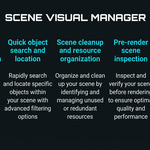
- Large scene management and optimization
- Quick object search and location
- Scene cleanup and resource organization
- Pre-render scene inspection
- Team collaboration and scene review
- Finding problematic objects (high poly, missing materials, etc.)
- Organizing complex projects with hundreds or thousands of objects
Thank you for using Scene Visual Manager! 🎉
If you find this addon useful, please consider leaving a review on BlenderMarket. Your feedback helps improve the tool and supports future development.
Have questions about this product?
Login to message
| Blender Extension Compatible | Yes |
| Published | 8 months ago |
| Blender Version | 4.2 - 5.0 |
| Extension Type | Add-on |
| Render Engine Used | Cycles, Eevee |
| License | GPL |
Discover more products like this
Object Management blender scene manager statistics 3D View filtering visibility