 Skava
Skava


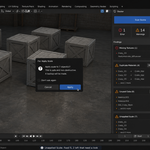
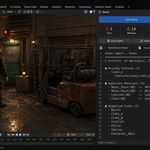
SceneDoctor — documentation
v1.1.1 · Blender 4.2 LTS and later (tested on 5.2) · Windows / macOS / Linux
1. Installing
Edit, then Preferences, then Add-ons, then Install, and pick the downloaded zip. Tick the checkbox to enable it.
2. Using it
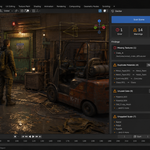
- Press N in the viewport and open the "Doctor" tab.
- Press Scan Scene.
- Read the findings, worst first.
- Press a fix button where one is offered, or go and deal with the rest by hand.
Scanning only reads the scene. Nothing changes until you press a fix.
3. The findings list
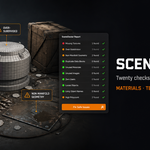
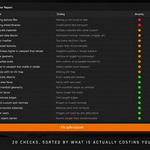
Findings are grouped by check and sorted by severity, so a missing texture is never buried under a hundred naming notes. Each row names the thing and what is wrong with it. Clicking a row selects that object and makes it active, so you can go straight to it.
Long lists are trimmed in the panel — change Rows Per Check under Thresholds, or use the full text report.
4. Thresholds
- Triangle Budget — meshes above this are listed. Set it to whatever your project considers heavy; 100,000 suits a general scene, a few thousand suits mobile.
- Texture Limit — images larger than this on their longest side are listed.
- Subdivision Limit — viewport subdivision at or above this level is listed. Subdivision set higher in the viewport than for the render is always listed, whatever this is set to.
- Origin Distance — objects further than this many metres from the world origin are listed. The default of 10,000 is where float precision starts to be visible; a large-scale environment may want it higher.
5. Switching checks off
The Checks panel holds one switch per check, grouped by severity. Turn off whatever your studio does not care about — n-gons on a film project, packed images where packing is the house rule — and it will not be scanned or listed.
The report is honest about it. A scan with checks switched off says how many were skipped, both in the panel and at the top of the text report, and it will not describe the scene as clean when part of the examination did not happen.
6. The five fixes
Merge Duplicates
Finds materials that would render identically and repoints every object at one of them. Detection compares the actual node values, not names, so two genuinely different materials called Metal and Metal.001 are safe. After merging, run Purge Unused to remove the copies that are now unreferenced.
Purge Unused
Deletes datablocks with no users. It runs several passes, because deleting a material can orphan the image it referenced. Anything with a fake user (the shield icon) is kept — that is what the fake user is for.
Apply Scale
Applies scale to objects whose scale is not 1. It deliberately skips:
- Linked duplicates — objects sharing a mesh. Applying to one would resize the others, so they are left alone and stay in the report.
- Hidden objects, which Blender cannot apply to.
- Linked-in library objects, which cannot be edited.
The report tells you afterwards how many were fixed and how many still need a look.
Remove Slots
Removes material slots that no face on the mesh points at. Removing a slot renumbers the face material indices along with it, so every face keeps the material it was already showing — nothing changes appearance. It deliberately skips:
- Meshes shared with another object, where the second object may be relying on the slots as they are.
- Slots linked to the object rather than to the mesh, which override the mesh and would be lost.
- Linked-in library objects, which cannot be edited.
Skipped objects stay in the report with the reason written next to them.
Remove Groups
Removes vertex groups that are empty and that nothing refers to. Both halves matter: a group with no weights in it is still doing a job if a modifier, a constraint, a particle system, a shape key or a node tree names it, so those are never touched and never even listed. Groups that hold weights are never touched either, whatever else is true of them.
7. Why the other checks have no fix button
Because there is no single right answer. Whether an n-gon matters depends on where the model is going. Whether a 4K texture is too big depends on the shot. Whether a hidden object should also be hidden from the render is a decision only you can make. A button that guessed would eventually guess wrong on someone's finished work.
8. The report
- Copy Report puts the whole thing on the clipboard as plain text.
- Save as Text writes it into a text block inside the file, readable in the Text Editor and saved with the scene.
Useful for handing a file over, or for recording what state a scene was in before a cleanup.
9. Troubleshooting
It says my scene is clean and I know it is not. Check your thresholds — a 50,000-triangle mesh is not reported if the budget is 100,000.
Purge did not remove something. It has a fake user, or something still references it. Scan again to see whether it is still listed.
Apply Scale skipped objects. They are linked duplicates, hidden, or from a linked library. The report says how many were left.
A material was not merged. The two are not actually identical. Compare their node values — a difference of a thousandth in one slider is still a difference.
The findings are out of date. Scan again. The report is a snapshot, not a live view, and it is deliberately not saved into your file.
Remove Slots left a slot behind. Either a face still uses it, or the object is one of the ones the fix will not touch — a shared mesh, an object-linked slot, or library data. The report says which.
A vertex group I expected to be listed is not. Either it holds weights, or something names it: a modifier, a constraint, a particle system, a shape key or a node tree. Naming it counts as using it.
Negative Scale keeps listing an object I applied the scale to. Applying clears it, so scan again — the report is a snapshot. If it is still there, the scale was reapplied or the object was skipped by Apply Scale for one of the reasons above.
My scene looks quieter than it should. Look at how many checks are switched off — the panel and the report both say. A scan that skipped checks never claims the scene is clean.
10. Changelog
v1.1.2 — maintenance release. The package ships the full licence text and an updated README (install, first run, uninstall). No changes to the tools.
v1.1.1
- On Blender 5.2 the unused-vertex-group check no longer saw names referenced from a Geometry Nodes modifier input and would have called those groups unused. It reads the new modifier interface now, on 4.2 through 5.2 alike.
v1.1.0 — eight new checks: missing UV maps, unused material slots, empty vertex groups, negative scale, modifiers set differently for the viewport and the render, modifiers that cannot change anything as they are set, objects far from the world origin, and images packed into the file with their sizes. Two new fixes, Remove Slots and Remove Groups, both of which skip what they cannot touch safely and say so. A switch for every check, a new Origin Distance threshold, and a report that admits when checks were skipped. 189 automated checks, up from 93.
v1.0.0 — first release. Twelve checks with severity grading, three safe fixes, click-to-select findings, adjustable thresholds, and a copyable text report.
Have questions about this product?
Login to message
| Published | about 2 months ago |
| Blender Version | 4.2 - 5.2 |
| Extension Type | N/A |
| Render Engine Used | Cycles, Eevee |
| License | GPL |
Discover more products like this
diagnostics purge optimization cleanup Scene Management file size performance missing textures Workflow Duplicate Materials Production housekeeping