 wantshot


Installation
- Download
SceneVault_v1.0.0.zip. Do not unzip it. - In Blender go to Edit › Preferences › Get Extensions, open the dropdown in the top-right corner and choose Install from Disk…, then select the zip.
- Make sure the extension is enabled. The SceneVault tab appears in the 3D Viewport sidebar (press
N).
SceneVault requires Blender 4.5 or newer. It is tested on 4.5 and 5.2.
Quick start
- Save your .blend file (SceneVault stores versions per file, so the file needs a name).
- Open the sidebar (
N) › SceneVault tab and click Enable SceneVault. - Click Save Scene. A copy of your file is written to the vault and a thumbnail starts rendering in the background.
- Save a few more versions as you work. Select two of them in the Scene (A) and Compare With (B) lists and click Compare (A vs B).
The SceneVault panel
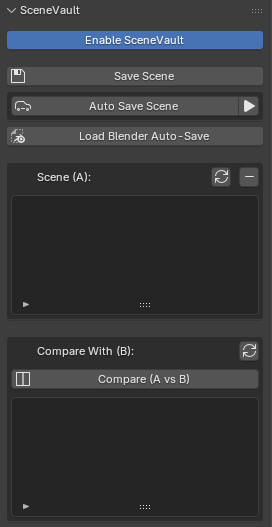
Enable SceneVault — turns SceneVault on for the current file. This setting is saved with the file, so it stays on the next time you open it. The vault folder for this file is created the first time you enable it.
Save Scene — saves a copy of the current file into the vault, numbered automatically according to the Naming Style preference (for example myfile_scene1, myfile_scene2, …). Your working file is not modified. A thumbnail is created according to the Thumbnail preference; while it renders, the list shows a render icon next to the entry.
Auto Save Scene — toggle. While it is on, SceneVault saves a version automatically at the interval set in the preferences, but only if the scene has changed since the last automatic save. Automatic versions are named myfile_auto1, myfile_auto2, … and are limited to the number set in Max Auto-Saved Scenes (oldest are removed first). This toggle is a session setting: it always starts off when you open a file. The line below the toggle shows the interval, the time until the next save and the keep-limit. The ▶ button next to it saves an automatic version right now.
Load Blender Auto-Save — restores Blender’s own auto-save (the one Blender writes to its temporary folder every few minutes) for the file you have open. Only an auto-save that belongs to this file and is newer than your last save is used. Before restoring, SceneVault writes a safety copy (see Restore below).
Scene (A) — the list of all versions in the vault for this file, oldest first. Select an entry to see its thumbnail below the list. Icons: picture = thumbnail ready, render icon = rendering, clock = waiting in the render queue, warning = render failed (a Retry Thumbnail button appears), blend file = no thumbnail. Entries marked with a cloud icon are automatic saves; the one marked with a restore icon is the _last_state safety copy.
- Refresh (circular arrow) — re-reads the vault folder.
- Remove (−) — permanently deletes the selected version and its thumbnail, after a confirmation.
- Render Thumbnail — shown under the preview when a version has no thumbnail; renders it in the background.
-
Restore Scene (A) — replaces your working file with the selected version, after a confirmation. Before anything is overwritten, the current state is saved to the vault as
myfile_last_state, so you can always go back by restoring that entry. The_last_stateentry is a single rolling copy: each restore overwrites it.
Compare With (B) — a second list with the same versions. Select the version you want to compare against.
Compare (A vs B) — opens a new window with two Image Editors: A on the left, B on the right, each fitted to the view. In the header of each editor a button shows the current version; click it to open a thumbnail grid and pick another version. Clicking a version in the lists in the 3D Viewport also updates the compare window immediately. If you run Compare from inside an Image Editor, that editor is split instead of opening a new window.
Thumbnails are shown at 1:1 when they are smaller than the editor, so they never look upscaled. If you want larger previews in the compare window, raise Thumbnail Width in the preferences before saving versions.
Preferences
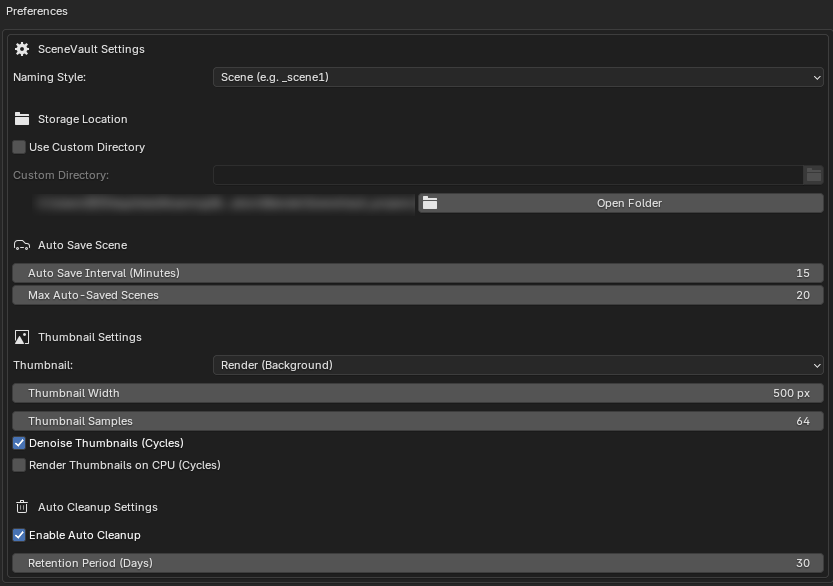
Found in Edit › Preferences › Get Extensions › SceneVault ›
Naming Style — the suffix used for manual saves.
-
Scene —
_scene1,_scene2, … -
Version —
_ver1,_ver2, … -
Date —
_0721_1430_1(month, day, hour, minute, counter)
Automatic saves always use _auto1, _auto2, … regardless of this setting.
Storage Location
-
Use Custom Directory — off by default. When on, vaults are stored inside the folder given in Custom Directory (a
SceneVault_projectsfolder is created inside it). Versions already saved in the other location are not moved. - The current storage path is shown below, with an Open Folder button that opens it in your file browser.
- By default the path is
…/Blender Foundation/Blender/SceneVault_projects/, outside Blender’s version-specific folders. A version saved in Blender 4.5 is therefore visible when you open the same file in 5.2.
Auto Save Scene
- Auto Save Interval (Minutes) — how often an automatic version is saved while the toggle is on. Default 15.
-
Max Auto-Saved Scenes — how many automatic versions to keep per file; the oldest are deleted when the limit is exceeded. Manual versions and the
_last_statecopy are never affected. 0 = unlimited. Default 20.
Thumbnail Settings
- Thumbnail — Render (Background) renders the saved version in a separate Blender process using the file’s own render engine (Cycles, EEVEE or Workbench). Viewport Capture (Instant) captures the 3D Viewport as displayed; instant, but it shows viewport shading rather than a final render. When the scene has no camera, or the background process cannot start, SceneVault falls back to a viewport capture automatically.
- Thumbnail Width — width in pixels; height follows the render aspect ratio. Default 500.
- Thumbnail Samples — Cycles samples or EEVEE render samples for thumbnails. Default 64. With denoising, 16–32 is usually enough.
- Denoise Thumbnails (Cycles) — on by default.
- Render Thumbnails on CPU (Cycles) — keeps the GPU free for your work. Slower, but the scene is not loaded into GPU memory a second time.
Auto Cleanup Settings
- Enable Auto Cleanup — deletes versions and thumbnails older than the retention period. Runs when SceneVault is enabled and after each save.
- Retention Period (Days) — default 30.
Where your files are
SceneVault_projects/
└── myfile/
    ├── myfile_scene1.blend
    ├── myfile_scene2.blend
    ├── myfile_auto1.blend
    ├── myfile_last_state.blend
    └── thumbnails/
        ├── myfile_scene1.png
        └── …
Every version is a complete, ordinary .blend file. You can open any of them directly in Blender, copy them elsewhere, or delete the whole folder — SceneVault never stores anything inside your working file except the on/off state and the list selection.
Thumbnail render time
Thumbnails are real renders, so a heavy scene takes a while even at 500 px. Rendering runs in the background and does not block Blender. If thumbnails take too long: lower Thumbnail Samples, reduce Thumbnail Width, enable Render Thumbnails on CPU, or switch Thumbnail to Viewport Capture. The panel shows how many thumbnails are queued; the ✕ next to it cancels the queue. Cancelling never affects the saved .blend files.
Have questions about this product?
Login to message
| Blender Extension Compatible | Yes |
| Published | 3 days ago |
| Blender Version | 4.5 - 5.2 |
| Extension Type | Add-on |
| Render Engine Used | Cycles, Eevee |
| License | GPL |

Discover more products like this
backup version-control auto-save thumbnail restore snapshot scene history Versioning compare Iteration Workflow file management