Screencast Ultimate: Visual Keys & Mouse Ripples For Blender
 Shift4cube



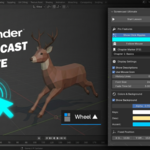
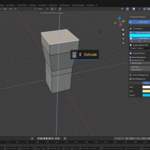
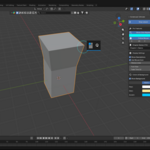
🛠️ Screencast Ultimate: Tool Reference Guide
This document explains every setting and feature available in the Screencast Ultimate panel.
1. Main Controls
Located at the top of the panel.
-
Start Lesson (Play Button):
Function: The master switch. Click this to enable or disable the on-screen display.
Note: If you change workspaces (e.g., Layout to Sculpting) and the text disappears, toggle this off and on again to refresh it.
2. Pro Features
Special visual tools designed to increase viewer engagement.
-
Show Click Ripples:
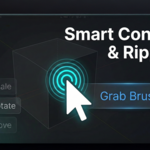
Function: When enabled, every mouse click (Left, Right, or Middle) spawns a visual ring animation at the cursor's location.
Use Case: Critical for tutorials where the viewer needs to know where you clicked in the 3D space, not just that you clicked.
Color: The ripple color is controlled by the "Accent" color in the Appearance section.
-
Follow Mouse:
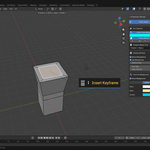
Function: Unlocks the text display from the screen corner and makes it float dynamically next to your mouse cursor.
X / Y Offset: Only visible when "Follow Mouse" is checked. These sliders let you adjust the distance between the cursor and the text box so the text doesn't cover your brush/tool.
-
Chapter Marker (F5):
Function: A broadcasting tool for live streams or long recordings.
-
How to use:
Type a title in the text box (e.g., "Part 2: Texturing").
Press F5 on your keyboard.
A large, temporary banner appears in the center of the viewport for 3 seconds.
3. Display Settings
Controls for how the information is presented.
-
Show Descriptions:
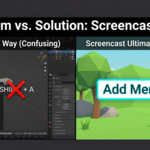
Enabled (Default): Translates raw keys into tool names. (e.g., Pressing
Gdisplays "Move").Disabled: Shows the raw key only. (e.g., Pressing
Gdisplays "G").
-
Use Mouse Icon:
Enabled: Replaces text like "LMB", "RMB", "MMB" with a graphic mouse icon that lights up the corresponding button.
Disabled: Displays text labels for mouse clicks.
-
History Lines (0 - 10):
0: Single-line mode. The display updates instantly to show only the active command.
1+: History mode. Creates a vertical stack of previous commands that fade out over time. Recommended for fast typists.
-
Font Size:
Increases or decreases the size of all text and icons.
-
Fade Time (s):
Determines how many seconds a keystroke remains visible on screen before disappearing.
4. Colors & Background
Customize the look to match your branding.
-
Show Background:
Adds a semi-transparent dark box behind the text to ensure readability against bright 3D models.
Keys: The color of the keyboard shortcut text (e.g., "Shift + A").
Desc: The color of the tool description text (e.g., "Add Menu").
-
Accent: The "Action Color". This determines the color of:
The Click Ripple rings.
The highlight on the Mouse Icon when clicked.
The underline bar for the active command.
5. Fixed Position
Only visible when "Follow Mouse" is unchecked.
X Offset: Moves the display horizontally (Left/Right).
Y Offset: Moves the display vertically (Up/Down).
-
Default: The default position is the bottom-right corner of the 3D Viewport.
Screencast Ultimate v1.0 Created by s4c
Discover more products like this
blender addon Visual Keys shortcuts screencast keys b3d blender 3d