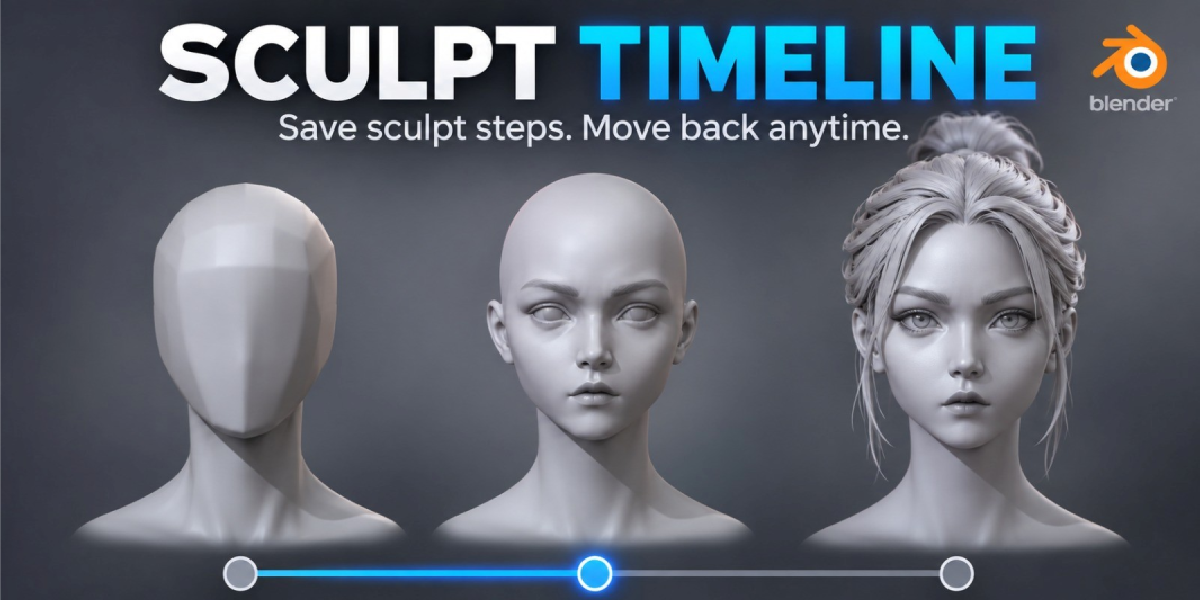
Sculpt History Pro: Automatic Sculpt History Slider for Blender
 Salman Animator
Requirements
- Blender 4.2 or newer.
- A mesh object.
Install
- Download the ZIP. Do not unzip it.
- In Blender, open Edit > Preferences > Add-ons.
- Open the menu in the top right and choose Install from Disk.
- Select
Sculpt-History-Pro-1.13.0-SalmanAnimator.zip. - Enable Sculpt History Pro if it is not enabled automatically.
- If you are updating, disable the older version first and restart Blender after installing.
First use
- Select a mesh object.
- Enter Sculpt Mode. Step 0 (the original mesh) is saved automatically.
- Sculpt as usual. Each finished stroke becomes one step.
- Open the Sidebar (N) in the 3D View and choose the Sculpt History tab.
- Drag the History slider to move through your steps.
Panel reference
- Status: shows "History Active" when the selected mesh is being recorded, or "Enter Sculpt Mode" when it is not yet.
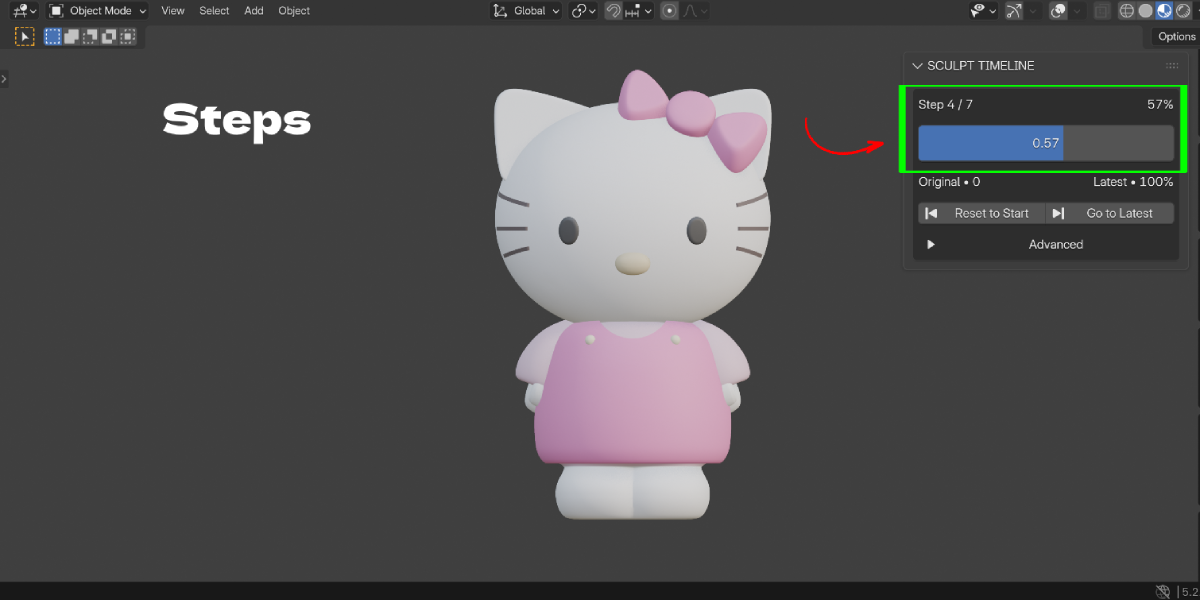
- Step X / Y and %: the current step, the total number of steps, and the position as a percentage.
- History slider: moves backward or forward through recorded steps. It snaps to whole steps.
- Original • 0 / Latest • 100%: the two ends of the slider.
- Previous / Next: move one step back or forward.
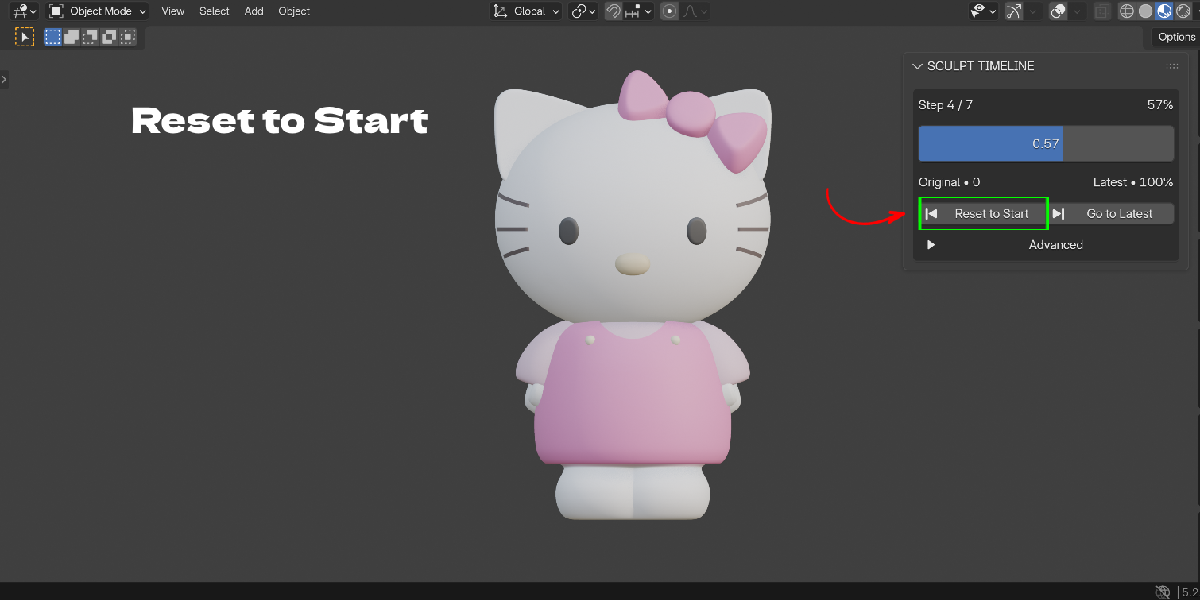
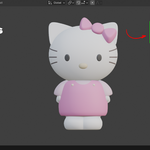
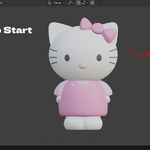
- Reset to Start: restores Step 0, the original mesh.
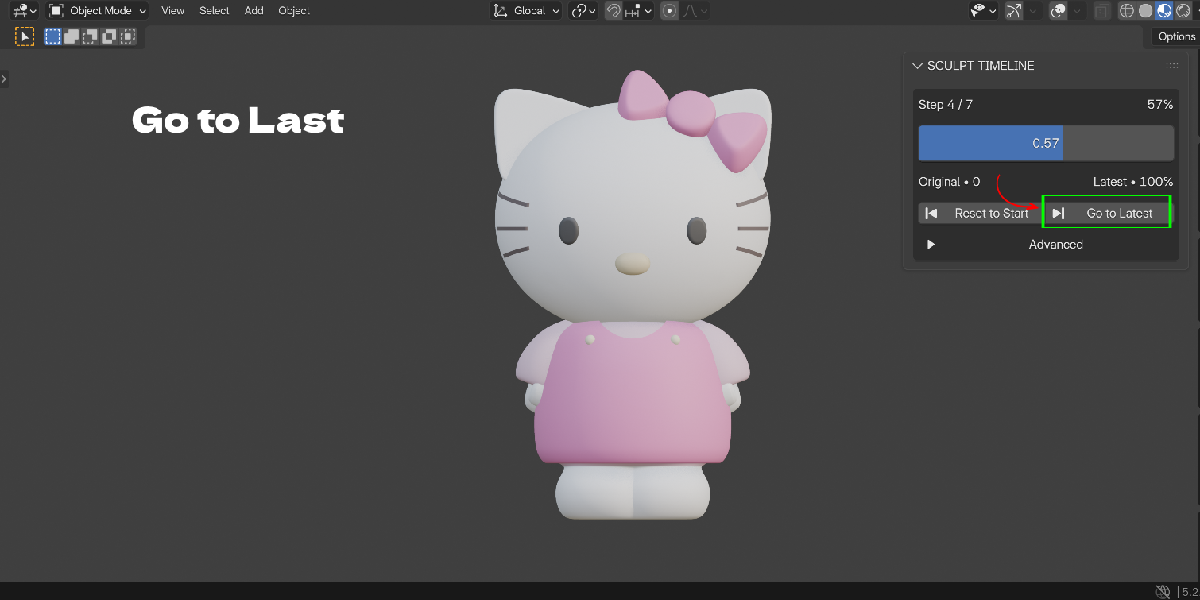
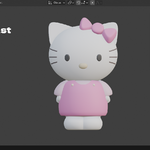
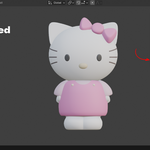
- Go to Latest: restores the newest recorded step.
-
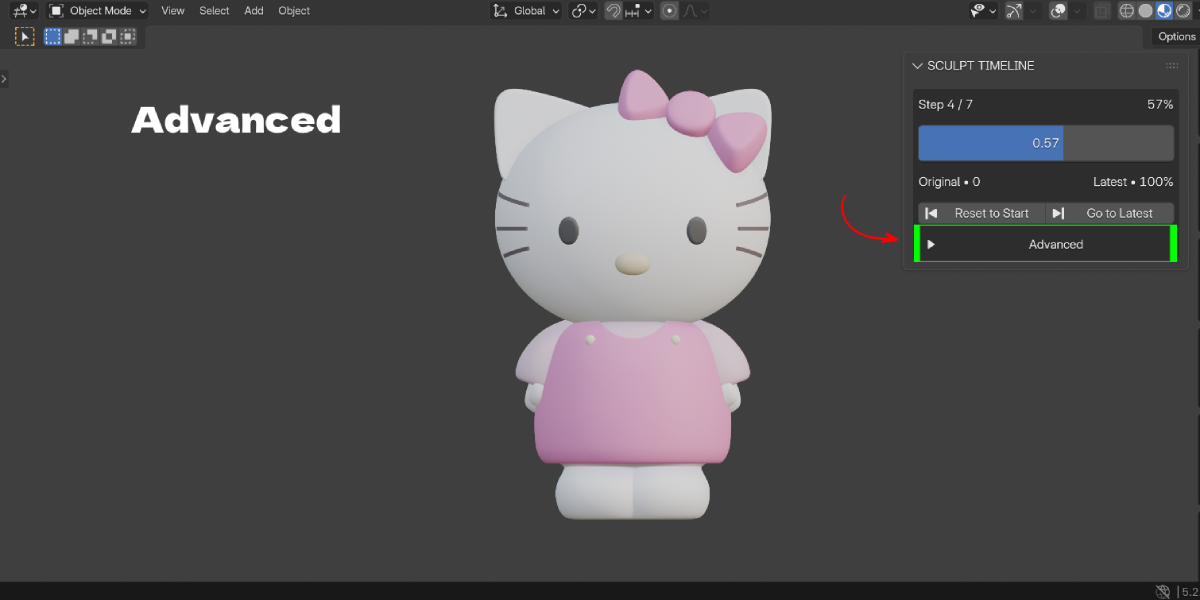
Advanced (click to expand):
- Checkpoint Every: makes a full checkpoint after this many steps. Range 2 to 200, default 20. Lower values restore faster but use more space.
- Memory Mode: Efficient stores sparse changes for fast capture. High Accuracy uses denser checkpoints when needed.
- Stored history steps: how many steps this mesh has.
- Info lines tell you when Dyntopo full checkpoints are used or Multires displacement is preserved.
- Clear History: removes this mesh's history. Choose Keep Current Result or Restore Start State.
Continuing from an earlier step
After you move the slider, the mesh switches to Object Mode so Blender can rebuild it safely. Enter Sculpt Mode again and sculpt. Recording resumes, and the steps after the one you came from are replaced.
Blender undo and Sculpt History Pro
They are two separate systems. Ctrl+Z still works as usual. If Blender undo or redo changes the mesh, the next recorded stroke is saved as a safe checkpoint so the history stays correct.
Performance tips
- Use Efficient memory mode for very dense meshes.
- Raise Checkpoint Every for smaller files, lower it for faster jumps.
- Use Clear History with Keep Current Result on finished models to make the .blend file smaller.
- Dyntopo stores full checkpoints, which use more space than normal strokes.
Limits
- History is recorded for mesh objects in Sculpt Mode.
- The slider snaps to whole steps; it does not blend between steps.
- On shape keys, only the active non-Basis shape key is tracked.
Troubleshooting
- History does not start / slider is greyed out: select a mesh and enter Sculpt Mode. Recording starts by itself; there is no Record button.
- I moved the slider and can't sculpt anymore: the mesh is in Object Mode after a restore. Enter Sculpt Mode again.
- A restored state looks wrong: press Go to Latest, then Reset to Start, to check the sequence. With Dyntopo, full checkpoints are used for safety.
- My .blend file got bigger: history is saved in the file. Use Clear History > Keep Current Result when you are done.
- Registration error after updating: disable or remove the older version, restart Blender, then enable Sculpt History Pro.
- History after Ctrl+Z looks different: this is expected. The next stroke is saved as a safety checkpoint.
Have questions about this product?
Login to message
| Blender Extension Compatible | Yes |
| Published | about 1 hour ago |
| Blender Version | 4.2 - 5.2 |
| Extension Type | Add-on |
| License | GPL |

Discover more products like this
sculpt undo dyntopo Workflow Sculpt history Multires undo history sculpting sculpt history timeline undo sculpt timeline