 za studio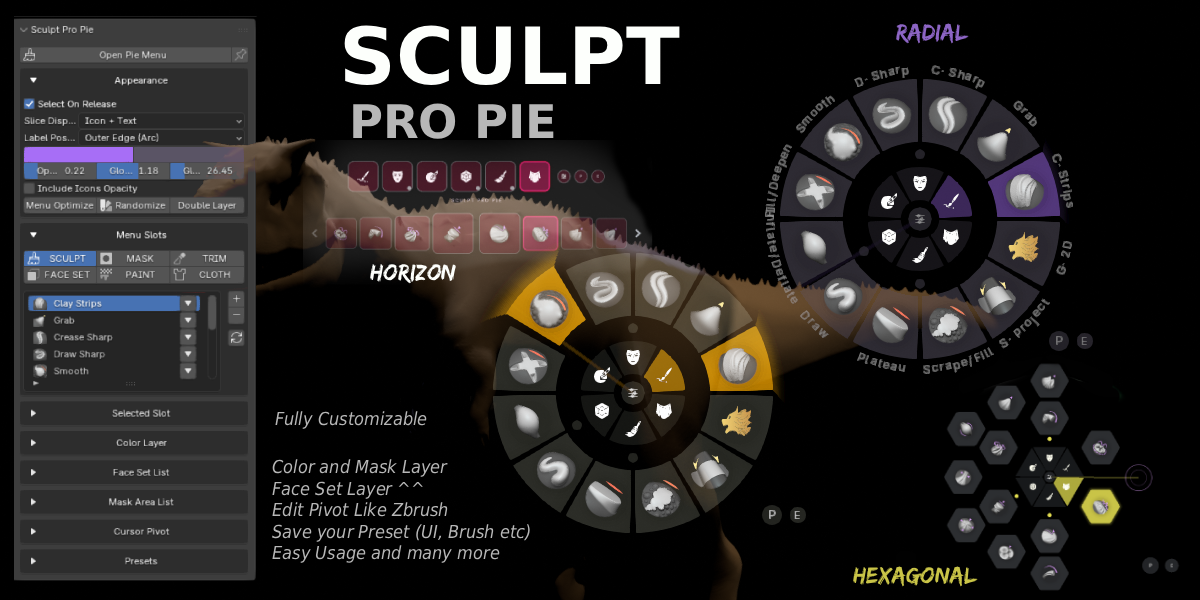


# Sculpt Pro Pie
Fast GPU pie menus and sculpt pivot helpers for Blender sculptors.
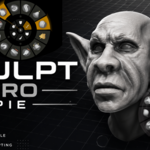
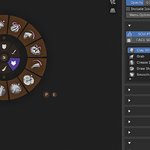
Sculpt Pro Pie is a viewport-focused Blender add-on for artists who want quick access to sculpt brushes, sculpt tools, paint colors, mask tools, face set tools, and pivot controls without leaving the 3D Viewport.
## Compatibility
- Blender 4.x through Blender 5.2
- Designed for Sculpt Mode workflows
- Requires an active mesh object for sculpt-specific tools
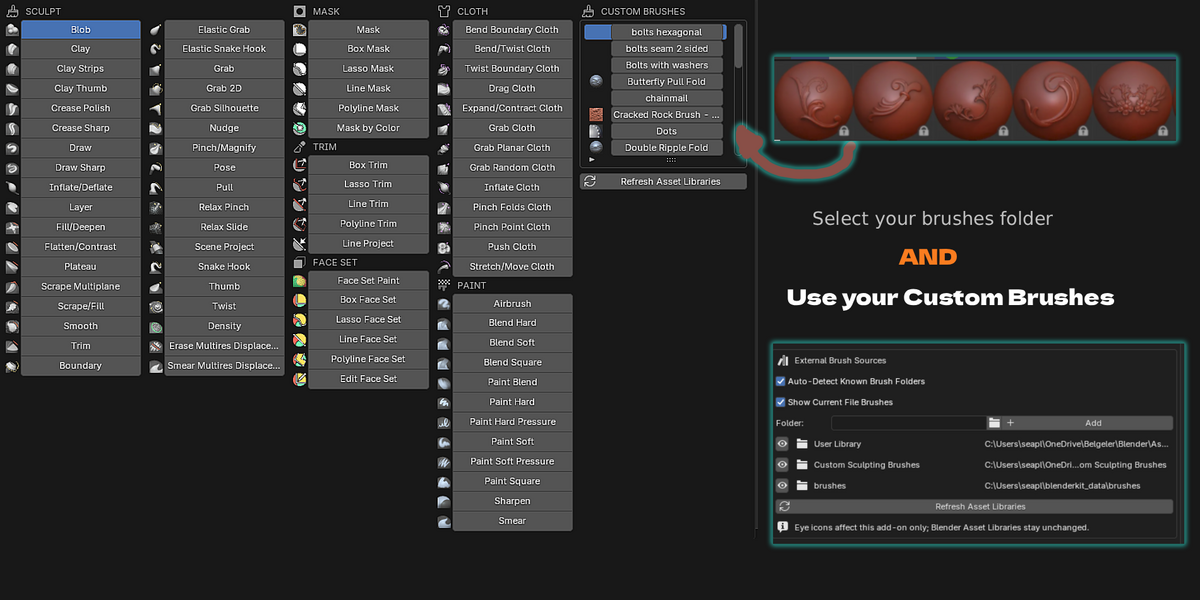
- Uses the included `icons` folder for brush and tool icons
## Main Features
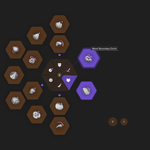
- GPU-drawn sculpt pie menu
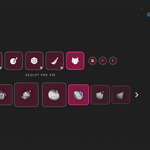
- Custom sculpt brush and tool slots
- Sculpt, Mask, Trim, Face Set, Paint, and Cloth categories
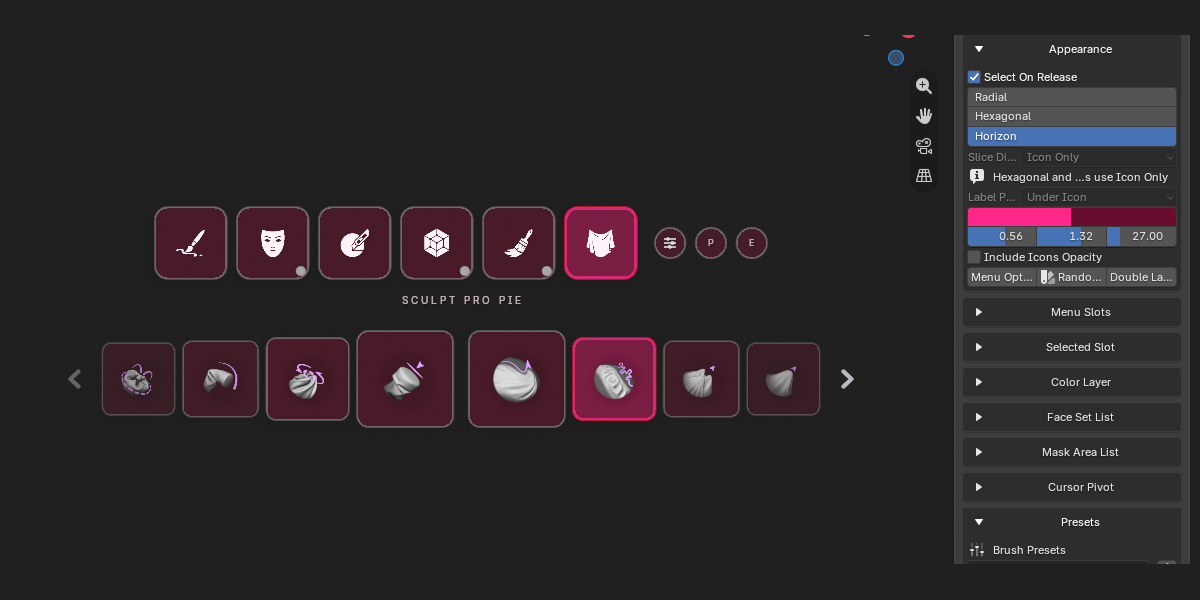
- Icon-only, text-only, and icon plus text display modes
- Custom PNG icons per slot
- Brush icon generation and fast icon loading
- Adjustable icon size and custom slot labels
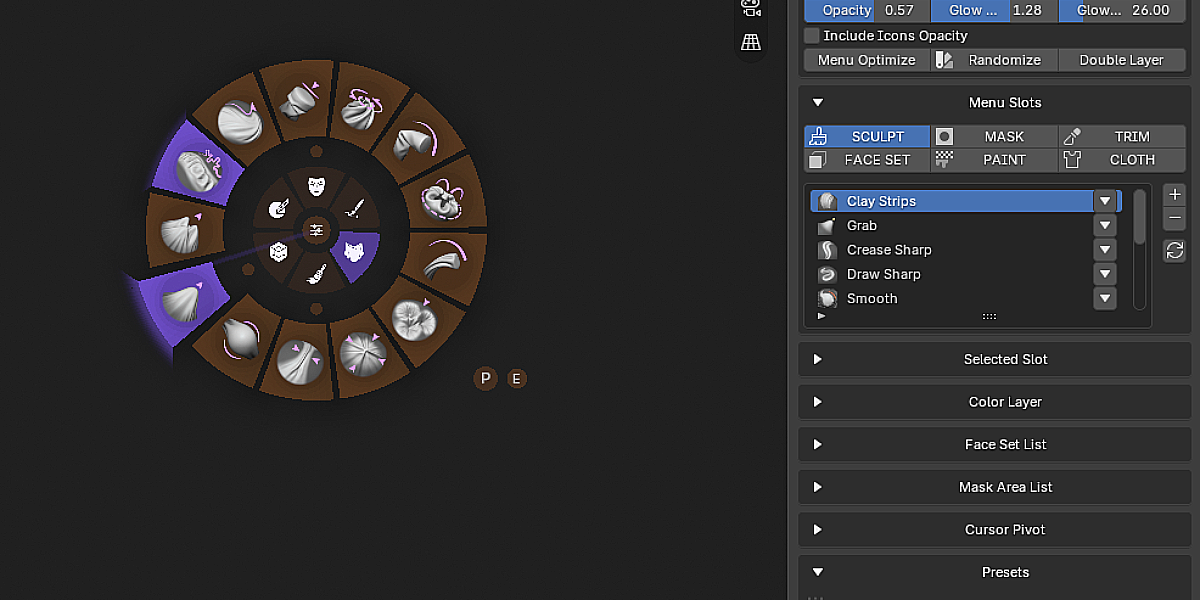
- Double-layer radial menu support
- Sculpt preset save, apply, import, and export
- Menu color, opacity, glow, shadow, and font controls
- Menu Optimize mode for faster viewport drawing
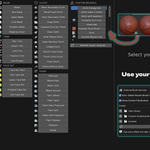
- Sculpt paint color palette with favorite colors
- Paint color layers with reorderable opacity controls
- Mask Area and Face Set popup lists
- Sculpt pivot helper controls
- Configurable shortcut support
## Installation
1. Open Blender 4.x through Blender 5.2.
2. Go to `Edit > Preferences`.
3. Open the `Add-ons` or `Extensions` section.
4. Use `Install from Disk...`.
5. Select `Sculpt Pro Pie v1.0.zip`.
6. Enable `Sculpt Pro Pie`.
7. If icons are not ready, click `Create Icons` in the add-on preferences.
## Basic Usage
1. Select a mesh object.
2. Switch to Sculpt Mode.
3. Open the 3D Viewport sidebar with `N`.
4. Go to the `Sculpt Pro Pie` tab.
5. Use the assigned sculpt shortcut (default is 1 (number))
6. Move the cursor toward a slice and release/select the desired brush or tool.
The Sculpt Pie shortcut can be changed in the add-on preferences.
## Sidebar Panel
The panel is located at:
`View3D > Sidebar > Sculpt Pro Pie`
The panel includes:
- `Open Pie Menu`: Opens the sculpt pie menu (It is used to adjust properties such as colors and opacity.)
- `Appearance`: Controls display mode, colors, opacity, glow, Menu Optimize, and double-layer mode.
- `Menu Slots`: Manages the active category's brush and tool slots.
- `Selected Slot`: Edits the selected slot's brush, icon, label, icon size, and outer-layer state.
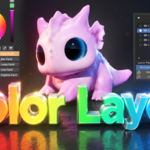
- `Color Layer`: Adds, removes, reorders, and adjusts opacity for Paint color layers.
- `Face Set List`: Manages saved Face Set entries.
- `Mask Area List`: Manages saved Mask entries.
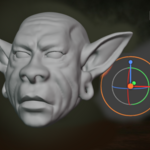
- `Pivot Gizmo`: Provides sculpt pivot helper controls.
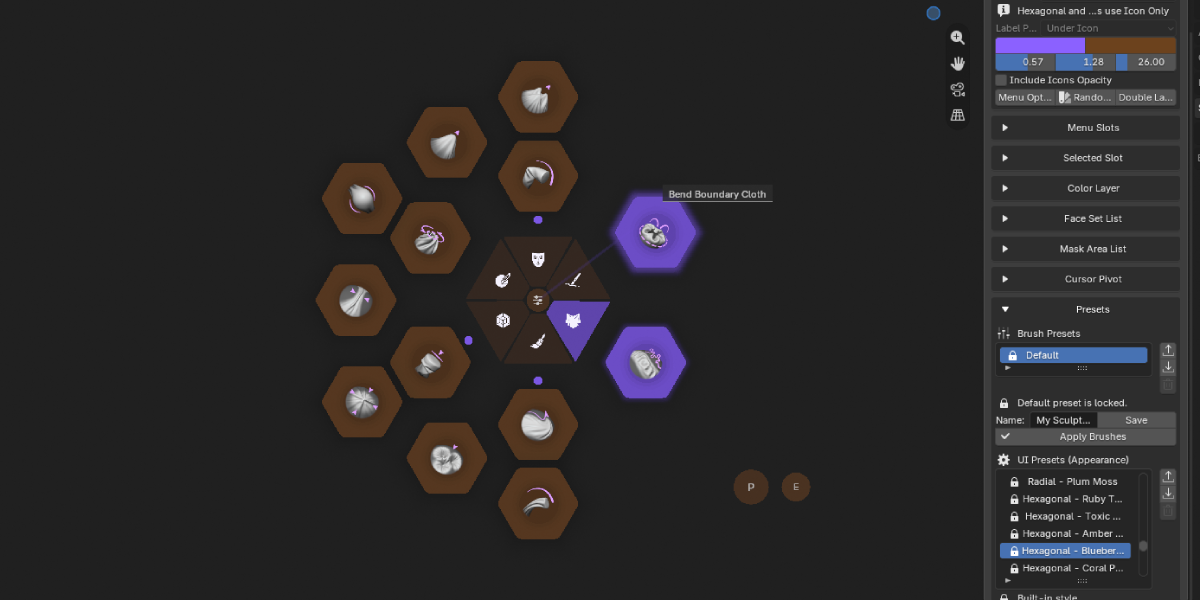
- `Presets`: Saves and loads sculpt slot layouts.
## Color Layers
The Paint tab includes a `Color Layer` section for painting into separate mesh color attributes.
Color layer controls include:
- `+`: Add a new color layer and make it the active paint target.
- `-`: Remove the selected color layer and its mesh color attribute.
- Up and Down arrows: Reorder the selected layer.
- `Opacity`: Control the visual opacity of that layer in the material preview.
- `Merge Down`: Bake the selected layer into the layer below it.
- `Merge All`: Bake the visible layer stack into a single color layer.
- `Base Color`: Set the material color underneath the color layer stack.
The selected color layer becomes Blender's active color attribute, so sculpt paint strokes are written to that layer.
## Sculpt Pivot Helper
The pivot helper is designed to work with Blender's native sculpt pivot and transform behavior.
Available controls include:
- `Edit Pivot`: Creates a draggable pivot helper.
- `Surface Snap`: Places the pivot on the sculpt surface when enabled.
- `World` and `Local`: Choose the pivot transform orientation.
- `G`, `R`, and `S`: Move, rotate, and scale from the active sculpt pivot.
- The white outer pivot ring can be dragged for free rotate in free-space pivot mode.
- `Apply` and `Cancel`: Confirm or discard pivot edits.
When Surface Snap is enabled, the pivot can be placed and moved on the sculpt surface.
When Surface Snap is disabled, the pivot can be moved in free space. The transform workflow uses Blender's native transform gizmo and keyboard shortcuts so the pivot can be moved, then used for rotate or scale from that position.
Blender's own Sculpt Mirror X/Y/Z buttons are used for mirror behavior. Sculpt Pro Pie does not add a separate mirror override in the UI.
## Menu Optimize Mode
Menu Optimize reduces heavier visual effects for faster drawing in dense scenes or on slower systems.
It simplifies or disables:
- Glow drawing
- Menu shadows
- Text shadows
- Icon shadows
- Pointer line glow
- UI background drawing
- Circle icon clipping
- Tooltips
- Hover pop animation
- Extra opacity blending
When Menu Optimize is enabled, `Show UI Background` and `Circle Clip Icons` are turned off automatically.
## Brush Icons
Sculpt Pro Pie uses the included `icons` folder for brush and tool icons.
For icons to appear correctly:
- Keep the `icons` folder next to `__init__.py`.
- Keep `icons_index.json` inside the `icons` folder.
- Run `Create Icons` from the add-on preferences if Blender reports missing icons.
- Restart Blender if cached icon images appear outdated.
## Presets
Sculpt presets store the slot layout for the sculpt pie menu. They do not overwrite global UI appearance preferences or shortcuts.
Preset tools include:
- Save
- Apply
- Export
- Import
- Delete
## Troubleshooting
If the pie menu does not show icons, make sure the `icons` folder is included and run `Create Icons`.
If the shortcut does not work, open the add-on preferences, clear and reassign the Sculpt shortcut, and make sure Blender is in Sculpt Mode with an active mesh object.
If the menu feels slow, enable `Menu Optimize`, disable UI background images, disable circle icon clipping, lower icon sizes, or enable fast icon loading.
If the sculpt pivot helper is active but transform does not start, place the pivot first, then toggle the pivot transform mode and use Blender's native transform gizmo or `G`, `R`, `S`.
## License
GNU GPL v2.0 or later. See `LICENSE`.
Discover more products like this
Blender Add-on blender character sculpting Viewport UI artist workflow digital sculpting pie menu radial-menu custom brushes sculpt brushes sculpting Brush Menu