 za studio



BLENDER ADD-ON · SCULPTING WORKFLOW
Sculpt Pro Pie
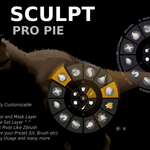
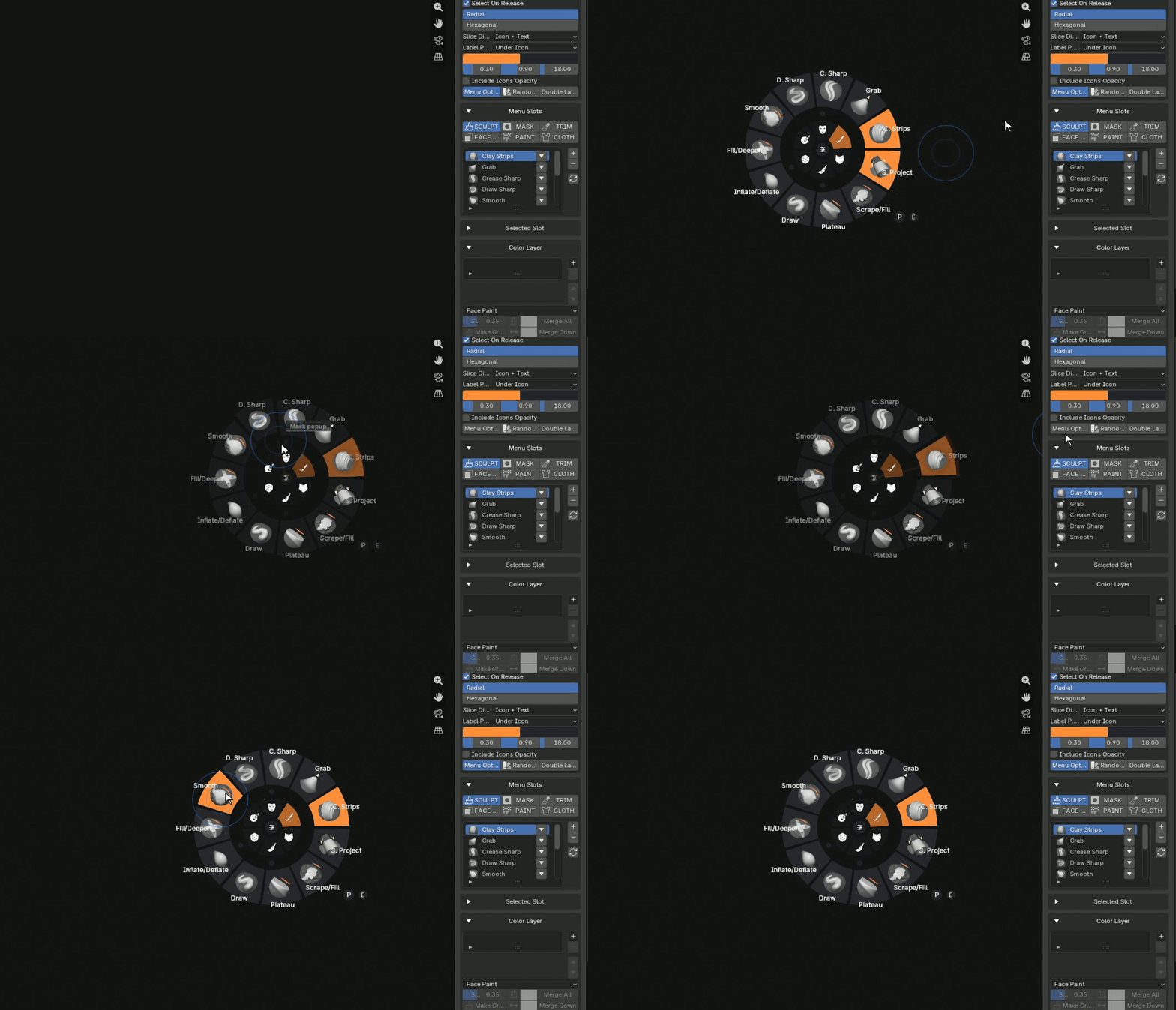
A fast, customizable GPU pie menu system for Blender sculptors, painters and artists who want their most-used tools directly under the cursor. Use short key "1" for open radial Menu
GPU-Drawn Pie Menu Brushes · Masks · Face Sets Fully Customizable
STAY IN THE VIEWPORT
Less interface hunting. More sculpting flow.
Open a clean radial menu in the 3D View and access your favorite brushes, sculpt tools, masks, face sets, paint tools, cloth tools, trims and custom shortcuts from one place.
A sculpting control hub under your cursor.
| FAST ACCESS Your favorite tools, one gesture away. Build sculpt brush slots, organize categories and switch tools without travelling across Blender panels. | YOUR INTERFACE Make the menu feel like your own. Customize colors, opacity, glow, shadows, icons, text, layouts, categories and brush presets for your workflow. |
SCULPT BRUSH SLOTS
Build a menu around the tools you actually use.
Add, remove, reorder and customize brush slots. Use custom PNG icons or generated brush icons, then choose icon-only, text-only or icon-plus-text display.
|
MENU OPTIMIZE MODE
Prioritize responsiveness when the scene gets heavy.
Menu Optimize mode reduces expensive visual effects such as glow, shadows, background images, icon clipping, pointer glow, tooltips and hover animation while preserving the core pie menu workflow.
|
NEW MENU STYLE
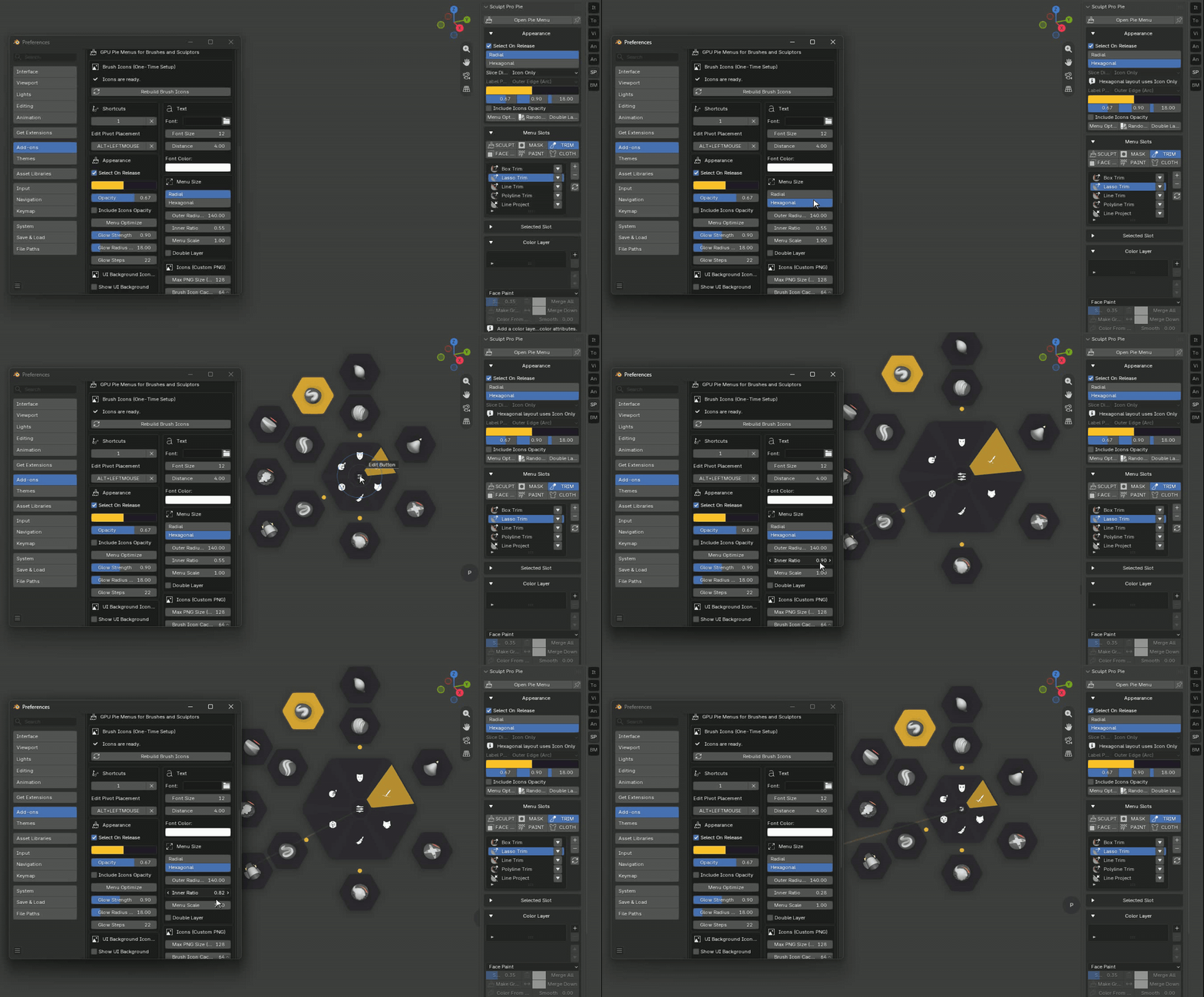
Meet the Hexagon style.
Switch from the classic radial look to a clean hexagon-based menu. Your existing colors, icons, categories and display settings carry over, so you can create a completely new visual language without rebuilding your setup.
 HEXAGON LAYOUT
A bold alternative to the classic pie.
|
 SAME CONTROLS, NEW LOOK
Keep your settings and personalize every detail.
|
FULL UI CUSTOMIZATION
Change colors, glow, opacity and more.
Fine-tune active and inactive colors, menu opacity, glow, menu shadows, text shadows, fonts, icon size and background visuals. Create a practical interface or a dramatic personal theme.
|  |
 |
CATEGORIES THAT MATCH YOUR WORKFLOW
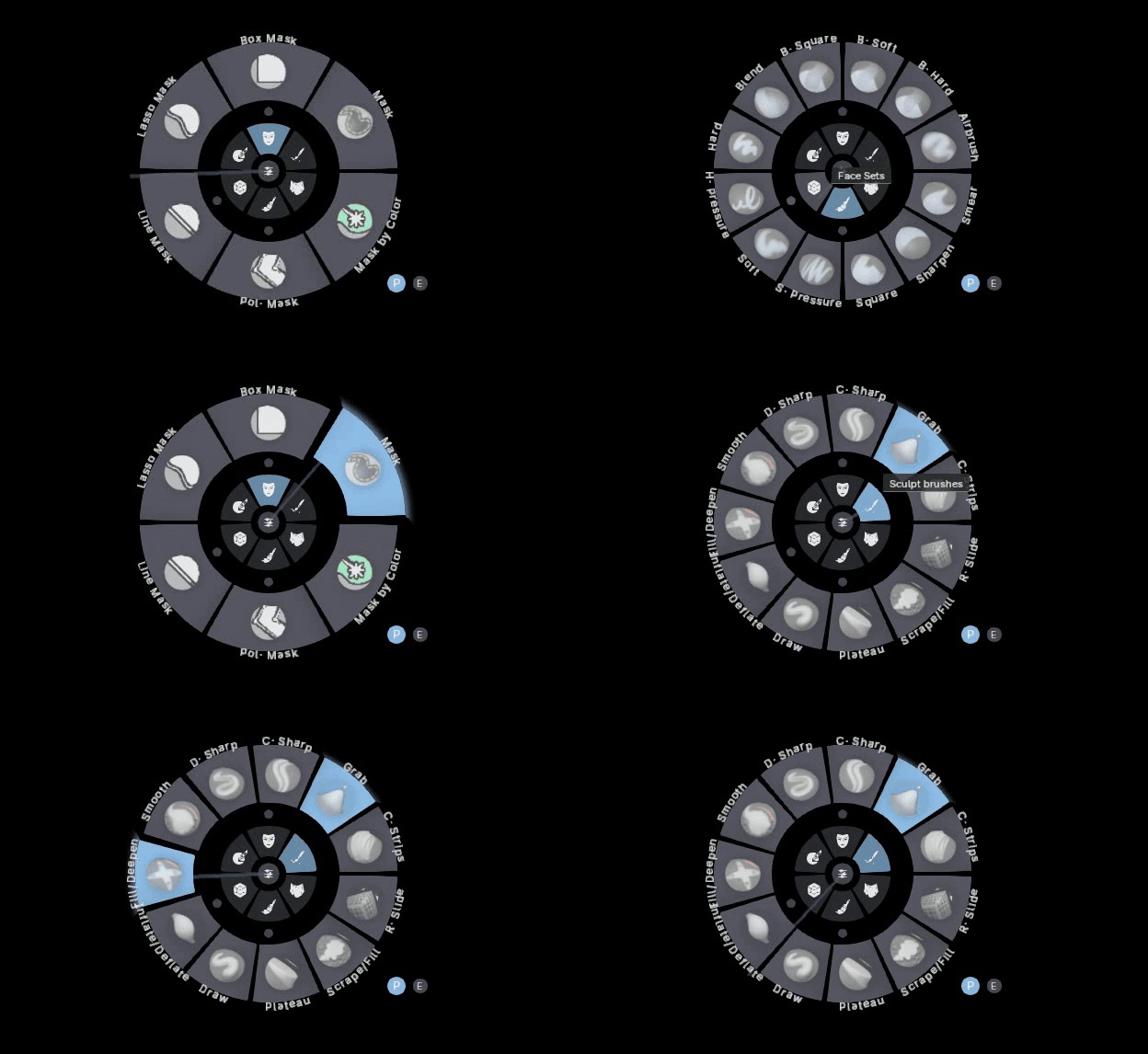
Six inner categories. Unlimited outer menu slots.
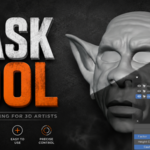
Organize tools into Sculpt, Mask, Trim, Face Set, Paint and Cloth categories. Keep related actions grouped and easy to find while you work.
|
SIZE AND STYLE CONTROL
Make the radial menu comfortable to use.
Enlarge or reduce text, icon display and menu size to fit your monitor, tablet, pen display and working preference.
|  |
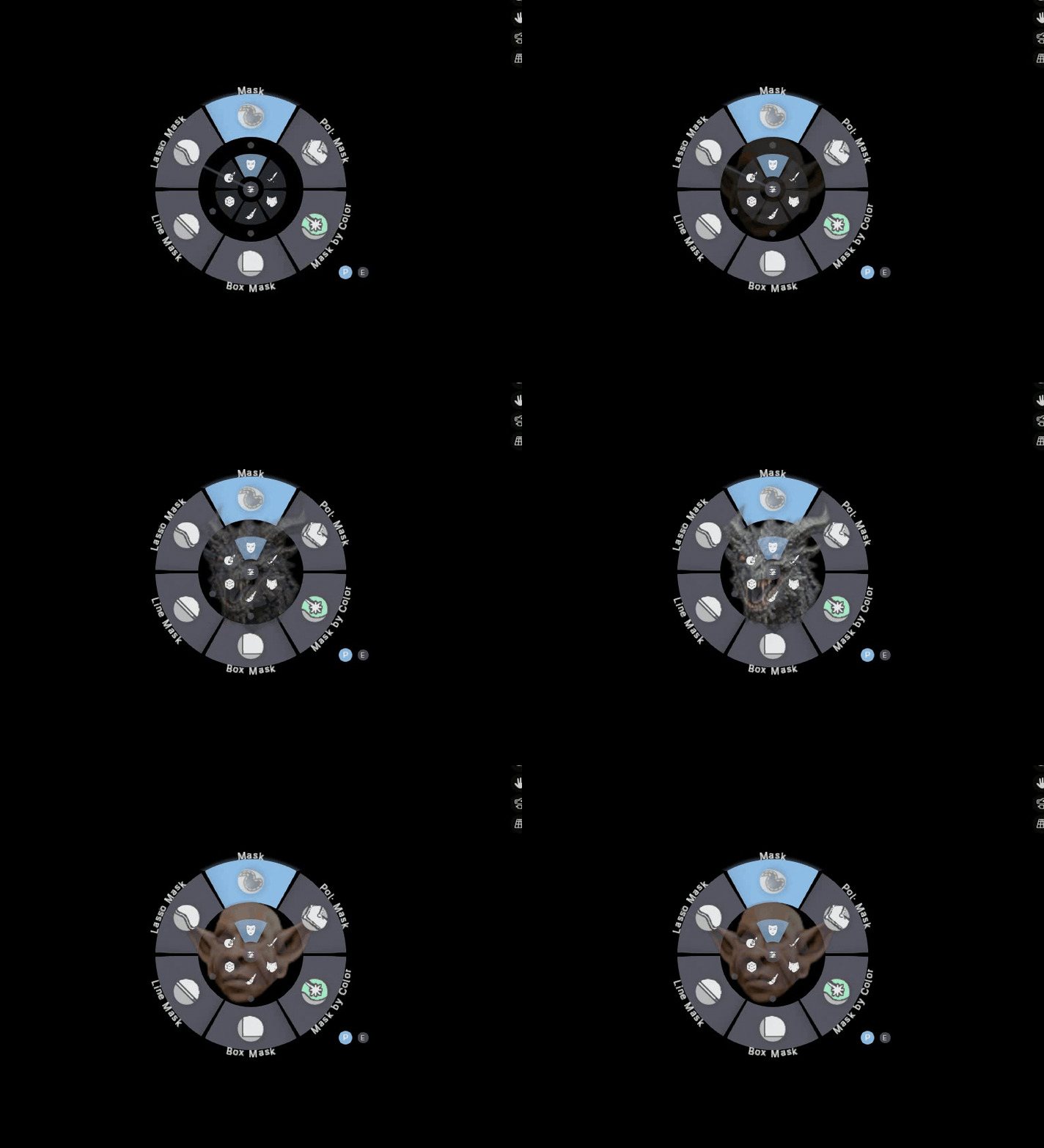 |
MAKE IT PERSONAL
Use your own PNG images in the radial menu.
Upload your own PNG images for a distinctive sculpting interface. Pair custom graphics with your brush slots, themes and background image for a complete visual setup.
|
|
FACE SET LAYERS
Manage face sets like a focused layer list.
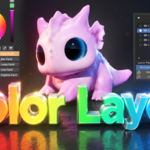
Display face sets as a layer list, repaint any layer, isolate areas with hide, show or solo controls, and import a previous model's face set list with one click.
|  |
 |
PIVOT HELPERS
Move the gizmo where the sculpt needs it.
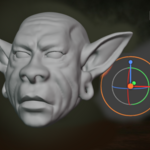
Position a sculpt pivot away from the object, then use it with G, R and S. This gives you a flexible gizmo-pivot workflow similar to Nomad or ZBrush while retaining mirror support.
|
|
PAINT AND FACE SET TOOLS
Fast paint workflows, even on dense meshes.
Use Blender's native Face Paint alongside additional Box, Lasso, Line and Polyline painting methods. Create face painting and face set selections with fewer steps.
|  |
BUILT FOR REAL SCULPTING SESSIONS
Why artists use Sculpt Pro Pie.
| Keep your hand and attention in the viewport. | Switch brushes and tools faster. | Create dedicated layouts for each task. |
WATCH THE FULL WORKFLOW
See Sculpt Pro Pie in action.
Spend less time searching through panels.
Keep sculpting.
Keep sculpting.
Sculpt Pro Pie · Created by ZA Studio