 MichaelB
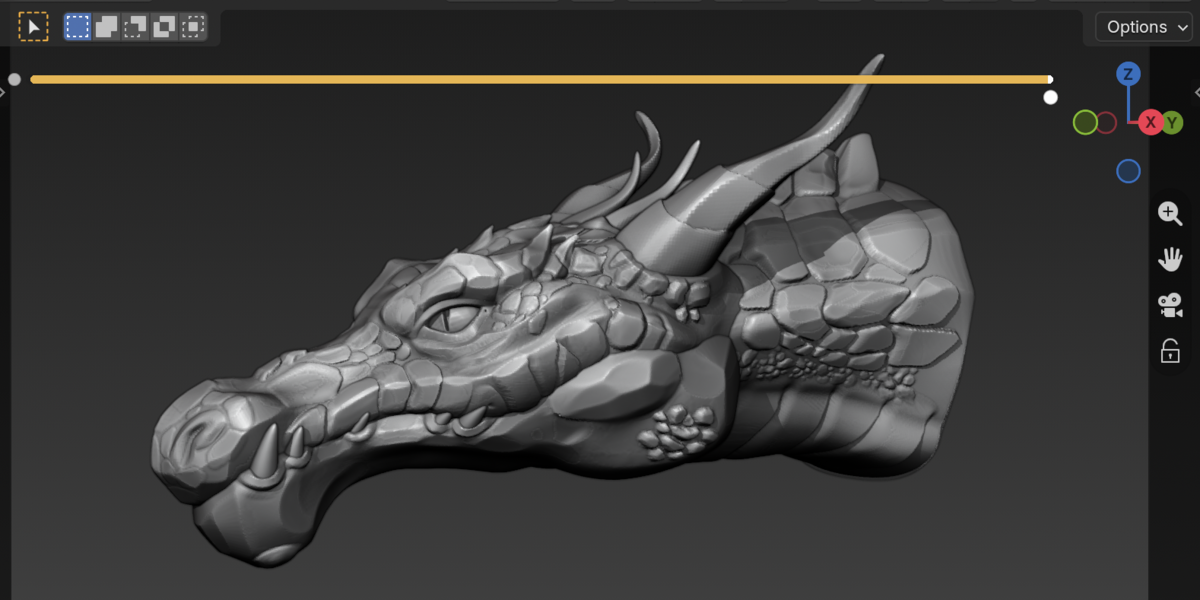
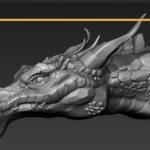
SCULPT REWIND
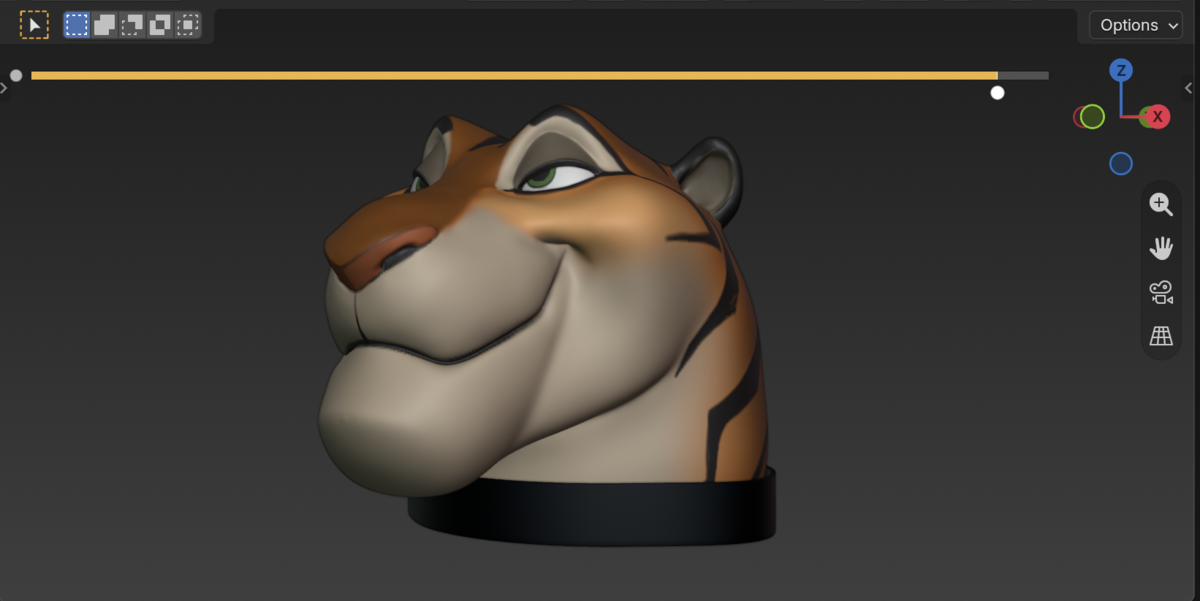
Undo History for sculpting, masks, Face Sets and colors. You can scrub back and forth
through every change on a mesh, like a timeline.
Requires Blender 4.2 or newer.
INSTALL
1. Edit > Preferences > Get Extensions > Install from Disk.
2. Pick the Sculpt Rewind .zip file.
GETTING STARTED
1. Select a mesh and enter Sculpt Mode.
2. Sculpt as usual. Each stroke is recorded as one step.
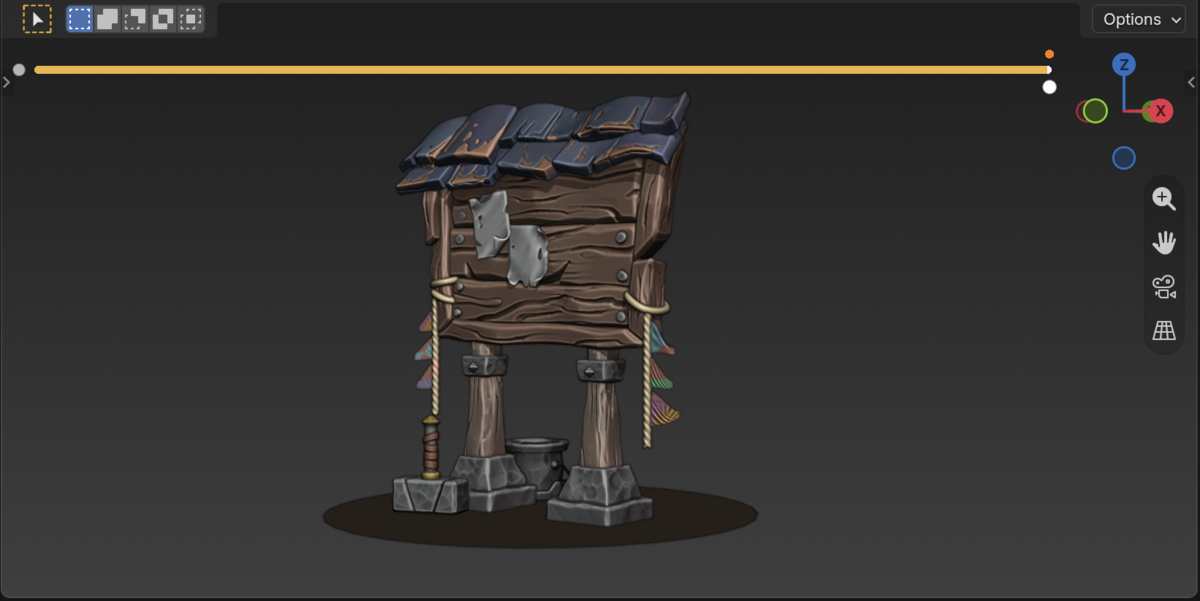
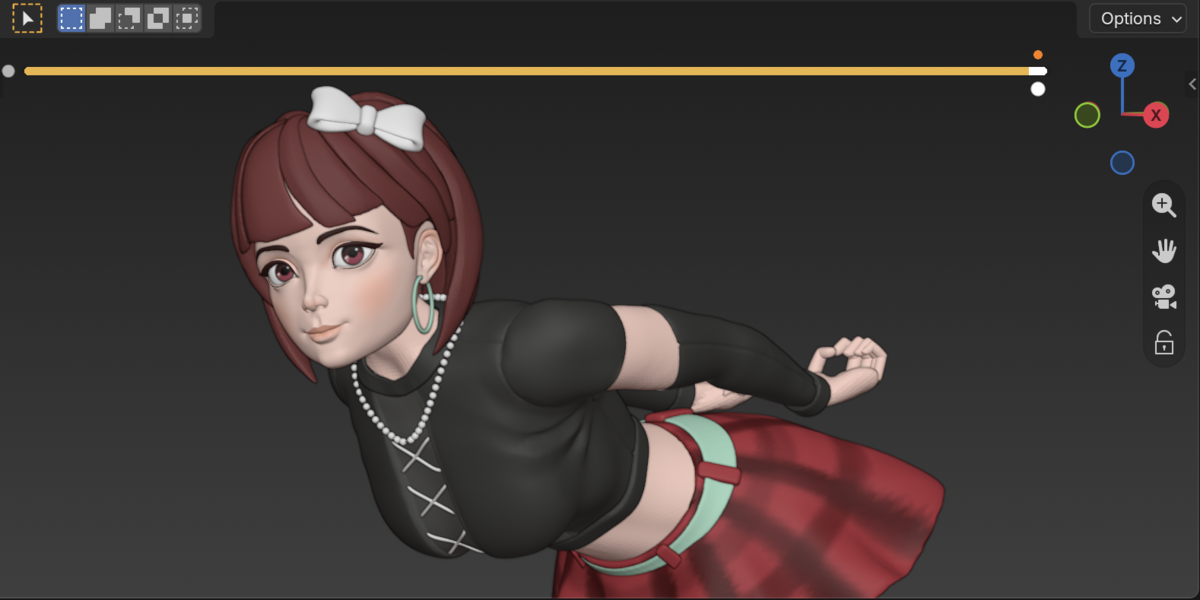
3. The Undo History scrubber appears at the bottom of the 3D View.
Drag along it to move through your history.
SHORTCUTS
Step back: Ctrl+Z (Cmd+Z on Mac)
Step forward: Ctrl+Shift+Z (Cmd+Shift+Z on Mac)
If you step back and then sculpt, you start a new branch. Blender asks you to confirm
before it drops the future steps.
HISTORY MENU (the dot next to the scrubber)
- Use Global / Active Object Undo History: switch between one object's history and
a single timeline for all objects.
- Preserve Modes: keep each object's mode when Global history switches objects.
- Set Morph Target Here: mark the current step as a target.
- Morph History Brush: in Sculpt Mode, paint parts of the mesh back toward the target.
- Delete Past Undo Steps: remove older steps to free memory. Later steps stay.
- Reset Undo History: clear this object's history. The current mesh becomes the
new starting point.
- Turn On Undo History: start recording again on an object where it was turned off.
MOVIE MODE
Play your whole sculpting session back as an animation, for example to render a timelapse.
1. Switch the history menu to "Use Global Undo History". Movie Mode only works with
Global history.
2. Open the sidebar (N) > Undo History > Movie Mode. Turn it on with the checkbox
in the header.
3. Click Quick Auto Key. This keys the first and last steps of your history on
the Timeline.
4. Press Play or scrub the Timeline to watch the session rebuild itself.
You can also keyframe the Step value yourself to set the timing.
Movie Mode only plays history back. It never changes your history.
Turning it off pauses playback, and your keyframes stay.
SIDEBAR
Open it with N > Undo History tab. From there you can:
- Reset history for this object or for all objects
- Use Movie Mode
- Change how the scrubber looks
- Set memory limits
SAVING
History is saved next to your .blend file, so it's still there after you reopen the
file. If Blender closes unexpectedly, Sculpt Rewind offers to recover the
unsaved history the next time you open the file.
LIMITS
- Not available while Dyntopo is on.
- Edit Mode changes are not recorded as separate steps.
Have questions about this product?
Login to message
| Blender Extension Compatible | Yes |
| Published | 3 days ago |
| Blender Version | 4.2 - 5.2 |
| Extension Type | Add-on |
| Render Engine Used | Cycles, Eevee |
| License | GPL |

Discover more products like this
sculpt history sculpt rewind Sculpt vertex paint Sculpt mode sculpting undo history undo zbrush morph brush morph history Sculpt Workflow