Sculptbuddy: Custom Pie Menu & Brush Selector
 Dejan Pejacki



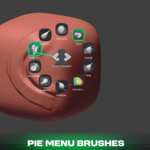
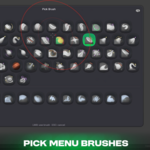
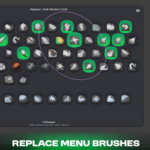
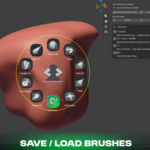
⚙️ Requirements
-
Blender **5.2 LTS** or newer
🛠️Installation
- In Blender: [Edit ▸ Preferences ▸ Add-ons]
- Click the **▾** (top-right) ▸ Install from Disk…
- Select `sculptbuddy-1.0.0.zip`
- Enter Sculpt Mode — the SculptBuddy panel appears in the N-panel under the *SculptBuddy* tab
On first launch SculptBuddy caches a preview image for every sculpt brush in the background. This runs once; afterwards previews load instantly each session. You can also trigger it manually from the addon preferences or the N-panel (*Cache All Brush Previews*).
⌨️Shortcuts
| Keys | Action |
W (hold) |
Open the brush ring — release over a brush to use it |
| W + hover +Q / RMB | Replace the hovered ring slot via the hex selector |
Q |
Pick any brush — the ring stays unchanged |
| Esc | Cancel the open menu |
🪥 Brush presets
Export your current ring layout to a file and import it on another machine or share it, via the N-panel Export / Import buttons.
📝 Notes
Brushes come from your registered **asset libraries** plus Blender's bundled *Essentials*. Save brushes to a library and use *Refresh Cache* to pick them up.
 Included
Includes 12 months of
- Support from Dejan Pejacki
- Product updates
Extend this product’s Support Period +12 months: 25% of product price
Have questions before purchasing?
Login to message
| Blender Extension Compatible | Yes |
| Published | about 2 months ago |
| Blender Version | 5.2 |
| Extension Type | Add-on |
| Render Engine Used | Cycles |
| License | GPL |
Discover more products like this
pie menu modeling productivity Brush Workflow #3dsculpting Add-on radial-menu ui Sculpt asset library Brush Menu