Seamless Mesh Blend
 Mars0hod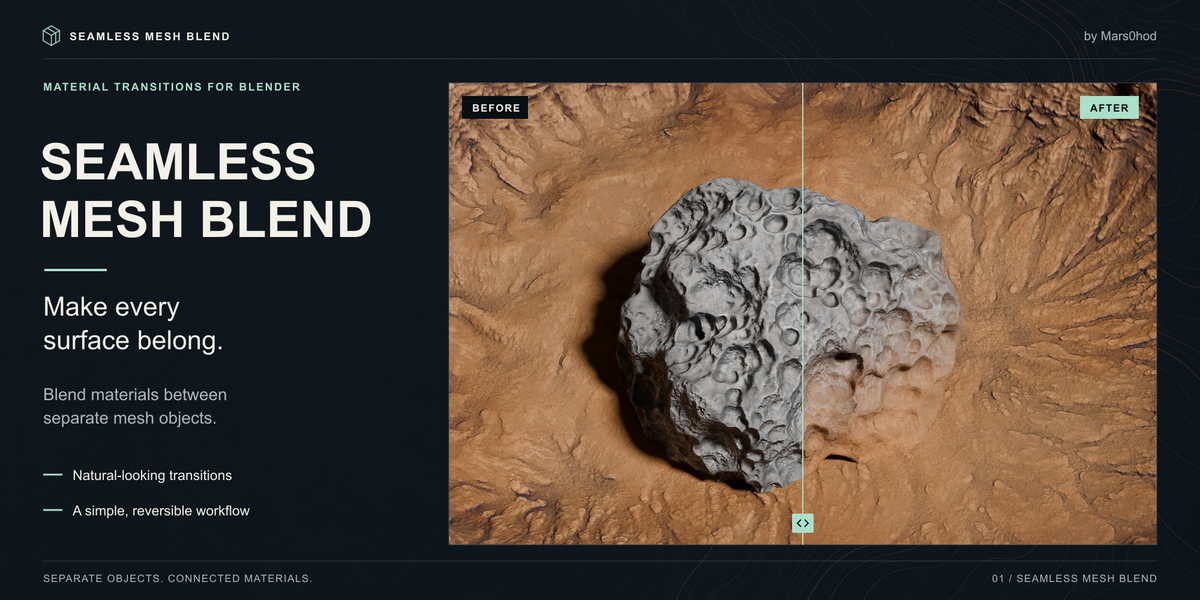
INSTALLATION
Requires Blender 5.0 or later. Tested on Blender 5.2.3 LTS for Windows.
Open Edit → Preferences → Get Extensions.
Open the menu in the top-right corner and choose Install from Disk.
Select seamless_mesh_blend-1.3.5.zip without extracting it.
Enable Seamless Mesh Blend.
In the 3D Viewport, press N and open the Seamless Blend tab.
After updating the add-on, save your work and restart Blender.
CREATE YOUR FIRST BLEND
Select the mesh object that should receive the material.
Hold Shift and select the donor surface last, making it the active object.
Click Create Blend.
Switch to Material Preview or Rendered shading.
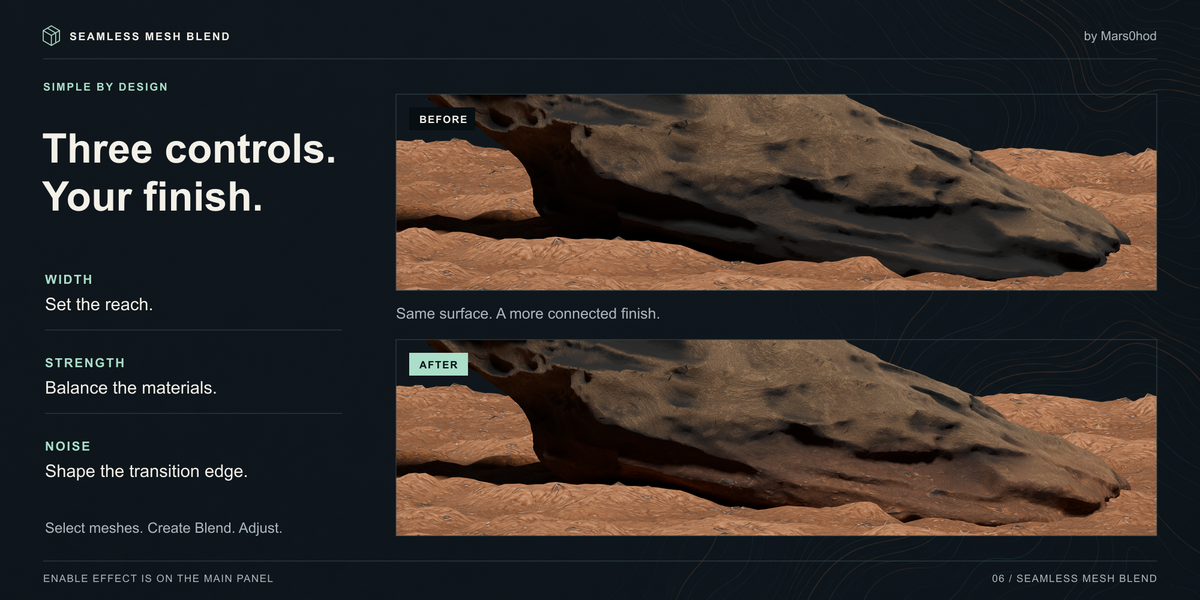
Adjust Width, Strength and Noise.
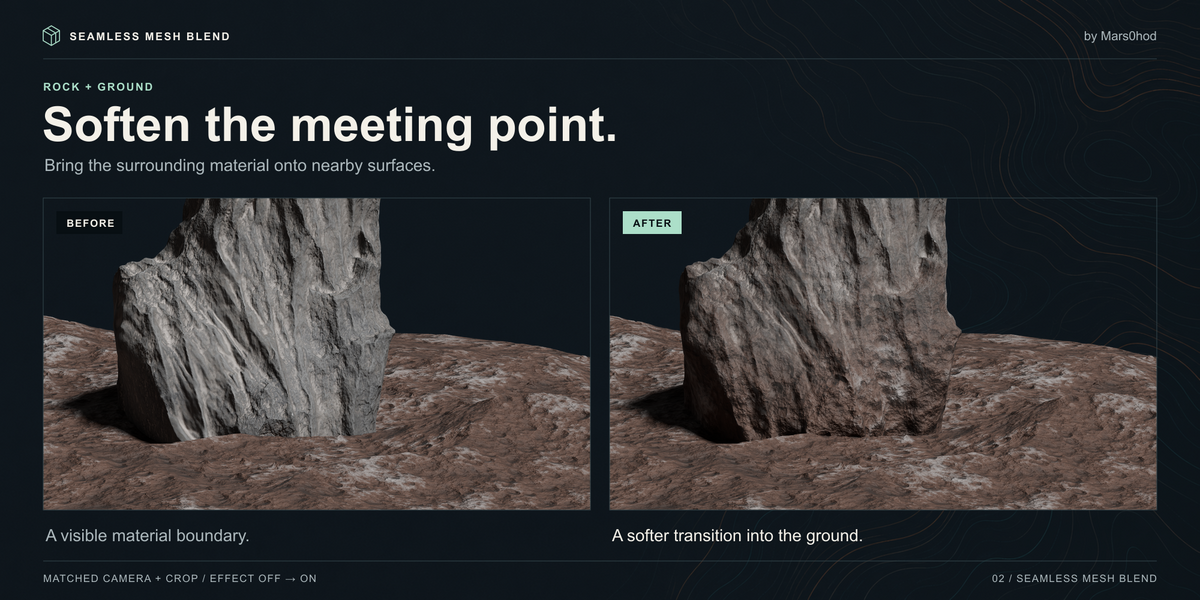
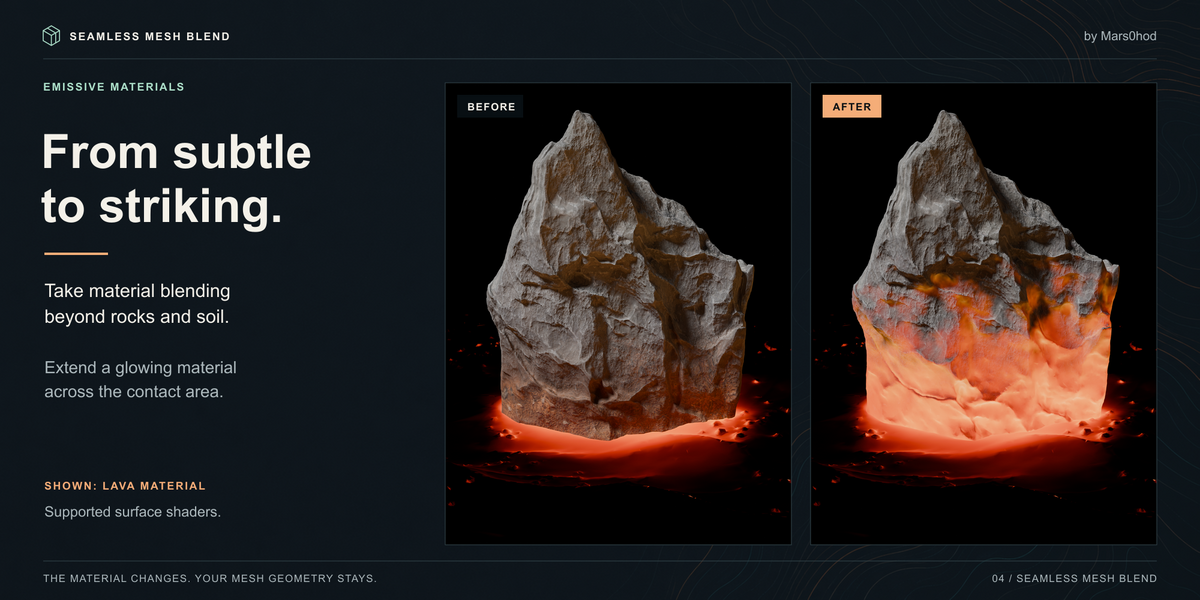
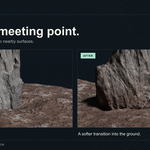
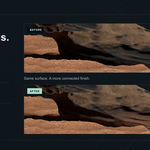
For example, select a rock first and the ground last to blend the ground material onto the rock.
Use individual editable mesh objects. Empty parents and collection instances are not converted automatically.
MAIN CONTROLS
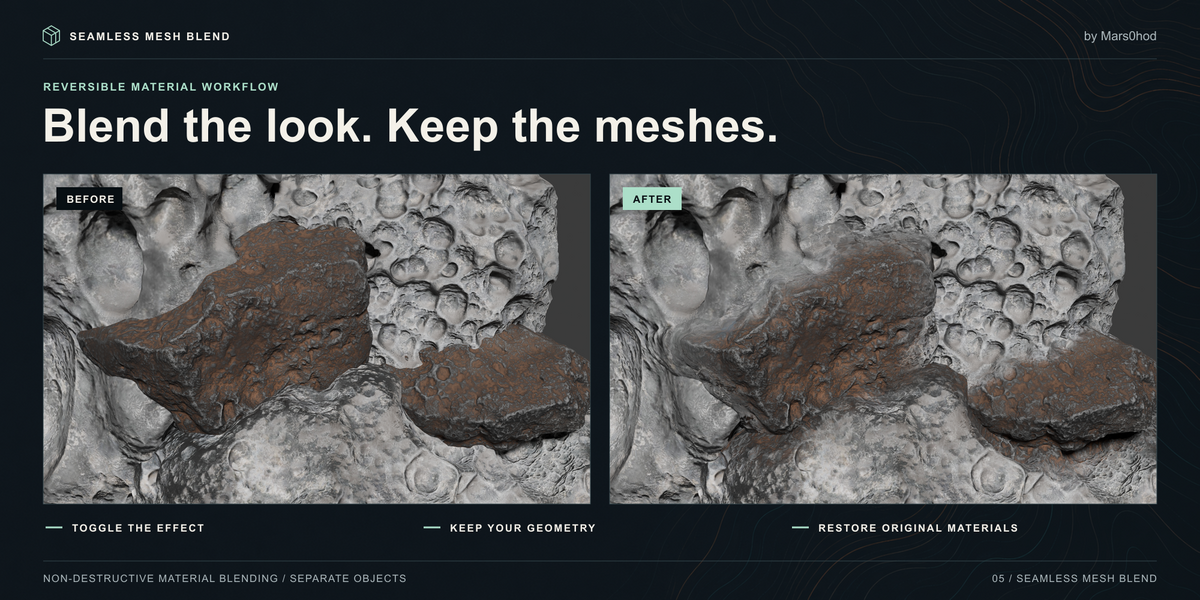
• Enable Effect — turn the selected transition on or off while retaining its settings.
• Width — adjust the reach of the transition.
• Strength — adjust the contribution of the donor material.
• Noise — vary the transition edge.
• Remove Blend — remove the selected transition while preserving other transitions, or restore the original materials when none remain.
MULTIPLE TRANSITIONS
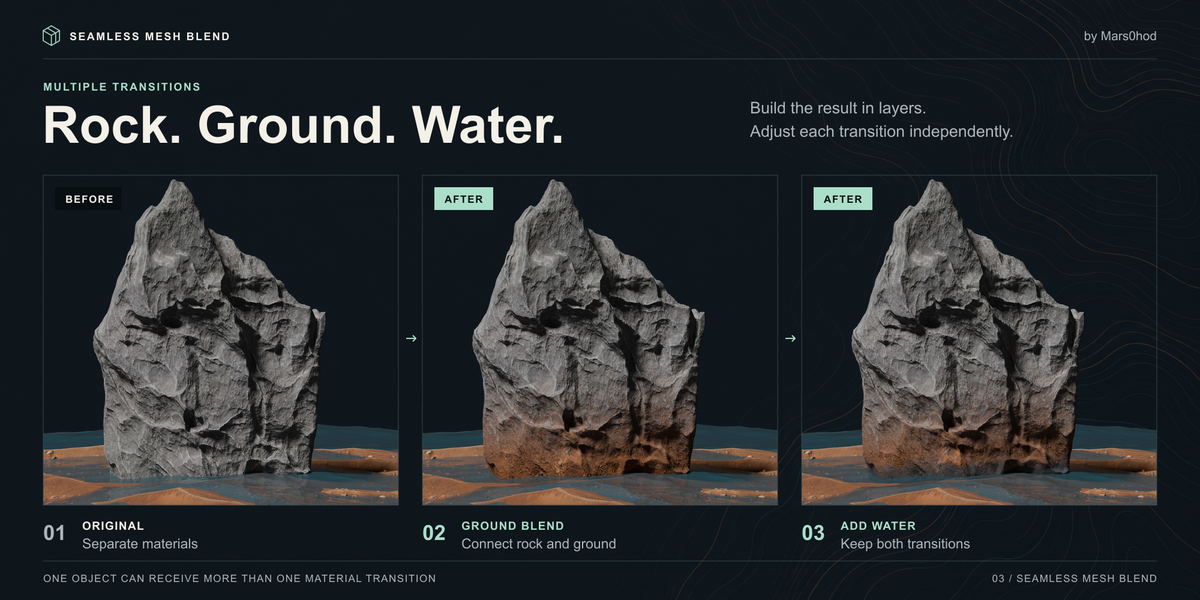
Create each object–surface pair separately. Select a transition in the panel’s list to adjust it.
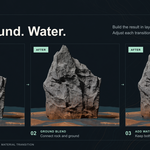
Newer transitions appear above earlier ones where they overlap. For a rock–ground–water setup, create the ground transition first and add water transitions afterward.
Each donor supplies its original material. Its existing blend effects are not transferred recursively.
MATERIAL CHANGES AND ANIMATION
After changing the donor’s shader graph, remove and recreate the affected transition.
Supported animation includes node socket keyframes in a single full-strength Replace Action with Hold extrapolation, and simple frame-driven socket expressions. NLA strips, multiple Action layers, curve modifiers and drivers with external dependencies are not supported.
Freeze Surface freezes sampled geometry and attributes. Supported shader animation continues.
RENDERING AND LIMITATIONS
Cycles is recommended for complex materials and multiple transitions. Eevee supports simpler setups, but complex layered shaders can exceed its attribute limits.
Only the donor’s Surface shader is transferred. Donor Volume and Displacement are not transferred.
Texture projection is designed primarily for repeating materials such as rock and soil. Unique images, lettering and decals may repeat or misalign. Projection on curved surfaces or sparse meshes can still show artifacts.
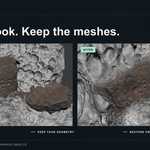
The effect blends material appearance. It does not merge meshes, change silhouettes, fill gaps or simulate fluids.
If material validation reports an unsupported feature, use a supported material setup. Compatibility with every third-party material is not guaranteed.
TROUBLESHOOTING
No visible effect:
Check Enable Effect, use Material Preview or Rendered shading, and make sure the objects are close enough for the selected Width.
Wrong material transferred:
Select the receiving object first and the donor surface last.
Cyclic blend warning:
The new live transition would create a dependency loop. Change the transition direction or use a frozen surface setup through Advanced → New Blend Setup → Live Update.
Pink material or shader errors in Eevee:
Try Cycles or simplify the material and reduce the number of transitions.
PACKAGE CONTENTS
The download contains the add-on. Tutorials, demo scenes, render galleries and third-party assets are not included.
Author: Mars0hod
Have questions about this product?
Login to message
| Blender Extension Compatible | Yes |
| Published | about 3 hours ago |
| Blender Version | 5.0 - 5.2 |
| Extension Type | Add-on |
| Render Engine Used | Cycles, Eevee |
| License | GPL |
Discover more products like this
environment Texture Blending materials material blending non-destructive Cycles terrain shading seamless procedural eevee rocks