SeamTexQ - Generate Seamless Textures From Images in Blender
 Barat Ovidiu
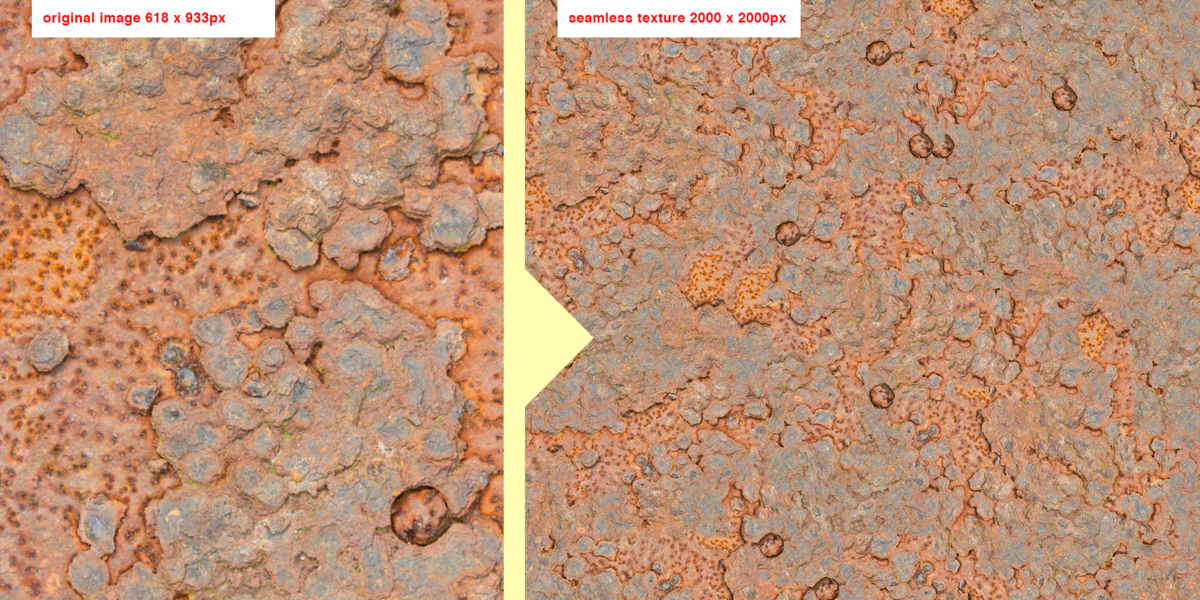
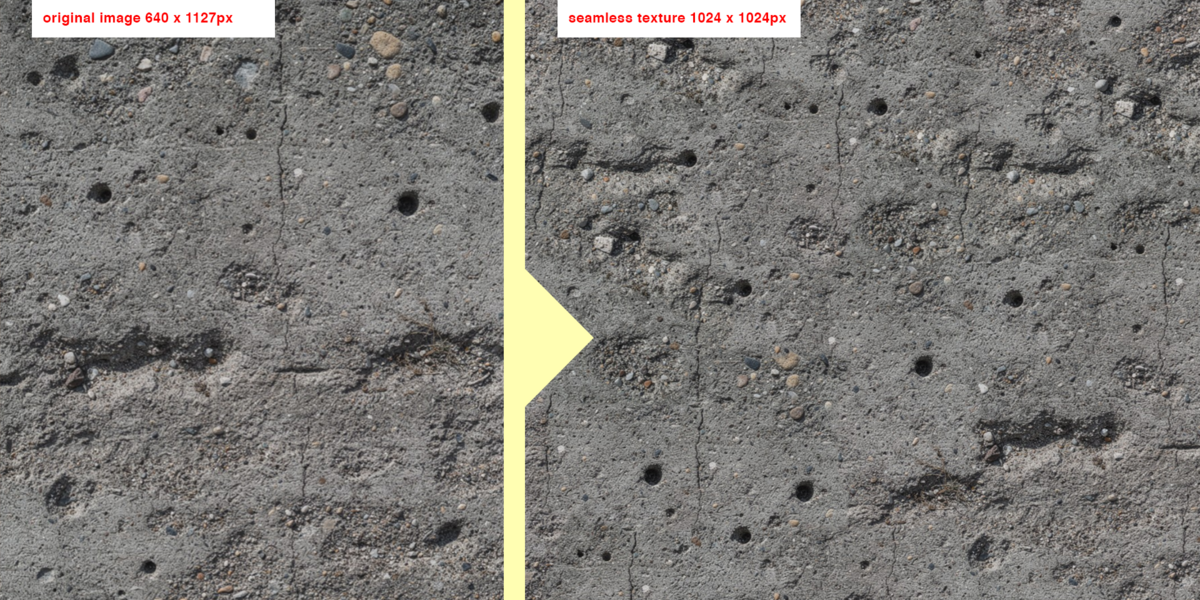
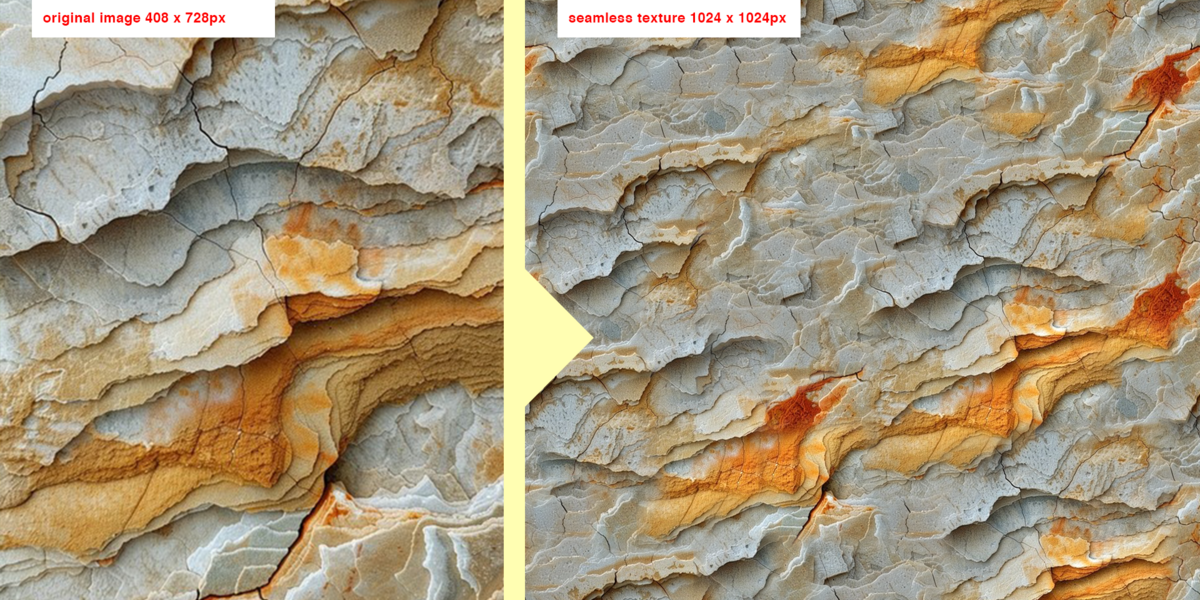
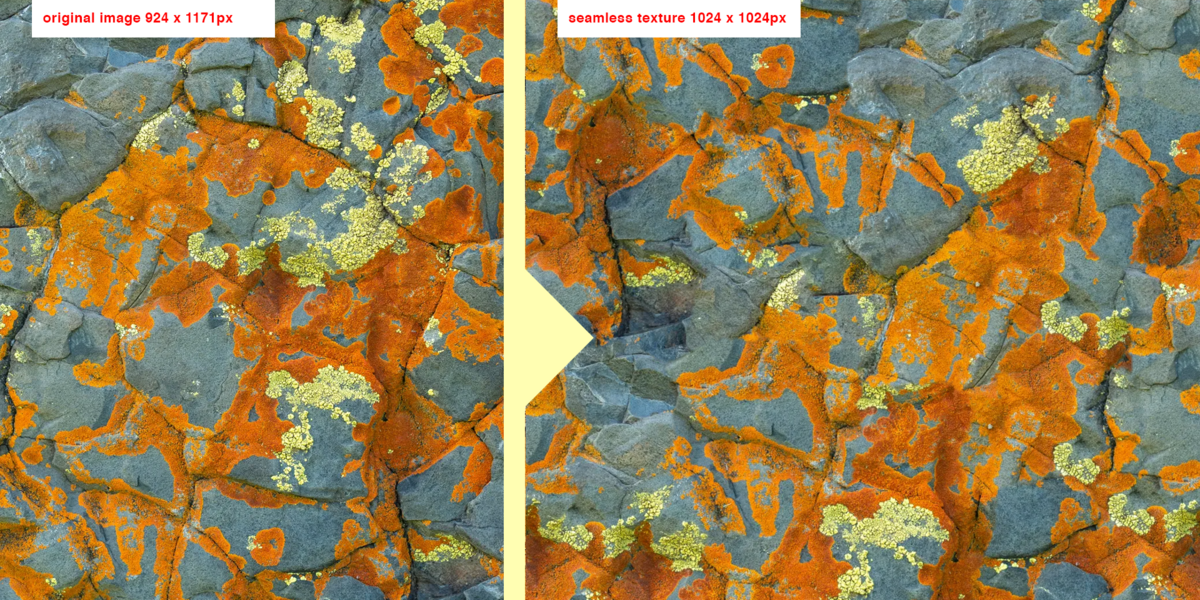
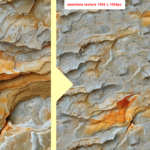
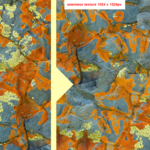
Settings explained:
Source Image: The picture the texture is built from.
Width / Height: The size of the new texture in pixels (default 1024).
Patch Size: How big each "puzzle" piece is based on the source image size.
Overlap: how much neighbouring patches overlap, as a share of the patch. More overlap gives smoother joins but takes longer.
Candidate Patches Pool Size (1–20): how many good matches are kept to choose from for each spot.
Best Match Randomness (0–1): 0 always takes the best match but may create visible repetition. Higher values add variety but make seams more visible.
Repair Pass (0–1): after the first pass, the patches with the worst joins are picked again. Higher means cleaner seams and slower generation.
Repeat Penalty (0–1): discourages reusing the same part of the source, which reduces visible repetition.
Blend Seams: fades the two patches into each other over this many pixels, so the seam is softer.
Seed: the random number behind the patch choices. The same seed gives the same result.
Make Seamless / Tileable: Opposite edges are built to match, so the texture repeats without a visible seam.
Allow Rotation: Allows patches to rotate when matching. This adds more variety to the generated texture but significantly increases generation time.
Allow Mirroring: lets patches be flipped horizontally, vertically or both, to add more variation.
Normalize Light: Evens out the lighting in images with soft shadows or a vignette effect.
Preview Corrected Image lets you see the effect before generating the texture.
Refocus Image : sharpens out-of-focus areas of the source before building.
Preview Refocused Image shows the effect.
Preserve Shapes
Use this for bricks, tiles or paving, where you want the individual shapes preserved as much as possible. The addon finds the stones and joints first, then tries to follow the contour of the shapes.
Turn it on, then use Preview Shape Mask to check what it found. Each tile gets a random colour, and the outline is drawn on top.
This setting isn't perfect, so you may need to experiment with the different modes to get the best results for your image.
Detection: Lets you choose between four different detection modes. Each mode uses a different technique to identify shapes, such as bricks or pavement stones, and separate them into individual patches.
Strength (1–10): how strongly the detected shapes are followed. 1 is a gentle hint, 10 is as far as possible.
Have questions about this product?
Login to message
| Blender Extension Compatible | Yes |
| Published | 2 days ago |
| Blender Version | 5.2 |
| Extension Type | Add-on |
| Render Engine Used | Arnold, Blender-Internal, Blender-Game-Engine, Cycles, Eevee, Freestyle, Luxrender, Mental-Ray, Octane, Vray, Yafaray |
| License | GPL |