Select By Texture
 3D Mage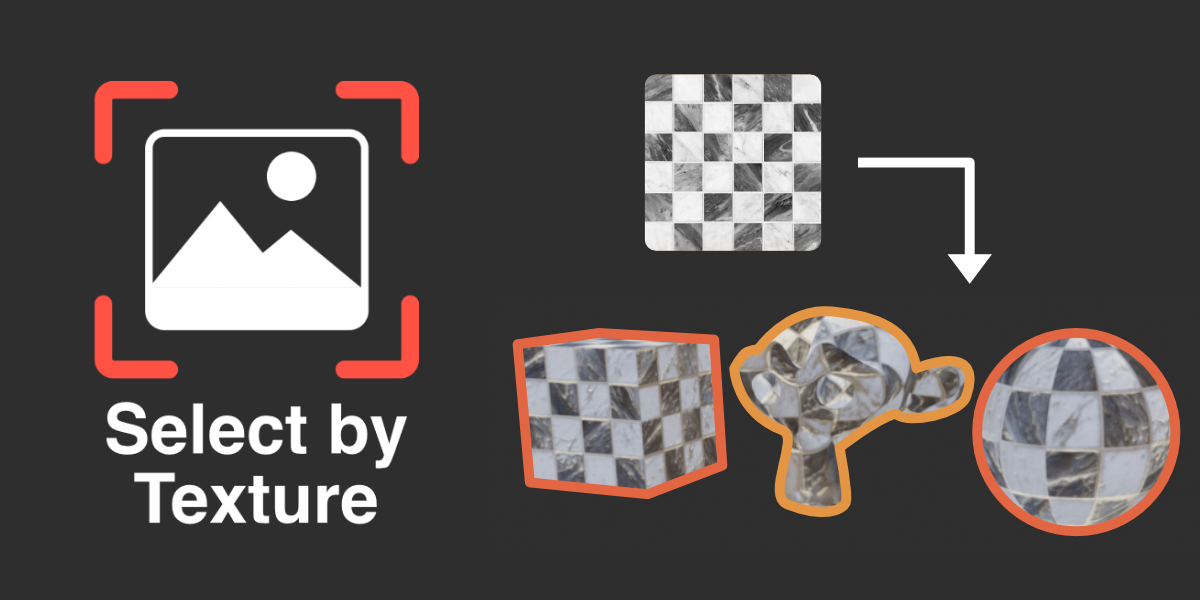


Eyedropper Tool
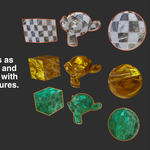
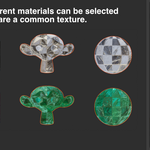
The Eyedropper tool lets you directly select objects in the scene the share the exact same set of textures.
Simply click on the Eyedropper button to activate the tool, then click on an object. A selection will be
made based on the current selection mode activated. Works both in Object and Edit modes.
Selection Modes
There are two selection modes for the Eyedropper tool:
Replace - Clears existing selection before selecting new geometry/objects. The eyedropper will then immediately cancel.
Extend - Adds to the current selection without clearing it. The eyedropper will remain activate after a selection.
Simply click on either the Replace or Extend buttons to switch to the desired selection mode.
You can also toggle between selection modes while the Eyedropper tool is active my pressing the M key.
Canceling the Eyedropper Tool
While the Eyedropper tool is active, there are a few ways to cancel the Eyedropper tool:
- Press the Esc key or Right Click to cancel the eyedropper.
- Clicking on an empty area.
- Clicking on an unselectable object.
If the current selection mode is Replace, upon making a successful selection, the eyedropper tool will cancel.
Texture Selection Filter
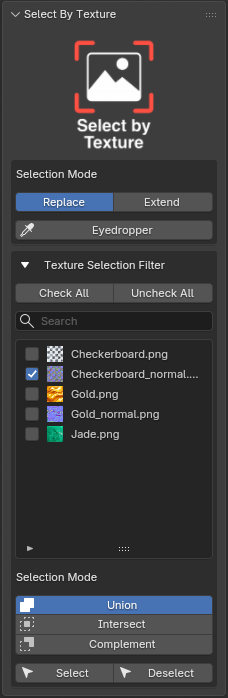
The Texture Selection Filter allows you to specify which textures should be considered for which objects in the scene should be selected.
To select which textures to use for selection criteria, simply click on a texture list entry. This will toggle the checkbox next to the texture.
Entries whose checkbox is ticked will be considered for selection. Simply press the Select or Deselect buttons to initiate a selection based on the ticked items in the texture list. The result of the selection or deselection is dependent on the current selection mode specified
You can also use the Check All and Uncheck All buttons to check and uncheck all items in the texture respectively.
You can search for textures by name using the search bar located beneath the Check All and Uncheck All buttons.
Selection Modes
There are three selection modes for the Texture Selection Filter:
Union- Select geometry/objects that uses ANY of the checked textures.
Intersect - Select geometry/objects that uses exactly ALL of the checked textures.
Simply click on one of the selection mode buttons to switch to the desired selection mode.
$4.99
Have questions about this product?
Login to message
| Blender Extension Compatible | Yes |
| Dev Fund Contributor | |
| Published | 8 months ago |
| Blender Version | 4.5 - 5.2 |
| Extension Type | Add-on |
| Render Engine Used | Cycles |
| License | GPL |
Discover more products like this
select Selection image texture materials image Select by texture