 Alex K
01 / SUPPORTED OPERATIONS
Supported operations
The 12 supported operations are organized into five groups. Shortcuts shown are Blender defaults.
01 / 05 · SUPPORTED OPERATIONS
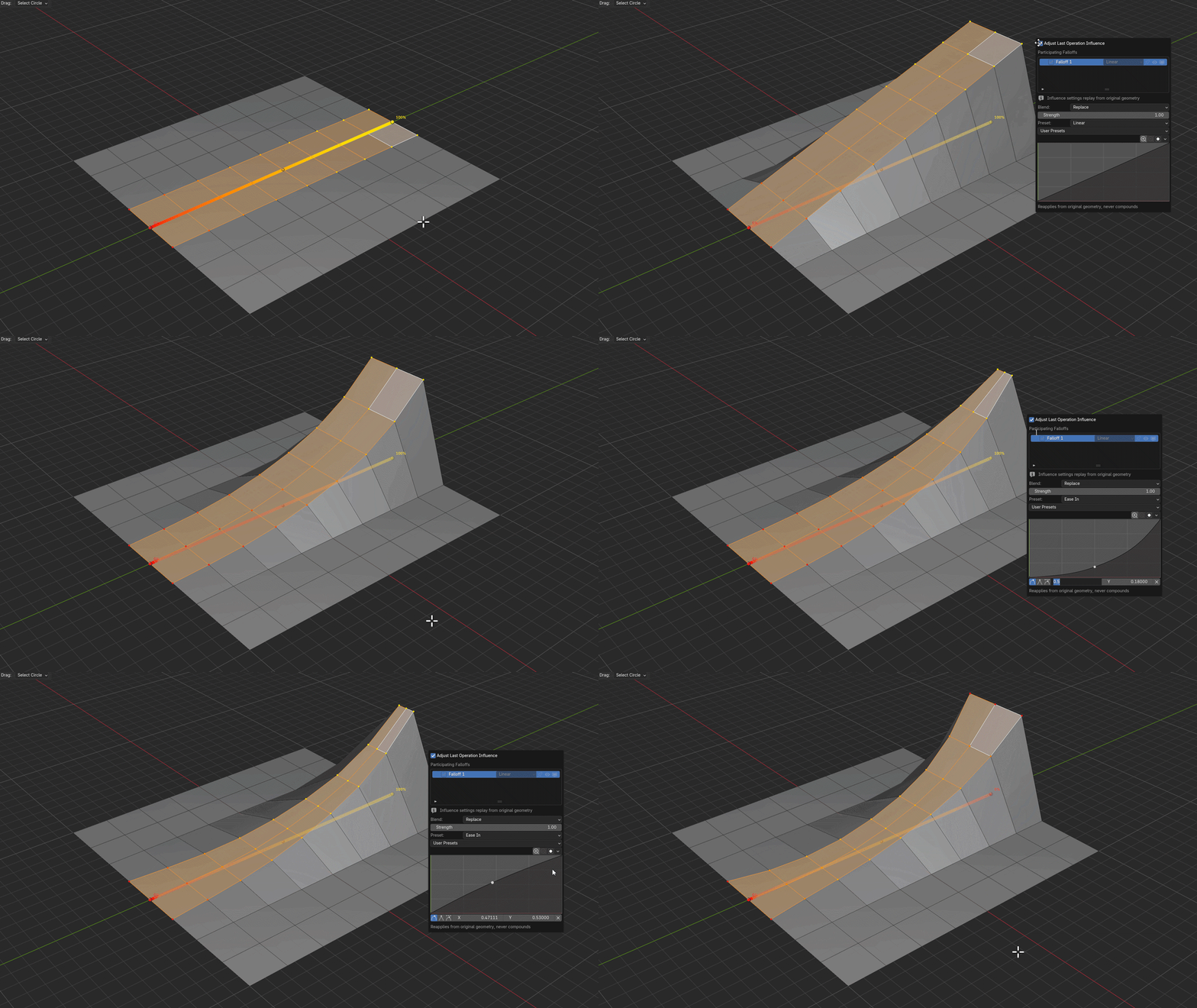
Transforms & normal offset
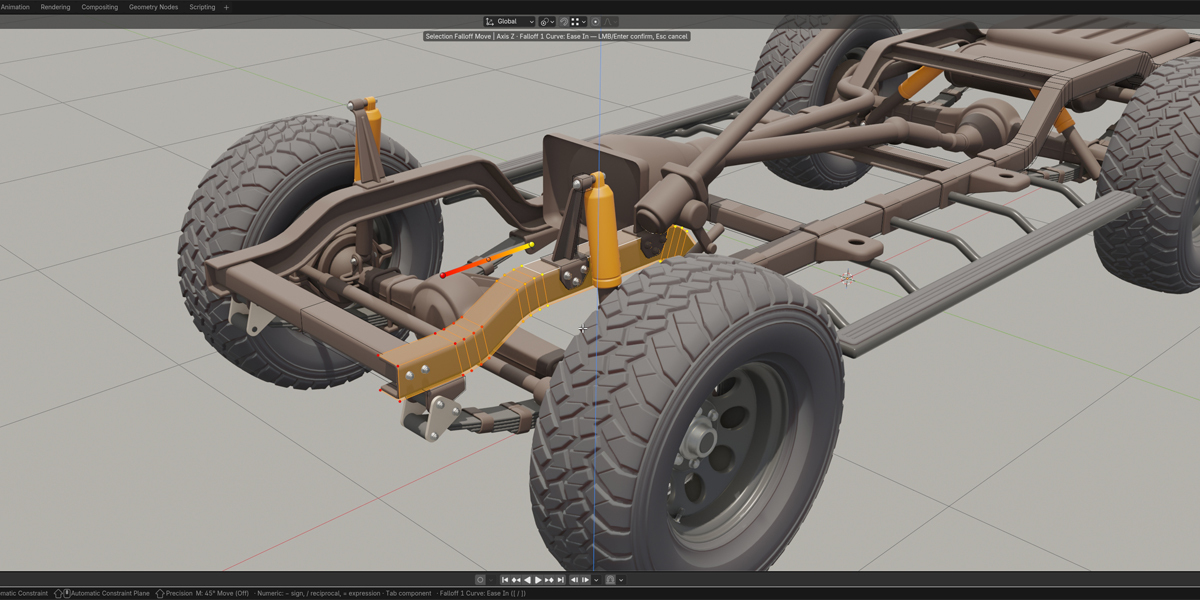
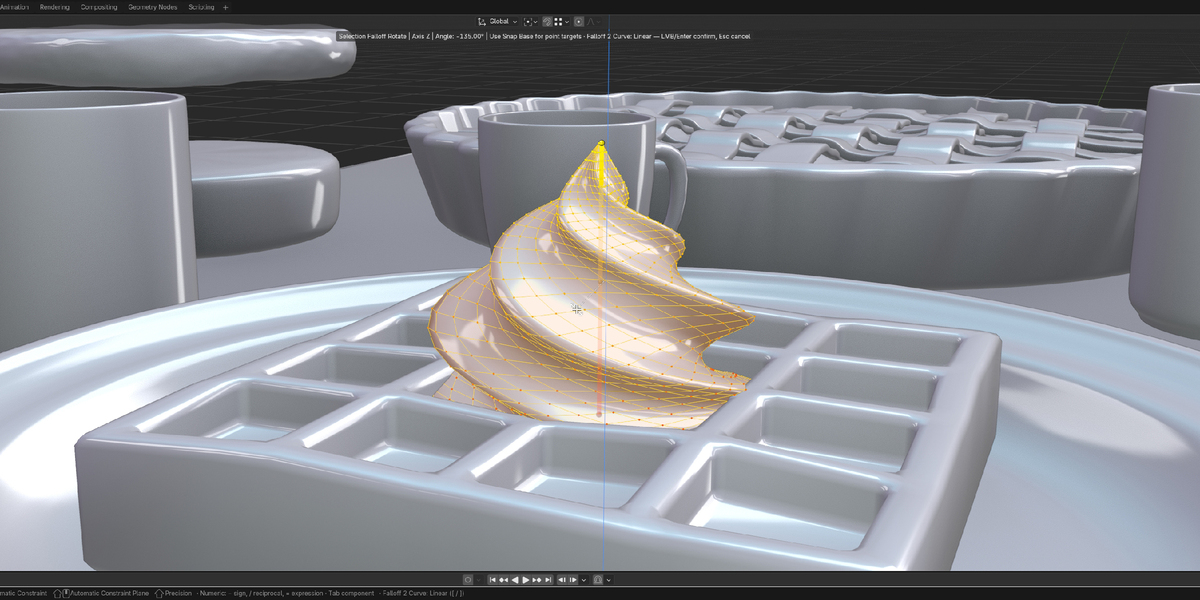
Move, rotate, scale, or offset selected vertices along their normals. The current falloff determines the influence applied to each vertex.
02 / 05 · SUPPORTED OPERATIONS
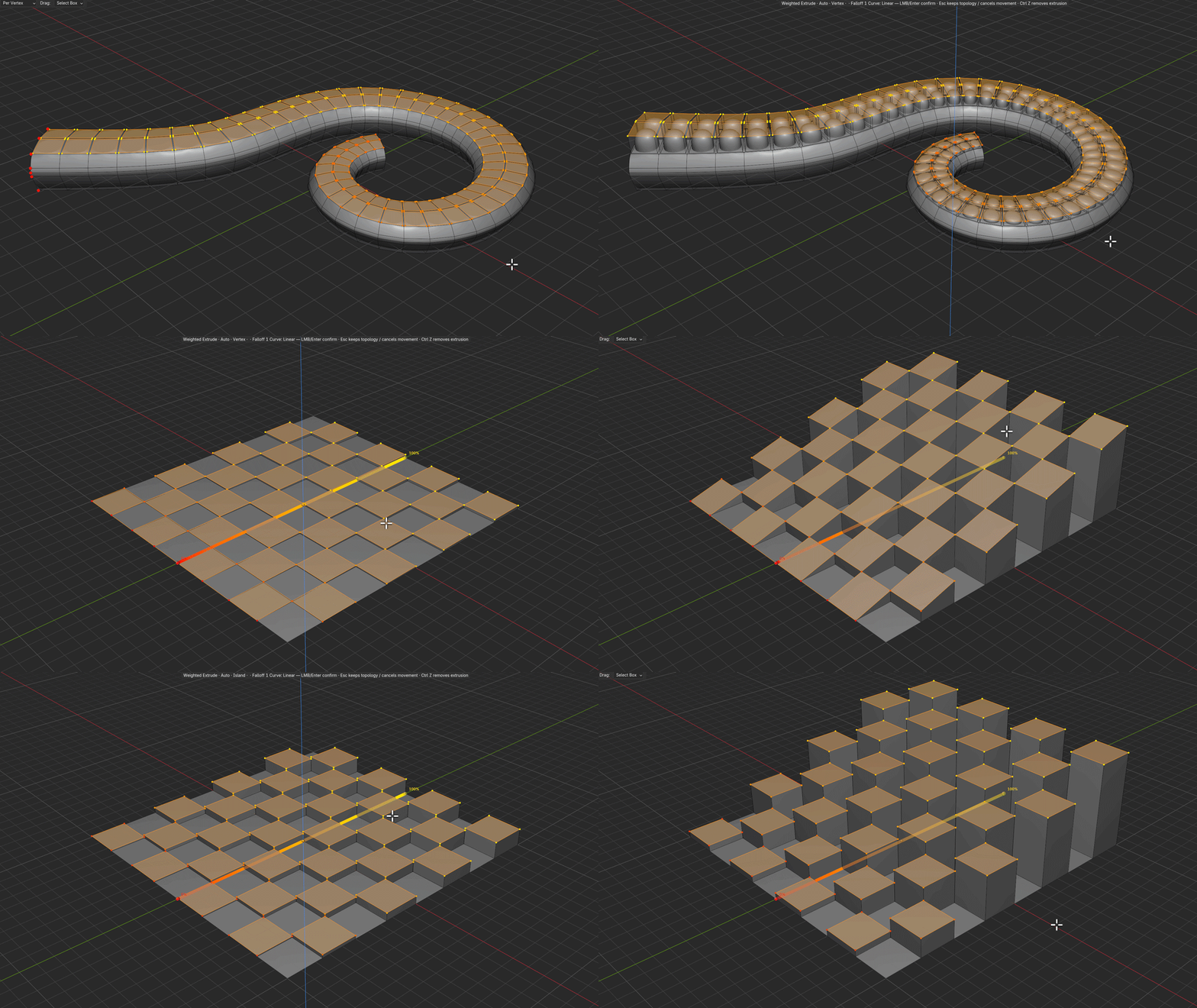
Extrude
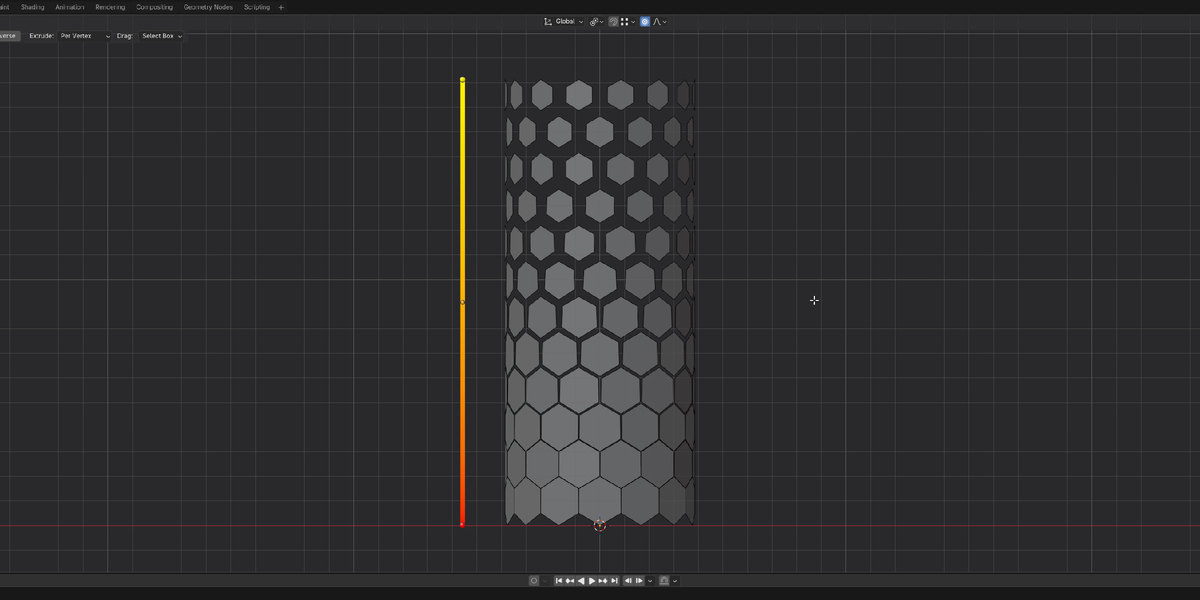
Directed and normal-based extrusion of faces, edges, or vertices with falloff-controlled displacement. Choose Per Vertex for individual vertex weights or Per Island for uniform influence per connected selection island. Both modes are shown on a checker-selected plane in the GIF.
03 / 05 · SUPPORTED OPERATIONS
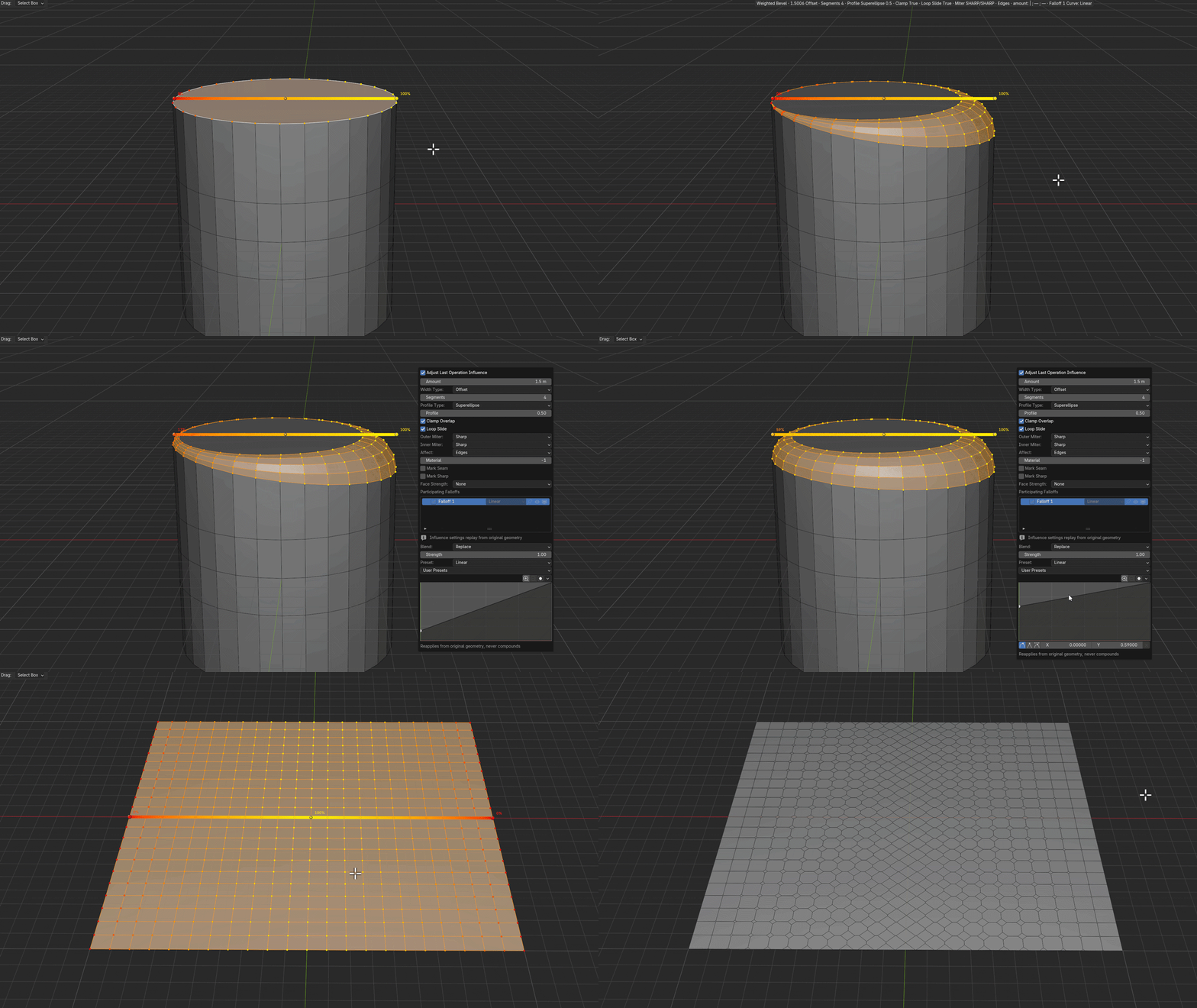
Bevel
Edge and vertex bevels with individually varying widths driven by the falloff weights. Supports Segments, Profile, and Custom Profile settings.
04 / 05 · SUPPORTED OPERATIONS
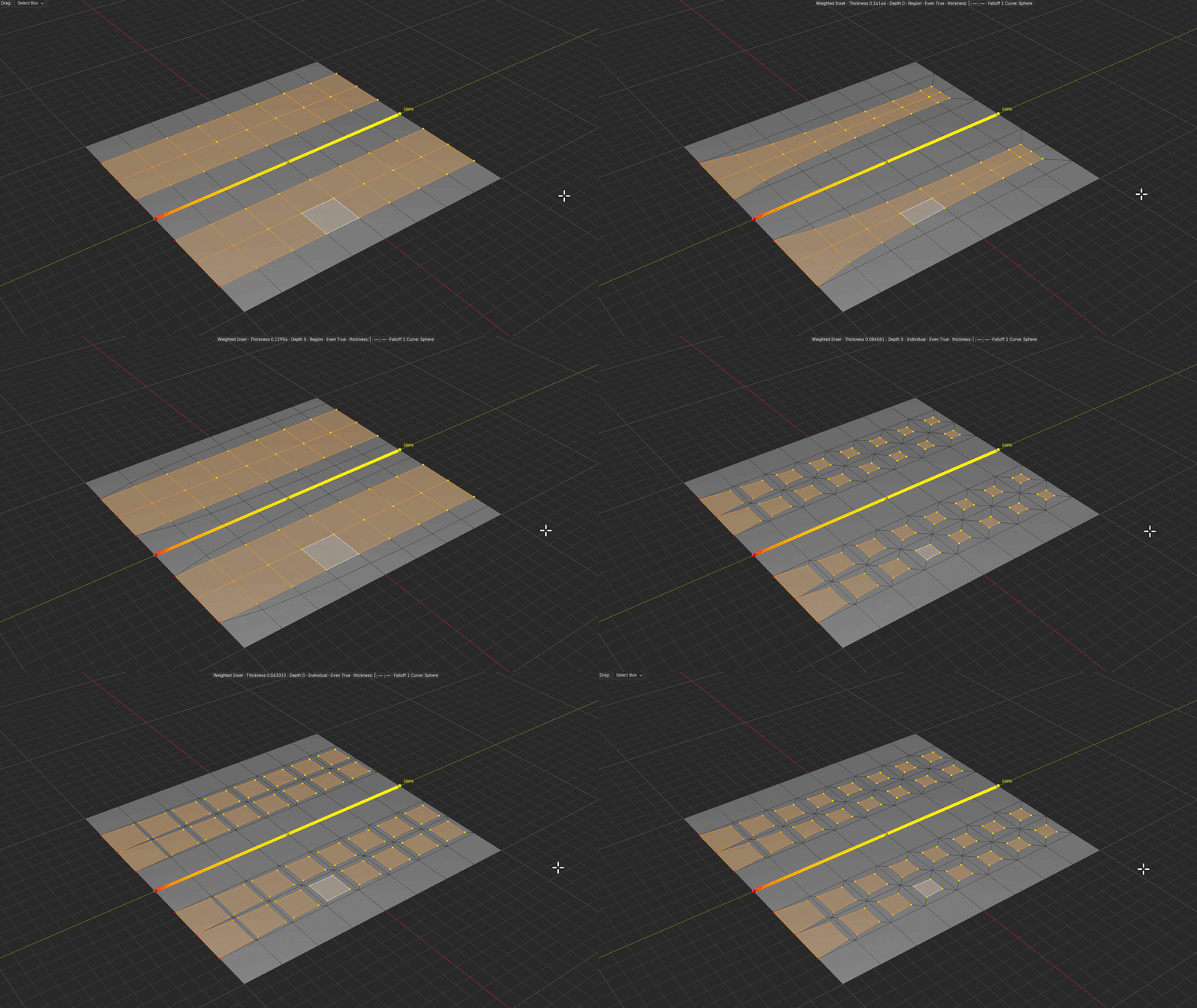
Inset
Inset selected faces with falloff-controlled amounts. Supports Region and Individual modes, as well as Thickness and Depth parameters.
05 / 05 · SUPPORTED OPERATIONS
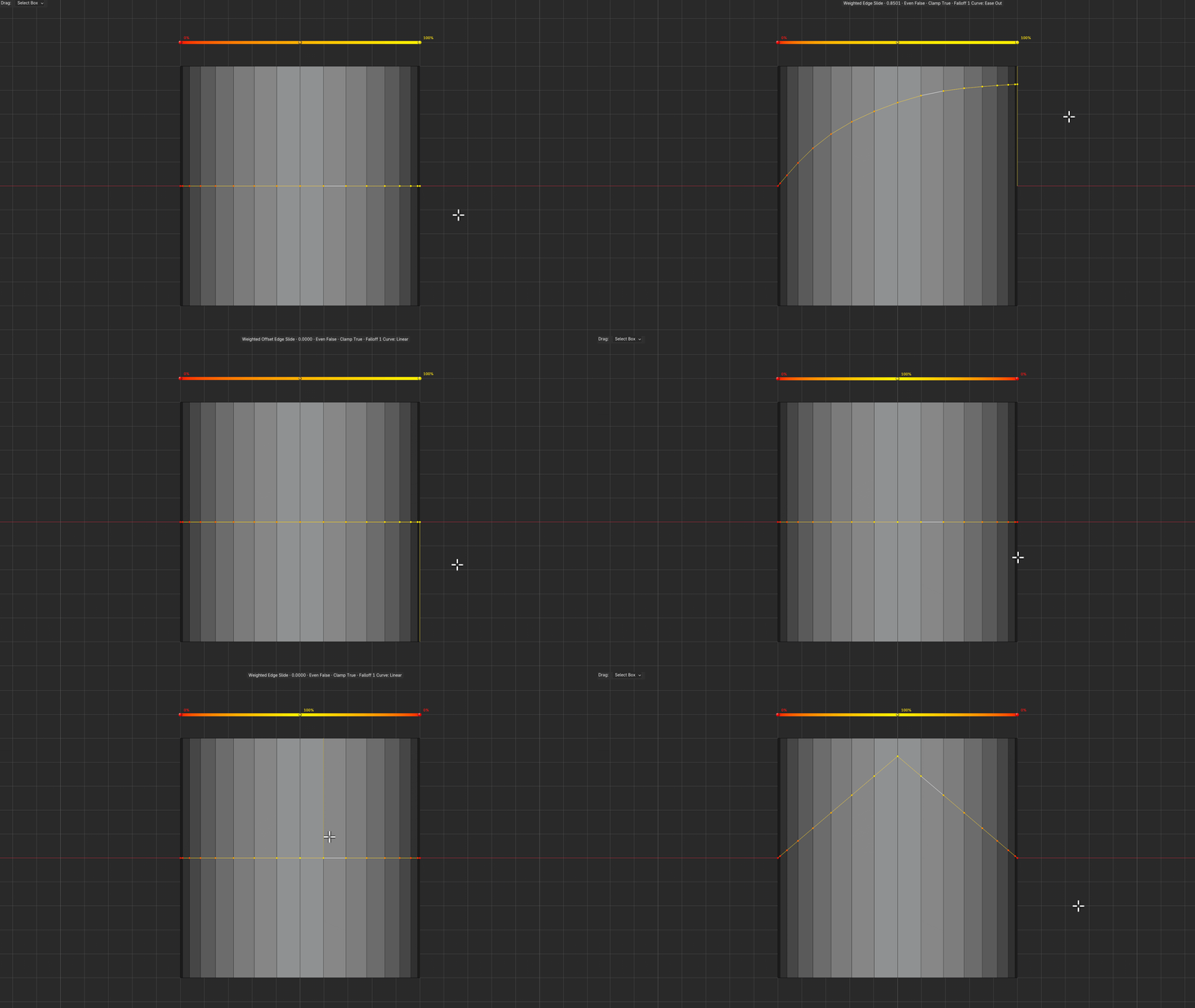
Slide
Slide edges or vertices by varying amounts along their respective mesh rails.
COMMON CONTROLS / ALL SUPPORTED OPERATIONS
During the operation
Use [ / ] to cycle falloff curve presets, or Shift+I to reverse the influence without restarting the operation.
After confirmation — F9
Adjust Last Operation lets you change the most recent supported operation’s parameters and falloff after confirming it. The result is recalculated from that operation’s original geometry, rather than repeatedly applying changes on top of the result. This is not a persistent, non-destructive history.
02 / FALLOFF TYPES
Falloff types
Seven falloff types.
01 / 06
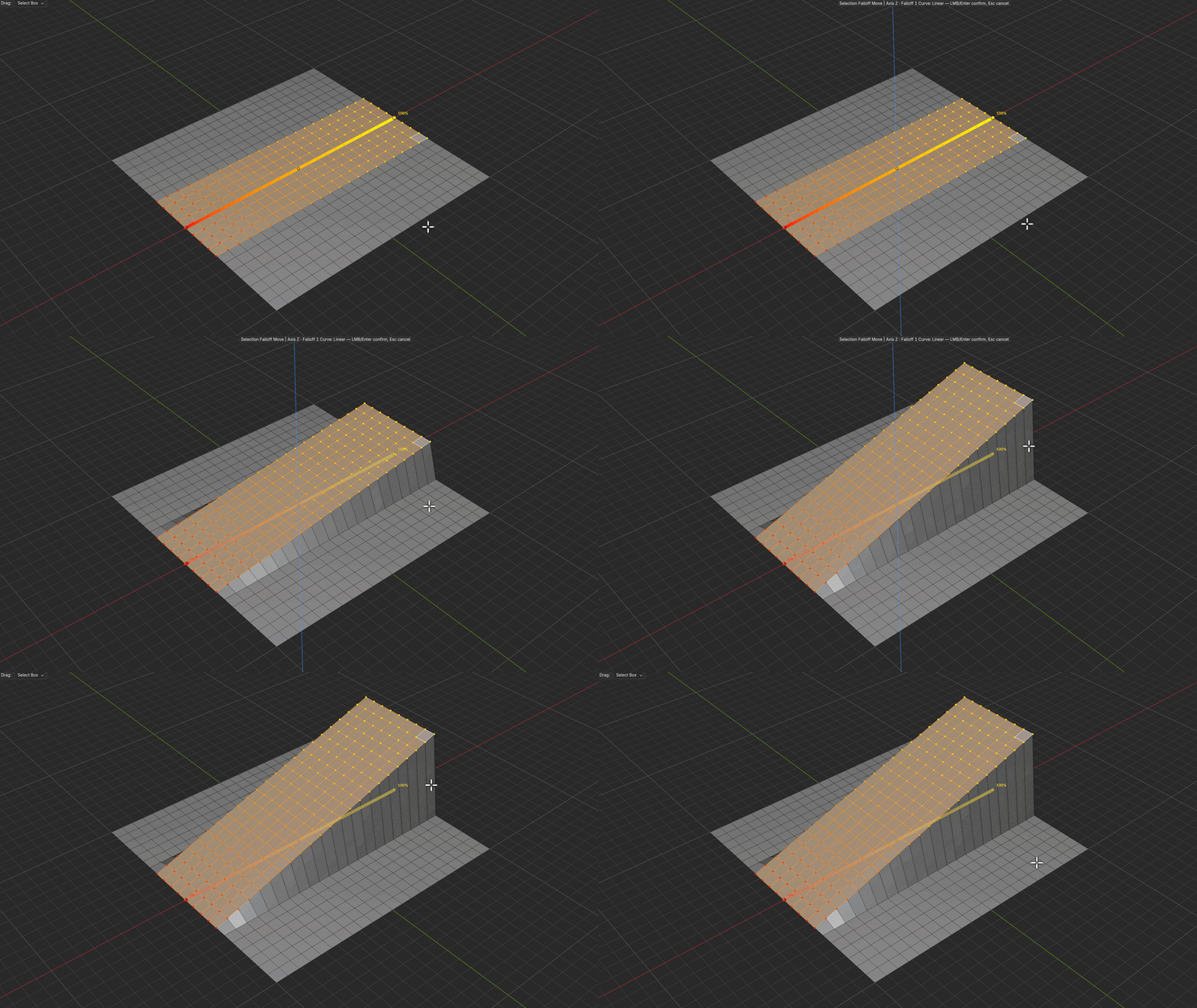
Linear
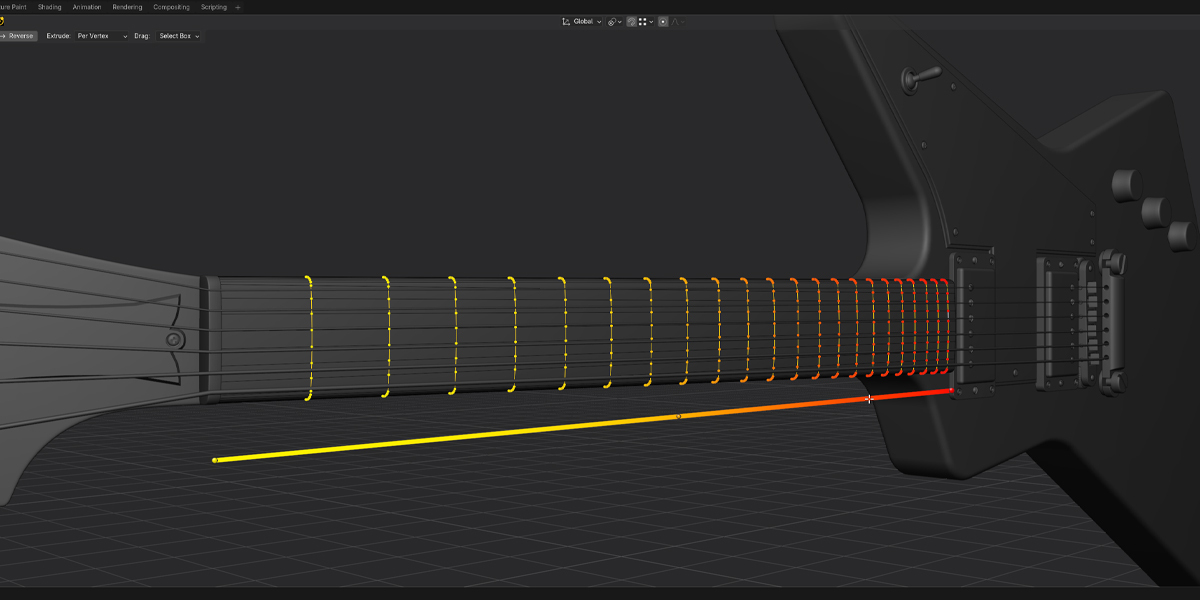
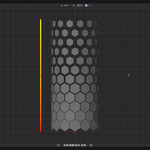
A directional gradient between the Start (0%) and End (100%) endpoints. Vertices on a plane perpendicular to the axis receive equal weights, regardless of their sideways distance from it. Linear + Move (G): Press M during the move to use a travel distance equal to the field’s 0%–100% span. Useful for 45° slopes and corners on complex profiles when the directions are aligned appropriately.
02 / 06
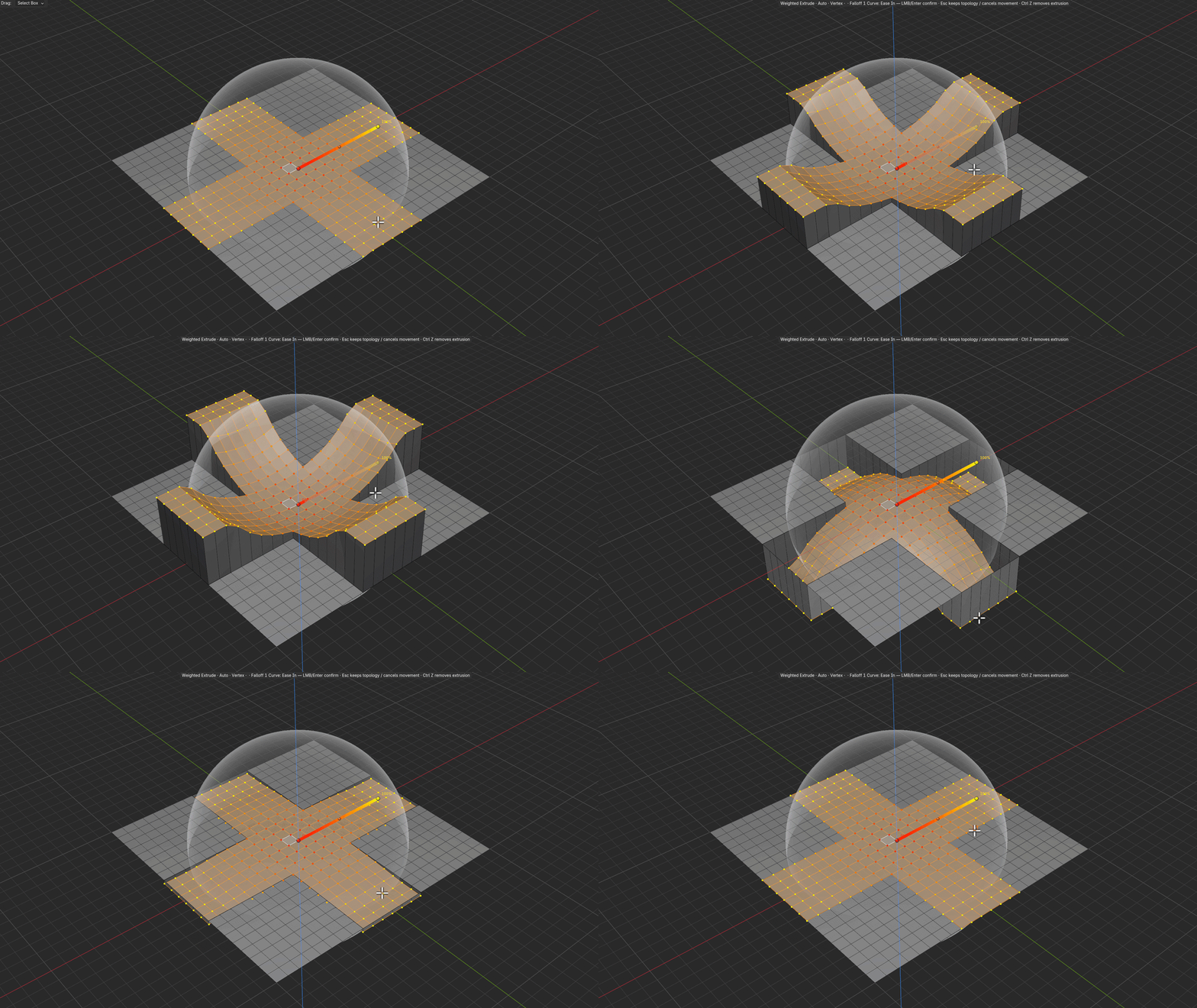
Radial
Influence varies with distance from a center point.
03 / 06
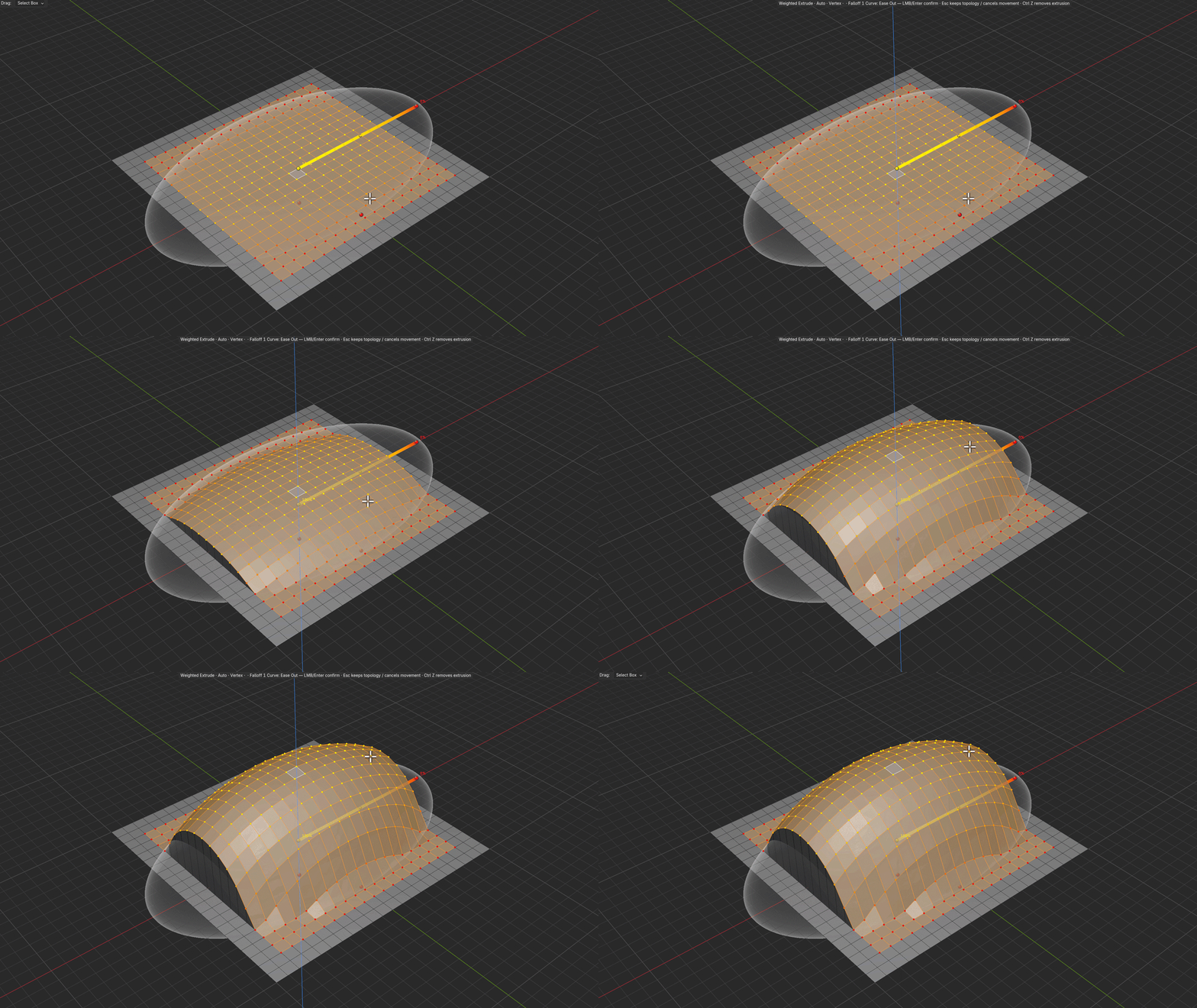
Elliptical
An elliptical influence region with independently adjustable axes.
04 / 06
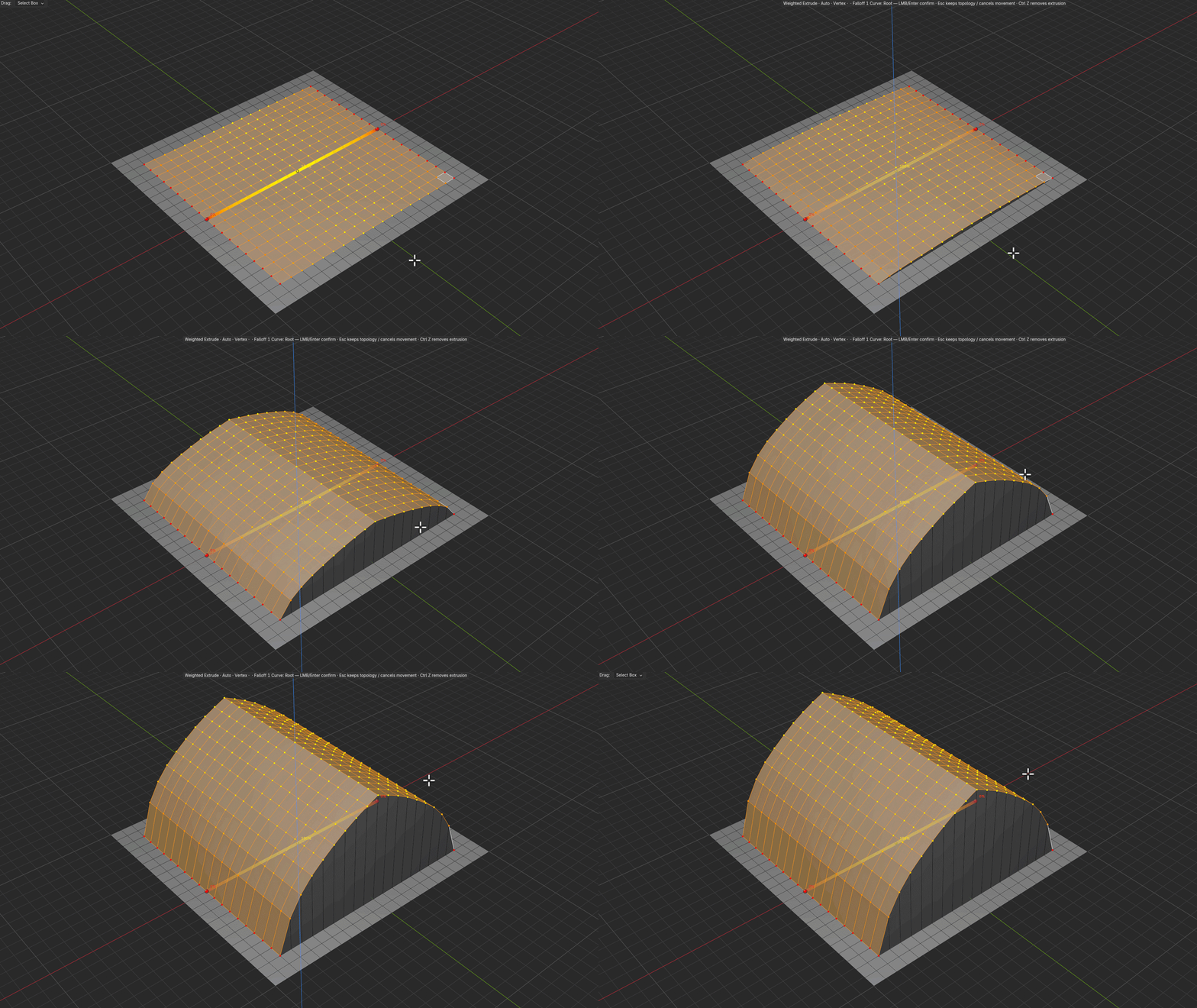
Bidirectional
A two-sided directional distribution of influence.
05 / 06
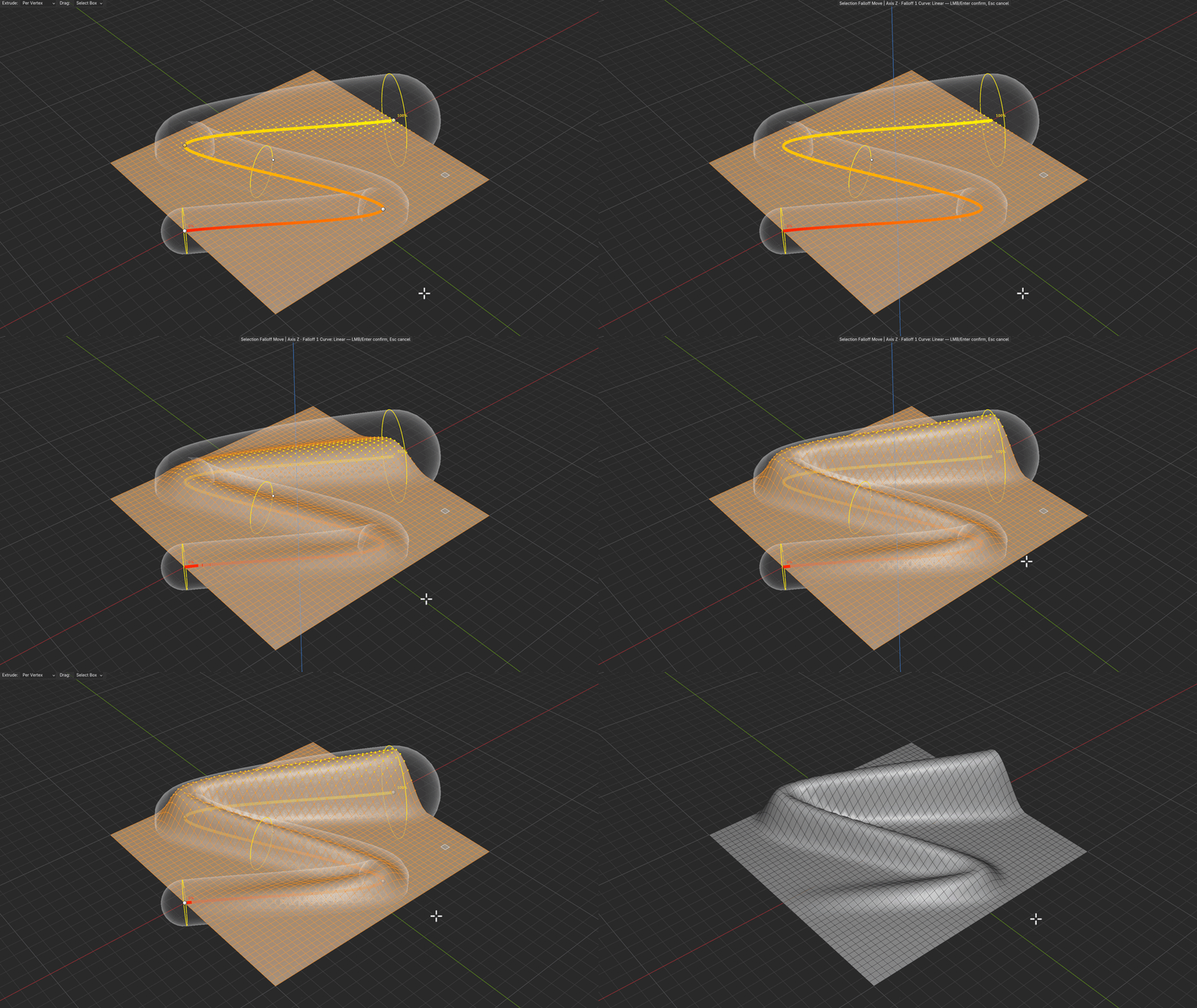
Spline
Follow a spline with adjustable influence radius. Choose a Blender Curve object or a mesh edge chain as a guide (Link to Guide), or edit the path directly with gizmo control points—no separate curve object required. Closed paths are supported.
06 / 06
Topological & Geodesic
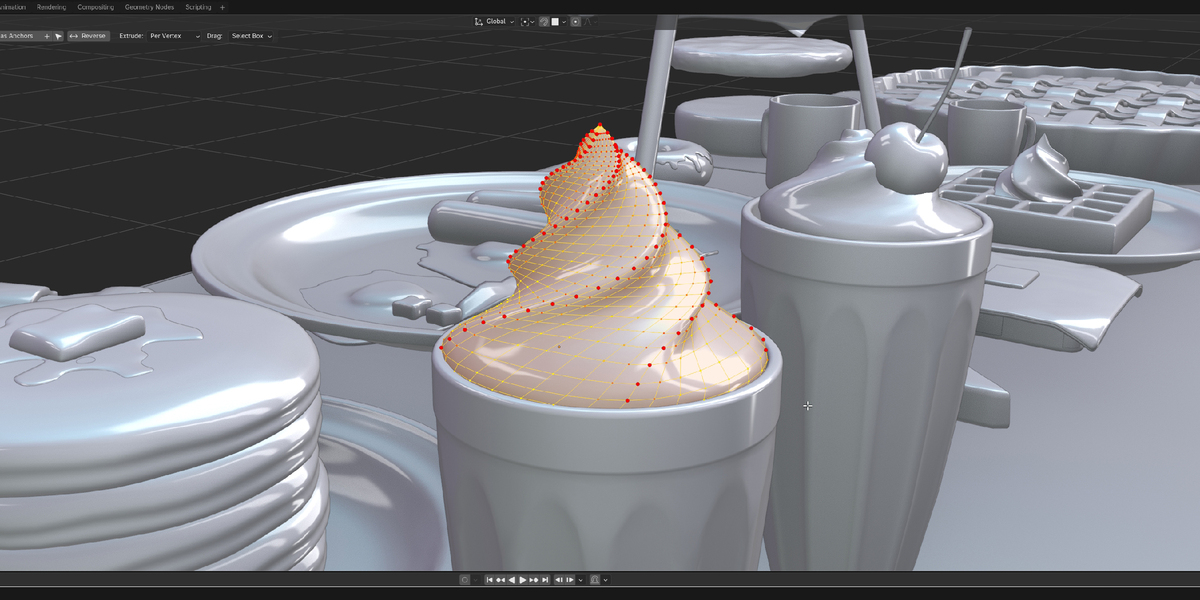
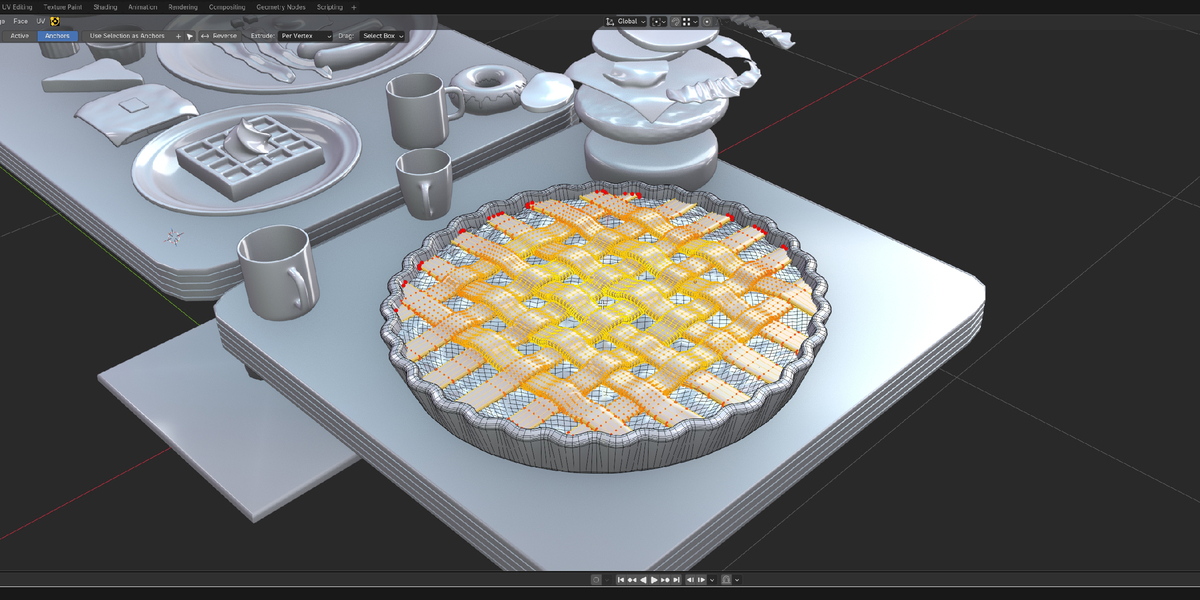
Topological measures shortest paths along mesh edges. Geodesic computes approximate distances across the polygonal mesh surface, including paths through face interiors. Both can measure from multiple anchor vertices (using the nearest source); anchors may lie outside the selection. The GIF shows Topological.
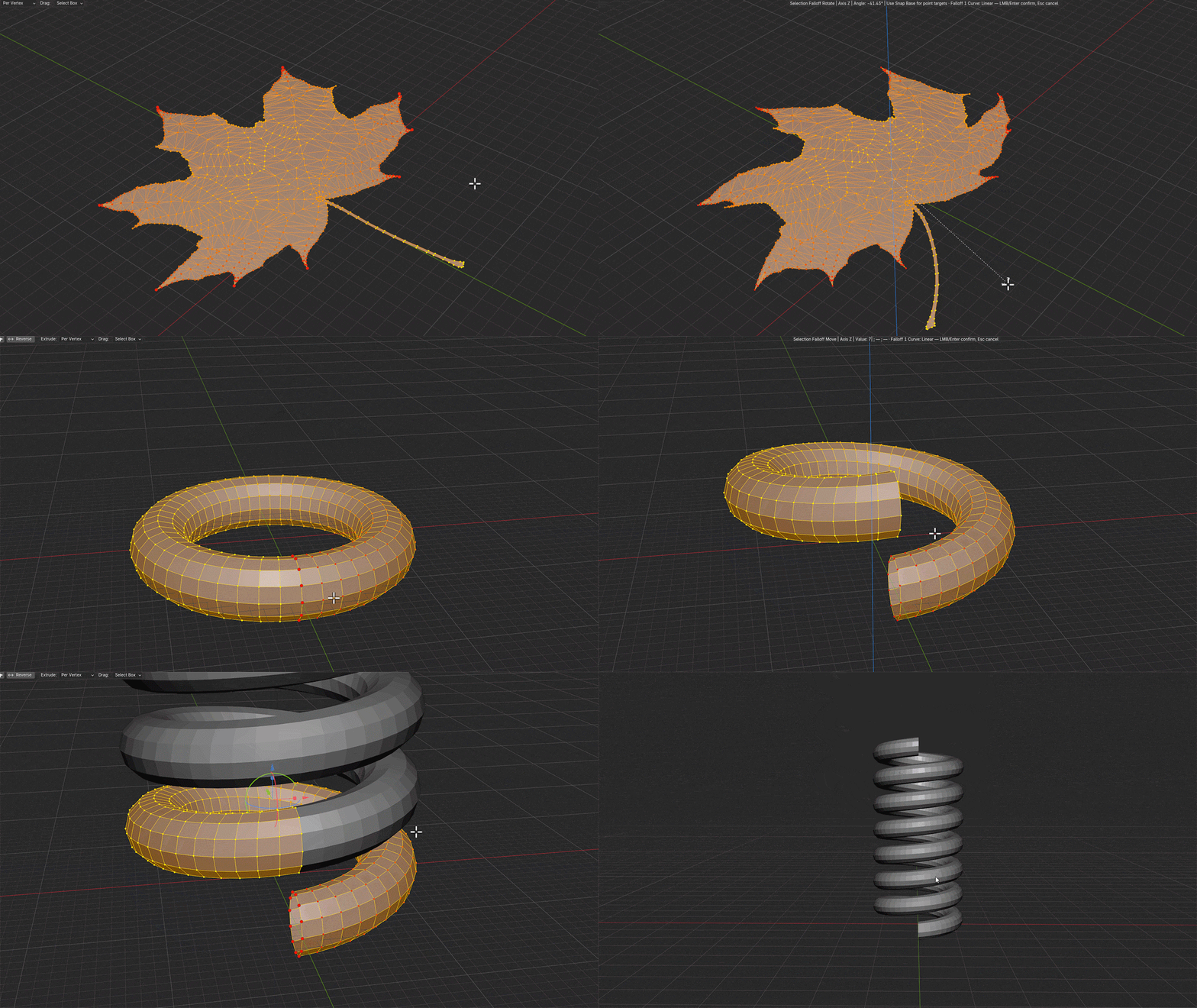
Topological and Geodesic can use either the active mesh element or captured anchor points. The distance to the nearest source determines the field; anchors do not enlarge the selection domain.
03 / PROPORTIONAL EDITING
Proportional Editing
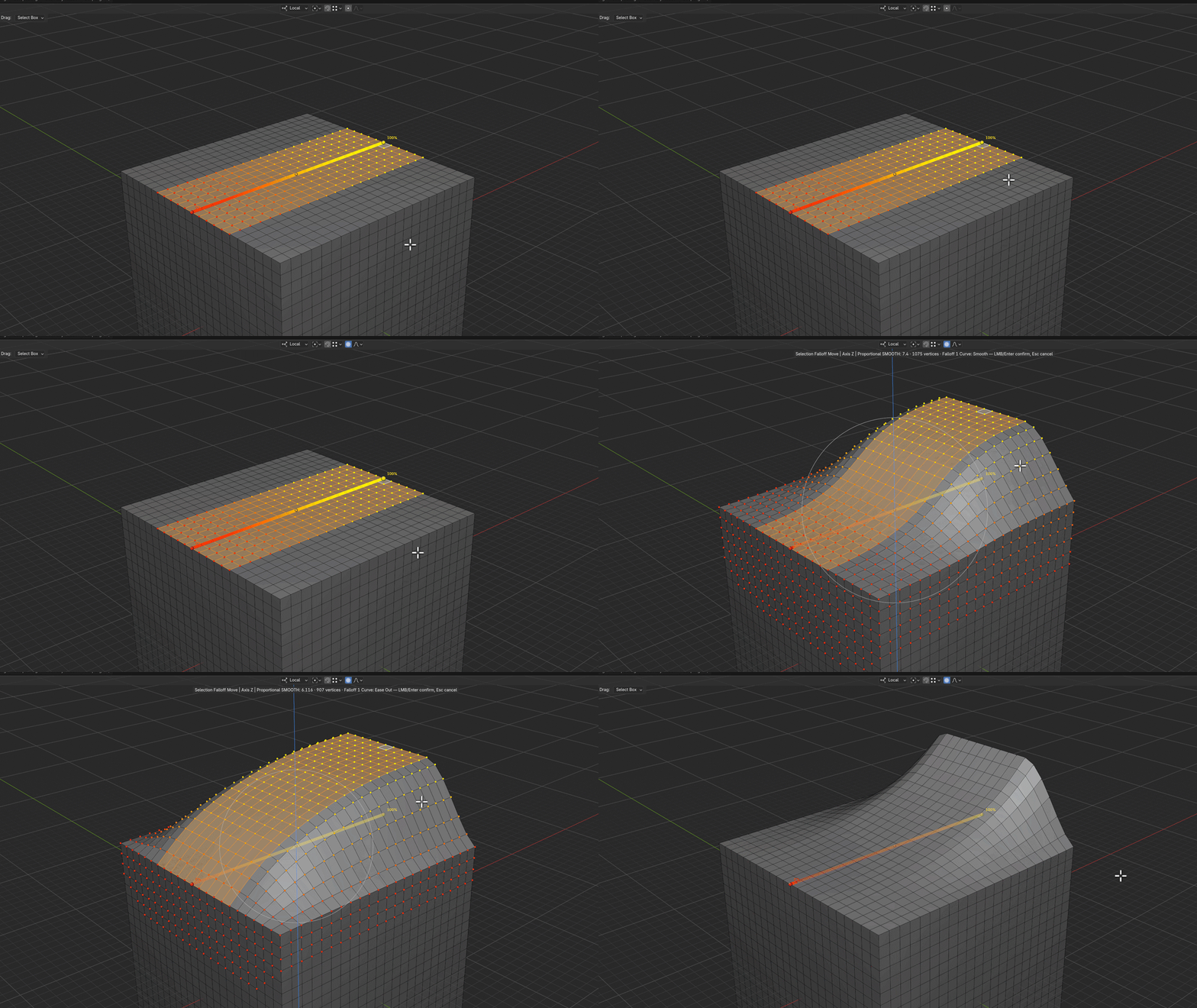
TRANSFORMS · PROPORTIONAL EDITING
Falloff alongside Proportional Editing
Use Selection Falloff together with Blender Proportional Editing during supported transforms: Move, Rotate, Scale, and Normal Offset. Selection Falloff controls influence within the selected geometry, while Proportional Editing can also affect vertices beyond that selection. The falloff response curve can be adjusted to change how influence transitions between its endpoints.
04 / MULTIPLE FALLOFFS & MULTI-OBJECT EDITING
Multiple falloffs & multi-object editing
Combine fields, reuse setups, and work across multiple mesh objects.
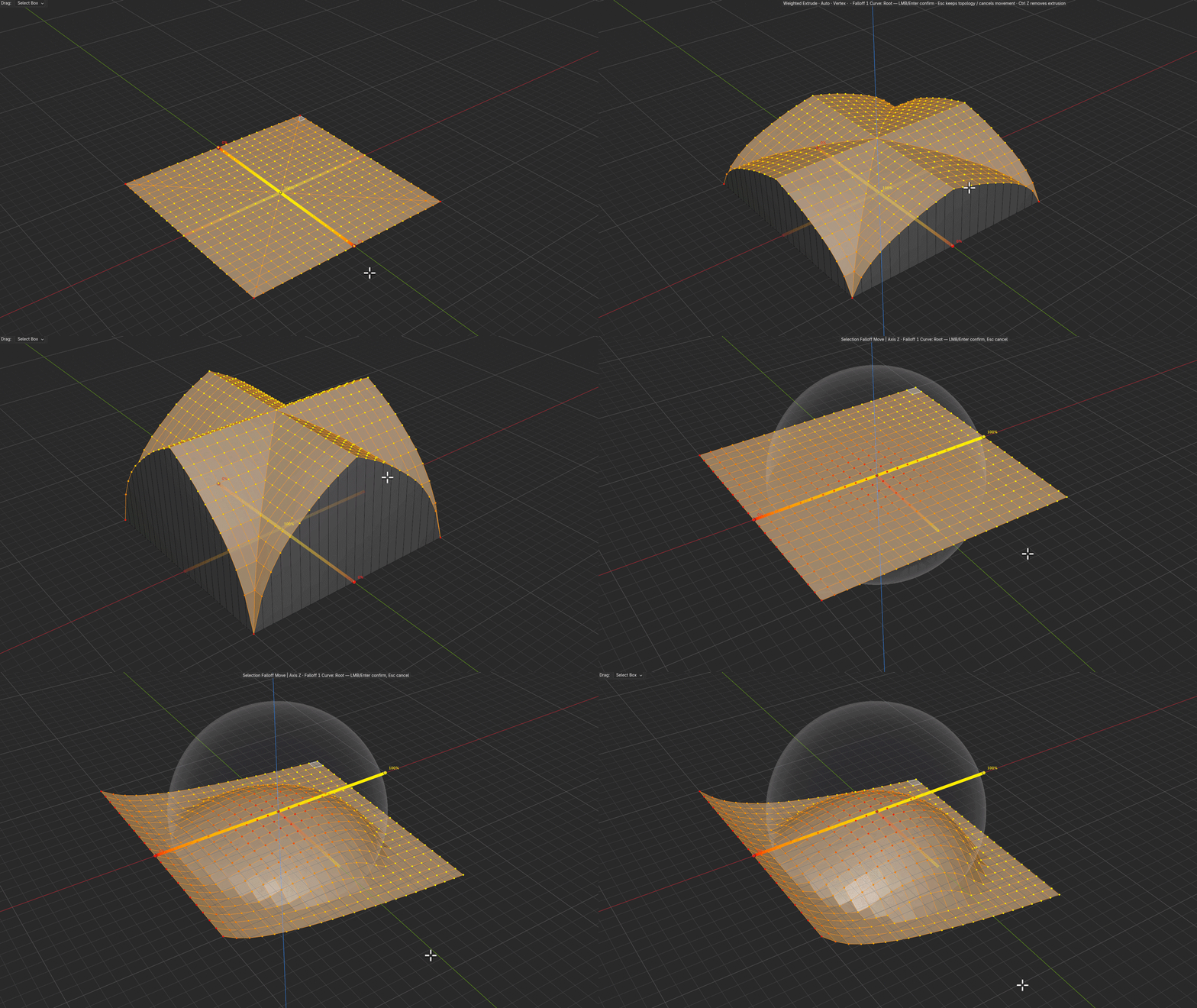
MULTIPLE FIELDS · GROUPS
Falloff stack & groups
Combine multiple fields across one or several mesh objects. Each field has its own influence strength and a blend mode: Replace, Add, Subtract, Multiply, Min, or Max. For example, start with a Linear gradient and subtract a local Radial field. Organize related fields into groups.
PRESETS / REUSE
Curve & group presets
Save falloff response curves and field groups as presets to reuse them in other modeling tasks.
SCENE / PERSISTENCE
Pin in Scene
Pin field definitions in the .blend file so they remain available across tool sessions. Pinning does not store a permanent selection mask or a lasting vertex-anchor binding.
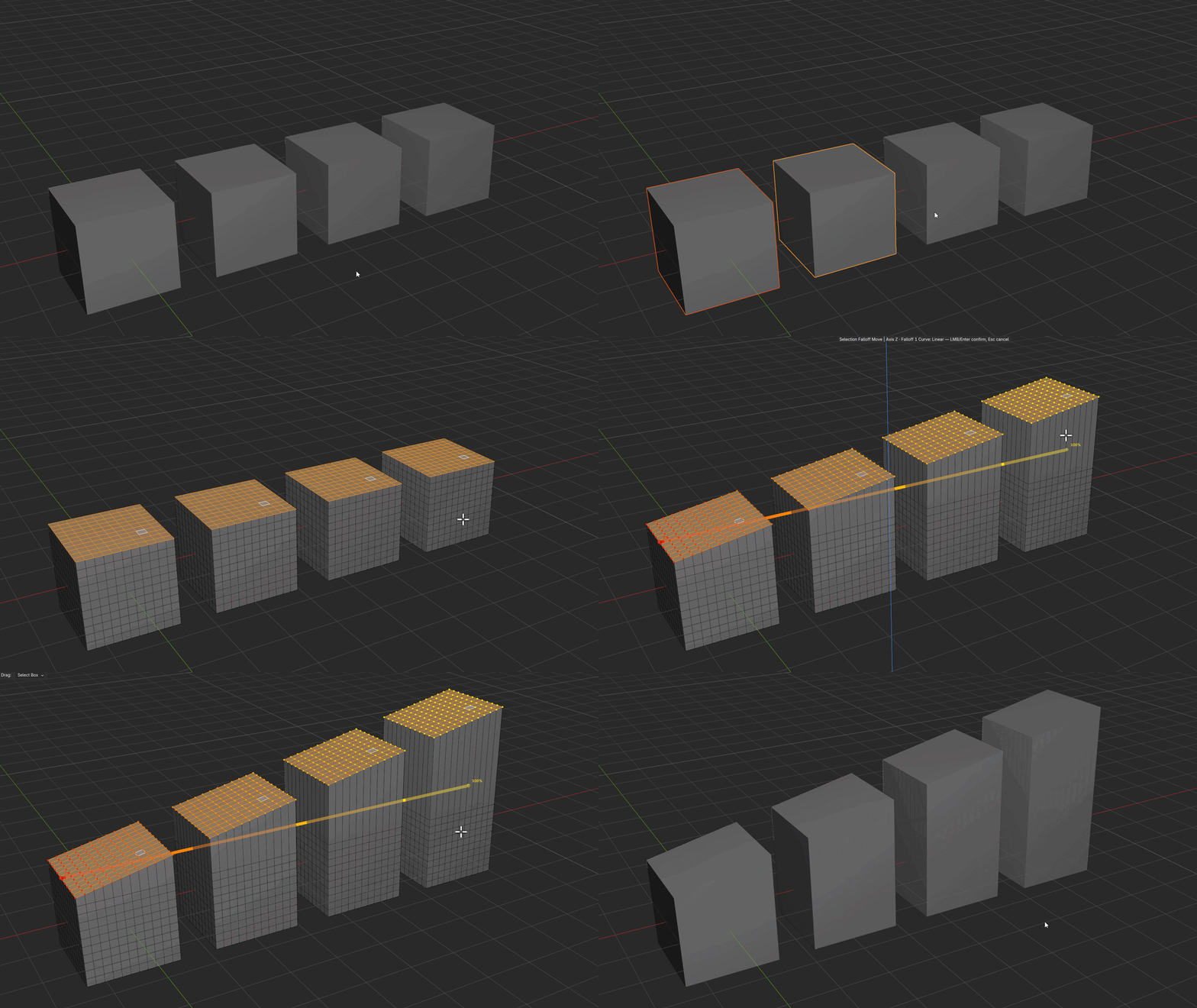
MULTIPLE MESH OBJECTS
Multi-object Edit Mode
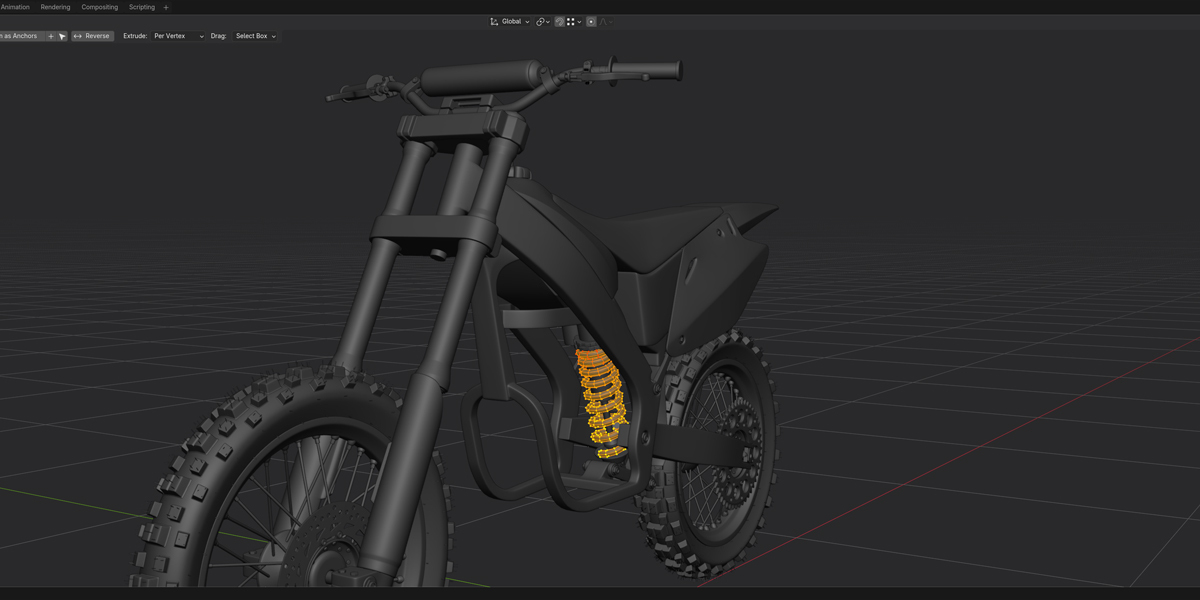
Edit selected geometry across multiple mesh objects simultaneously without joining those objects. One or more falloff fields can be used while applying modeling operations.
05 / FALLOFF PLACEMENT & POSITIONING
Falloff placement & positioning
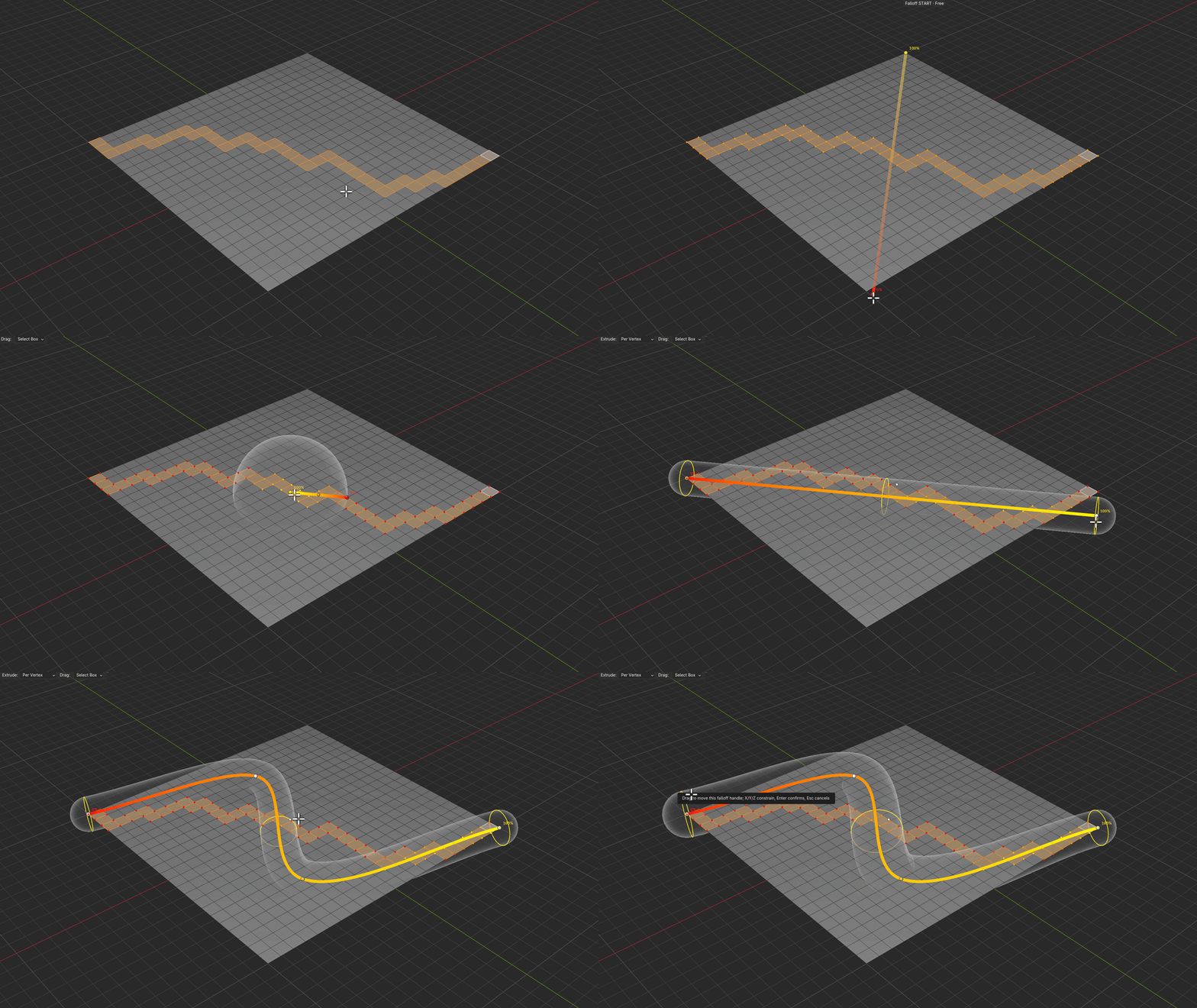
AUTO FIT · AXIS FIT · MANUAL ENDPOINTS
Fit and position the falloff
Fit to Selection analyzes the spatial layout of the selected geometry and attempts to find a suitable field position and orientation. Axis Fit (X / Y / Z) provides aligned alternatives. Drag the Start and End handles to position the field manually, with mesh snapping. Drag the middle handle to move the entire field.
Default shortcut: Shift+F activates Selection Falloff and automatically fits a spatial field to the selection (or refits the active field). Keep Shift held and press F again to cycle through Auto (PCA) → X → Y → Z fit modes.
Topological & Geodesic: In these distance modes, Shift+F captures the current selection as anchor points instead of fitting a spatial field.
06 / VISUAL CUSTOMIZATION
Visual customization
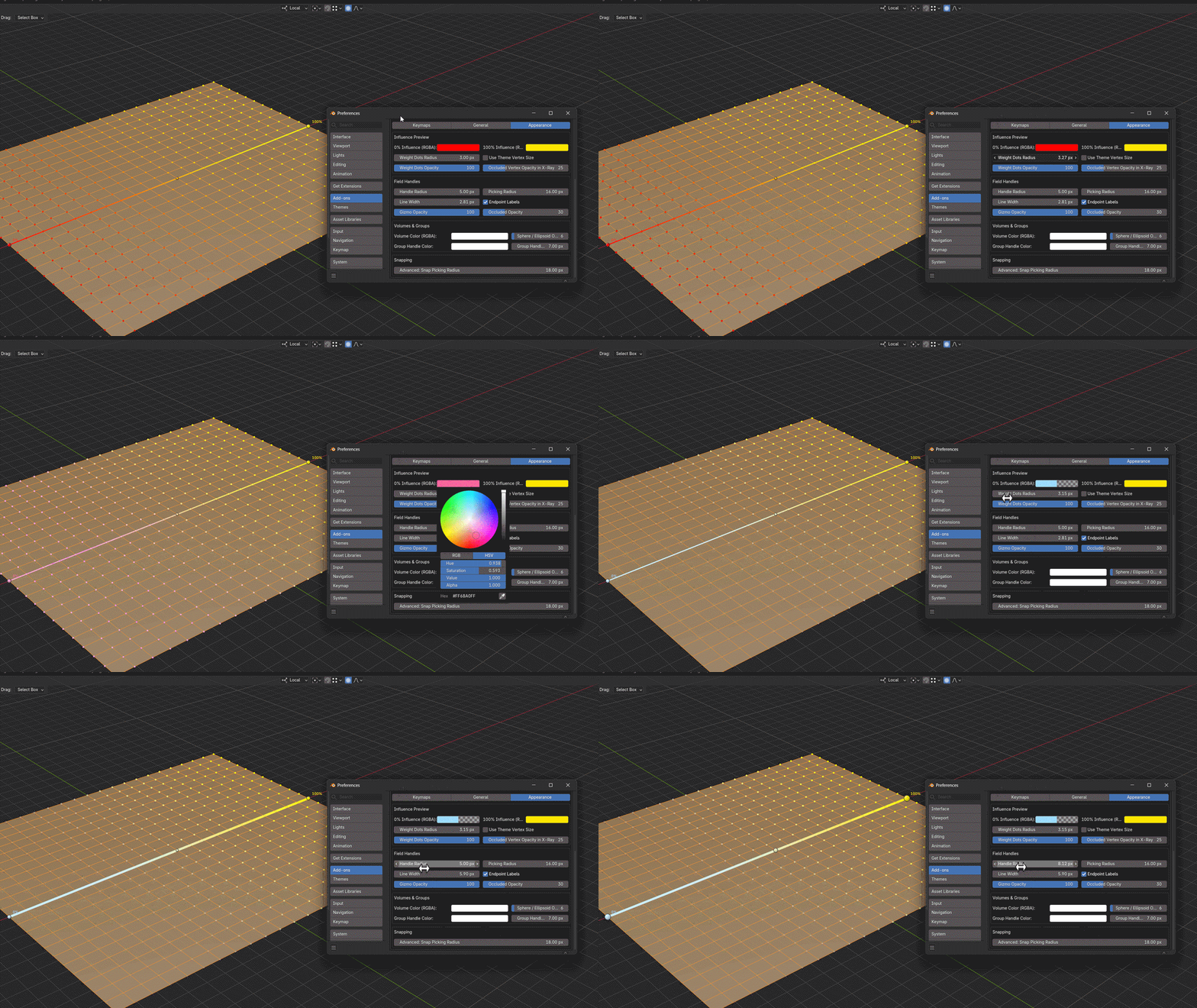
COLORS · OPACITY · HIGHLIGHT SIZE
Viewport display options
Adjust the falloff display colors, opacity, and highlight size in the addon settings. These controls customize how fields and affected geometry are shown in the viewport.
07 / KNOWN LIMITATIONS
Known limitations
Current limitations and performance considerations.
Geodesic distance on dense meshes
Geodesic falloff is more computationally expensive than both spatial falloffs and Topological. On dense geometry or large selections it can update more slowly. Topological is considerably faster and can often be used instead when edge-based distances are sufficient.
Bevel on large selections
The Bevel operation calculates bevel width individually for vertices in the affected region. High vertex counts and higher Bevel Segments values increase computational cost and may slow the operation.
Modifier On Cage
Falloff weights are shown on the original Edit Mesh, before modifiers. Showing weights on meshes with On Cage turned on is not currently supported. This does not prevent working with objects that have such modifiers in general.
08 / PLANNED DEVELOPMENT
Planned development
These are intended development directions, not features included in the current release.
PLANNED / 01
Additional falloff types
New field shapes and additional distance methods.
PLANNED / 02
More modeling operations
Broader coverage of geometry editing operations controlled by falloff.
PLANNED / 03
Mesh data assignment
Using falloff fields to assign vertex-group weights / weight painting data and values such as Skin modifier vertex radius.
FEEDBACK & SUGGESTIONS
I use Selection Falloff every day in my own work, but I want it to be useful for different artists and modeling workflows. Feedback, suggestions, and feature requests are welcome, and I'll consider them as the add-on develops.
COMPATIBILITY / INSTALLATION / SUPPORT
Tested: Windows, Blender from 4.5.4 up to 5.2.2 and 5.3 Beta
Install: Blender Preferences → Get Extensions → Install from Disk; choose the downloaded ZIP and enable the add-on. Use it in Mesh Edit Mode.
Help: Documentation will be provided in the product's Documentation tab. For support, send a direct message through Superhive.