








Updated V1.0.1 Selection Memory

pradee in Modeling


Selection
Memory

Select faces, edges and vertices and add it to your bookmark

Features
01

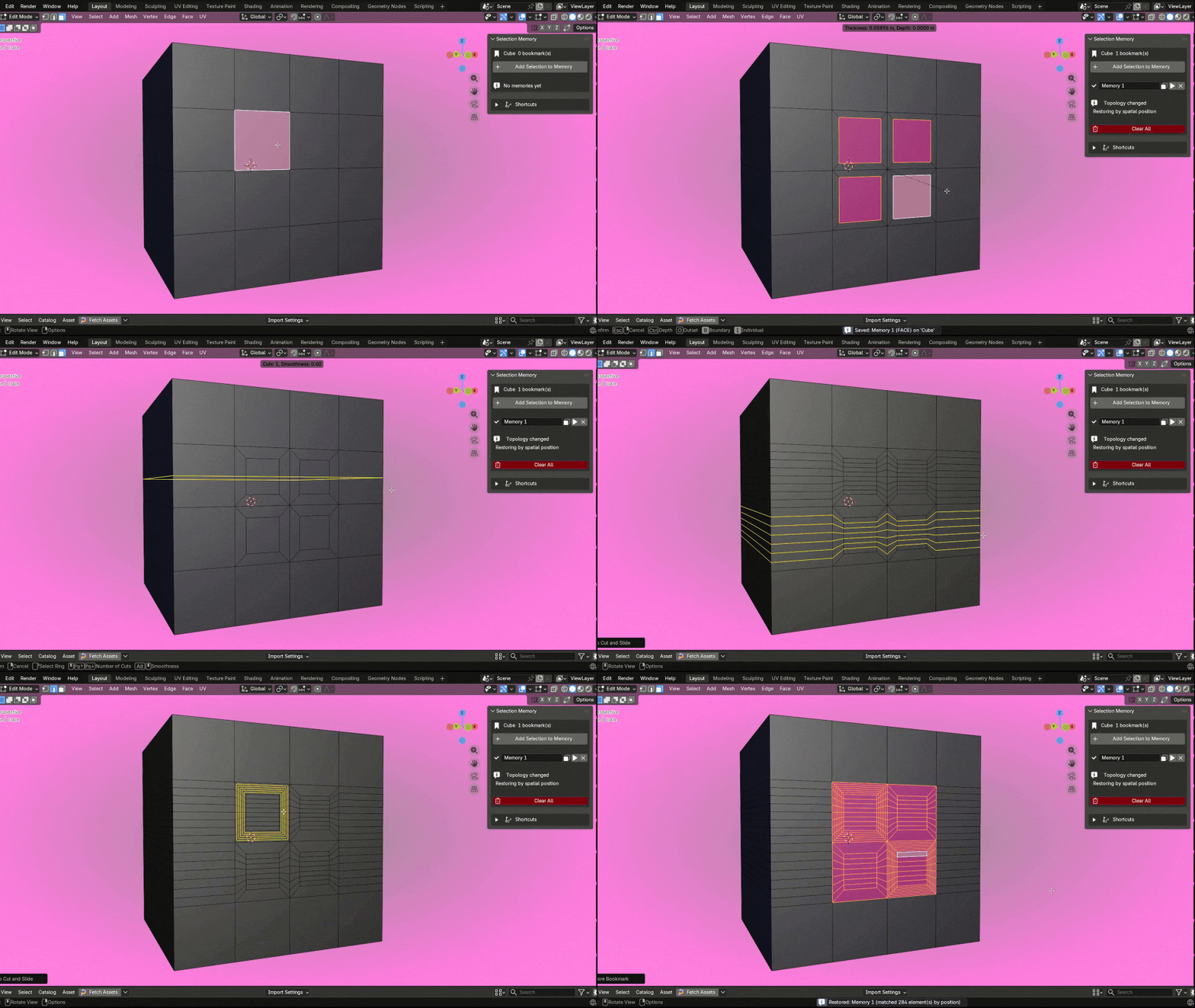
UPDATE V1.0.1

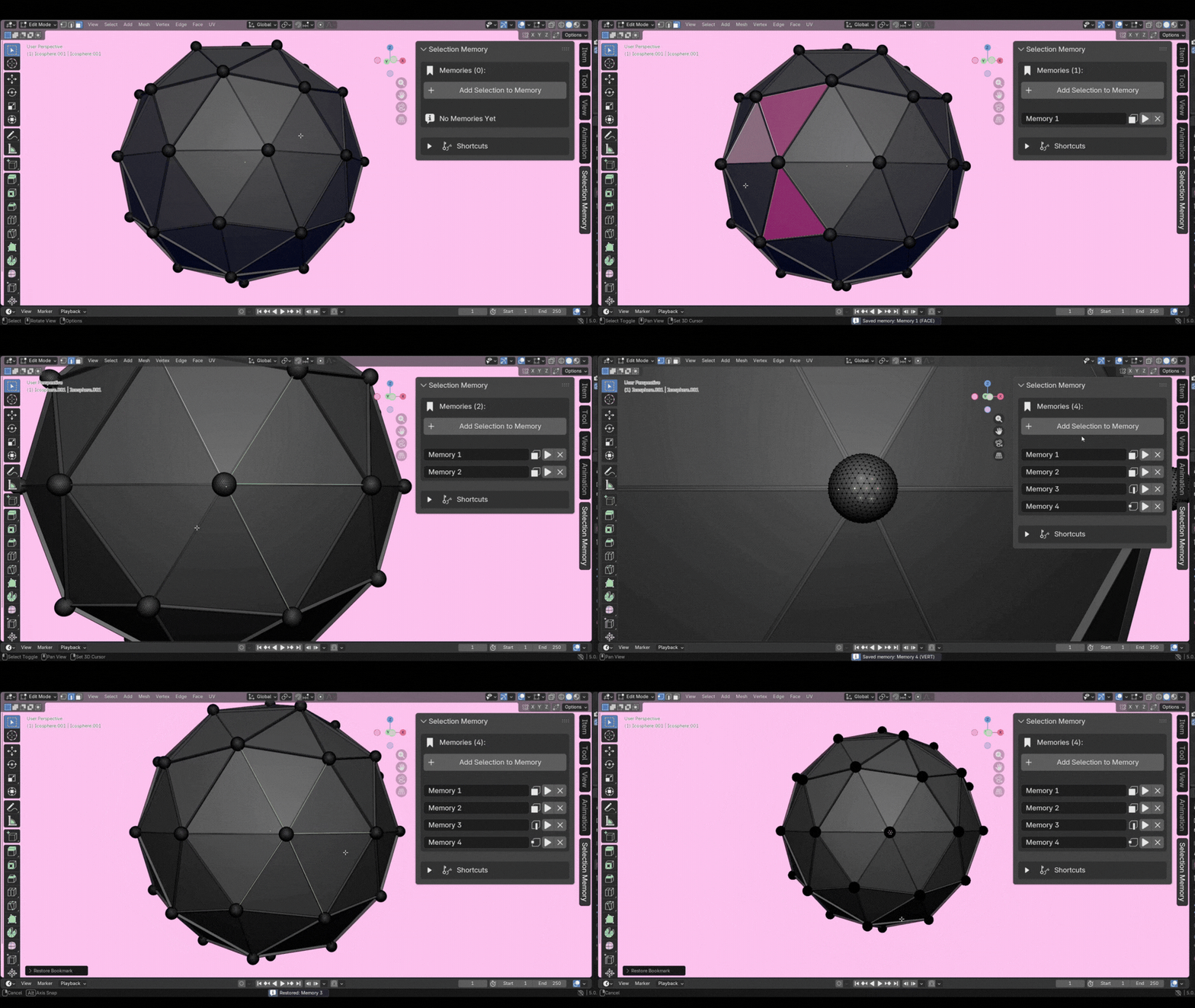
Selects correctly even after Loopcuts, Subdivides, and Insets

Saved selections now survive topology changes. Add a loop cut, subdivide a face, or inset a region. The addon automatically tracks the geometry by position and restores the correct faces every time, even after your mesh has changed.

Topology survival

02

How it works

Select any vertices, edges, or faces in Edit Mode, save them as a named memory, and restore the exact selection with a single click. Blender automatically switches to the correct select mode on restore.

How it works

03

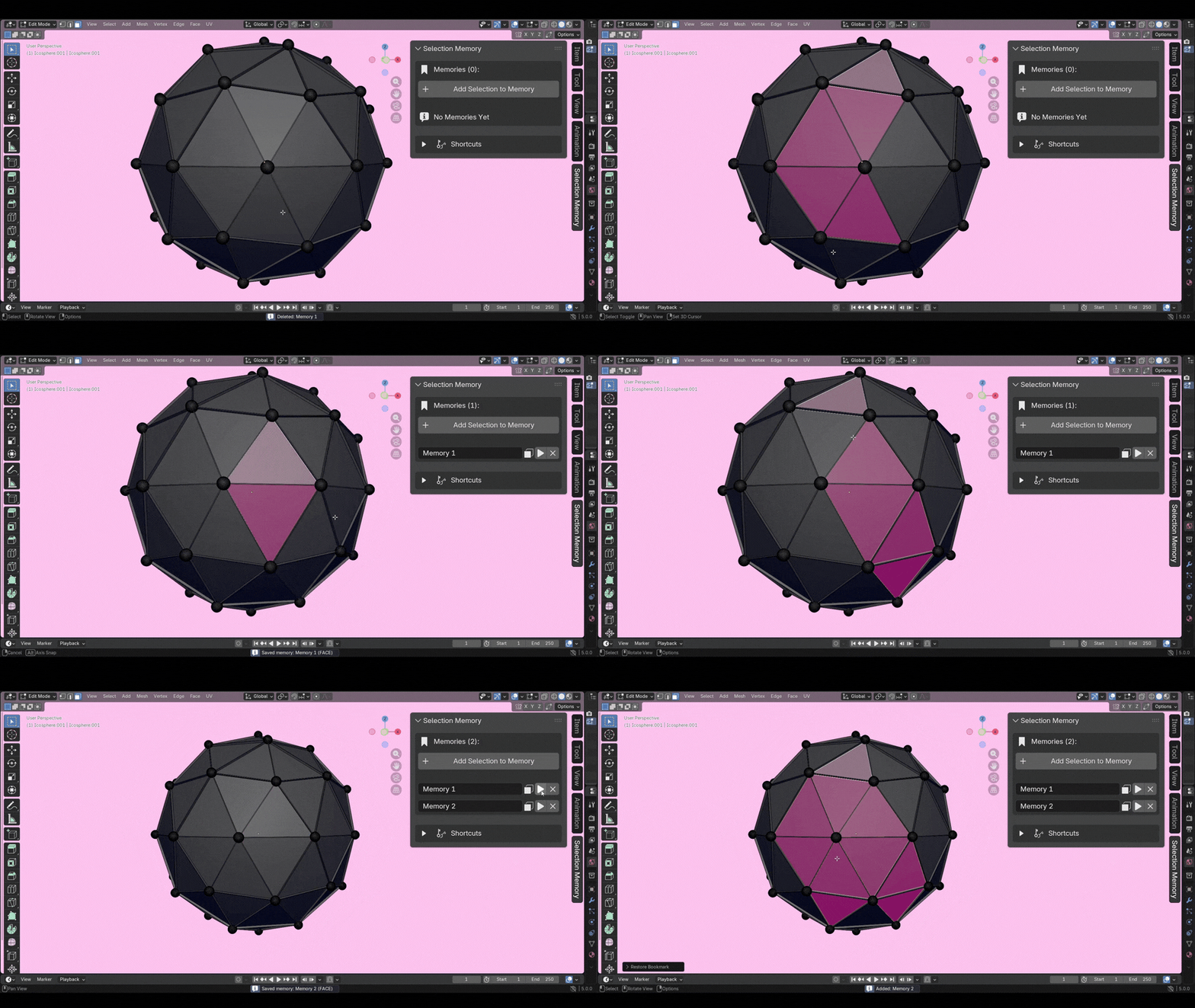
Selecting Multiple Bookmarks

Hold Shift and click the restore button on multiple memories to combine them all into one selection. Stack face groups, edge loops, and vertex sets from different memory slots simultaneously.

Selecting multiple bookmarks

04

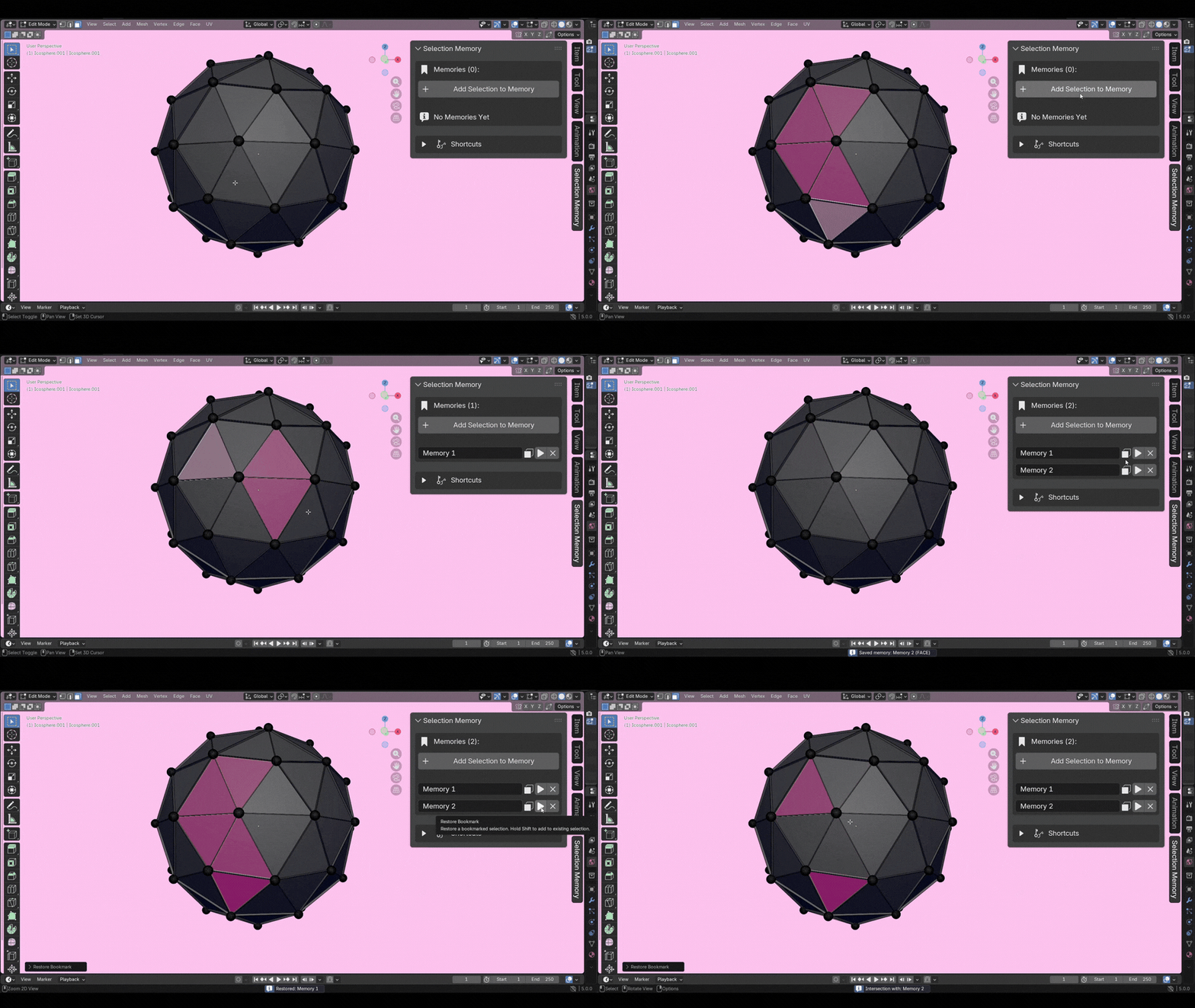
Common Selections

Hold Ctrl and click any memory to keep only the elements shared between your current selection and that memory. A precise way to isolate overlapping geometry across two saved regions.

Common selections

Workflow

How to get started

Four simple steps from installation to a smoother modelling workflow.

01

Enter Edit Mode

Open any mesh in Edit Mode. Find the Selection Memory panel in the N-panel under its own tab.

02

Make Your Selection

Select vertices, edges, or faces using any of Blender's built-in selection tools.

03

Add to Memory

Click Add Selection to Memory. The addon saves the exact indices and element type.

04

Restore Anytime

Click the play button to restore instantly. Blender switches to the right mode automatically.

How to use the shortcuts

Click ▶
Goes to the bookmarked selection
When you click on the play icon it goes to the selected and stored selection in its memory
Shift + Click ▶
Select Multiple Bookmarks
Click play icon to select the first bookmark and hold shift and click the play icon to combinely select the next bookmarked selection just like you shift select different faces in edit mode.
Ctrl + Click ▶
Common Selections
Click on the play icon it will select the stored selection and when you hold CTRL+Click play icon it will select only the common faces from both the selections.

Discover more products like this

Selection scene bookmarks bookmark autoselect

$7

Have questions about this product?
Login to message

Details
Dev Fund Contributor
Published 7 months ago
Blender Version 4.4 - 5.0
Extension Type N/A
Render Engine Used Arnold, Blender-Internal, Blender-Game-Engine, Cycles, Eevee, Freestyle, Luxrender, Mental-Ray, Octane, Vray, Yafaray
License GPL